


Copilot is built into the Microsoft Edge browser and is now a core part of the Edge experience. While you can’t completely remove Copilot from Edge, Microsoft lets you control your Copilot activity and data. You can manage, export, or delete your Copilot history at any time, and even turn off Copilot features in Edge if you don’t use them.
This step-by-step guide explains how to delete your Microsoft Copilot activity history when using Copilot in Edge, on the Copilot website, and across Microsoft 365 apps such as Word, Teams, and OneNote. You’ll also learn how to clear Copilot-related browsing and search history.
What is Copilot Activity History?
Copilot activity history is a record of your interactions with Microsoft Copilot. This includes the prompts (questions or commands) you enter and the responses Copilot generates for you. Your activity history can be created when you:
- Use Copilot in Microsoft Edge
- Chat with Copilot on the Copilot website
- Use Copilot in Microsoft 365 apps like Word, Excel, PowerPoint, Teams, or OneNote
Microsoft stores this data to improve Copilot’s responses and personalize your experience.
Reasons to Clear Copilot History
You may want to delete or clear your Copilot history for several reasons:
- Privacy concerns: You don’t want previous prompts or responses saved to your Microsoft account
- Shared devices: You use Copilot on a shared or work computer
- Cluttered chat history: Too many old conversations make it harder to find recent ones
- Sensitive information: You previously entered personal, financial, or confidential data
How to Delete Your Microsoft Copilot Chat History
You can manage and delete Copilot chat history from multiple places, including Microsoft Edge, the Copilot web app, and Microsoft account privacy settings. The steps are similar on Windows 11, Windows 10, and macOS.
How to Delete a Copilot Conversation
If you only want to remove a specific or individual Copilot chat, follow these steps:
Using Copilot in Microsoft Edge or Copilot website
- Open Microsoft Edge and click the Copilot icon, or visit https://copilot.microsoft.com/
- Sign in with your Microsoft account if you aren’t already.
- In the left sidebar, find the conversation you want to delete.
- Hover over the conversation and click the View Options (…) icon.
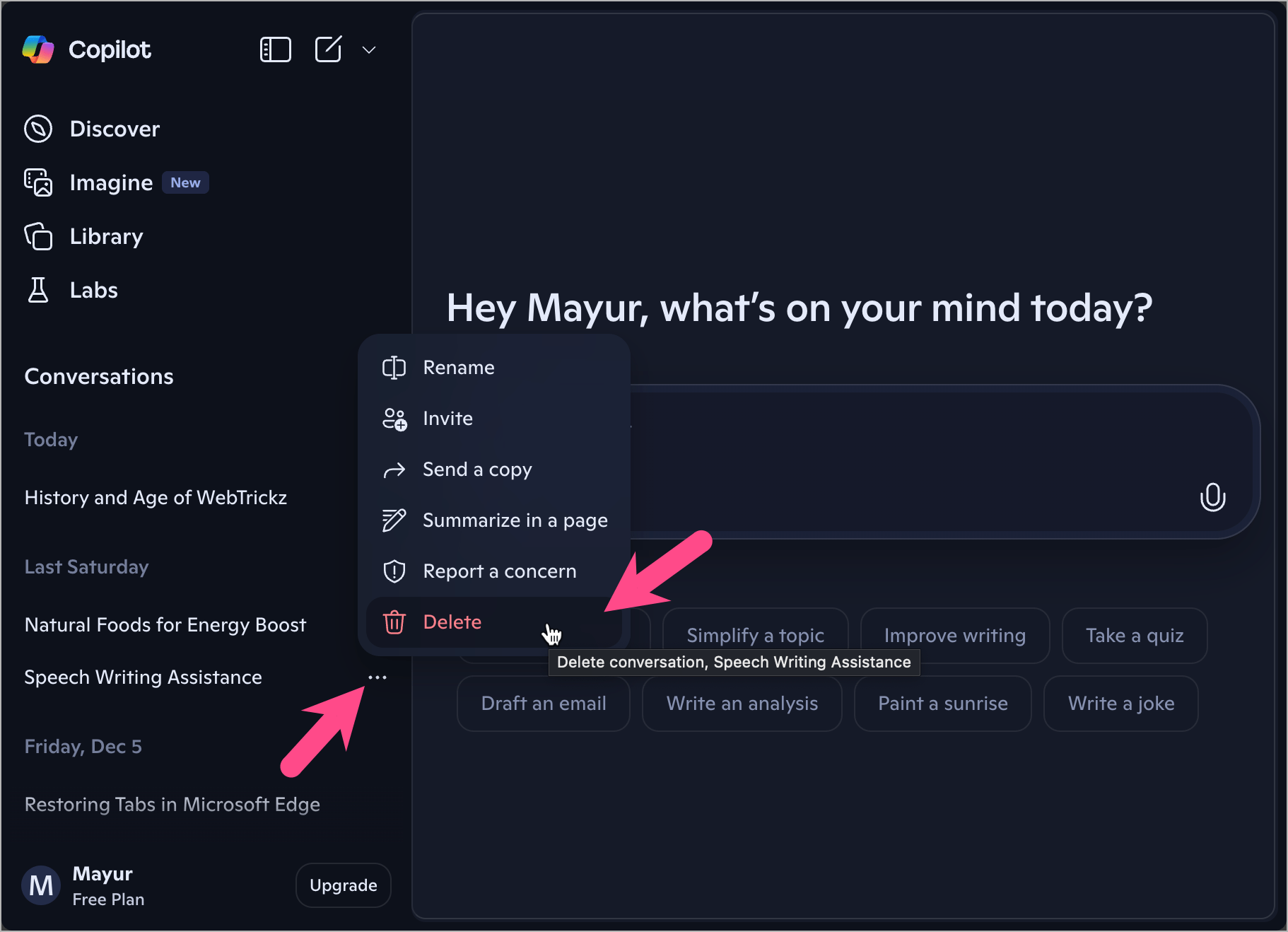
- Select Delete. Click Delete again to remove that specific Copilot chat.
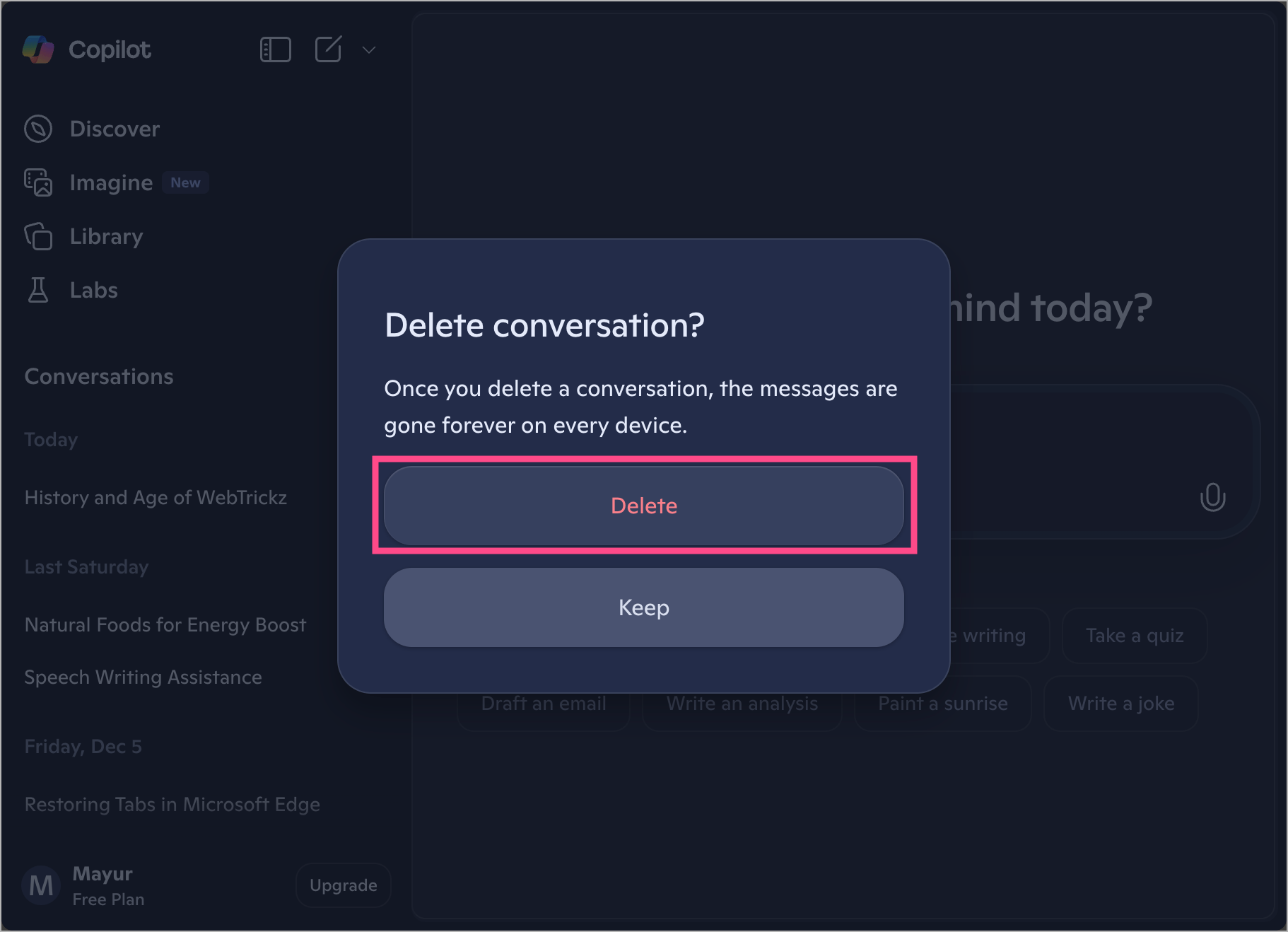
The selected conversation will be deleted immediately and cannot be recovered.
How to Delete All Conversations in Copilot
If you want to clear all conversations from Copilot at once, you’ll need to delete your entire Copilot activity history from your Microsoft account.
Steps to delete history in Copilot all at once:
- Go to the Microsoft Copilot Privacy Dashboard: https://account.microsoft.com/privacy/copilot
- Sign in using your Microsoft account.
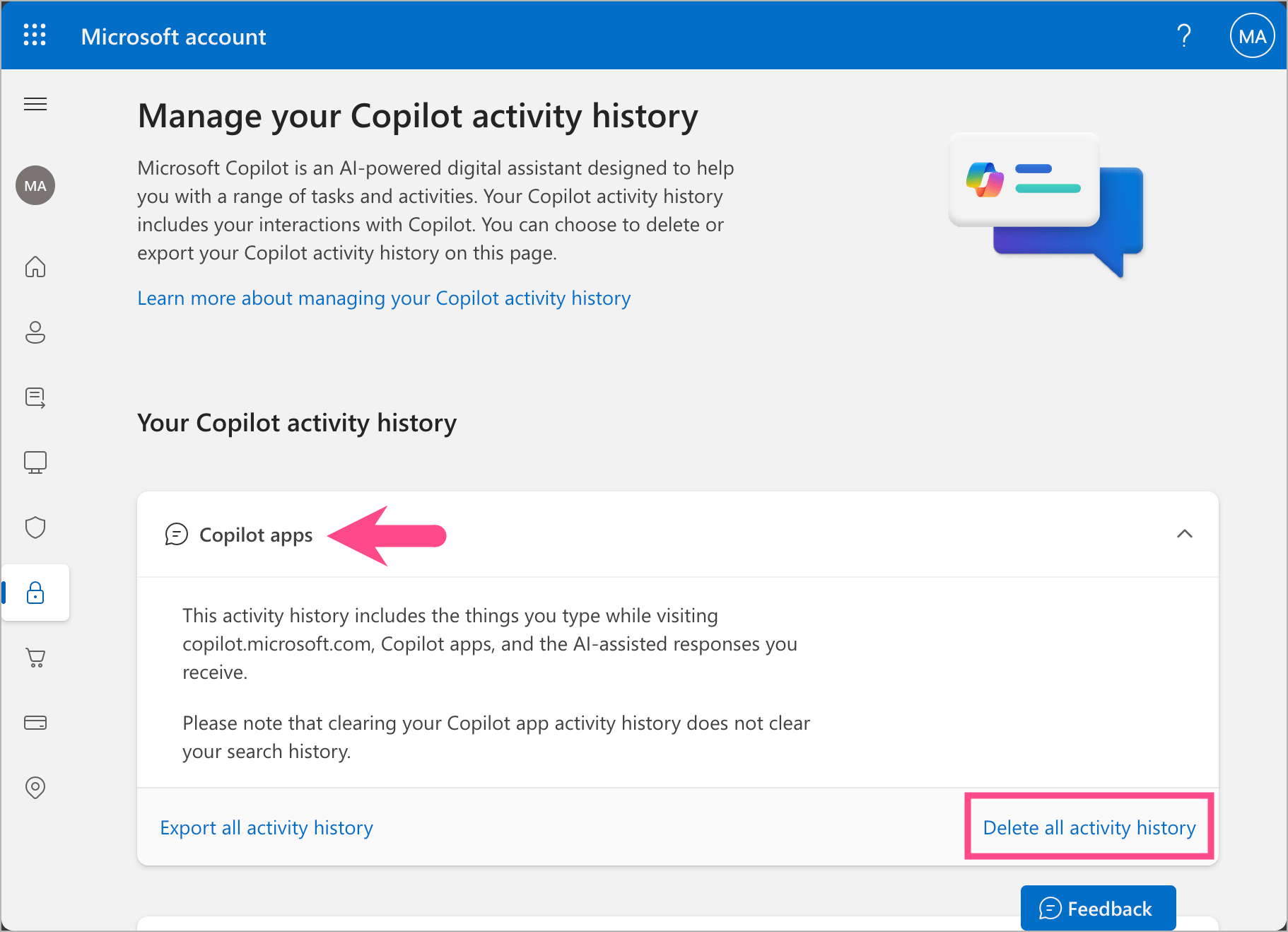
- Expand the Copilot apps section under ‘Your Copilot activity history’.
- (Optional) Click Export all activity history to download your Copilot activity as a CSV file before deleting.
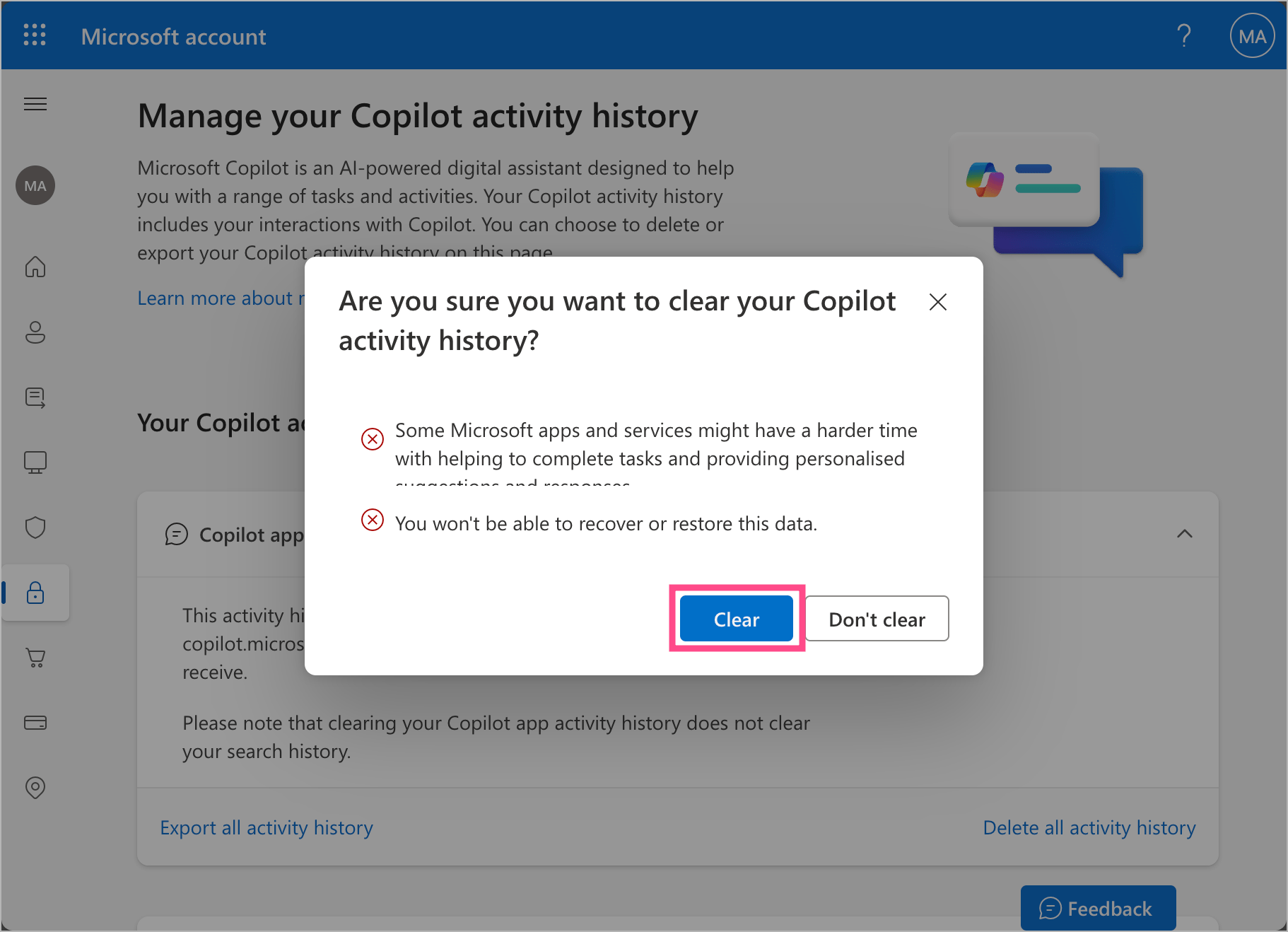
- To delete Copilot history permanently, click Delete all activity history.
- Click Clear to confirm.
Note: Clearing your Copilot app activity history does not delete your Bing search history or general browsing history. These must be cleared separately.
RELATED: How to Delete Your Search History in Microsoft Edge
How to Delete Microsoft 365 Copilot Activity History and Copilot Chat
Microsoft 365 Copilot activity history includes prompts and responses generated when you use Copilot in Microsoft 365 apps, such as Microsoft Word, Excel, PowerPoint, Teams, OneNote, and the Microsoft 365 Copilot Chat app.
Steps to delete Copilot activity history in Microsoft 365 apps:
- Visit https://account.microsoft.com/privacy/copilot
- Sign in with the Microsoft account linked to Microsoft 365.
- Locate and expand the Copilot in Microsoft 365 apps section.
- (Optional) Export the apps or chat activity history as a CSV file.
- Click Delete all activity history.
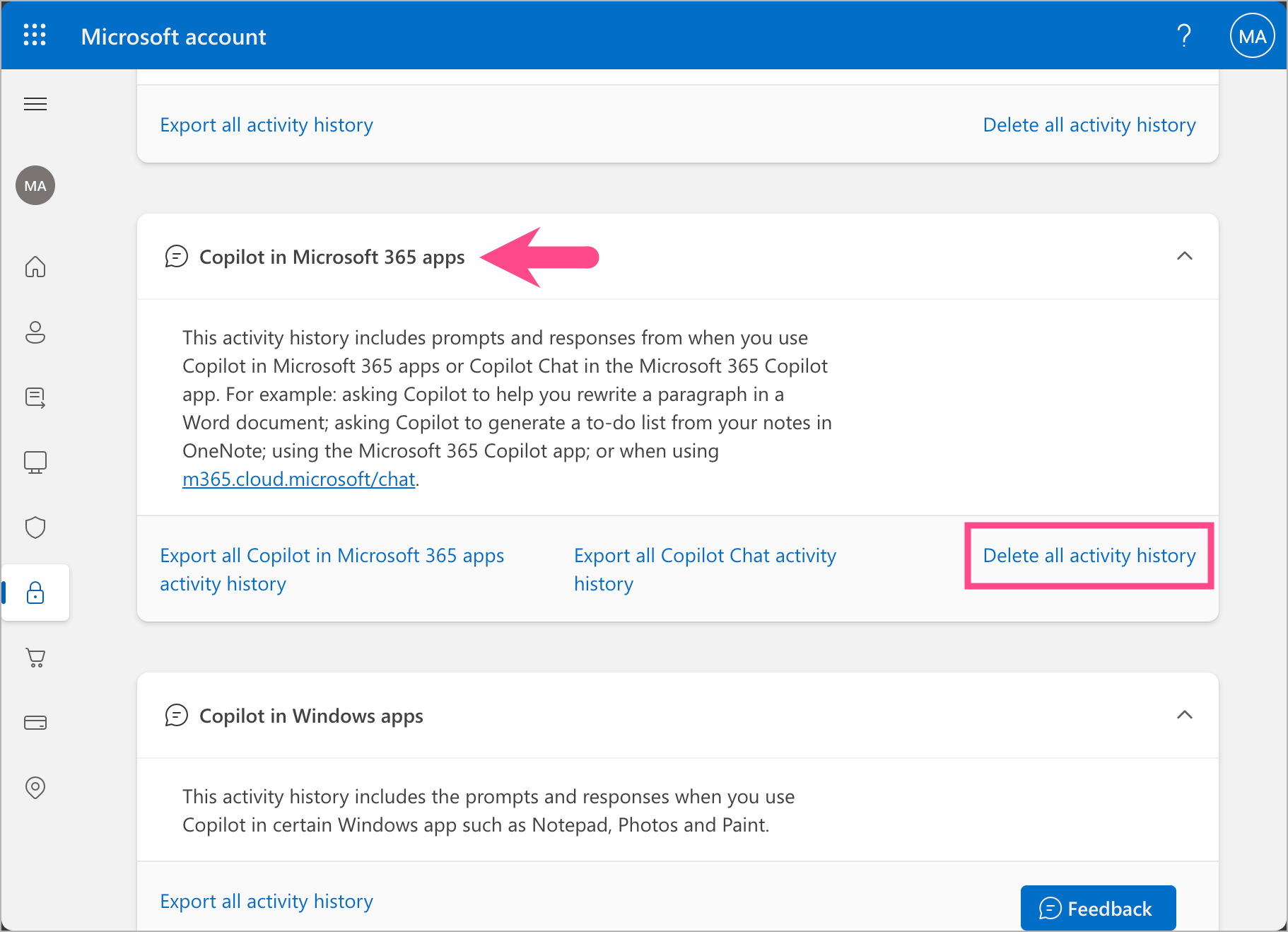
- Click Clear to permanently clear your Copilot activity history.
This action removes Copilot prompts and responses linked with Microsoft 365 apps.
How to Clear Copilot Browsing and Search History
Copilot-related searches may also appear in your Bing search history or browsing activity, especially if you used Bing with Copilot-enabled search.
To delete Copilot-related search queries and browsing traces:
- Go to the Microsoft Privacy Dashboard for browsing and search activity: https://account.microsoft.com/privacy/web-search
- Sign in to your Microsoft account.
- Under the Browsing history or Search history section, click Show all activities.
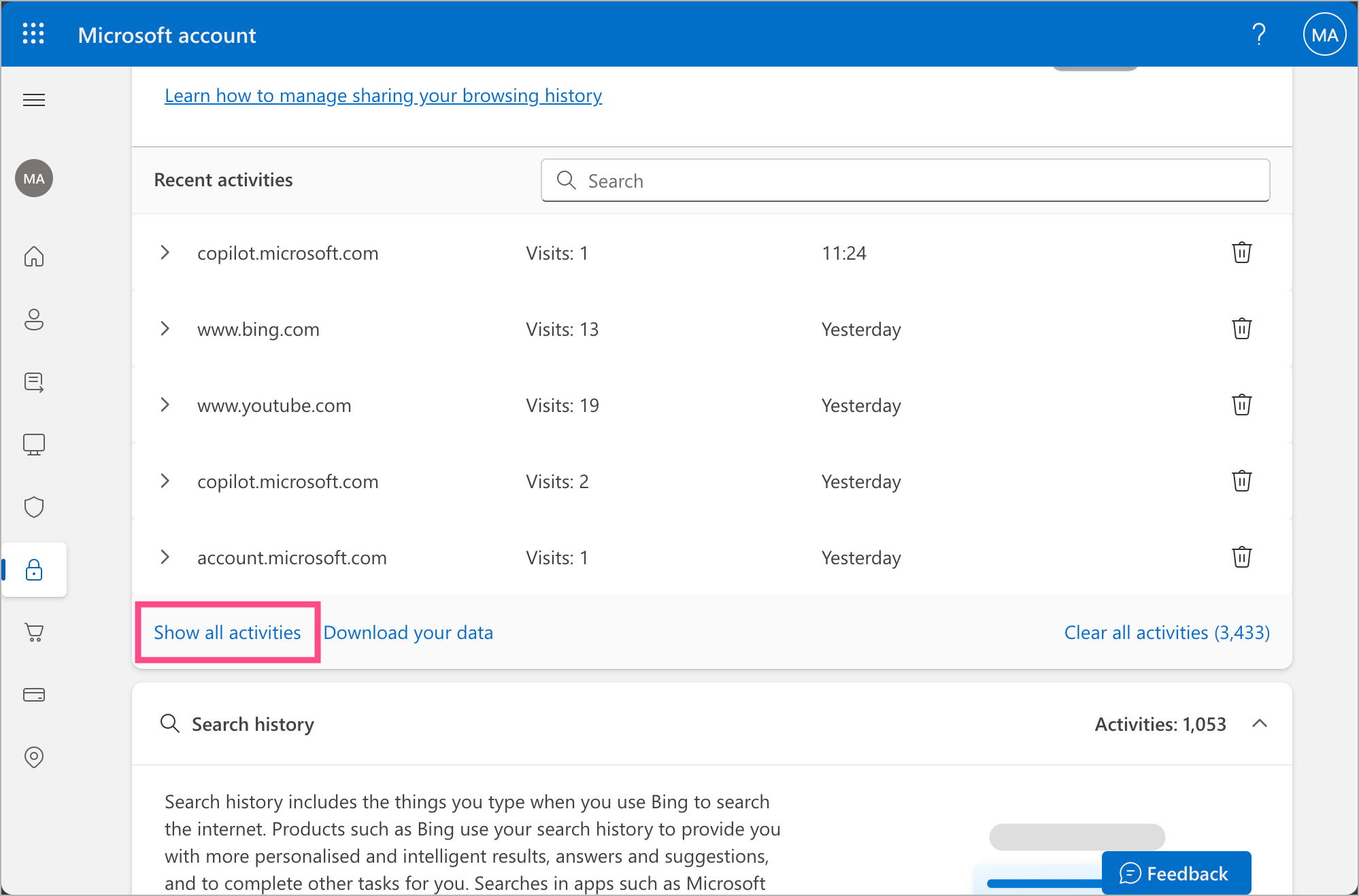
- Use the Search option and search for keywords like Copilot to filter Copilot-related results.
- Select Clear currently displayed results to delete all the filtered results.
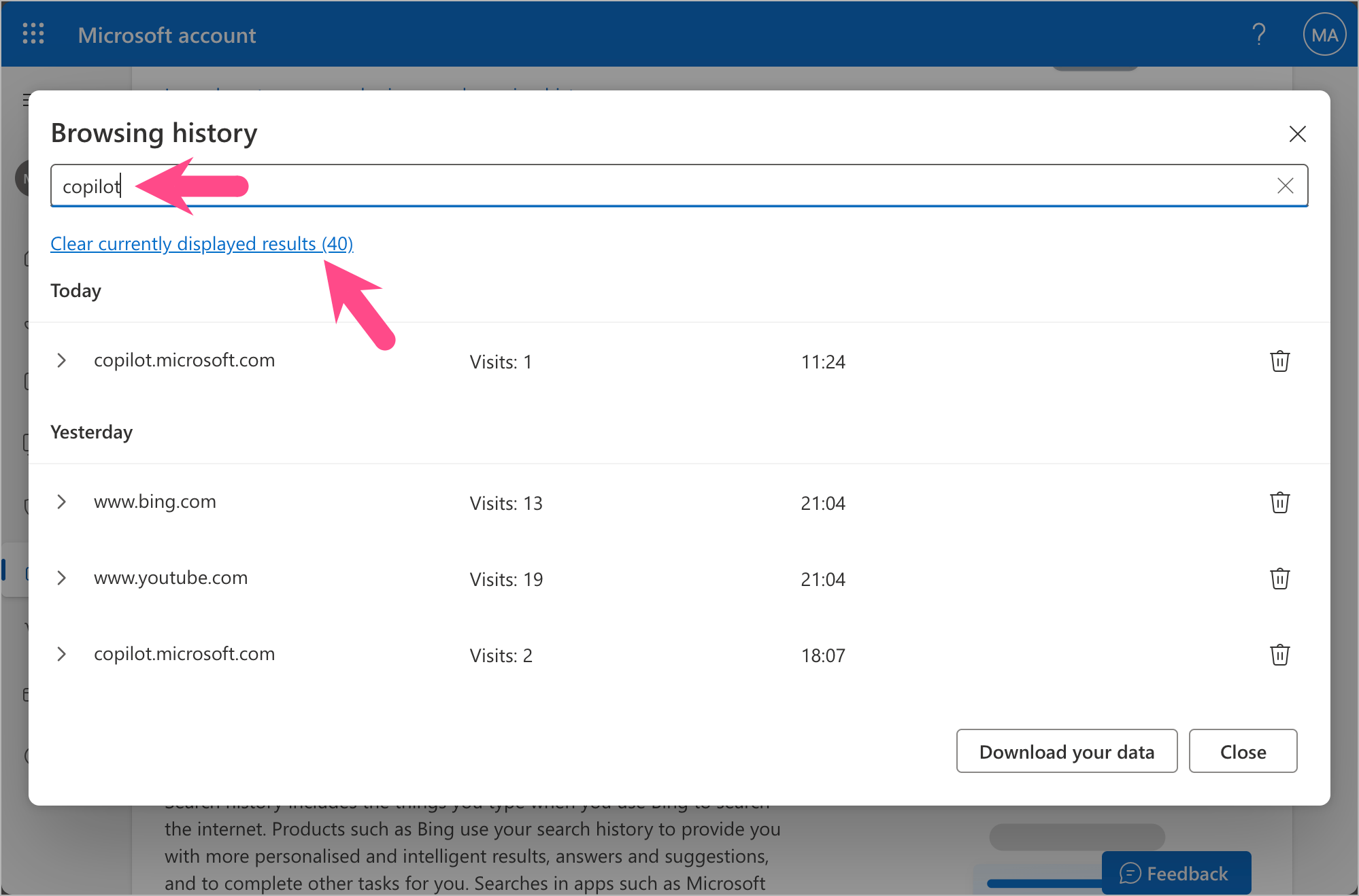
- (Optional) Click the Delete option next to a specific search result to delete it individually.
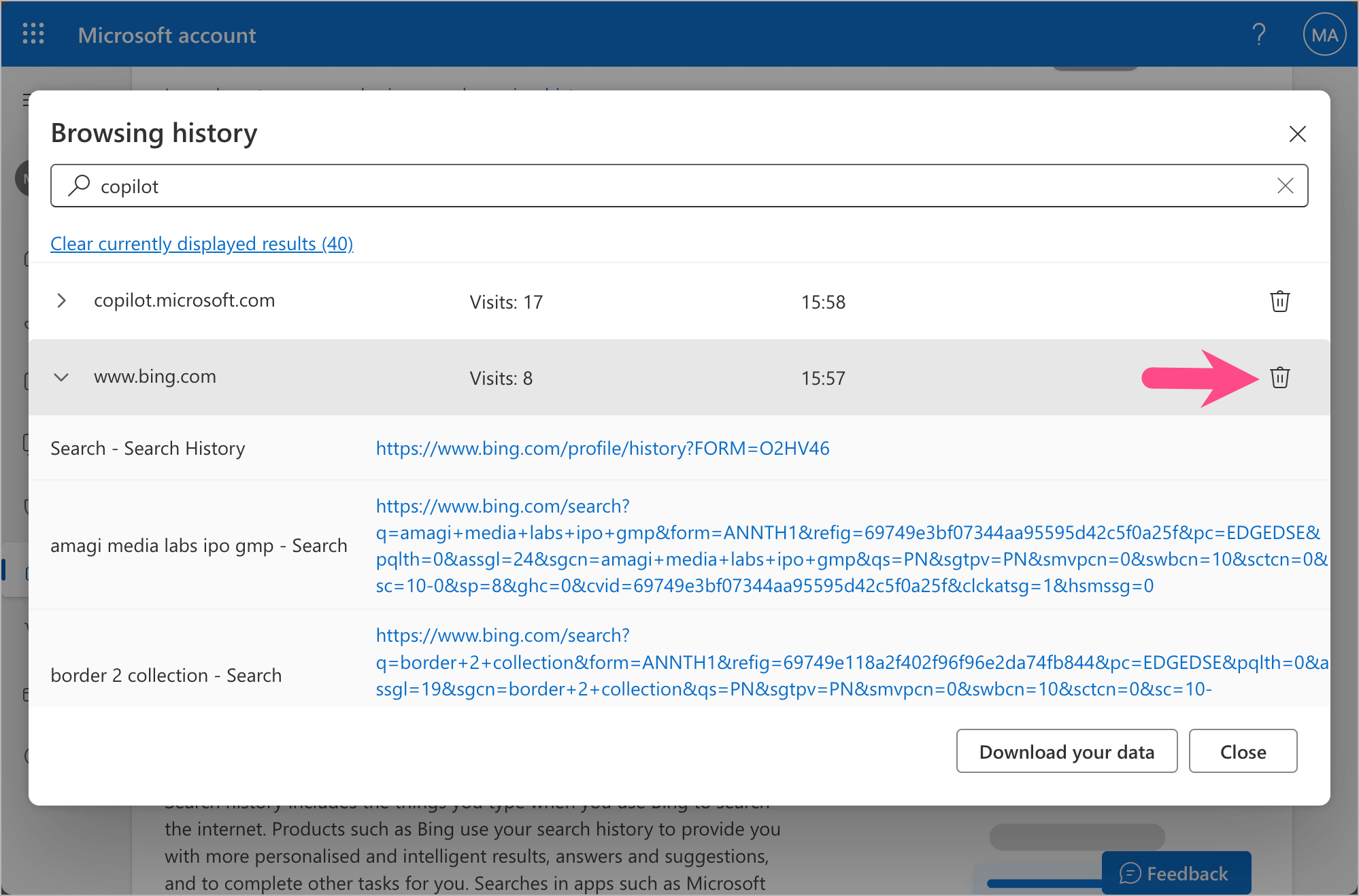
This helps remove Bing searches and browsing data that include Copilot-related activity.
Frequently Asked Questions (FAQs)
Can I Completely Remove Copilot from Microsoft Edge?
No. Microsoft Copilot is a core feature of the Edge browser and cannot be completely removed. However, you can turn off or limit Copilot features in Edge.
Does Deleting Copilot History Remove Bing Search History?
No. Clearing Copilot activity history does not delete your Bing search or browsing history. You must clear web and search activity separately from the Microsoft Privacy Dashboard.
Can I Recover Deleted Copilot Chats?
No. Once you delete a Copilot conversation or clear your activity history, it cannot be recovered. Export your activity as a CSV file before deleting it if you need a backup.
Is Copilot History Shared Across Devices?
Yes. If you are signed in with the same Microsoft account, your Copilot history is synced across devices, including Windows, macOS, and browsers where Copilot is enabled.









