WebTrickz
TRENDING
  • Claude vs ChatGPT: Which Is Better in 2026?
No Result
View All Result
  • Reviews
  • Editorials
  • Social Media
    • Facebook
    • Twitter
    • YouTube
    • Messenger
    • Instagram
    • Snapchat
    • WhatsApp
    • TikTok
  • Apps
  • How To’s
  • Apple
  • iPhone
  • Google
  • Android
  • Mac
  • Security
  • About Us
    • About Us
    • Contact Us
    • Privacy Policy
  • Reviews
  • Editorials
  • Social Media
    • Facebook
    • Twitter
    • YouTube
    • Messenger
    • Instagram
    • Snapchat
    • WhatsApp
    • TikTok
  • Apps
  • How To’s
  • Apple
  • iPhone
  • Google
  • Android
  • Mac
  • Security
  • About Us
    • About Us
    • Contact Us
    • Privacy Policy
No Result
View All Result
WebTrickz
No Result
View All Result
Home Android

Get Dark Mode on Instagram for Android right now

Mayur Agarwal by Mayur Agarwal
September 3, 2024
in Android, How To's, Instagram

get dark mode on instagram

Dark mode has become increasingly popular and now almost all apps let you switch to a dark theme. Instagram for Android is no exception as the company is officially testing dark mode in its beta version. Surprisingly, the dark mode isn’t seen yet on Instagram for iOS which usually gets new features ahead of Android. Though you can’t simply enable dark mode on Instagram because the app itself doesn’t include a toggle or setting to switch between light and dark theme, yet.

However, users can get dark mode in the Instagram app on Android by turning on the system-wide dark mode, which ships with Android 10. Doing so will force Instagram to follow the system setting and display the built-in AMOLED dark theme. To get this working, your smartphone should be running Android 10 or a custom UI such as Samsung OneUI or MIUI based on it.

ALSO READ: Get Instagram in full screen on iPad using its progressive web app

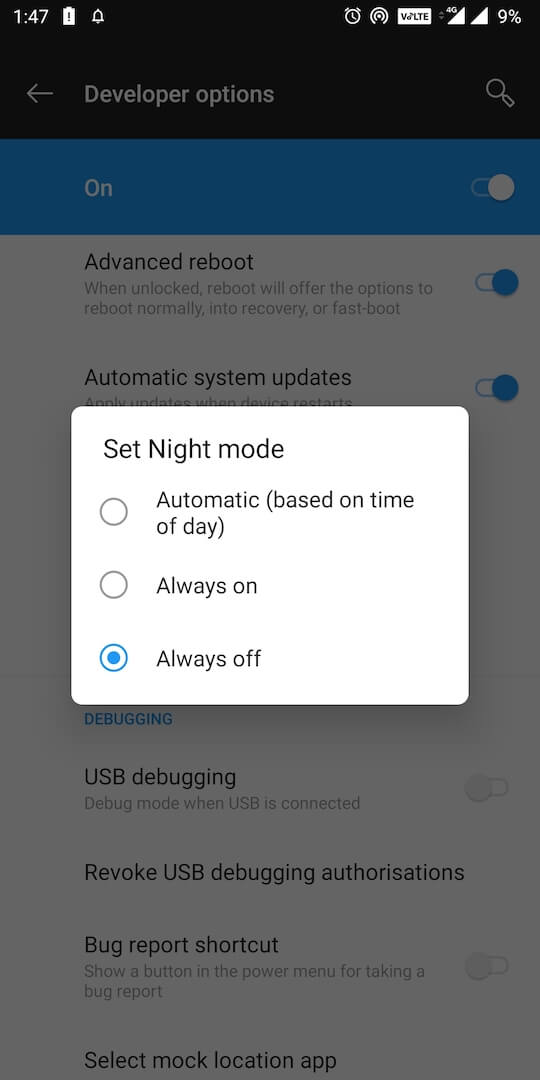
At the same time, those running Android 9 Pie on their smartphone can also try out Instagram’s dark mode right now. For this, you have to turn on “Night mode” that’s hidden in Developer options on Pie and Instagram will instantly adopt a true black and white interface. This seems to be working for users of POCO F1, OnePlus 6T, Samsung Galaxy Note 8, Nexus 6P, and LG V30 running Pie OS.

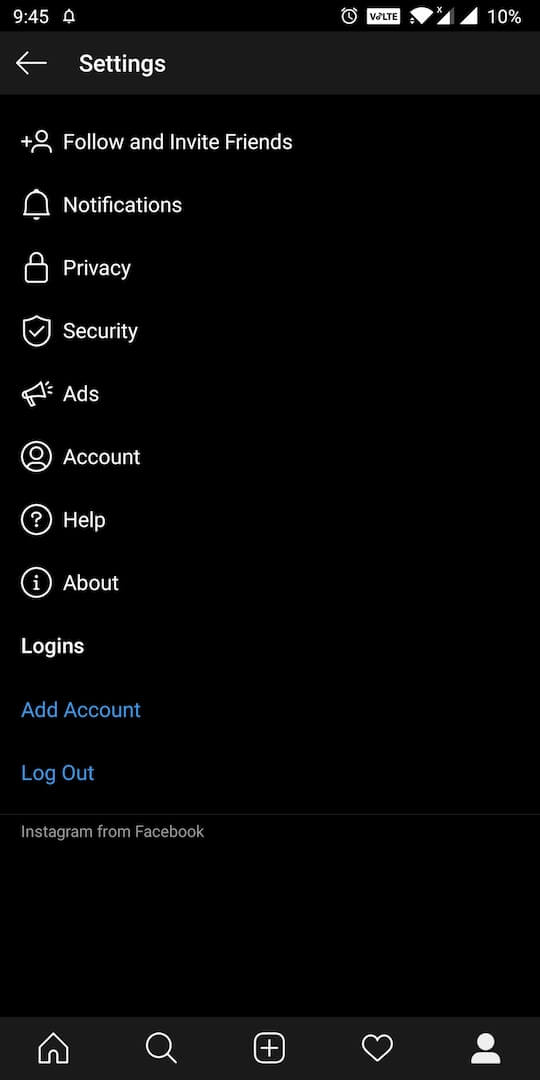
Moreover, the status bar didn’t blackout when we tested it on our OnePlus 5T running OxygenOS 9.0.8. Here are a few screenshots.

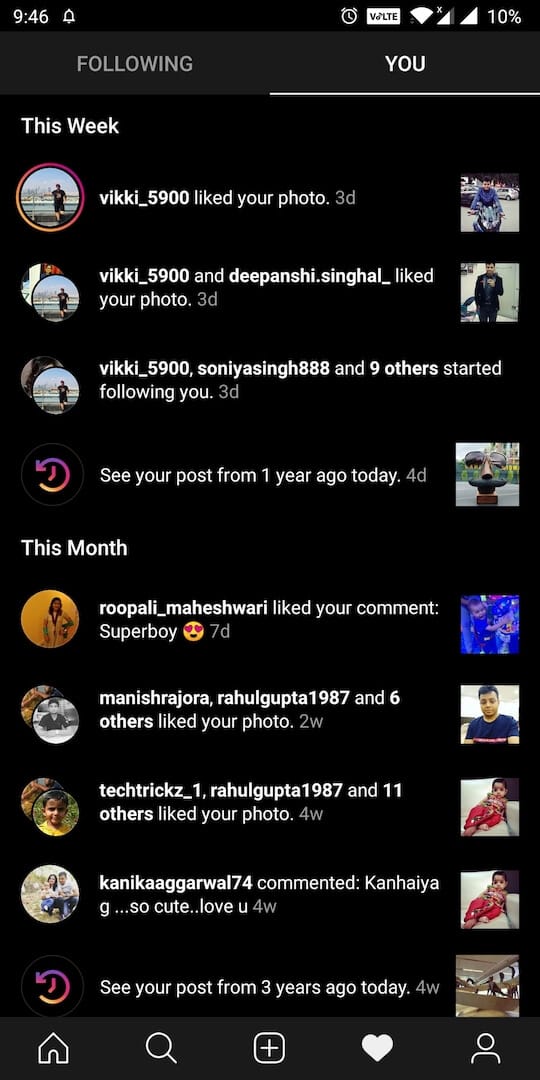
enable instagram dark mode on android
instagram notifications
instagram settings

Without waiting further, here’s how you can turn on the dark theme in Instagram on Android devices running Pie or Android 10.

How to enable Instagram dark mode on Android

  1. Download and install the latest 114.0.0.0.41 alpha version of Instagram by side-loading the APK file.
  2. In Android 10, enable the built-in system-wide dark mode. Refer: How to enable dark theme in Android 10.
  3. In Android 9 Pie, go to device Settings > System > Developer options. Look for the “Night mode” setting and toggle it to “Always on”.
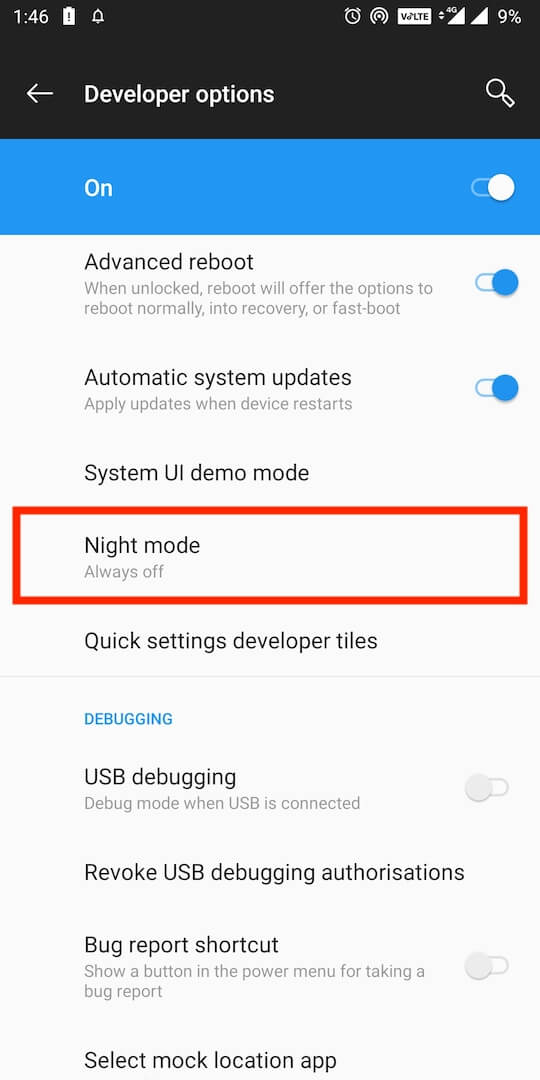
    night mode in android pie
    night mode in developer options
  4. Now open Instagram and you should see a black theme.

To revert back to the light theme on Instagram, simply turn off the system-wide dark theme.

How to access Developer Options

To enable Developer options on Android, navigate to Settings > About phone. Scroll down to the bottom and tap on “Build number” 7 times. This should enable the developer settings on your device.

To access Developer options, go to Settings > System and you should see the “Developer options”.

Note: The exact steps to find build number and developer options could slightly vary depending on your Android device and the custom UI it runs on.

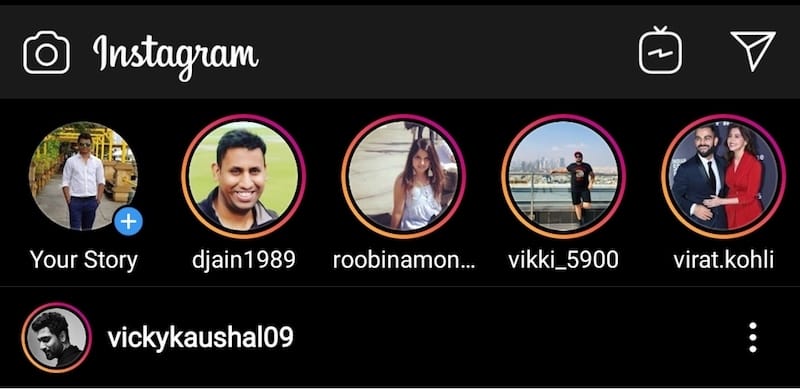
Speaking of dark mode, it looks great on Instagram despite being in the beta stage. The pure black interface looks great across the entire app, including the timeline, settings, direct messages, notifications tab, and so on. You will certainly enjoy it while using the Instagram app at night time.

RELATED: How to get Instagram off dark mode on iPhone

Tags: AndroidAndroid 10AppsDark ModeInstagram
Share6TweetSend
Previous Post

Stop Websites From Asking to Send Notifications on Firefox, Chrome, Edge, and Safari

Next Post

How to Take a Screenshot on OnePlus 7T

Mayur Agarwal

Mayur Agarwal

Mayur Agarwal, the founder and editor of WebTrickz, is a tech enthusiast with a Bachelor's degree in Computer Applications and over 15 years of experience in tech writing. His passion for technology and gadgets drives him to create insightful how-to articles and troubleshooting guides.

Next Post
Oneplus 7T

How to Take a Screenshot on OnePlus 7T

Leave a Reply Cancel reply

Your email address will not be published. Required fields are marked *

Latest Stories

Google Gemini

How to Cancel Your Gemini Subscription (2026 Guide)

June 21, 2026
difference between chatgpt and claude

Claude vs ChatGPT: Which AI Should You Use in 2026?

June 18, 2026
google chrome logo

Google Chrome Offline Installer: Direct Download Links

June 17, 2026
X logo

How to Remove All Bookmarks on X (Twitter) At Once in 2026

June 15, 2026
X logo

How to Find Bookmarks on X (Twitter) in 2026

June 15, 2026
copilot logo

How to Turn Off Copilot Search in Bing on Edge & Chrome

June 10, 2026
microsoft edge new logo

How to Turn Off Notifications in Microsoft Edge (2026 Guide)

June 8, 2026

Trending Stories

  • 1337x logo

    1337x Proxy List 2026: Working Proxy & Mirror Sites

  • How to Turn Off Microsoft Family Safety on Windows 11 & 10

  • How to See Recently Watched Reels on Facebook (2026 Guide)

  • How to Turn Off Microsoft Edge Game Assist in Windows 11

  • How to Turn Off Fn Lock or Fn Key on Windows 11/10 Laptop

  • About Us
  • Contact Us
  • Privacy Policy
  • Advertise

© 2026 WebTrickz. All Rights Reserved.

No Result
View All Result
  • Reviews
  • Apps
  • How To’s
  • Android
  • Google
  • iPhone
  • Mac
  • About Us
  • Contact Us
  • Privacy Policy

© 2026 WebTrickz. All Rights Reserved.