WebTrickz
TRENDING
  • Complete list of 1337x Proxy and Mirror Sites
No Result
View All Result
  • Reviews
  • Editorials
  • Social Media
    • Facebook
    • Twitter
    • YouTube
    • Messenger
    • Instagram
    • Snapchat
    • WhatsApp
    • TikTok
  • Apps
  • How To’s
  • Apple
  • iPhone
  • Google
  • Android
  • Mac
  • Security
  • About Us
    • About Us
    • Contact Us
    • Privacy Policy
  • Reviews
  • Editorials
  • Social Media
    • Facebook
    • Twitter
    • YouTube
    • Messenger
    • Instagram
    • Snapchat
    • WhatsApp
    • TikTok
  • Apps
  • How To’s
  • Apple
  • iPhone
  • Google
  • Android
  • Mac
  • Security
  • About Us
    • About Us
    • Contact Us
    • Privacy Policy
No Result
View All Result
WebTrickz
No Result
View All Result
Home Facebook

How to Send Live Photos on Facebook Messenger

Convert a Live Photo into a video to share it on Messenger

Mayur by Mayur
January 15, 2020
in How To's, iPhone

Live Photos on iPhone bring your memorable moments to life by capturing a 3-second short video instead of a still image. A Live Photo is a camera feature that captures both movement and sound to keep the moment alive. You can take Live Photos on iPhone 6s and newer ones.

The only downside is that non-iPhone users cannot view them. That’s because a Live Photo is sent as a still image when you share it via email or on social media. WhatsApp for iPhone is an exception though as it lets you send Live Photos as a GIF or a video. However, the same isn’t possible on platforms like Facebook, Messenger, Twitter (turns it into a GIF) and Instagram.

Nevertheless, you can conveniently share Live Photos on Facebook Messenger by converting them into a video. There are two ways to do this task and we will be covering both of them below.

Requirement: iPhone or iPad running iOS 13.

Sharing Live Photos on Messenger

Method 1 – Using Photos

With the introduction of iOS 13, Apple has added a new “Save as Video” option to the Photos app. This handy feature allows users to convert a Live Photo into a video in just one click and without using a third-party app. The video retains the audio as well.

  1. Open a Live Photo in the Photos app. Tip: Go to Albums > Live Photos (under Media Types) to easily find all of them.
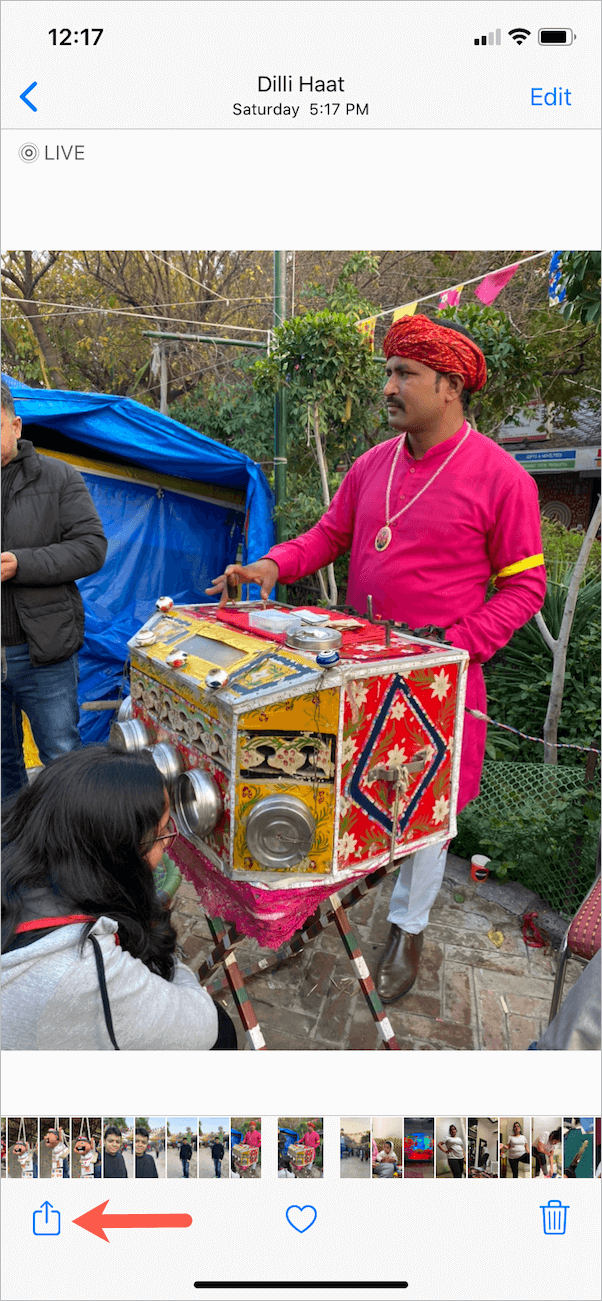
  2. Tap the “Share” button at the bottom left. share-live-photos-iphone
  3. Scroll down and tap “Save as Video” in the Share sheet. save as video option in ios 13
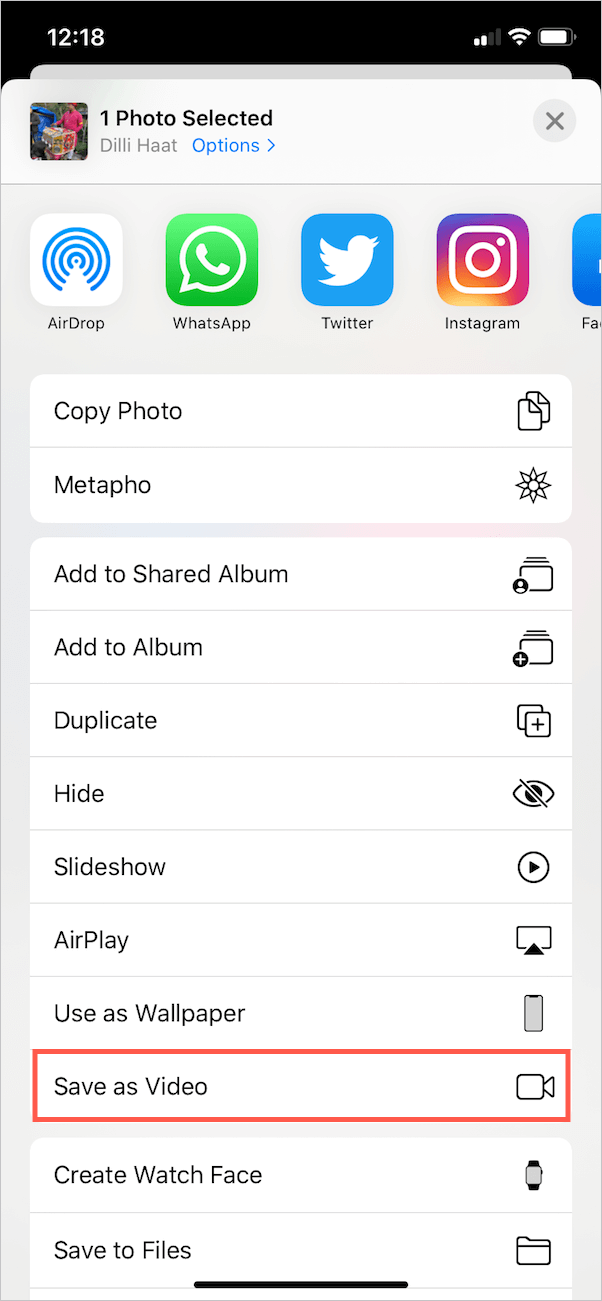
  4. The converted video will appear in the Recents and Videos album.
  5. Open the video, tap Share and select Messenger from the list of apps. Alternatively, you can send the video to anyone from within the Messenger app.


NOTE – Live Photos with effects like Loop and Bounce don’t have sound and hence their video won’t have audio unless you remove the effects. Moreover, the Save as Video option isn’t visible for Live Photos edited with these fun effects.

Method 2 – Using Metapho

Use this method if you want to share Live Photos with effects. For this, you need to install Metapho, a great and free app to check the photo properties on iPhone. The app also shows the edit history of an image and lets you share the necessary file with ease.

  1. Install Metapho from the App Store.
  2. Go to the Photos app and open a Live Photo.
  3. Tap Share and select Metapho. Then allow the app to access your photos. (Tip: Add Metapho app to Favorites in the share sheet.) metapho iphone app
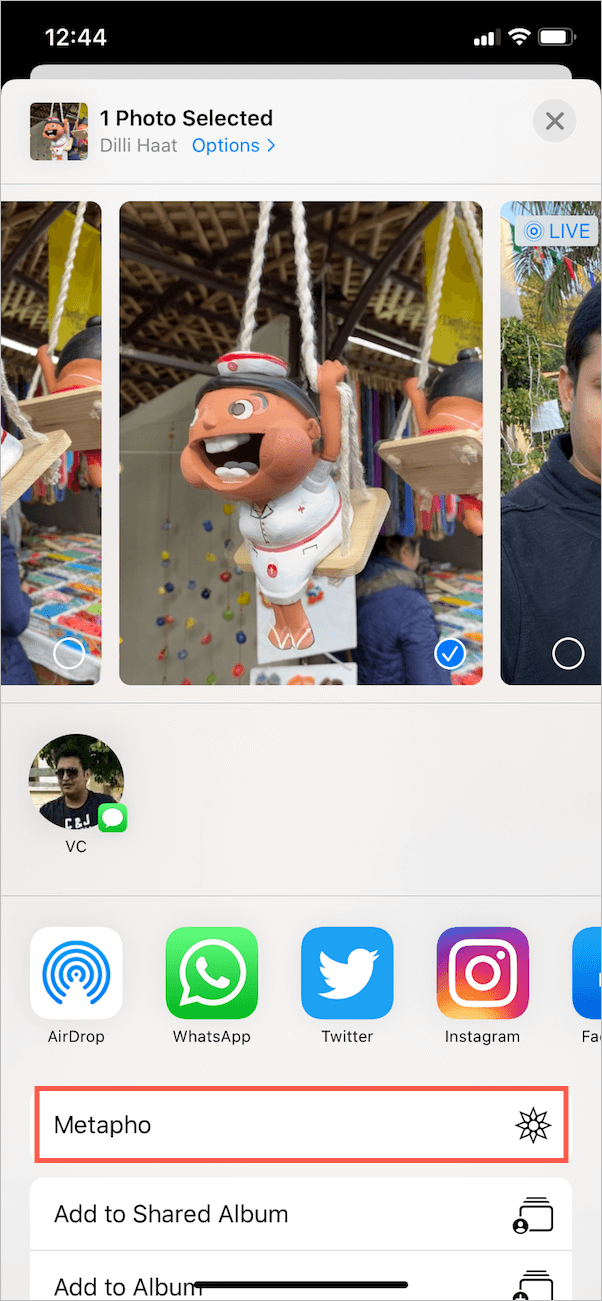
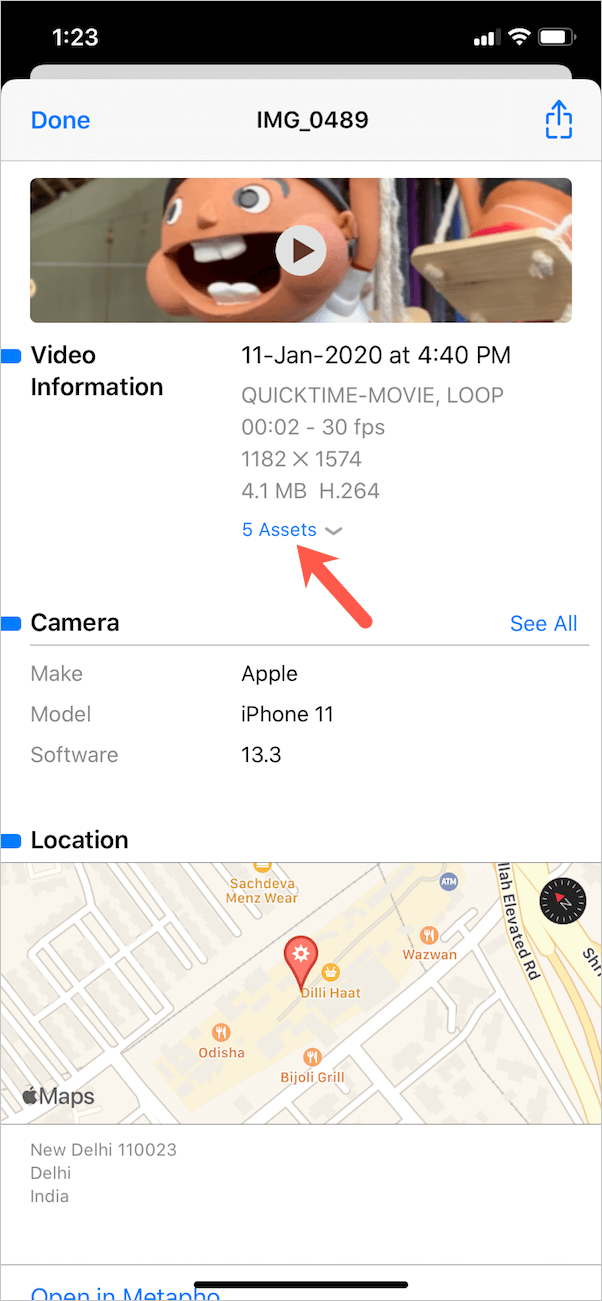
  4. Metapho will now show the EXIF Metadata of the photo.
  5. Tap on Assets under Video Information. Live Photos combine a HEIC and a MOV file where .HEIC is an image while .MOV is a video. view exif metadata of photo in ios 13
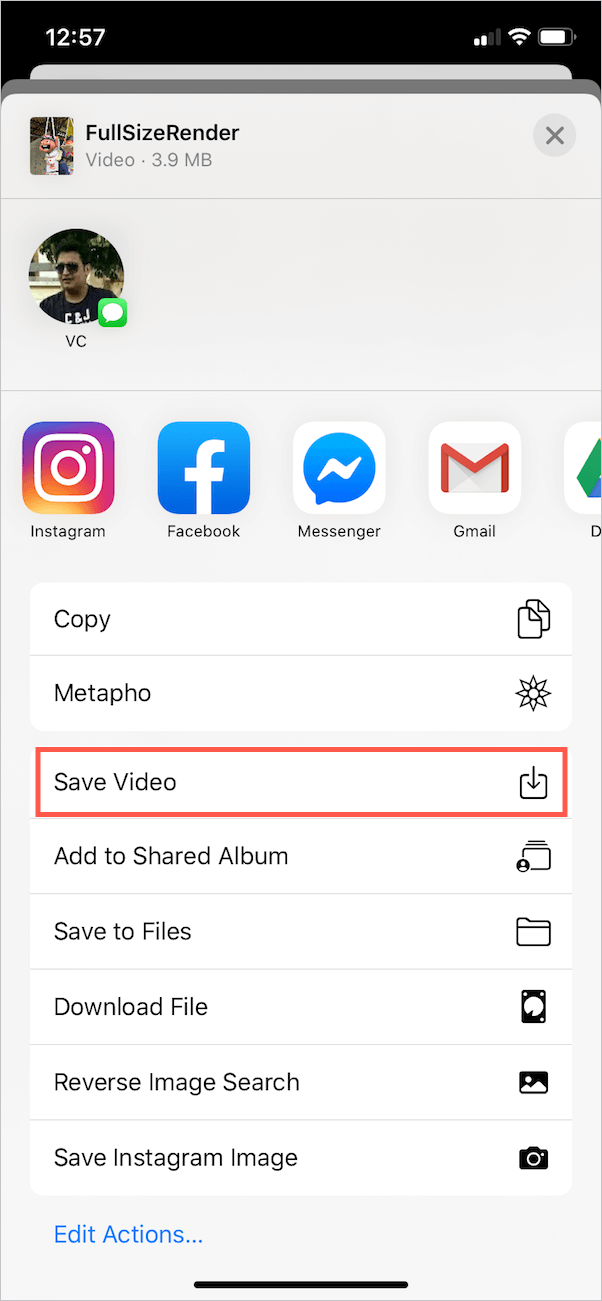
  6. Select the .Mov file under Current and select “Save Video” to save it to Photos. You can also share the video directly on Messenger or on social media.
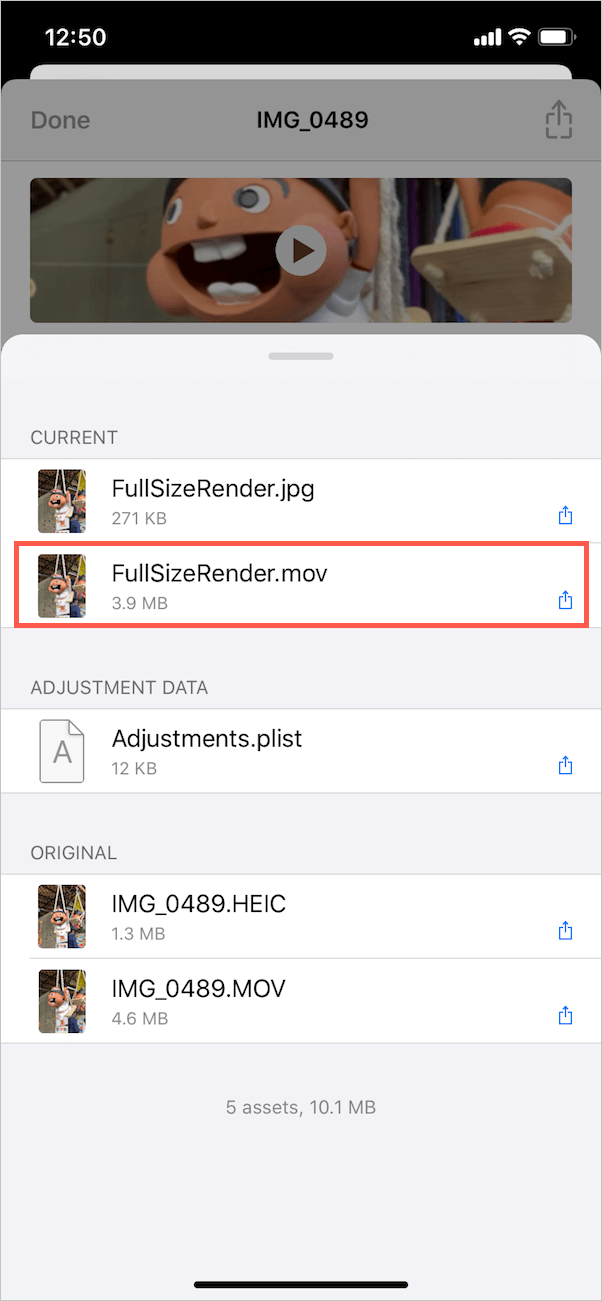
    mov file of a live photo with effects
    save video on iphone

Hope you found this article helpful. Don’t forget to share it with your friends on Facebook.

Tags: FacebookiOS 13iPadiPhoneLive PhotosMessengerPhotos
ShareTweetSend
Previous Post

How to Allow Camera Access to Snapchat in iOS 13 on iPhone

Next Post

Here’s how you can Pin Conversations on Snapchat

Mayur

Mayur

Mayur Agarwal, the founder and editor of WebTrickz, is a tech enthusiast with a Bachelor's degree in Computer Applications and over 15 years of experience in tech writing. His passion for technology and gadgets drives him to create insightful how-to articles and troubleshooting guides.

Next Post
conversations pinned on snapchat for iphone

Here's how you can Pin Conversations on Snapchat

Leave a Reply Cancel reply

Your email address will not be published. Required fields are marked *

Latest Stories

microsoft edge new logo

How to Turn Off Notifications in Microsoft Edge (2026 Guide)

June 8, 2026
chatgpt logo

How to Clear or Delete ChatGPT Memory on PC and Mobile

June 5, 2026
1337x logo

1337x Proxy List 2026: Working Proxy & Mirror Sites

June 2, 2026

How to Find Saved Reels on Facebook App & Desktop (2026)

June 8, 2026
microsoft edge browser

How to Restore or Reopen Closed Tabs in Microsoft Edge

March 26, 2026
Facebook app on iPhone

How to See Recently Watched Reels on Facebook (2026 Guide)

June 5, 2026
microsoft edge new logo

Download Microsoft Edge Offline Installer [Latest Version]

March 16, 2026

Trending Stories

  • microsoft family safety settings

    How to Turn Off Microsoft Family Safety on Windows 11 & 10

  • 1337x Proxy List 2026: Working Proxy & Mirror Sites

  • How to Turn Off Microsoft Edge Game Assist in Windows 11

  • How to Turn Off Fn Lock or Fn Key on Windows 11/10 Laptop

  • How to See Recently Watched Reels on Facebook (2026 Guide)

  • About Us
  • Contact Us
  • Privacy Policy
  • Advertise

© 2026 WebTrickz. All Rights Reserved.

No Result
View All Result
  • Reviews
  • Apps
  • How To’s
  • Android
  • Google
  • iPhone
  • Mac
  • About Us
  • Contact Us
  • Privacy Policy

© 2026 WebTrickz. All Rights Reserved.