


The iPhone 17 series and iPhone Air have an Always-On Display that shows a dimmed version of the Lock Screen even when the iPhone is locked. This is why your iPhone 17 screen may appear to stay on instead of going completely black.
If you prefer the screen to turn fully off when your iPhone is locked, you can disable Always-On Display in Settings. The same setting also lets you keep AOD enabled while hiding the wallpaper or notifications.
These steps work on iOS 26 and iOS 27.
How to Turn Off Always-On Display on iPhone 17
To turn off Always-On Display on iPhone 17, follow these steps. The same setting is available on iPhone 17 Pro, iPhone 17 Pro Max, and iPhone Air.
- Open the Settings app.
- Go to Display & Brightness.
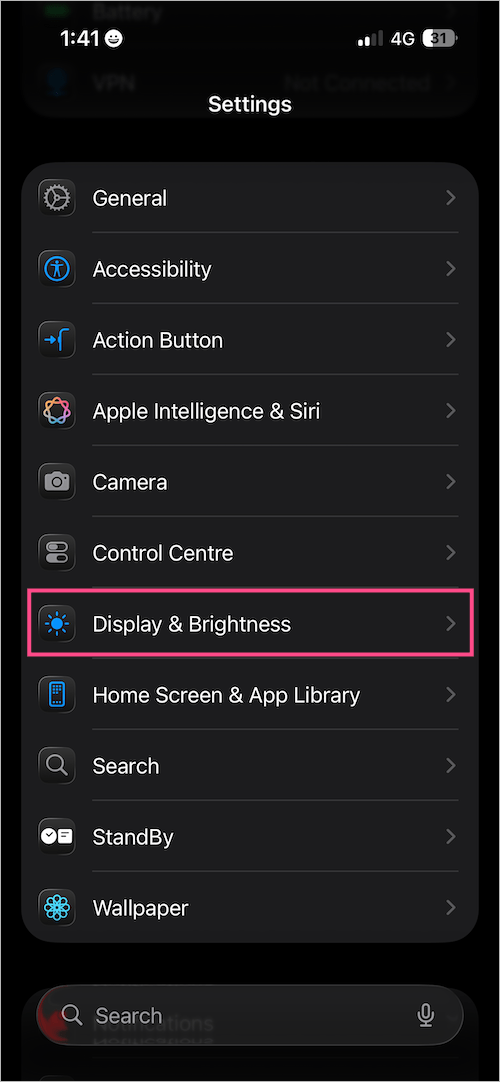
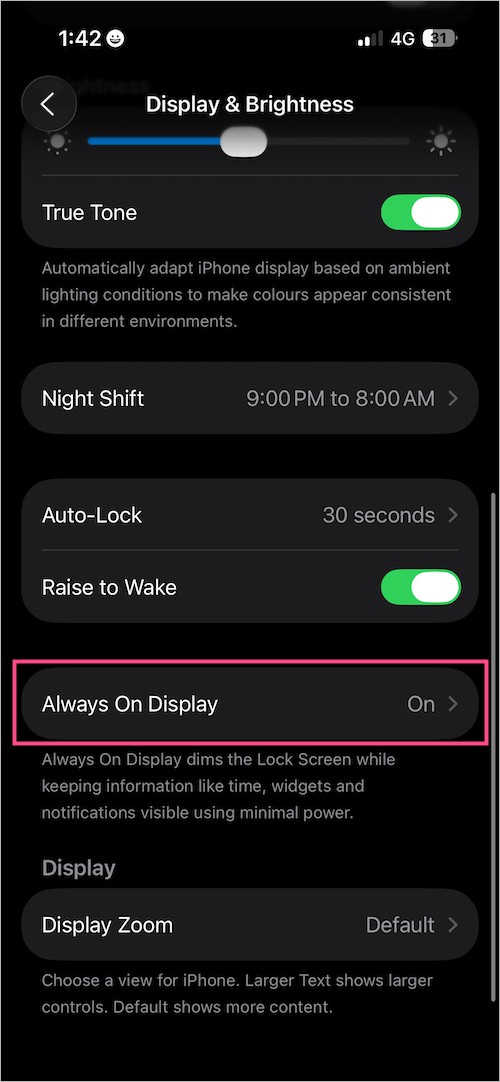
- Scroll down and tap Always On Display.
- Turn off the toggle next to Always On Display.
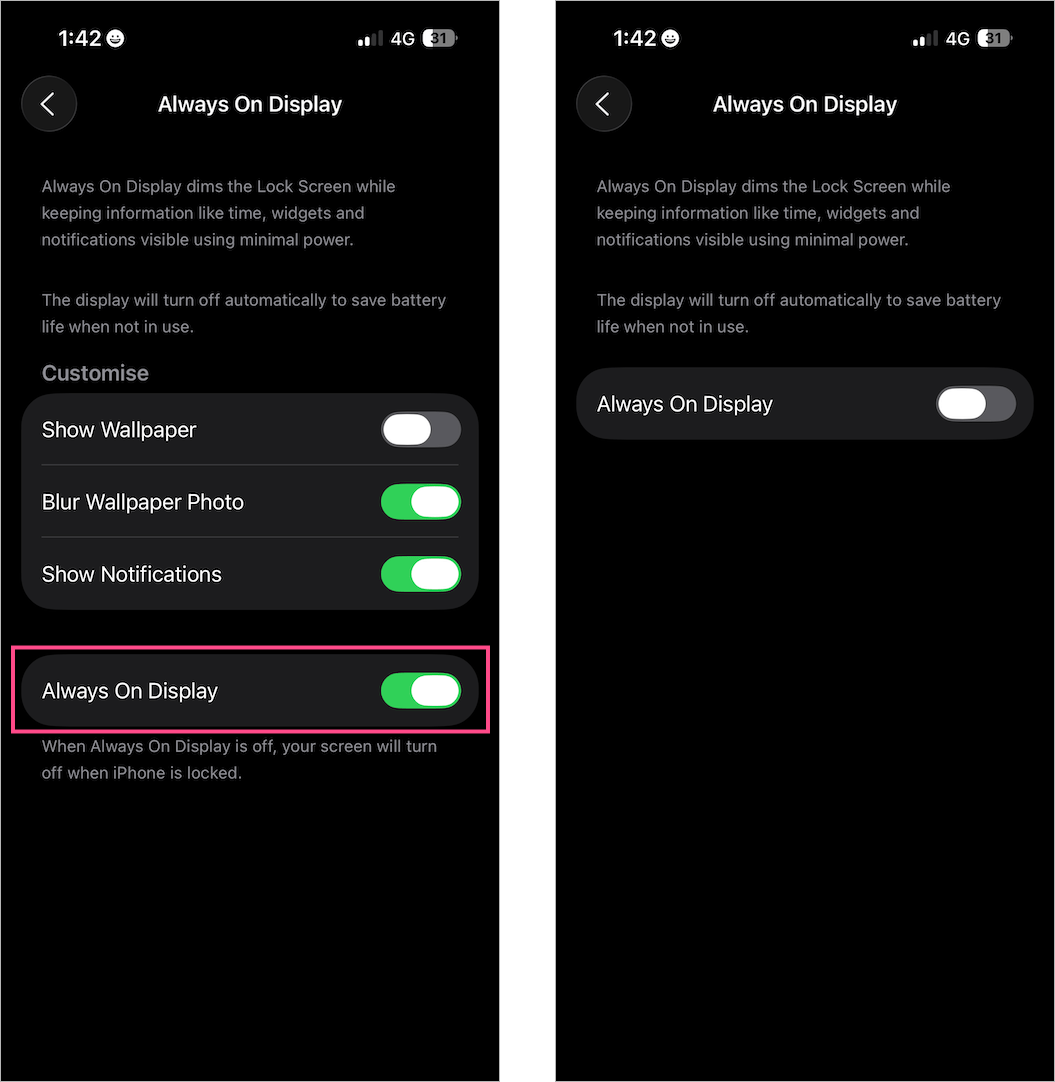
Once disabled, the screen will go completely dark when your iPhone is locked or idle.
You can still wake the screen by:
- Using Raise to Wake
- Tapping the screen
- Pressing the Side button
Customize Always-On Display
You don’t have to completely disable Always-On Display. If you like seeing the time and widgets but want a simpler Lock Screen, you can change what appears while AOD is enabled.
- Hide Wallpaper: Turn off Show Wallpaper to display a simpler Lock Screen.
- Hide Notifications: Turn off Show Notifications to remove notifications from the Always-On Display.
Why Does My iPhone 17 Screen Stay On?
When Always-On Display is enabled, your iPhone keeps a dimmed version of the Lock Screen visible even after you lock the device. This is normal behavior and lets you check information such as the time, date, widgets, and notifications without waking the screen.
If you want the display to turn completely black when you lock your iPhone, follow the steps above to turn off Always-On Display.
RELATED TIPS:
- How to Close Apps on iPhone 17, 17 Pro, and iPhone Air
- How to Turn Off and Restart iPhone 17, 17 Pro, and iPhone Air
- How to Turn Silent Mode On or Off on iPhone 17 and iPhone Air










