WebTrickz
TRENDING
  • Turn Off Copilot Search in Bing (Official Extension)
No Result
View All Result
  • Reviews
  • Editorials
  • Social Media
    • Facebook
    • Twitter
    • YouTube
    • Messenger
    • Instagram
    • Snapchat
    • WhatsApp
    • TikTok
  • Apps
  • How To’s
  • Apple
  • iPhone
  • Google
  • Android
  • Mac
  • Security
  • About Us
    • About Us
    • Contact Us
    • Privacy Policy
  • Reviews
  • Editorials
  • Social Media
    • Facebook
    • Twitter
    • YouTube
    • Messenger
    • Instagram
    • Snapchat
    • WhatsApp
    • TikTok
  • Apps
  • How To’s
  • Apple
  • iPhone
  • Google
  • Android
  • Mac
  • Security
  • About Us
    • About Us
    • Contact Us
    • Privacy Policy
No Result
View All Result
WebTrickz
No Result
View All Result
Home iPhone

How to Turn Off & Restart iPhone 17, 17 Pro, and iPhone Air

Quickly restart or shut down your iPhone 17 or Air when the screen is unresponsive.

Mayur Agarwal by Mayur Agarwal
September 12, 2025
in How To's, iPhone

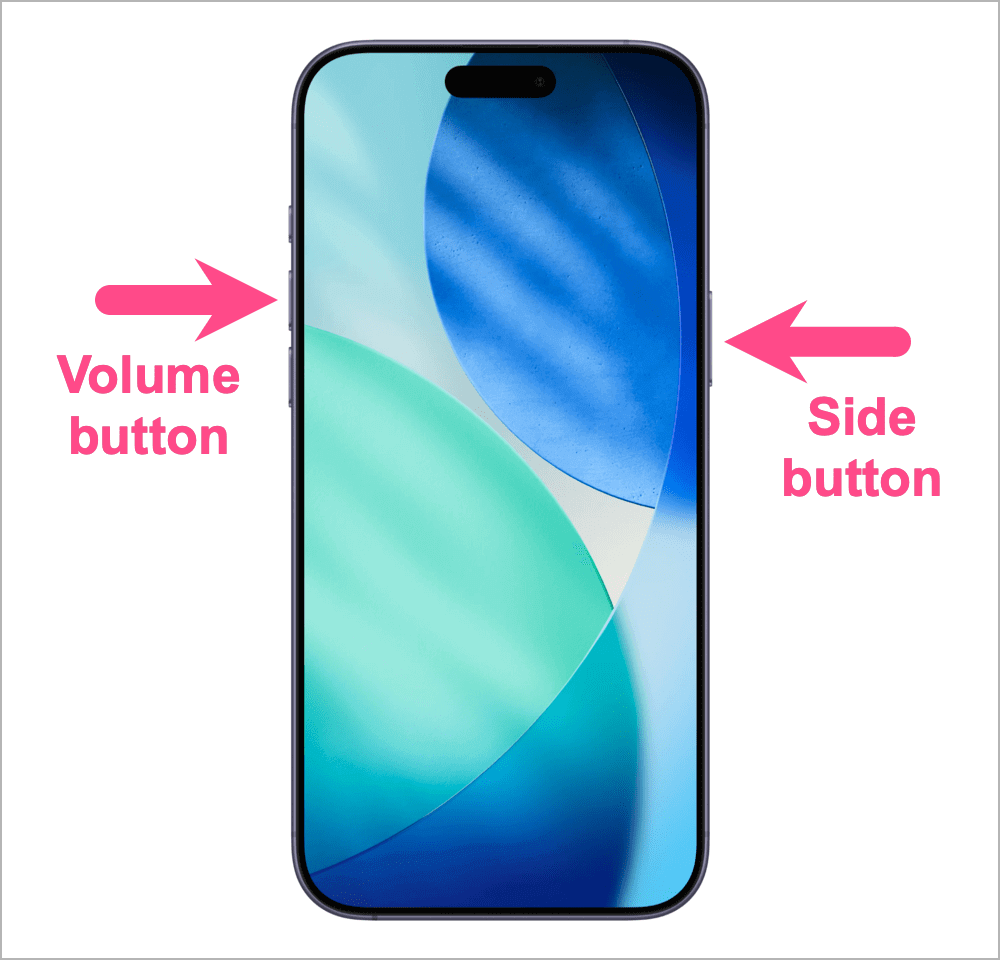
Like the iPhone 16 lineup, the new iPhone 17 series and iPhone Air come with Face ID and no Home button. On these newer iPhones, the Side button (located on the right side) replaces the old Power button. By default, pressing and holding the Side button activates Siri instead of showing the power-off screen.

Due to this change, the process of turning off or restarting an iPhone X or later is quite different from iPhone 8 or earlier, where holding the Power key was enough.

So, if you’ve just upgraded from an older model, you might find it confusing to shut down or turn off the iPhone 17 or iPhone Air.

Don’t worry! In this guide, we’ll cover all the ways to turn off, restart, or force restart your iPhone 17, iPhone 17 Pro, iPhone 17 Pro Max, or iPhone Air.

How to Power Off iPhone 17, 17 Pro, or iPhone Air

You can switch off your iPhone using buttons, Control Center, Settings, or even Siri.

1. Using Buttons

The quickest way to power off an iPhone 17 or iPhone Air is with the hardware buttons.

  1. Press and hold the Side button together with either the Volume Up or Volume Down button. how to turn off iPhone 17, 17 pro, and iPhone Air
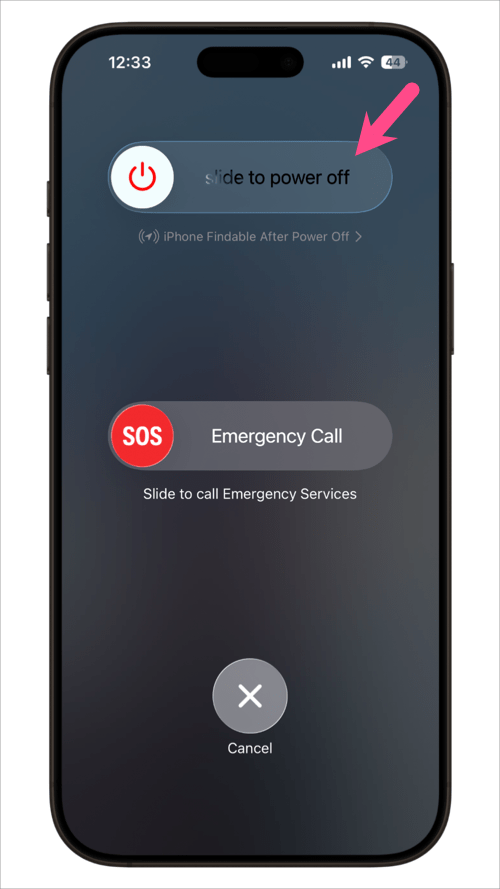
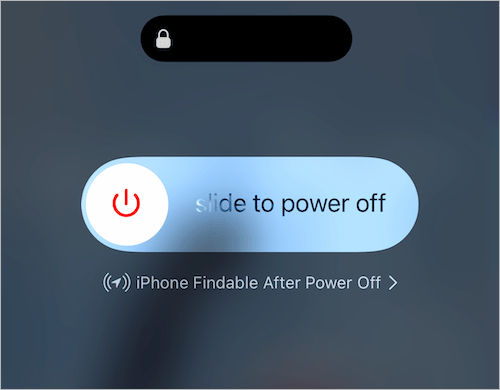
  2. When the power-off slider appears on the screen, drag it to the right. how to power off iphone air and iphone 17 pro max
  3. The screen will go black, and your iPhone will shut down.

Note: This method won’t help if you need to turn off your iPhone without swiping the slider, such as when the screen is frozen or damaged.

Tip: From the same screen, you can also trigger Emergency SOS or temporarily disable the Find My network so that your iPhone remains untraceable after powering off.

iPhone 17 remains findable after power off
iPhone Findable After Power Off

To turn your iPhone 17 or iPhone Air back on, press and hold the Side button until the Apple logo appears.

2. From Control Center

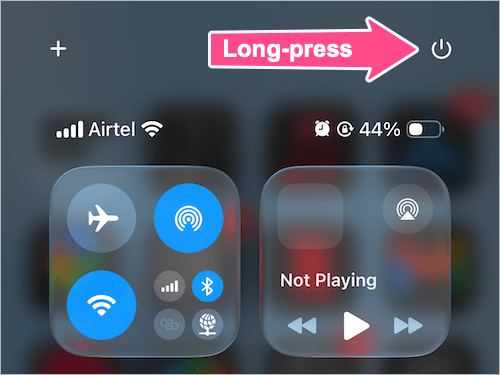
With iOS 18, Apple added a quicker way to power off your iPhone directly from Control Center. To do so:

  1. Swipe down from the top-right corner of the screen to open Control Center.
  2. Tap and hold the Power icon at the top right.

    power off iPhone 17 or iphone air from Control Center on ios 26
    iOS 26 Control Center
  3. Drag the power off slider to turn off your device.

This works across all iPhone 17 models, including the iPhone Air.

3. Without Power Button (via Settings)

iOS offers a built-in option to turn off your iPhone without the power button, which is useful if the Side button is broken or when you need to shut down the device with one hand.

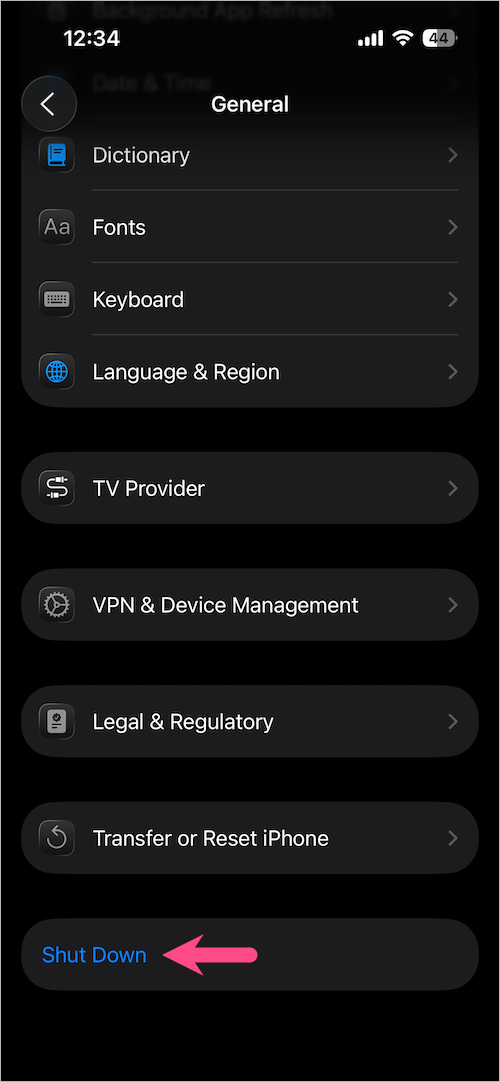
  1. Go to Settings > General.
  2. Scroll down to the bottom and tap Shut Down. switch off iphone 17 without buttons
  3. Slide to switch off your phone. turn off your iphone 17 without touching the screen

4. Without Touching the Screen (Using Siri)

You can also switch off your iPhone 17 or iPhone Air without swiping on the screen. Starting with iOS 16, Siri supports power and restart commands.

Here’s how to use Siri to turn off your device when the screen is not working:

  1. Activate Siri by saying “Hey Siri” or long-pressing the Side button.
  2. Use one of these commands:
    • Turn off my iPhone
    • Switch off the iPhone
    • Shut down my iPhone
  3. Siri will confirm by asking “Just to confirm, you want to power off this device?”.
  4. Say “Yes” or tap Power Off to proceed.
turn off iPhone 17 when screen is not working
Turn off or Restart iPhone using Siri

This is especially useful if your iPhone screen is broken or unresponsive.

Similarly, to restart your iPhone 17 or iPhone Air using Siri, say:

  • Restart iPhone
  • Reboot my iPhone

How to Force Restart iPhone 17, 17 Pro, or iPhone Air

If your iPhone 17, 17 Pro, or iPhone Air freezes, becomes unresponsive, or is stuck on the Apple logo, you can perform a force restart. This method won’t erase your data.

To force reboot an iPhone 17 or iPhone Air:

  1. Quickly press and release the Volume Up button.
  2. Quickly press and release the Volume Down button.
  3. Press and hold the Side button until the Apple logo appears, then release it.

Your iPhone will reboot automatically.

How to Restart iPhone 17, 17 Pro, and iPhone Air

Restarting your iPhone can help fix minor glitches or performance issues, but the process works a bit differently compared to Android phones.

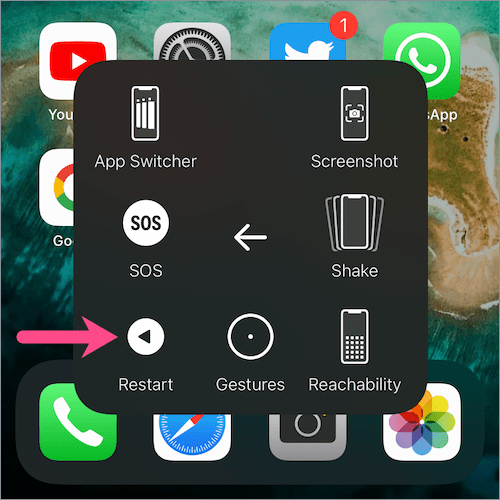
Unlike Android, iPhones and iPads don’t include a dedicated restart option — you normally have to power them off and then turn them back on manually. However, iOS 12 introduced a hidden virtual restart button, and with iOS 16 or later, you can even restart your iPhone using Siri.

Restart iPhone Using AssistiveTouch

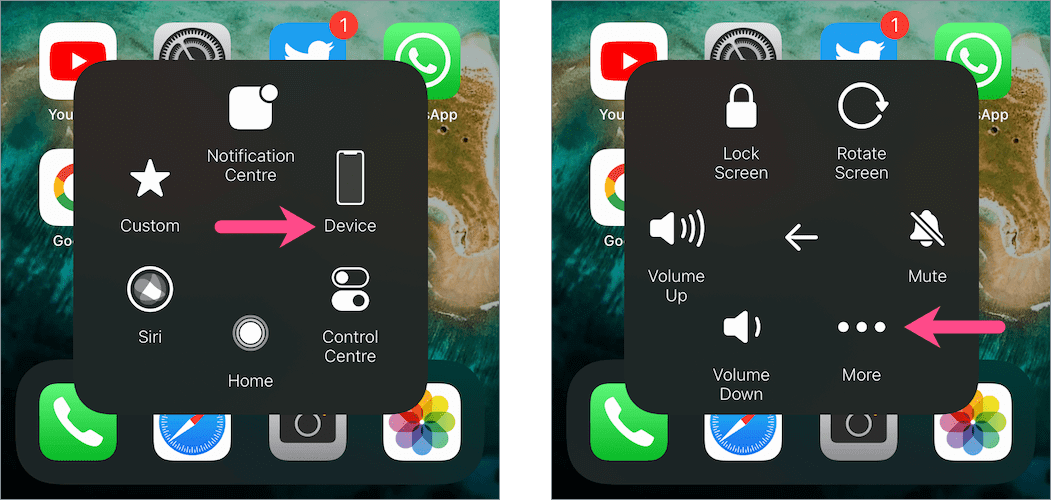
To reboot your iPhone Air or iPhone 17 series device without buttons — using the AssistiveTouch menu:

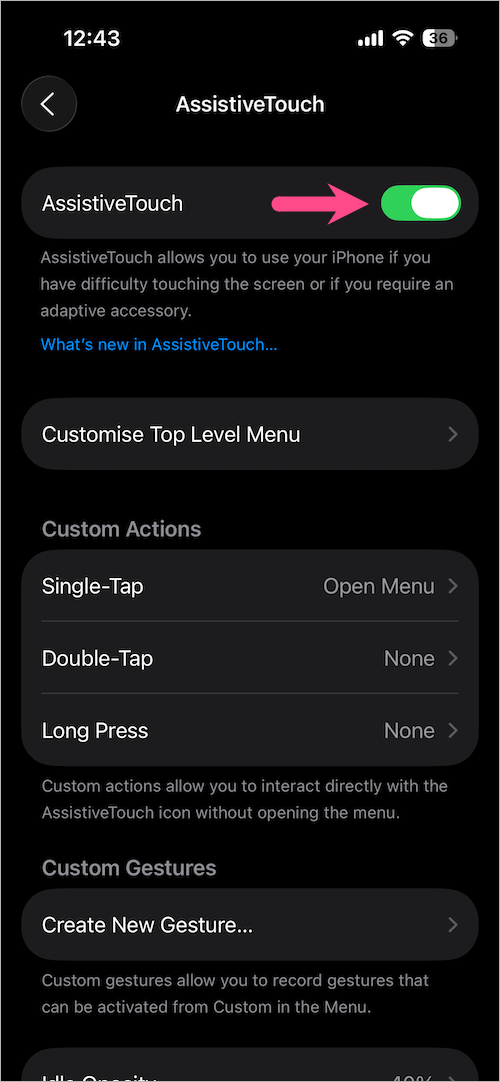
  1. Go to Settings > Accessibility > Touch.
  2. Tap AssistiveTouch and enable the toggle next to AssistiveTouch. how to enable AssistiveTouch in ios 26 on iPhone
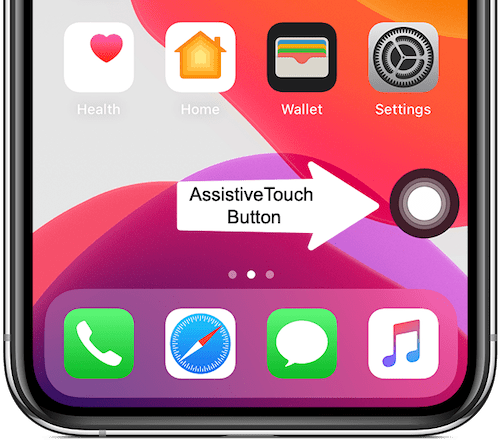
  3. The floating AssistiveTouch button will now appear on your screen. assistive touch button on iPhone screen
  4. Navigate to Device > More (three dots). AssistiveTouch menu on iPhone
  5. Select Restart and confirm. restart iPhone 17 or iphone air without power button

That’s it! Your iPhone will now restart without pressing any physical keys.

RELATED TIPS:

  • How to Turn Off Always On Screen on iPhone 17, 17 Pro & Air
  • How to Close and Force Quit Apps on iPhone 17 and iPhone Air
  • How to Turn Ringer On or Off on iPhone 17, 17 Pro, and iPhone Air

Tags: iOS 26iPhone 17iPhone 17 ProiPhone AirTips
ShareTweetSend
Previous Post

5 Ways to Screenshot on iPhone 17, 17 Pro, and iPhone Air

Next Post

How to Screen Record on iPhone 17, 17 Pro, and iPhone Air

Mayur Agarwal

Mayur Agarwal

Mayur Agarwal, the founder and editor of WebTrickz, is a tech enthusiast with a Bachelor's degree in Computer Applications and over 15 years of experience in tech writing. His passion for technology and gadgets drives him to create insightful how-to articles and troubleshooting guides.

Next Post
screen recording on iphone 17

How to Screen Record on iPhone 17, 17 Pro, and iPhone Air

Comments 1

  1. James H. says:
    9 months ago

    Thank you. As a long-time Android user who’s just switched, I appreciate the help with my new Iphone 17 pro.

    Reply

Leave a Reply Cancel reply

Your email address will not be published. Required fields are marked *

Latest Stories

google chrome logo

Google Chrome Offline Installer: Direct Download Links

June 17, 2026
X logo

How to Remove All Bookmarks on X (Twitter) At Once in 2026

June 15, 2026
X logo

How to Find Bookmarks on X (Twitter) in 2026

June 15, 2026
copilot logo

How to Turn Off Copilot Search in Bing on Edge & Chrome

June 10, 2026
microsoft edge new logo

How to Turn Off Notifications in Microsoft Edge (2026 Guide)

June 8, 2026
chatgpt logo

How to Clear or Delete ChatGPT Memory on PC and Mobile

June 5, 2026
1337x logo

1337x Proxy List 2026: Working Proxy & Mirror Sites

June 2, 2026

Trending Stories

  • 1337x logo

    1337x Proxy List 2026: Working Proxy & Mirror Sites

  • How to Turn Off Microsoft Family Safety on Windows 11 & 10

  • How to Turn Off Microsoft Edge Game Assist in Windows 11

  • How to See Recently Watched Reels on Facebook (2026 Guide)

  • How to Turn Off Fn Lock or Fn Key on Windows 11/10 Laptop

  • About Us
  • Contact Us
  • Privacy Policy
  • Advertise

© 2026 WebTrickz. All Rights Reserved.

No Result
View All Result
  • Reviews
  • Apps
  • How To’s
  • Android
  • Google
  • iPhone
  • Mac
  • About Us
  • Contact Us
  • Privacy Policy

© 2026 WebTrickz. All Rights Reserved.