


The iPhone 17 series and iPhone Air use Face ID and don’t have a Home button, so closing or force-quitting apps works differently from older iPhones with a Home button.
On iPhone 17, iPhone 17 Pro, iPhone 17 Pro Max, and iPhone Air, you can use a simple swipe-up gesture to return to the Home Screen or open the App Switcher to view and close apps.
This guide explains how to close apps, view recently used apps, force close an unresponsive app, and close multiple apps at once on iPhone 17 and newer models.
How to Close Apps on iPhone 17
To close an app on iPhone 17, 17 Pro, 17 Pro Max, or iPhone Air and return to the Home Screen, simply swipe up from the bottom edge of the screen.
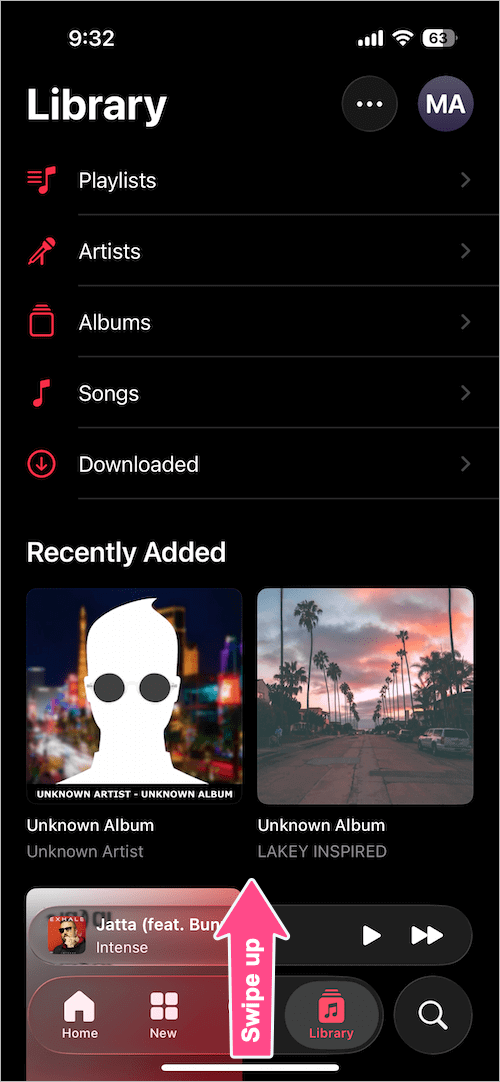
The app will close from view, and you’ll return to the Home Screen.
Note: Swiping up to leave an app doesn’t completely stop it. iOS may keep the app running in the background.
How to See Open Apps on iPhone 17
To see your open or recently used apps on iPhone 17, use the App Switcher:
- Swipe up from the bottom edge of the screen and pause in the middle.
- The App Switcher will appear with previews of your recently used apps.
- Swipe left or right to browse the apps, then tap an app preview to open it.
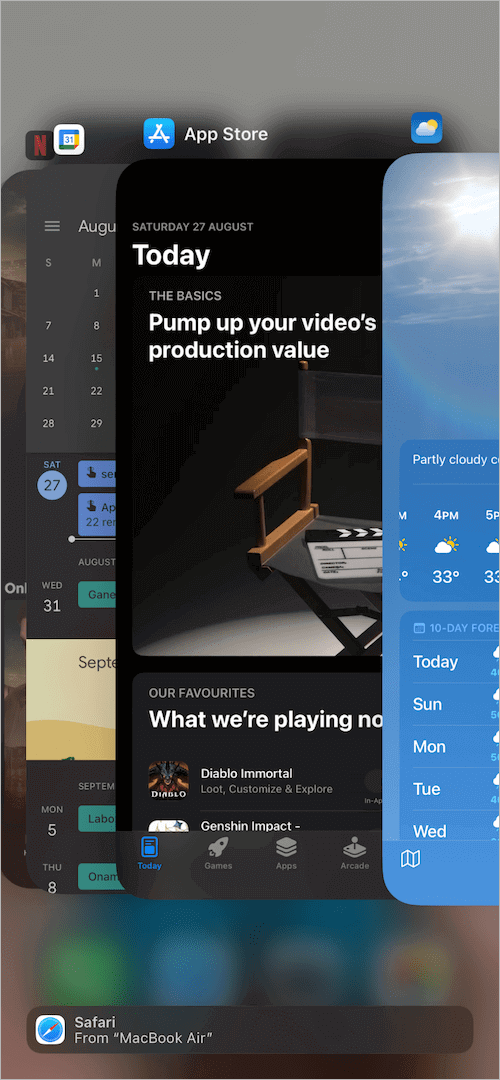
The App Switcher is useful for quickly switching between apps or closing an app that isn’t responding.
How to Force Close Apps on iPhone 17
If an app freezes, stops responding, or doesn’t work properly, you can force close it from the App Switcher.
To force close an app on your iPhone 17 or iPhone Air:
- Swipe up from the bottom of the screen and pause in the middle to open the App Switcher.
- Swipe left or right to find the app you want to close.
- Swipe up on the app preview to remove it from the App Switcher.
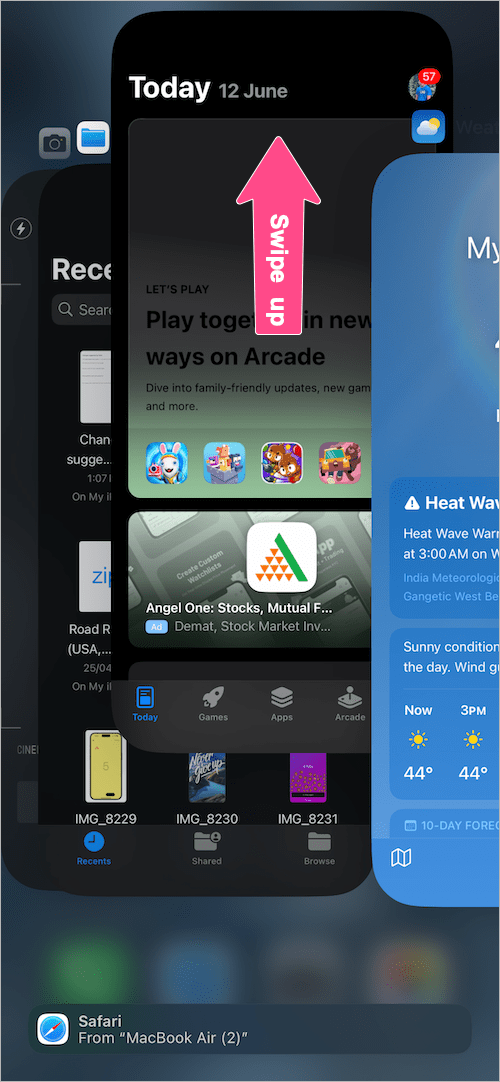
The app will close, and you can reopen it to start fresh.
Tip: You generally don’t need to force close apps unless an app is frozen or misbehaving. iOS manages background apps automatically.
How to Close Multiple Apps on iPhone 17
Although iOS doesn’t have a button to close all apps at once, you can close multiple apps simultaneously using multitouch gestures.
- Open the App Switcher by swiping up from the bottom and pausing in the middle.
- Place two or three fingers on separate app previews.
- Swipe up with your fingers to close multiple apps at the same time.
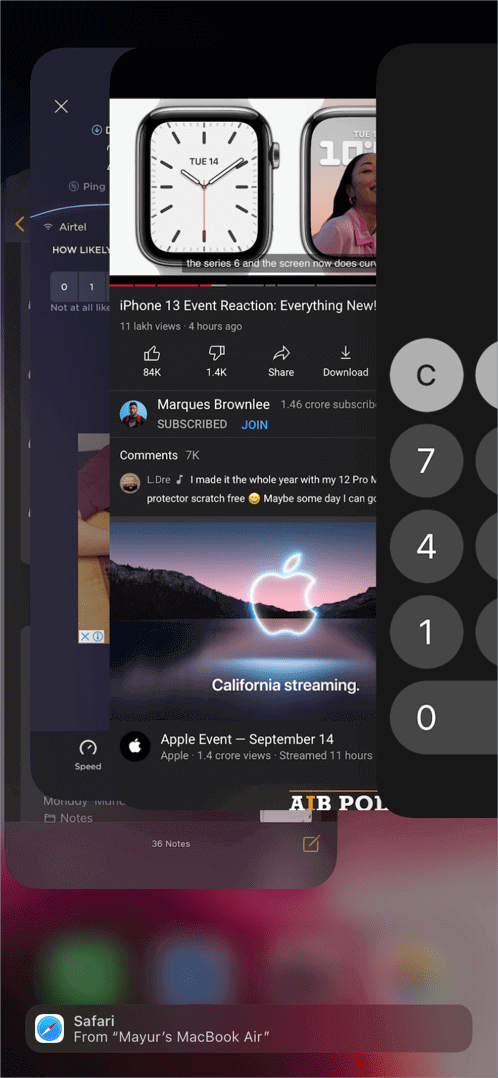
This lets you remove several apps from the App Switcher at once.
Can I Close All Open Apps on iPhone 17?
No. iOS doesn’t provide a built-in option to close all open apps with a single tap.
You can either swipe away apps individually or use the multitouch gesture to close two or three apps at a time.
How to Quickly Open the App Switcher on iPhone 17
If you frequently switch between apps, you can use Back Tap as a shortcut to open the App Switcher.
To set it up:
- Go to Settings > Accessibility > Touch.
- Scroll down and tap Back Tap.
- Choose Double Tap or Triple Tap, then select App Switcher.
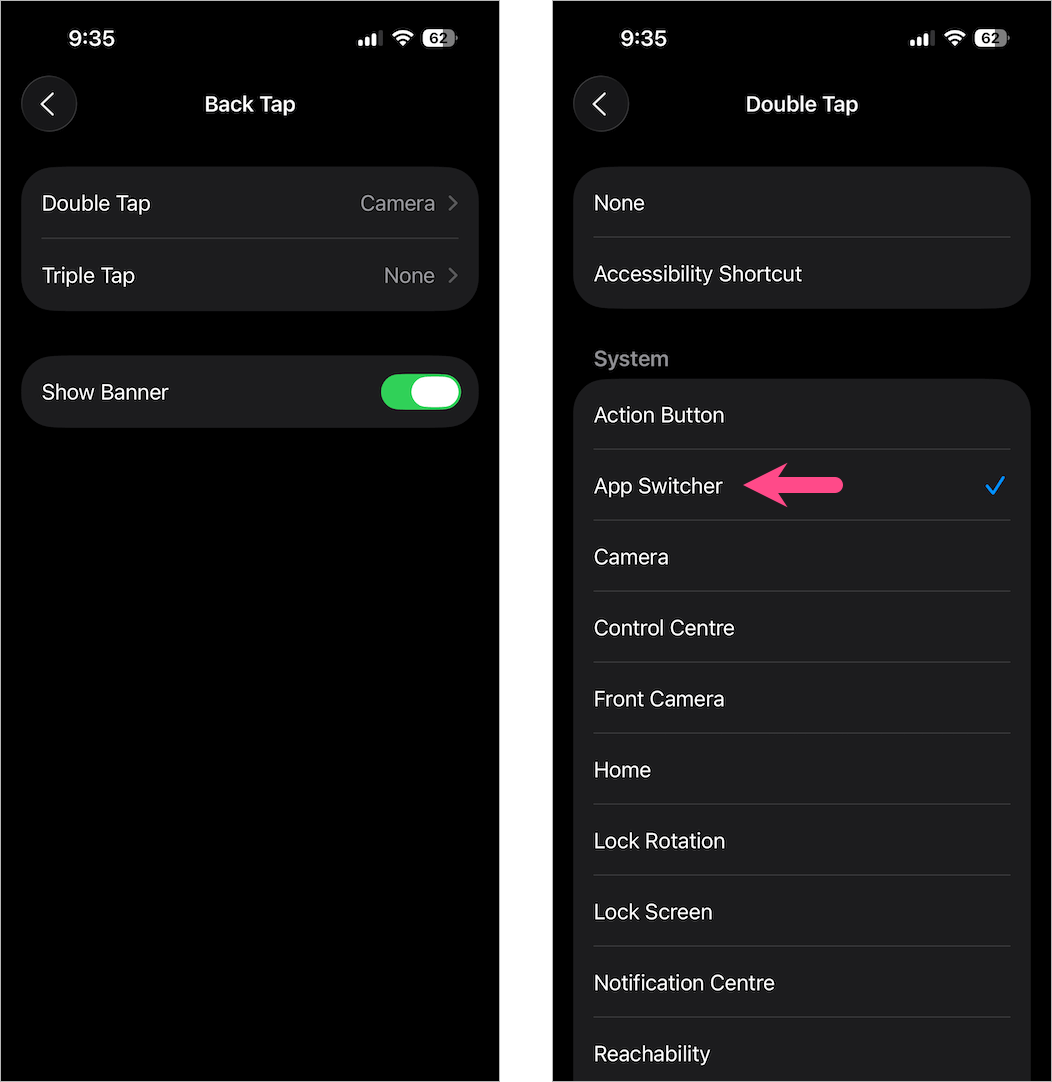
Now you can double-tap or triple-tap the back of your iPhone to open the App Switcher without using the swipe-up gesture.
Related iPhone Tips
- How to Take a Screenshot on iPhone 17, 17 Pro, and iPhone Air
- How to Turn Off and Restart iPhone 17, 17 Pro, and iPhone Air
- How to Put iPhone 17 and iPhone Air on Silent Mode








