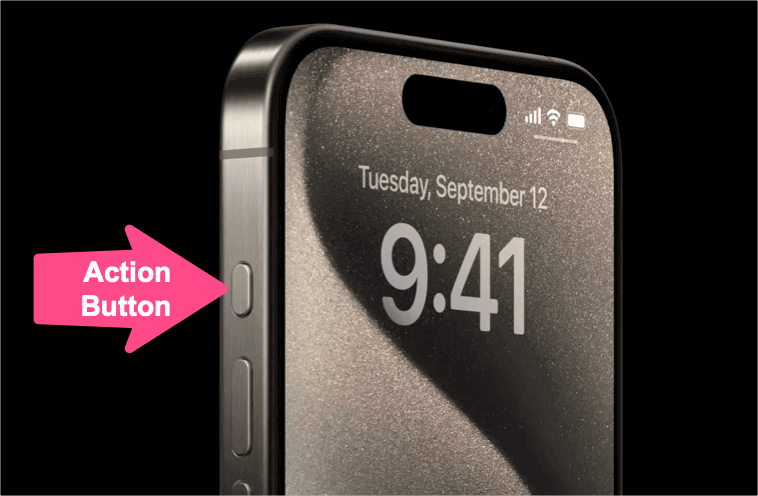
Like the iPhone 16 series, the new iPhone Air and iPhone 17 lineup feature the customizable Action button instead of the traditional Ring/Silent switch. By default, the Action button works as your iPhone’s silent button, letting you quickly switch between Ring mode and Silent mode. You can also assign other shortcuts, such as opening the Camera, launching Focus, or turning on the Flashlight.
If you’ve assigned the Action button to another shortcut, you can still mute your iPhone, turn Silent mode on or off, or make it vibrate using Control Center or Settings.
This guide explains all the ways to put your iPhone 17, 17 Pro, 17 Pro Max, or iPhone Air on Silent or Vibrate mode.
How to Put iPhone 17, 17 Pro, or iPhone Air on Silent
You can put your iPhone on Silent in several ways:
Using the Action Button
- Locate the Action button above the volume keys on the left side.
- Press and hold the button to enable Silent mode.
- You’ll feel a short vibration, and a Silent icon will briefly appear in the Dynamic Island.
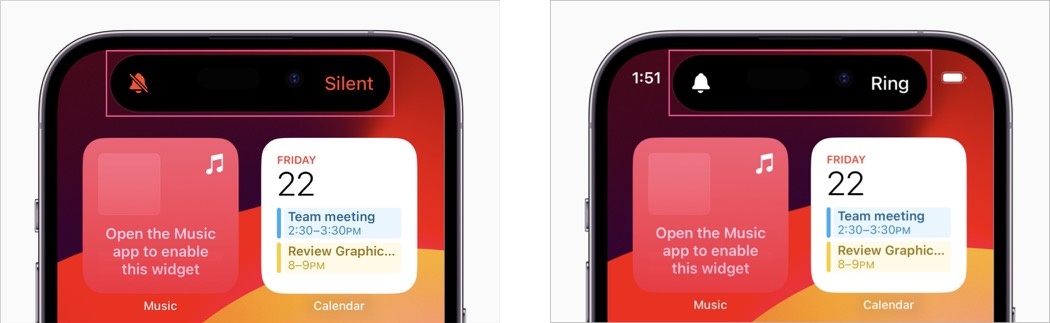
- Press and hold the Action button again to switch back to Ring mode.
From Control Center
If your Action button is assigned to another function, you can switch Silent mode on or off from Control Center instead:
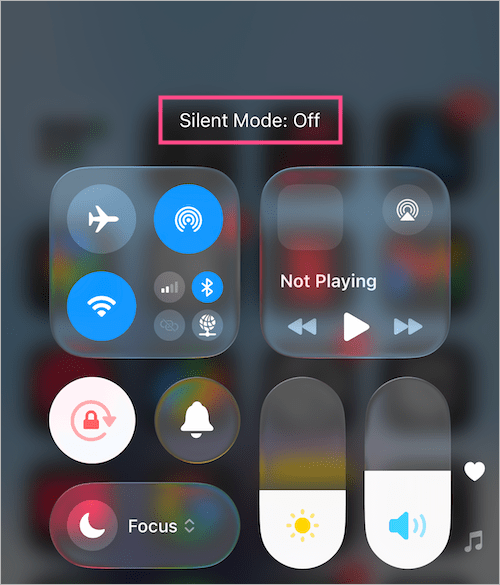
- Swipe down from the top-right corner to open Control Center.
- Tap the Mute control (bell icon).
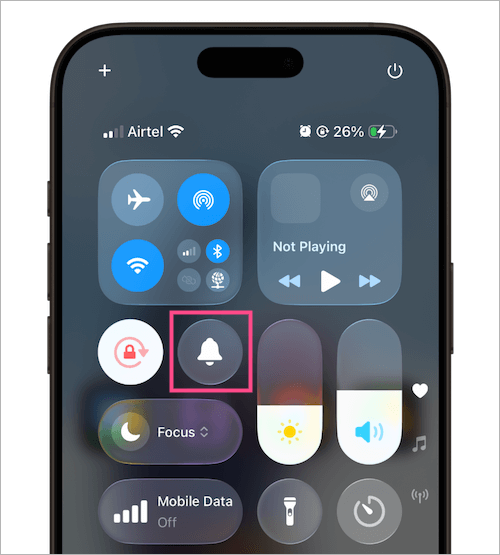
Mute/Unmute button in Control Center on iPhone 17 - You’ll see Silent Mode: On at the top.
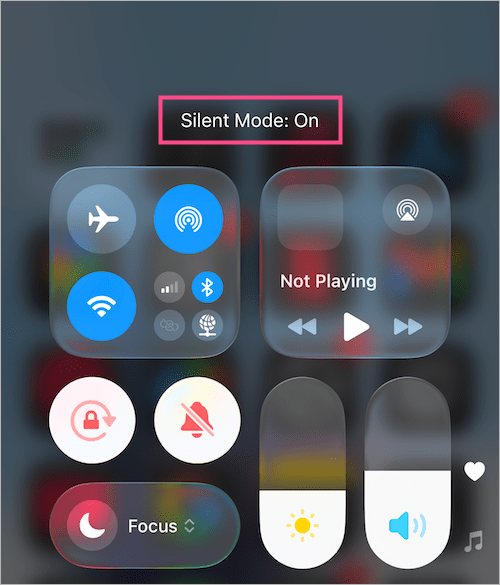
- Tap the Mute control again to get out of silent mode (Silent Mode: Off).
From Settings
- Go to Settings > Sounds & Haptics.
- At the top, turn on the toggle for Silent Mode to mute your iPhone.
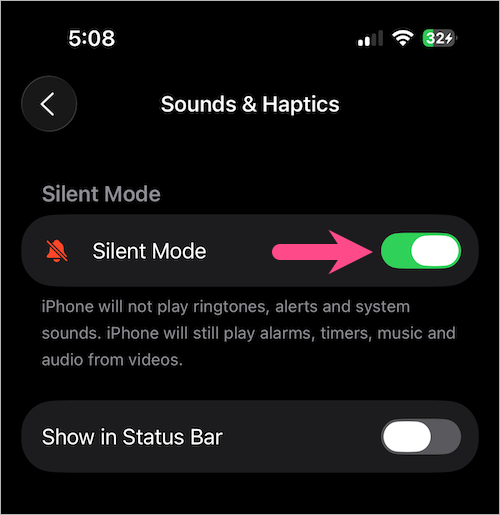
- Turn it off to switch back to Ring mode.
How to Turn the Ringer On or Off on iPhone 17 and iPhone Air
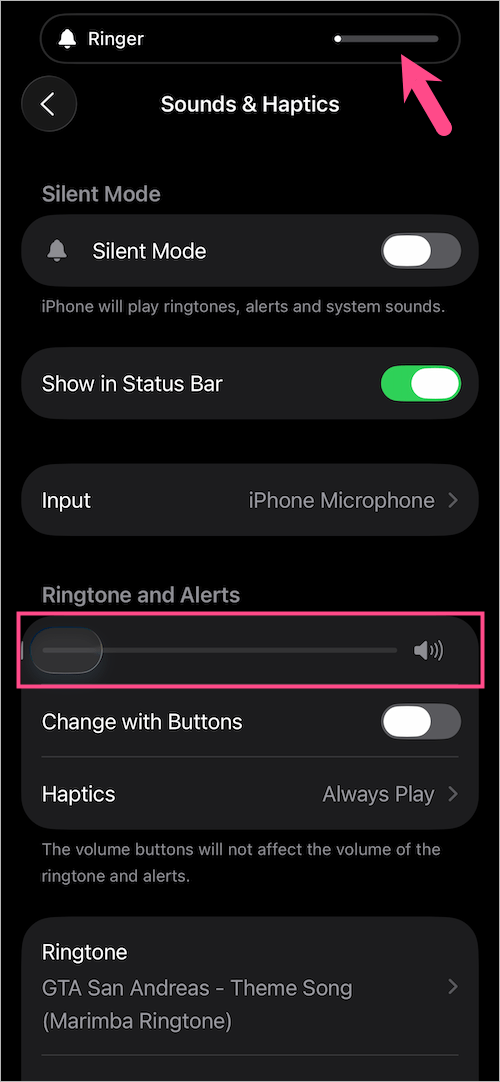
Besides using Silent mode, you can also adjust the ringer volume. Lowering the ringer volume all the way mutes incoming calls while keeping your iPhone in Ring mode.
Here’s how you can turn on or off the ringer by adjusting its volume directly.
- Go to Settings > Sounds & Haptics.
- Under Ringtone and Alerts, drag the ringer volume slider to the way to the left to mute the ringer.
- Drag the slider to the right to increase the ringer volume and turn the ringer back on.
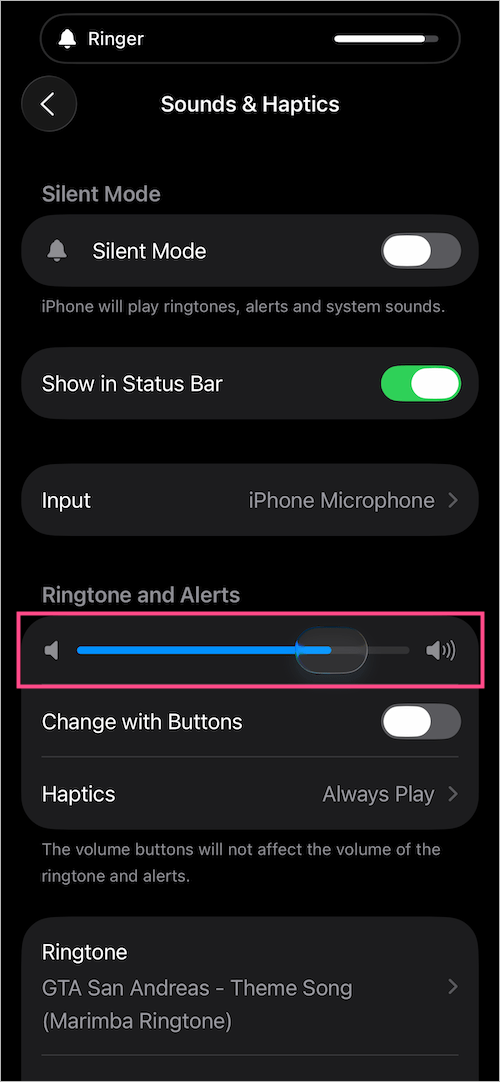
- The current ringer volume briefly appears in the Dynamic Island as you adjust it.
How to Hide the Silent Mode Icon on iPhone 17
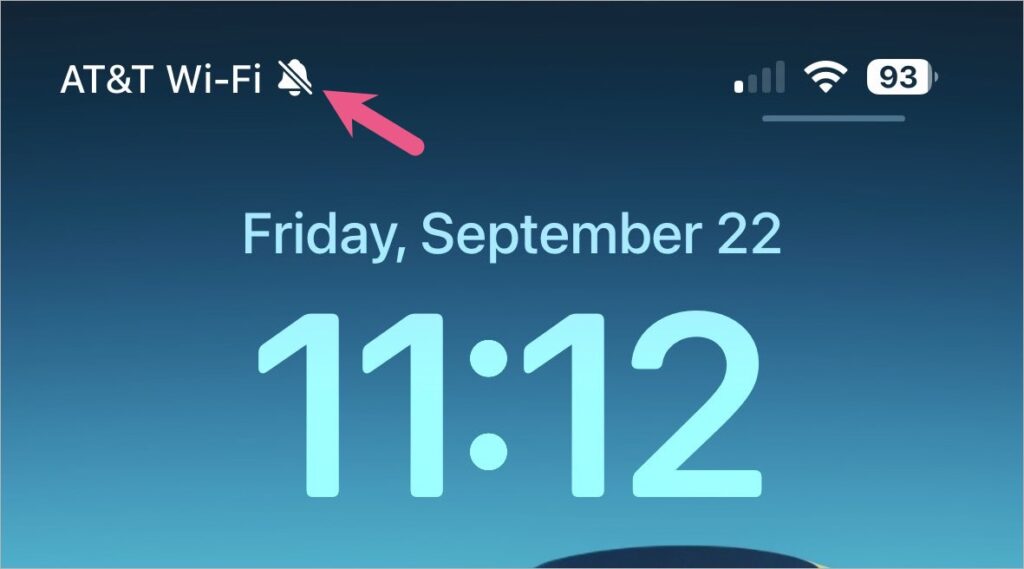
When Silent mode is enabled, a crossed bell icon appears in the status bar. If you don’t want to see it, you can hide it.
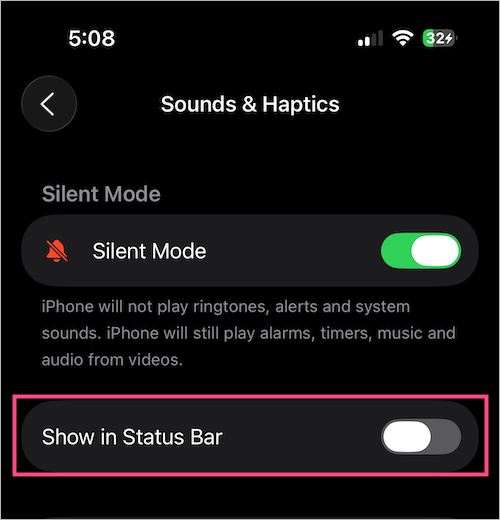
To hide the Silent mode icon from the status bar, open Settings > Sounds & Haptics. Under Silent Mode, toggle off Show in Status Bar.
How to Put iPhone 17 on Vibrate
You can choose whether your iPhone vibrates in Ring mode, Silent mode, both, or neither.
To make iPhone 17 vibrate on Silent:
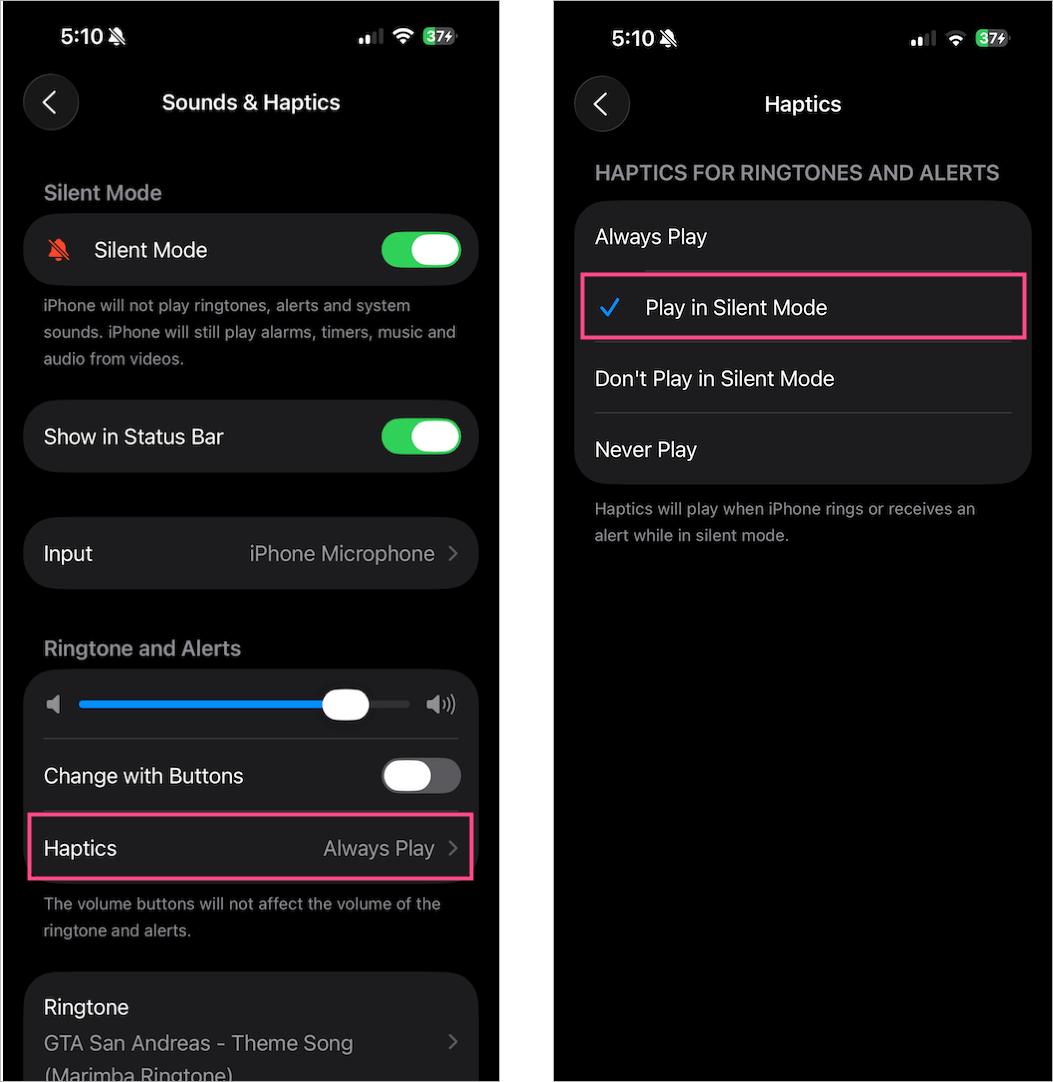
- Go to Settings > Sounds & Haptics.
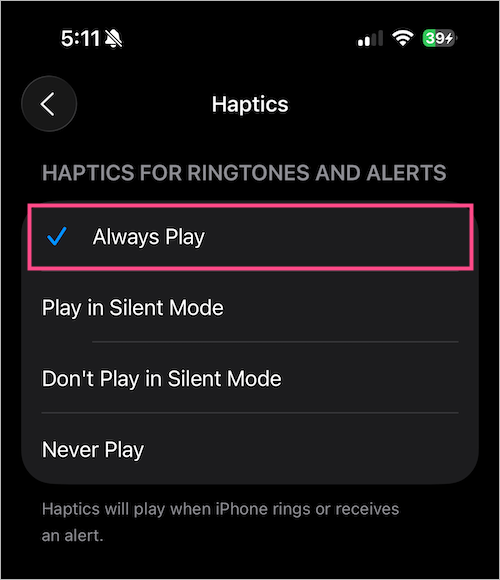
- Under Ringtone and Alerts, tap Haptics.
- Select Play in Silent Mode.
To disable vibration on Silent:
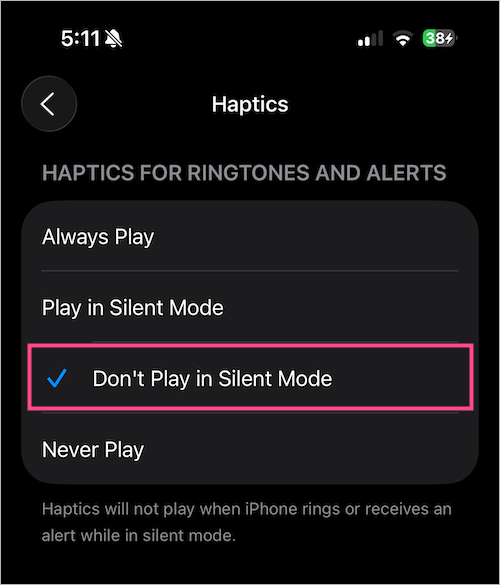
- Go to the Haptics menu.
- Select Don’t Play in Silent Mode.
Note: Turning off vibration in Silent mode means your iPhone won’t buzz or ring — so you might miss calls or notifications.
To turn on vibration in Ring mode:
- Open Settings > Sounds & Haptics > Haptics.
- Select Always Play.
FAQs
What does Silent mode do on iPhone?
In Silent mode, your iPhone won’t ring or play alert sounds for calls, texts, or notifications. However, it may still vibrate if vibration is enabled. Sounds from alarms, timers, music, and videos will continue to play even when Silent mode is turned on.
Where is the Silent button on iPhone 17?
Unlike older iPhones, the iPhone 17 doesn’t have a dedicated Ring/Silent switch. Instead, the Action button acts as the silent button by default. If you’ve assigned the Action button to another shortcut, you can still turn Silent mode on or off from Control Center or Settings > Sounds & Haptics.
How do I make my iPhone 17 vibrate?
Navigate to Settings > Sounds & Haptics > Haptics. Here, you can choose between:
- Always Play – vibration works in both Ring and Silent mode.
- Play in Silent Mode – vibration only works in Silent mode.
- Don’t Play in Silent Mode – vibration is disabled in Silent mode.
Related Guides
- How to Take a Screenshot on iPhone 17, 17 Pro, or iPhone Air
- How to Turn Off, Restart, and Force Restart iPhone 17 and iPhone Air
- How to Disable Always-On Display on iPhone 17, 17 Pro, or iPhone Air