


Call Screening is a feature introduced in iOS 26 and is also available in iOS 27. When someone not in your contacts calls you, your iPhone can ask them to share their name and reason for calling before your phone rings.
If you don’t want your iPhone to screen unknown calls, you can easily turn Call Screening off from the Screen Unknown Callers setting. Here’s how.
What is Call Screening on iPhone?
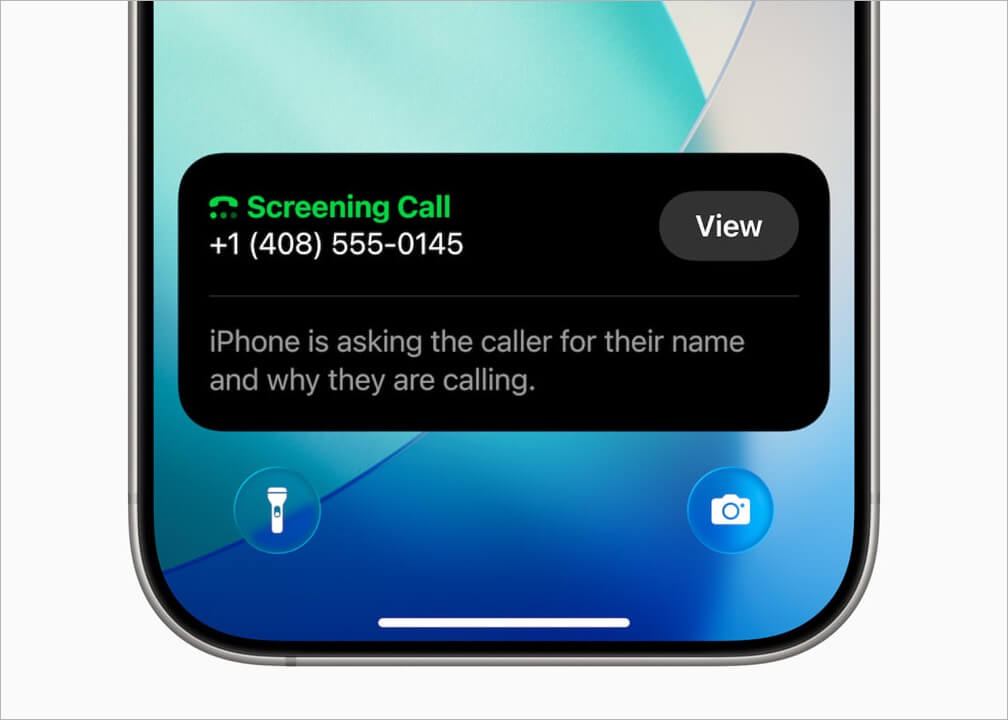
Call Screening helps reduce spam and unwanted calls by screening unknown callers before your iPhone rings.
When someone who isn’t in your contacts calls, your iPhone asks them to share their name and reason for calling. Once they respond, your iPhone rings and lets you decide whether to answer the call.
Where is the Call Screening Setting on iPhone?
You can find the Call Screening setting in both iOS 26 and iOS 27 by going to: Settings > Apps > Phone > Screen Unknown Callers
Under Screen Unknown Callers, you’ll see three options:
- Ask Reason for Calling – Turns on Call Screening.
- Never – Turns Call Screening off so calls from unknown numbers ring normally.
- Silence – Silences calls from unknown numbers and sends them to voicemail.
What Happens After You Disable Call Screening?
When you disable Call Screening, your iPhone no longer screens calls from unknown numbers before they ring. Instead:
- Calls from unknown numbers will ring normally.
- Your iPhone won’t ask callers to share their name or reason for calling.
- You can still silence unknown callers if you don’t want calls from unsaved numbers to ring.
This is useful if you’re expecting important calls from people who aren’t in your contacts and don’t want them to go through Call Screening first.
How to Turn Off Call Screening on iPhone
These steps work on iPhones running iOS 26 or iOS 27.
To disable or turn off Call Screening on your iPhone:
- Open the Settings app.
- Scroll down and tap Apps, then tap Phone.
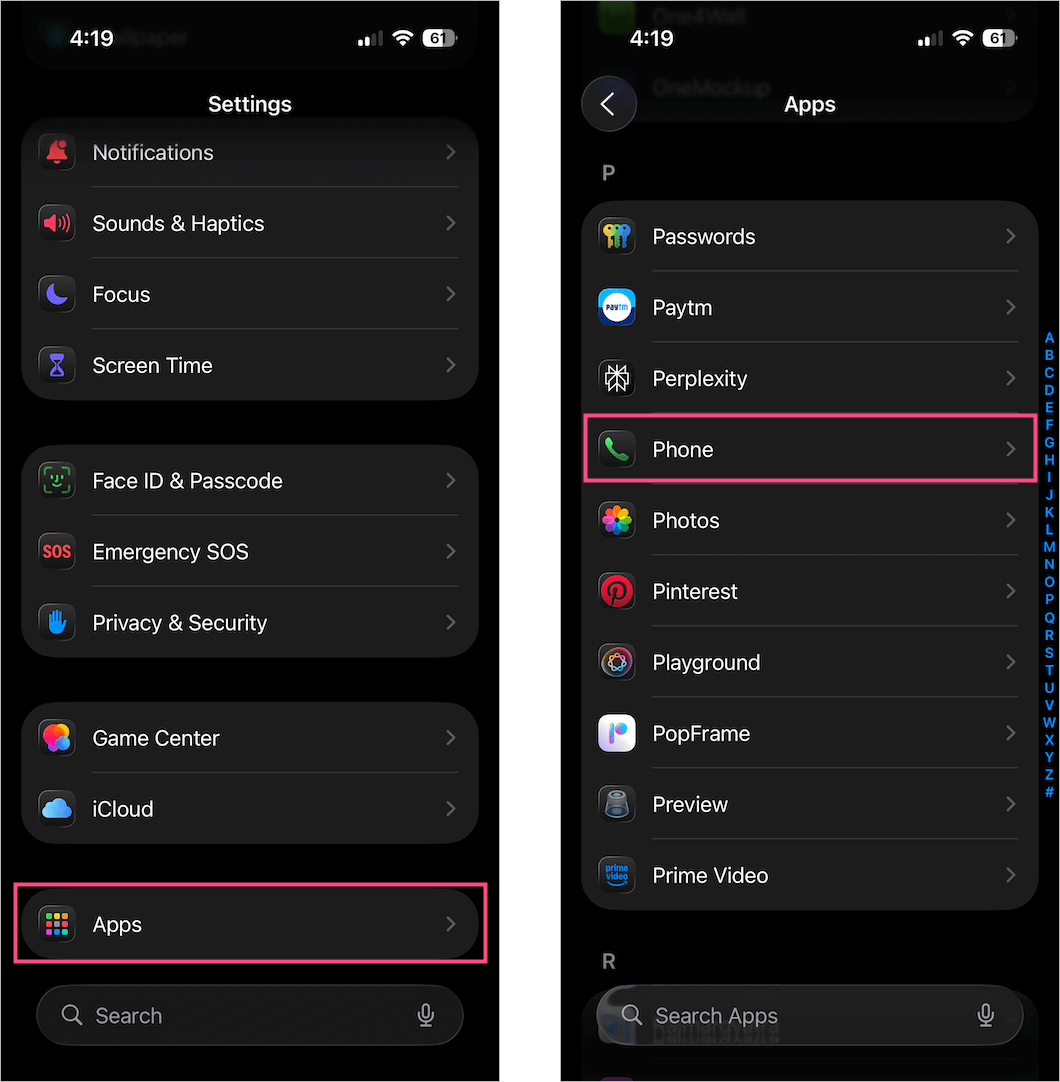
- Scroll down to Screen Unknown Callers.
- Choose Never.
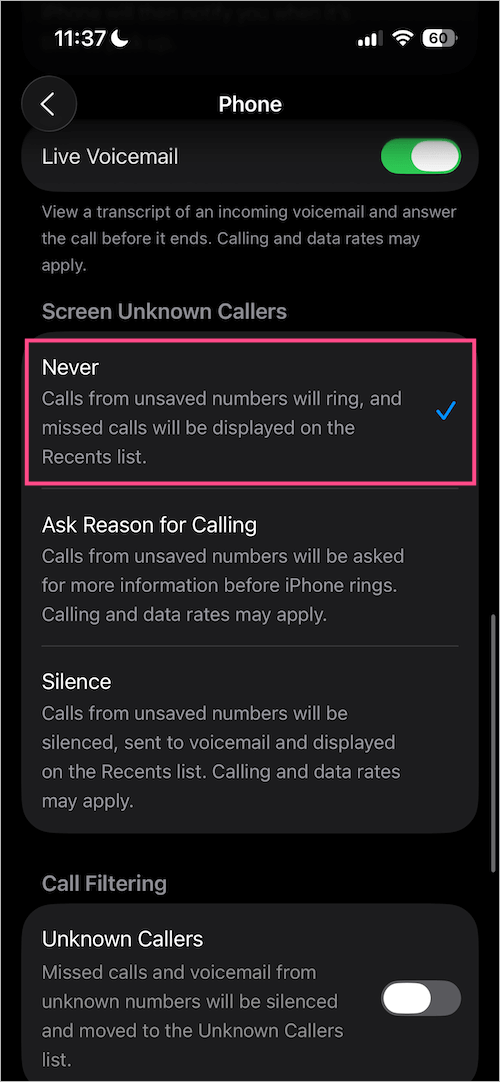
Your iPhone will now ring normally for all incoming calls, including calls from numbers that aren’t saved in your contacts.
Tip: If you prefer to send calls from unknown numbers straight to voicemail instead of letting them ring normally, choose Silence. See our guide on How to Silence Unknown Callers on iPhone.
Note about the “Unknown Callers” option
Turning off Call Screening doesn’t change the Unknown Callers option under Settings > Apps > Phone > Call Filtering. If you have Unknown Callers enabled, missed calls and voicemails from people who aren’t in your contacts will still appear under the Unknown Callers list in the Phone app.
This only changes how unknown calls are organized in the Phone app. It doesn’t turn Call Screening on or off.
How to Turn Call Screening Back On
If you change your mind later, you can enable Call Screening again in just a few taps.
- Open Settings > Apps > Phone.
- Scroll down to Screen Unknown Callers.
- Select Ask Reason for Calling.
Your iPhone will once again screen calls from unknown numbers before they ring.
Also read: How to See Your Complete Call History on iPhone









It is a garbage add on. The spam calls still ring through, meanwhile prospective clients have another hoop to jump through and even when they do respond the phone doesn’t ring it just creates a voice mail with no notice it’s there. I have had calls go unanswered because I didn’t know they called and left a reply.
I’ve tried everything but it won’t turn off. Very frustrating because I’m expecting important calls.