


Getting spam or unwanted calls can be annoying, but Apple makes it easy to avoid them with the Silence Unknown Callers feature. In iOS 26, Apple expanded this with Call Screening, which lets unknown callers state their name and reason before your phone rings.
This update slightly changes how you turn on silence unknown callers, which might confuse users switching from iOS 18.
Worry not! This quick guide shows how to silence or block unwanted phone, FaceTime, and WhatsApp calls on all iPhones running iOS 26 or iOS 18, including the iPhone 17, iPhone 16, iPhone 15, and more.
What Happens When You Silence Unknown Calls on iPhone?
When you enable Silence Unknown Callers, incoming calls from numbers not saved in your contacts are automatically silenced and sent to voicemail. However, if you’ve previously interacted with an unsaved number, such as sending a text or sharing it via email, then phone calls from that number will still ring through.
This feature is useful for blocking spam and telemarketing calls, but you might miss important calls from people you haven’t spoken to before. Silenced calls don’t ring or show a notification; they only appear in your recent calls list.
By default, this option is turned off, and you’ll need to manually turn it on.
How Screen Unknown Callers Works in iOS 26
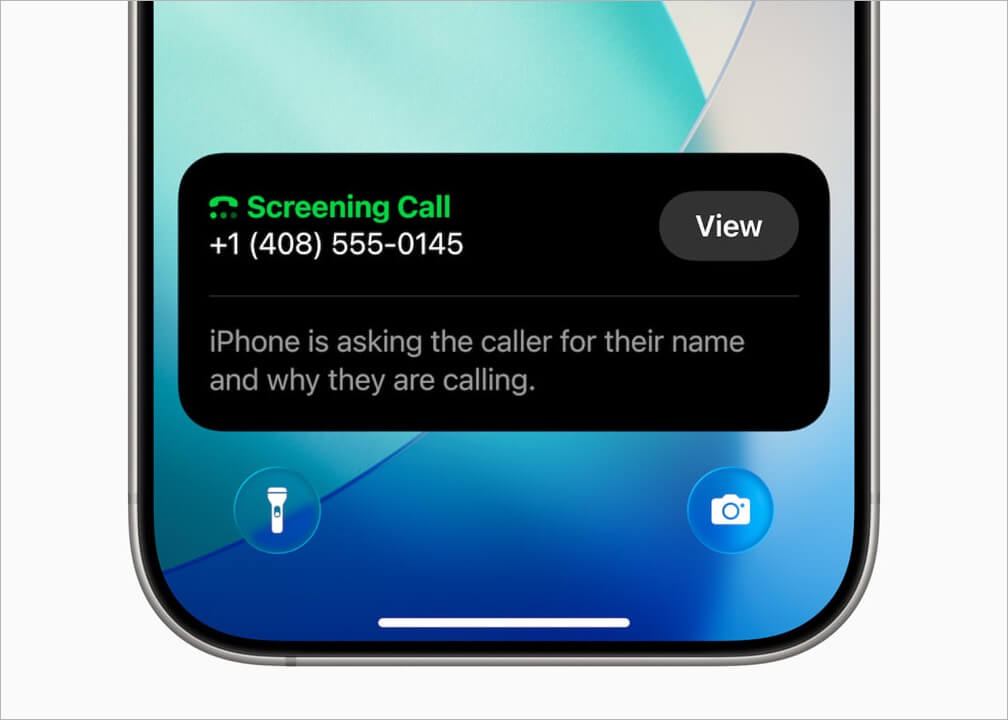
In iOS 26, Apple introduced a new Call Screening feature. Instead of silencing unknown calls right away, your iPhone can automatically answer and prompt the caller to state their name and reason for calling. Once they respond, your iPhone rings, and you can choose whether to pick up.
The new Screen Unknown Callers setting now gives you three options:
- Never – All unknown calls ring as normal.
- Ask Reason for Calling – Call Screening asks the caller to give their name and reason before your iPhone rings.
- Silence – Unknown callers are silenced and sent to voicemail without ringing.
How to Silence Unknown Callers on Your iPhone
Here’s how you can silence unwanted phone calls on your iPhone running iOS 26 or iOS 18 without blocking them:
On iOS 26
To silence unknown calls in iOS 26 on iPhone:
- Open the Settings app.
- Scroll to the bottom and open Apps.
- In the Apps section, tap Phone.
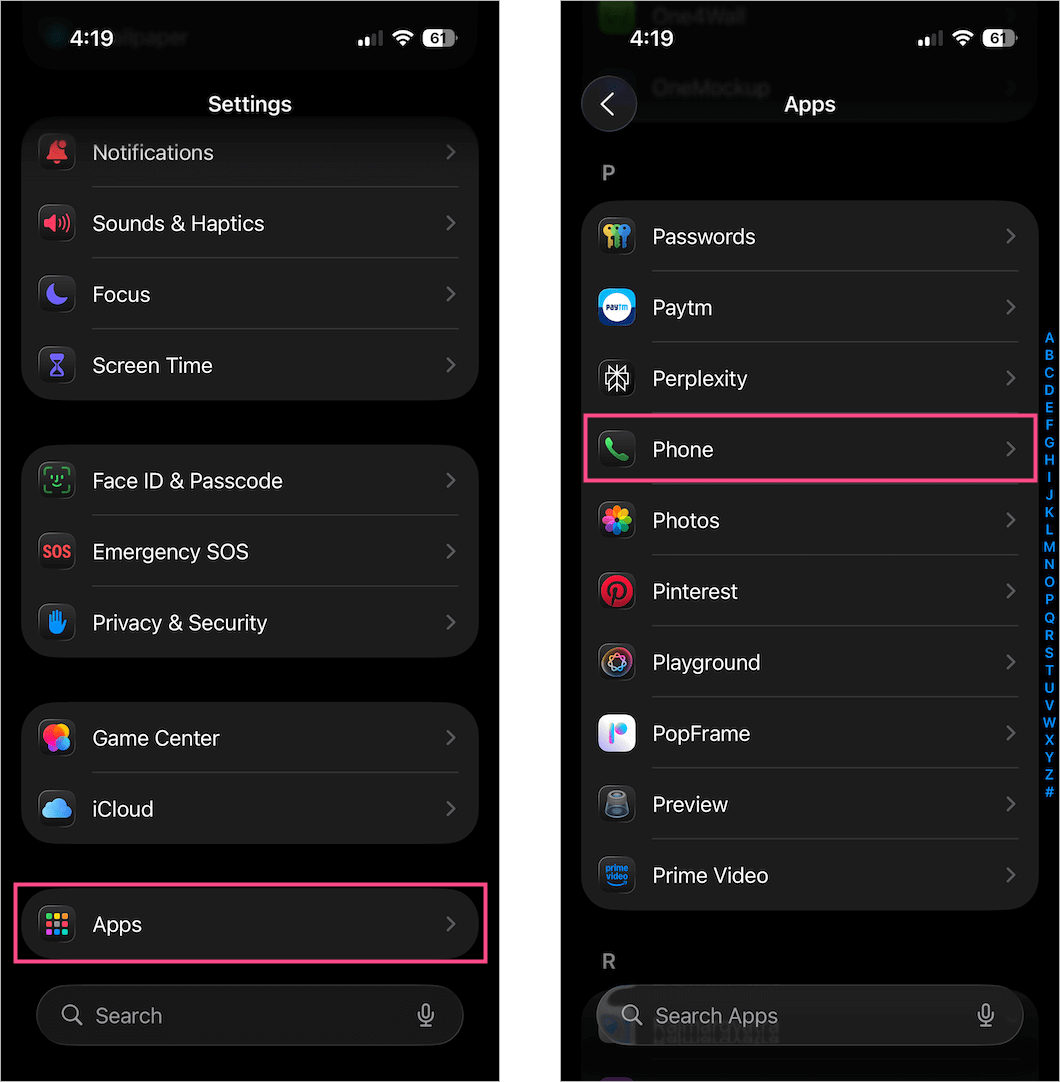
- Scroll down to Screen Unknown Callers.
- Choose Silence to silence calls from unsaved numbers.
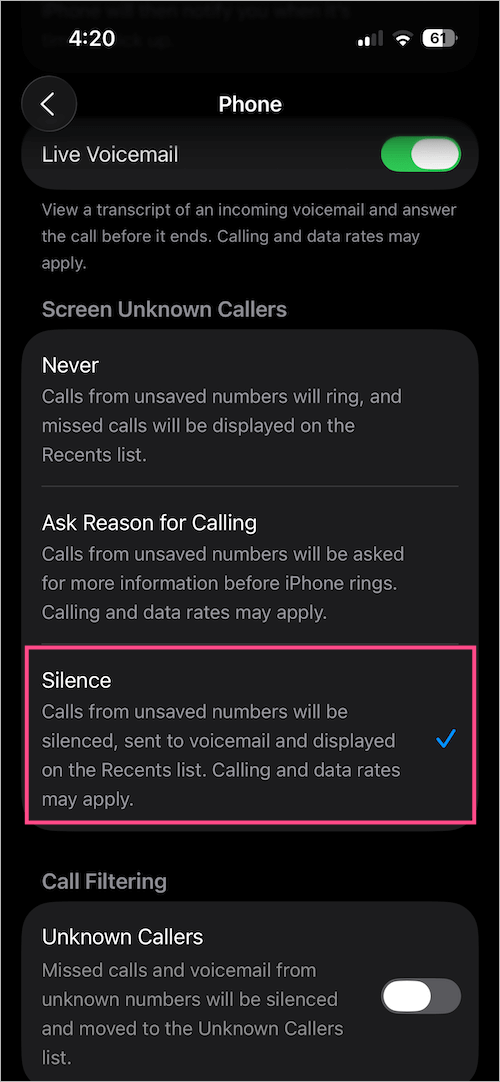
Alternatively, select Ask Reason for Calling if you’d like to use Apple’s new Call Screening feature instead.
On iOS 18
To silence unknown numbers or callers in iOS 18 on iPhone:
- Go to the Settings app.
- Scroll to the bottom and tap Apps.
- In the Apps section, open Phone.
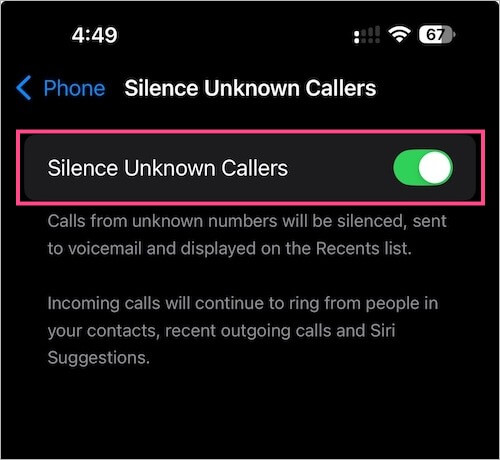
- Tap Silence Unknown Callers.
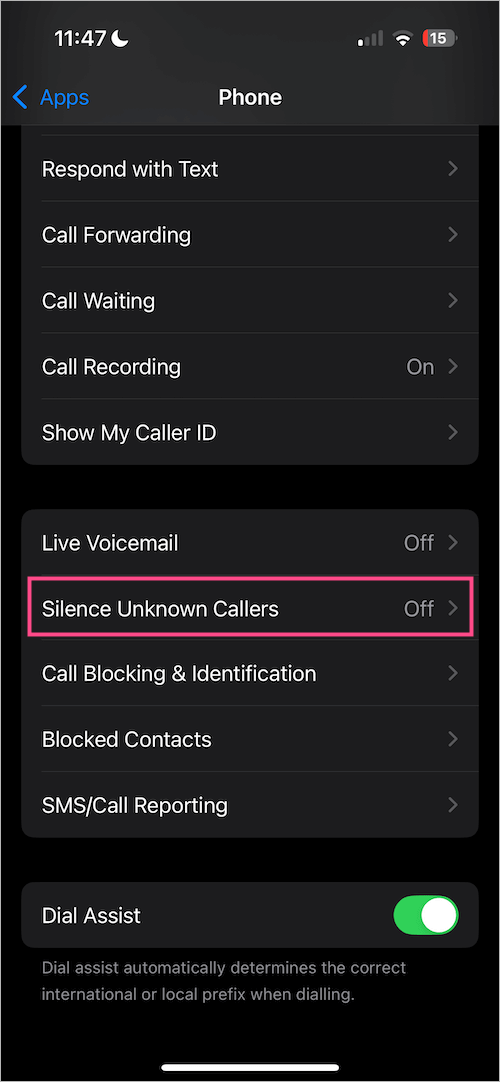
- Turn on Silence Unknown Callers to silence calls from unknown numbers.
How to Block a Number or Contact on iPhone
If Silence Unknown Callers isn’t the right fit for you, you can block numbers manually. Here’s how to block a specific phone number or contact on your iPhone:
- Open the Phone app.
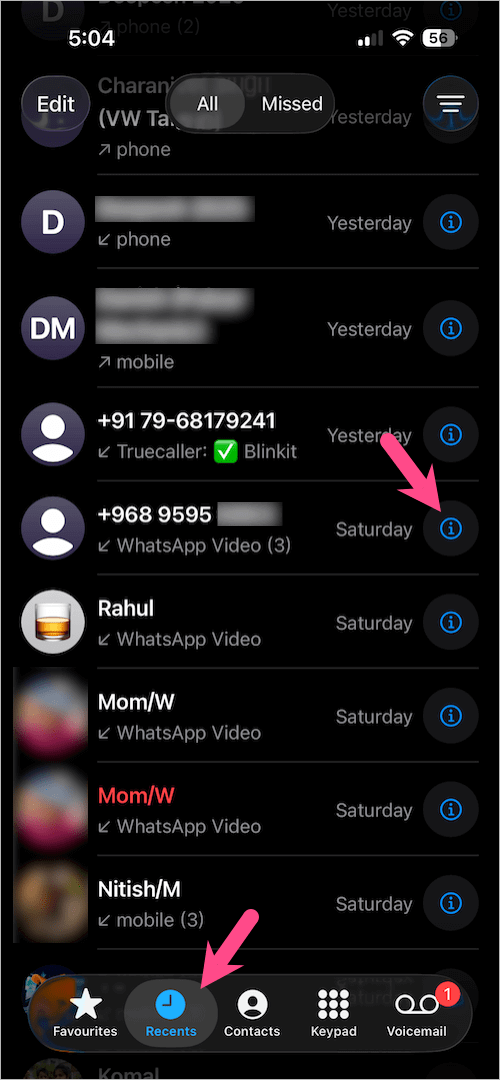
- Go to the Recents tab and find the number you want to block.
- Tap the info (i) button next to the number or contact.
- Scroll down and tap Block Contact (iOS 26) or Block this Caller (iOS 18).
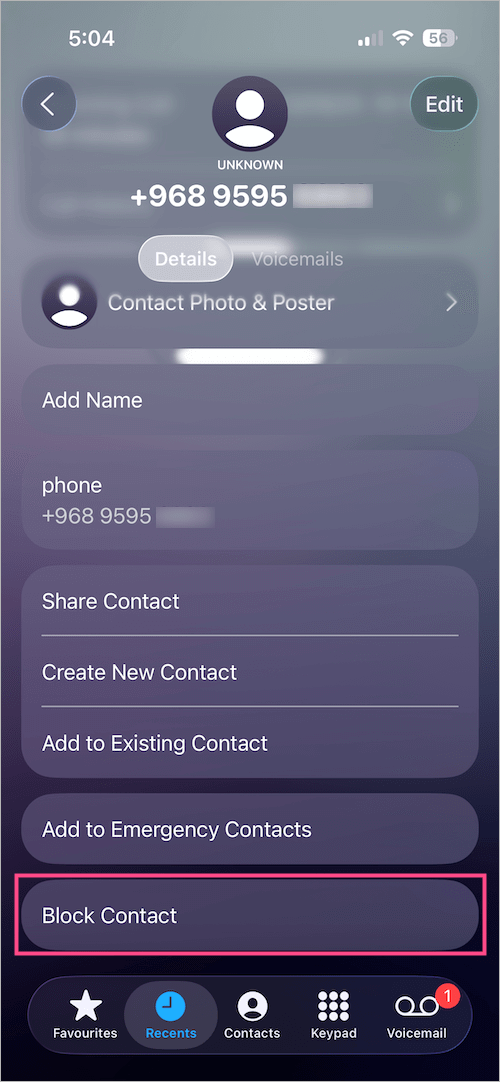
- Select Block Contact to confirm.
Note: When you block a phone number or contact, that person won’t be able to call you, send messages, or reach you on FaceTime.
You can also manage your blocked numbers anytime under Settings > Apps > Phone > Blocked Contacts.
How to Turn On Silence Unknown Callers for FaceTime
Tired of getting FaceTime calls from unknown numbers? Just like phone calls, you can silence incoming FaceTime calls from numbers and email addresses not saved in your contacts.
To silence unknown calls in FaceTime on iPhone:
- Open the Settings app on your iPhone.
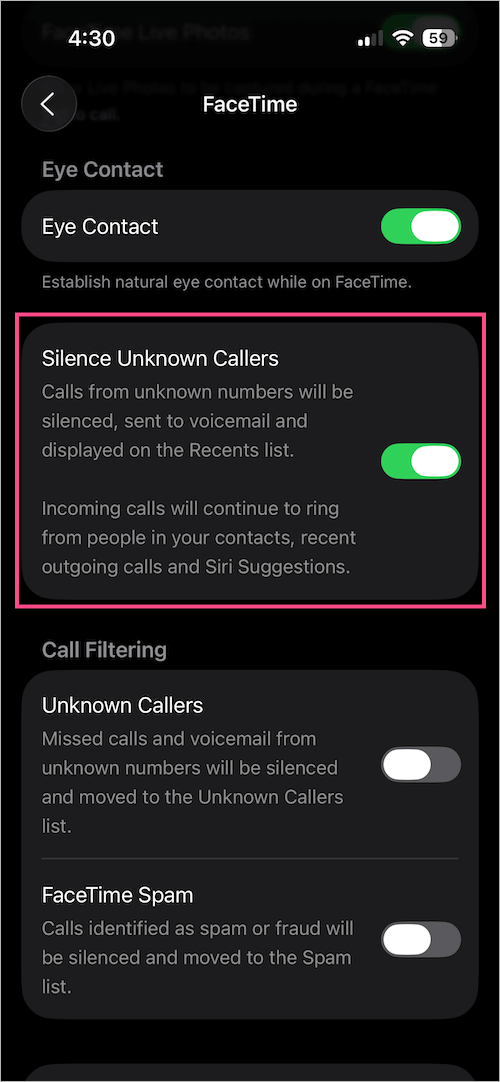
- Go to the Apps section and tap FaceTime.
- Locate the Silence Unknown Callers option and turn it on.
Tip: How to Silence Unknown Callers on WhatsApp
WhatsApp also allows you to silence calls from unknown numbers. To stop receiving unknown calls on WhatsApp for iPhone:
- Open the WhatsApp app.
- Go to Settings > Privacy > Calls.
- Turn on Silence unknown callers.
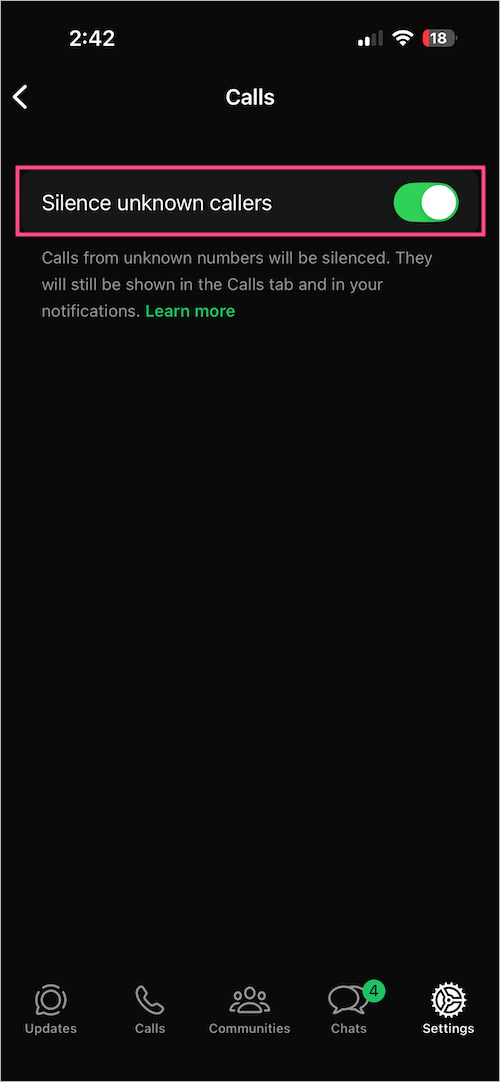
This ensures spam or unwanted calls from unsaved WhatsApp numbers won’t ring your iPhone, though they’ll still appear in the Calls tab.
How to Turn Off Silence Unknown Callers on iPhone
If you’re missing important calls, you may want to unsilence unknown callers. Here’s how to disable it on your iPhone:
On iOS 26:
Go to Settings > Apps > Phone > Screen Unknown Callers. Select Never to allow all calls to ring.
On iOS 18:
Go to Settings > Apps > Phone > Silence Unknown Callers. Toggle off the option.
RELATED TIPS:
- Turning off Silence Calls on iPhone
- How to Take a Timed Photo on iPhone in iOS 26
- How to Silence Calls from One Person on iPhone
- Turn Silent Mode On to Mute Calls or Completely Silence Your iPhone










