


By default, MacBook Air and Pro automatically go into sleep mode after 2 minutes of inactivity while on battery power. Meanwhile, the default sleep time is 10 minutes when a Mac is connected to power. Irrespective of the power source, MacBooks go to sleep when you close the lid. Sadly, there is no setting either in System Preferences that lets you keep your Mac awake with the lid closed.
Can I keep downloading in sleep mode on Mac?
Putting Mac to sleep helps you conserve the battery life and wakes your Mac from sleep a lot faster than starting the system. That said, certain hindrances such as interrupted downloads can happen while a Mac is in sleep mode. Though you can stop your Mac from going to sleep automatically when it’s plugged in. However, macOS offers no setting to keep your Mac from sleeping while it’s on battery.
Thankfully, you can use a third-party app to prevent your Mac from going to sleep while downloading large files or when closed. Another option (built-in) is to increase the timeout for automatically turning off the display. But this will keep the display awake and you have to keep your MacBook lid open while carrying out an unattended task.
Besides, the UI to customize the Energy Saver preferences has changed in macOS Big Sur or later. In macOS 11 and macOS 12, Apple has replaced the Energy Saver system preference with Battery. Worry not, you can still stop your Mac from sleeping when the lid is closed, while downloading, or while watching a movie.
Now let’s see how to turn off sleep mode on your Mac. This should work on all Mac laptops running macOS Big Sur and Monterey, including MacBook Air 2021, MacBook Pro 2021, and M1 Macs.
How to turn off sleep mode on macOS Big Sur and Monterey
When on battery power
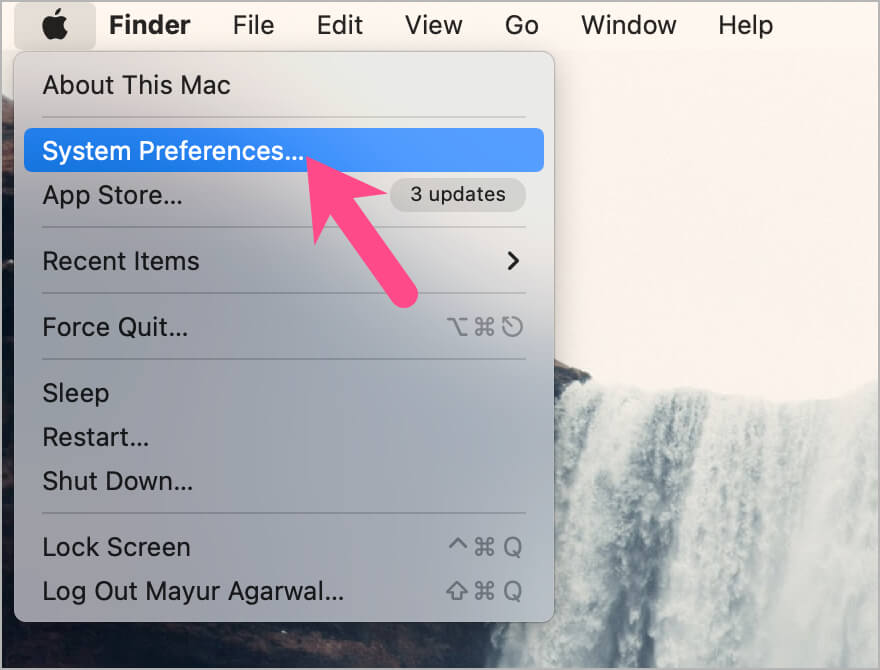
- On your Mac, click the Apple logo at the top-left corner and open System Preferences.
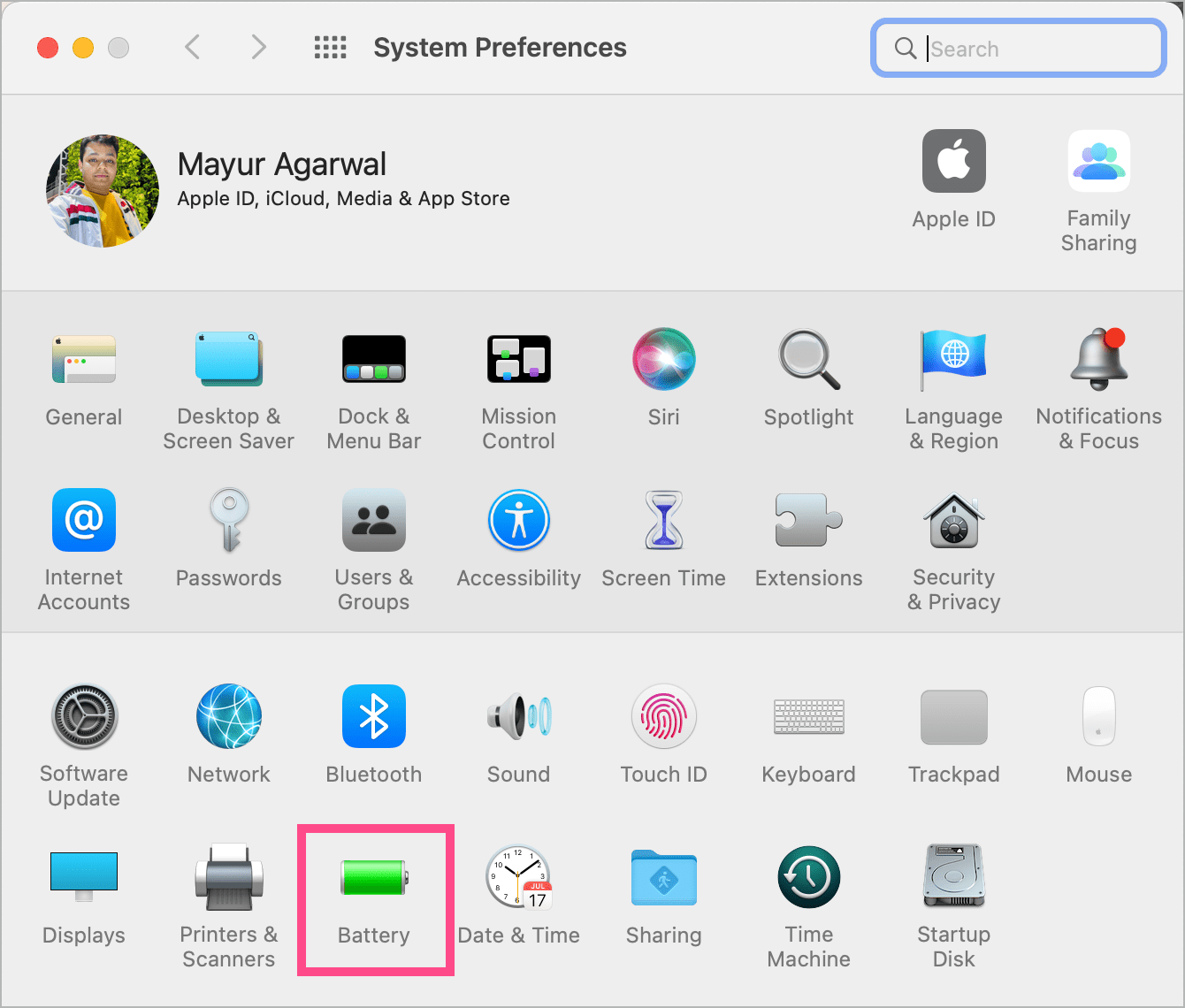
- In System Preferences, go to ‘Battery‘.
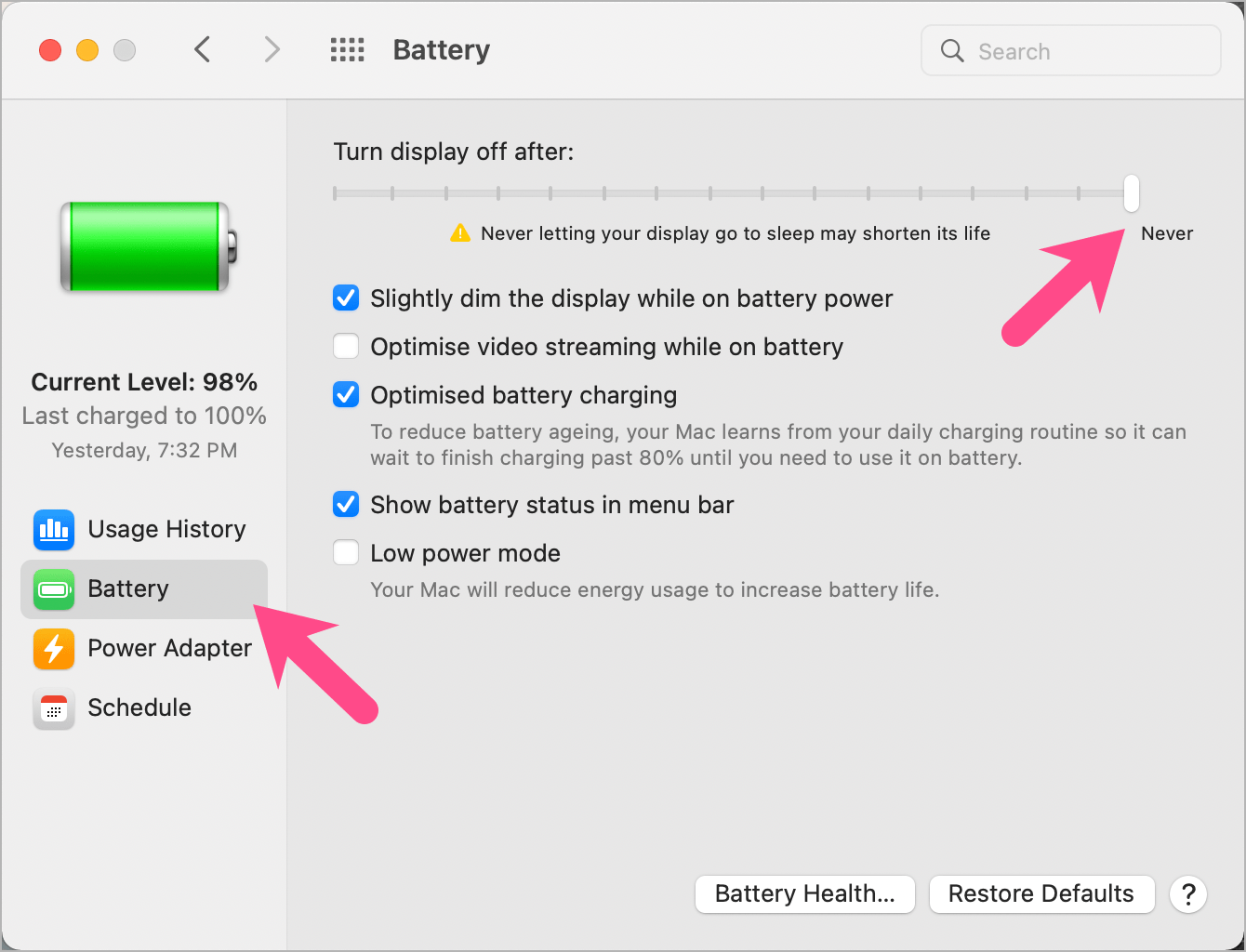
- Click on Battery in the left sidebar.
- Drag the “Turn display off after” slider to Never, on the extreme right.
- TIP: Press the F1 key to switch to 0 brightness level. This will let you manually turn off your MacBook screen and save power while downloading huge files overnight.
When plugged into a power adapter
- Click the Apple logo in the menu bar and select ‘System Preferences’.
- Go to ‘Battery’ and click ‘Power Adapter’.
- Enable the checkbox next to “Prevent your Mac from automatically sleeping when the display is off”.
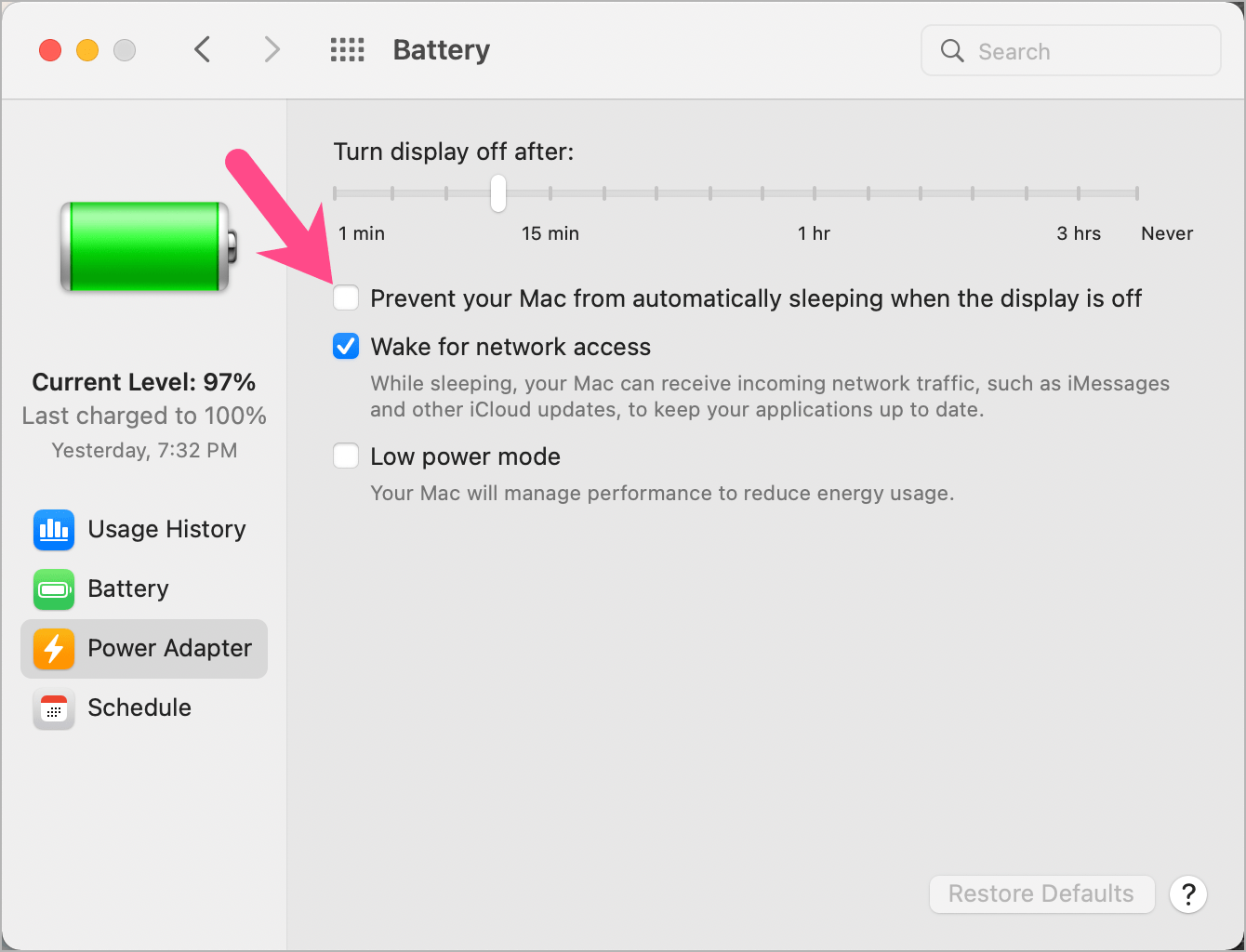
- Click OK to confirm. Your Mac will now remain awake even after the display turns off.
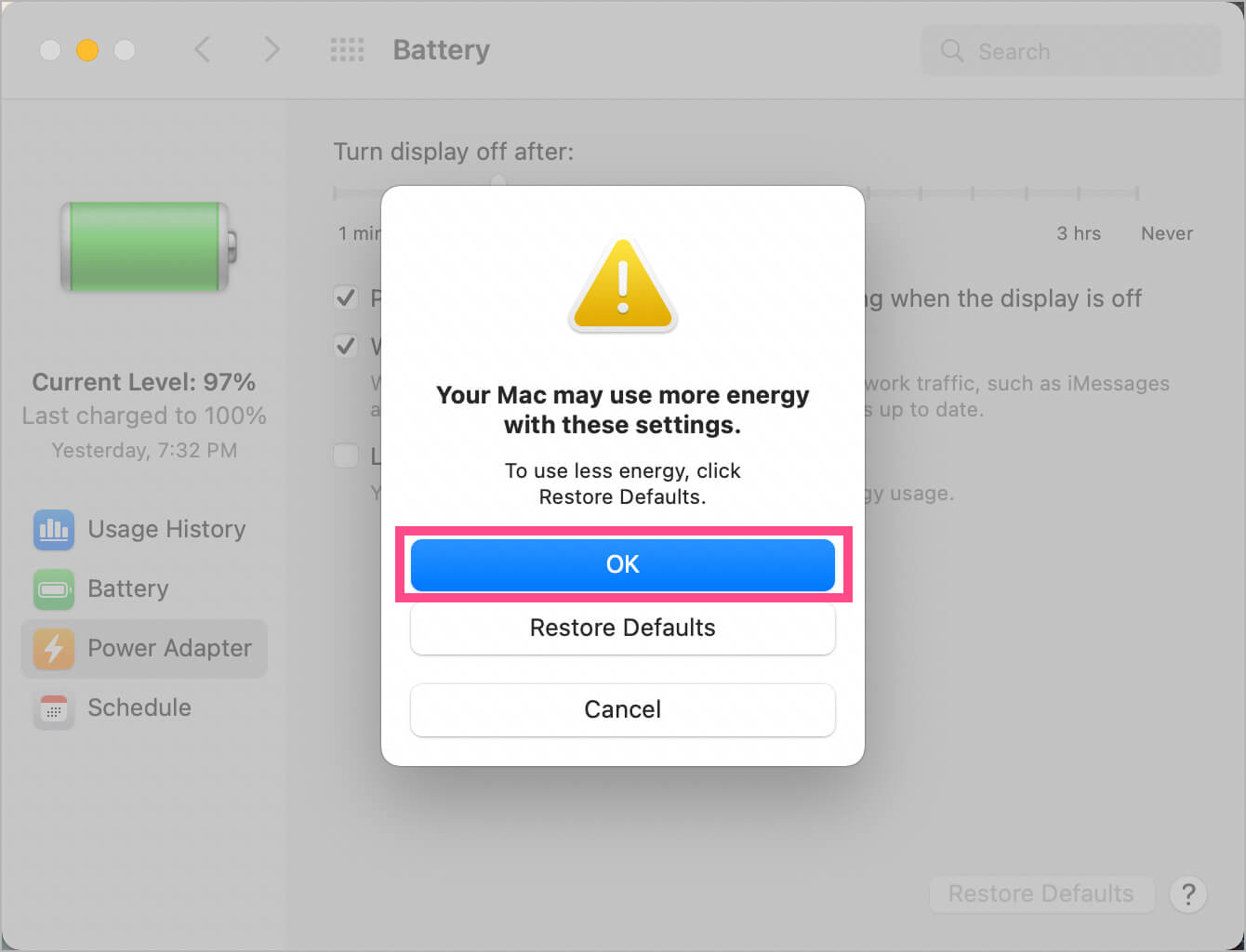
- Optional: Drag the “Turn display off after” slider and choose a preferred time after which your Mac should automatically go to sleep while plugged in. The default timeout is 10 minutes.
- Make sure to plug your MacBook into power for this to work.
NOTE: In both of the above scenarios, closing the lid will put your Mac to sleep. To overcome this limitation, check the below workaround.
How to prevent MacBook from sleeping when the lid is closed
Follow the steps below to keep your MacBook awake with the lid closed on macOS Big Sur, Catalina, Monterey, and previous supported versions of macOS.
- Install Amphetamine from the Mac App Store. It’s 100% free and without any ads.
- Launch Amphetamine and you will see the app (pill icon) in the menu bar at the top.
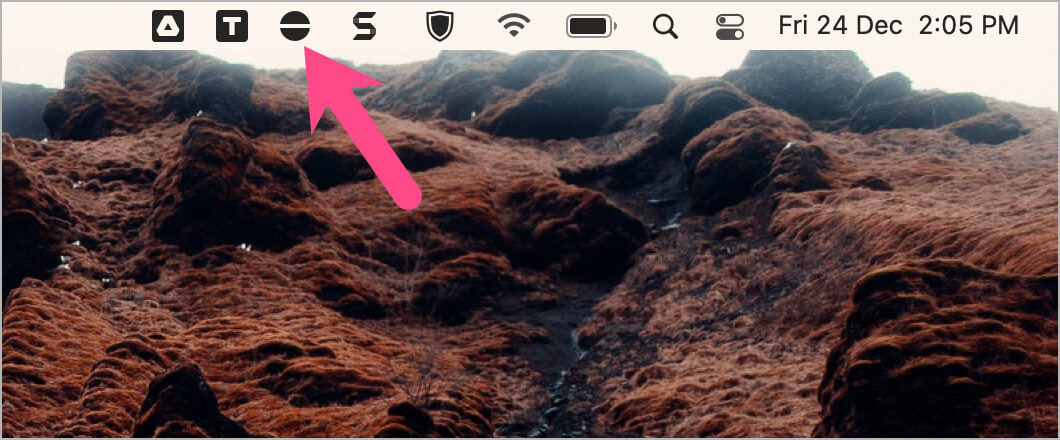
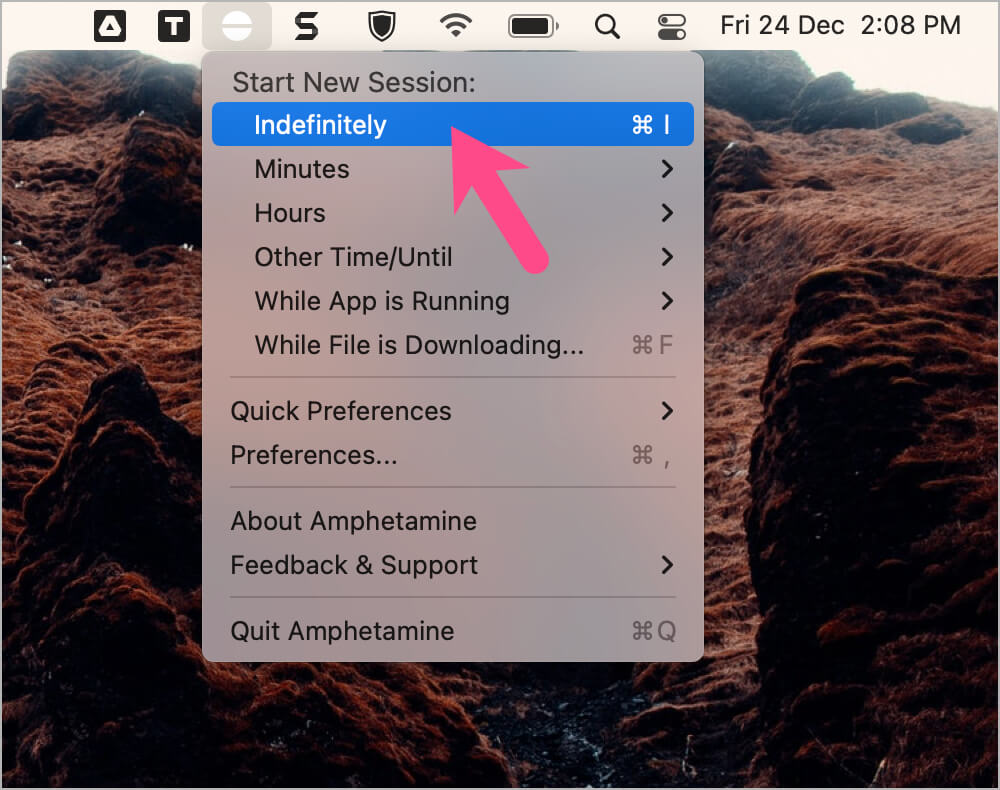
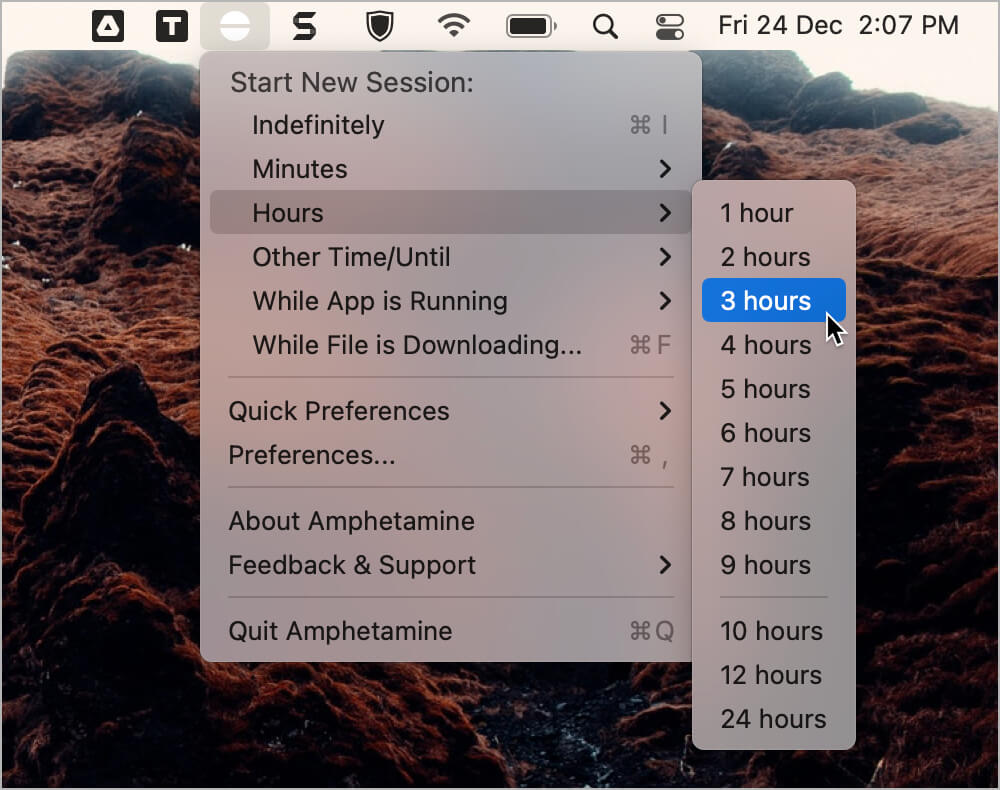
- Click the app’s icon in the menu bar and select “Indefinitely” to always keep your Mac awake. Alternatively, you can choose from the pre-defined number of minutes or hours to keep your system awake for a particular period.
- Important: Click the app icon again and untick the checkbox next to “Allow system sleep when display is closed”, under current session details. TIP: To avoid doing this manually every time, go to Quick Preferences and disable this particular setting under ‘Session Defaults’.
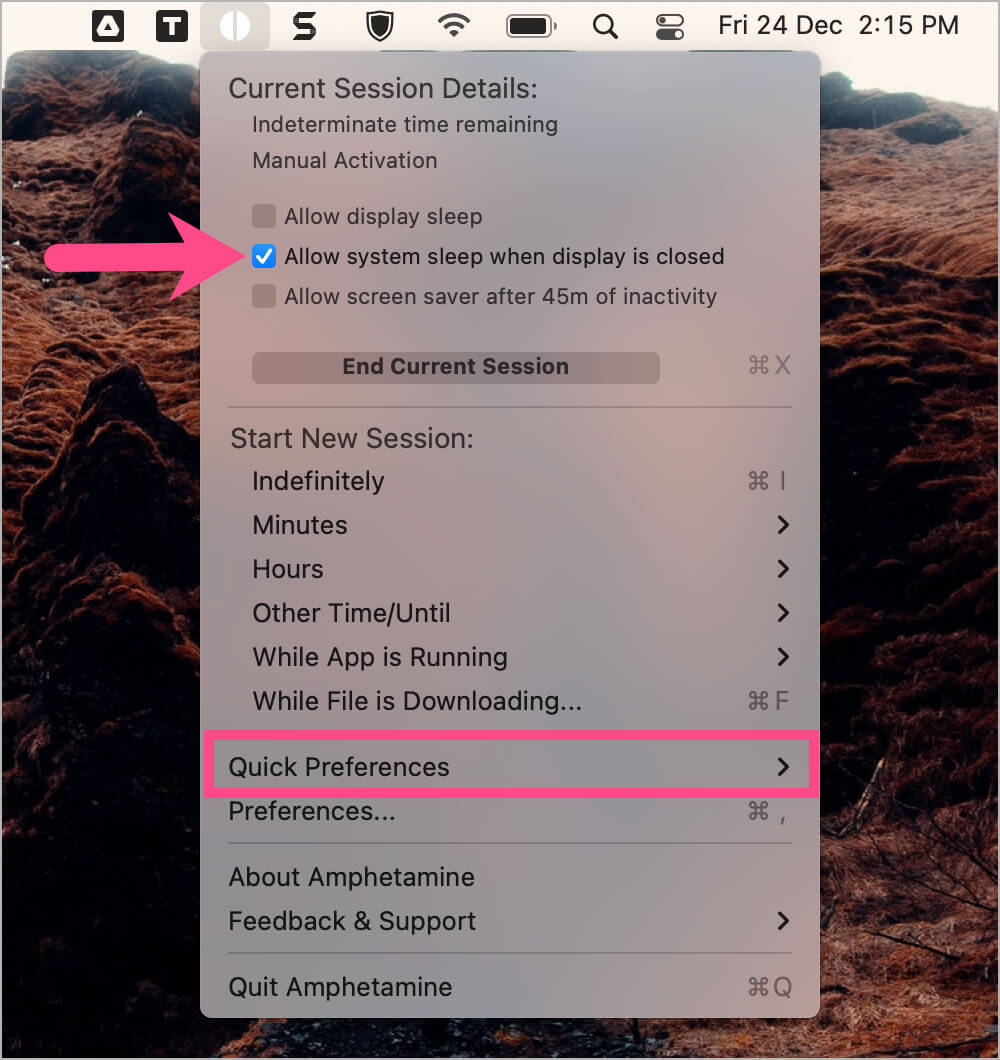
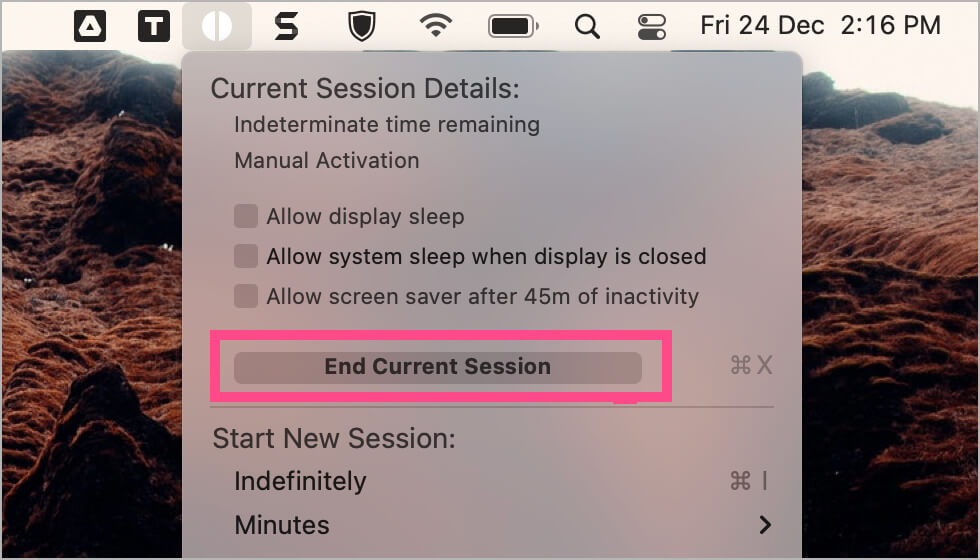
- To turn off anti-sleep mode, click the Amphetamine icon in the menu bar and click “End Current Session”.
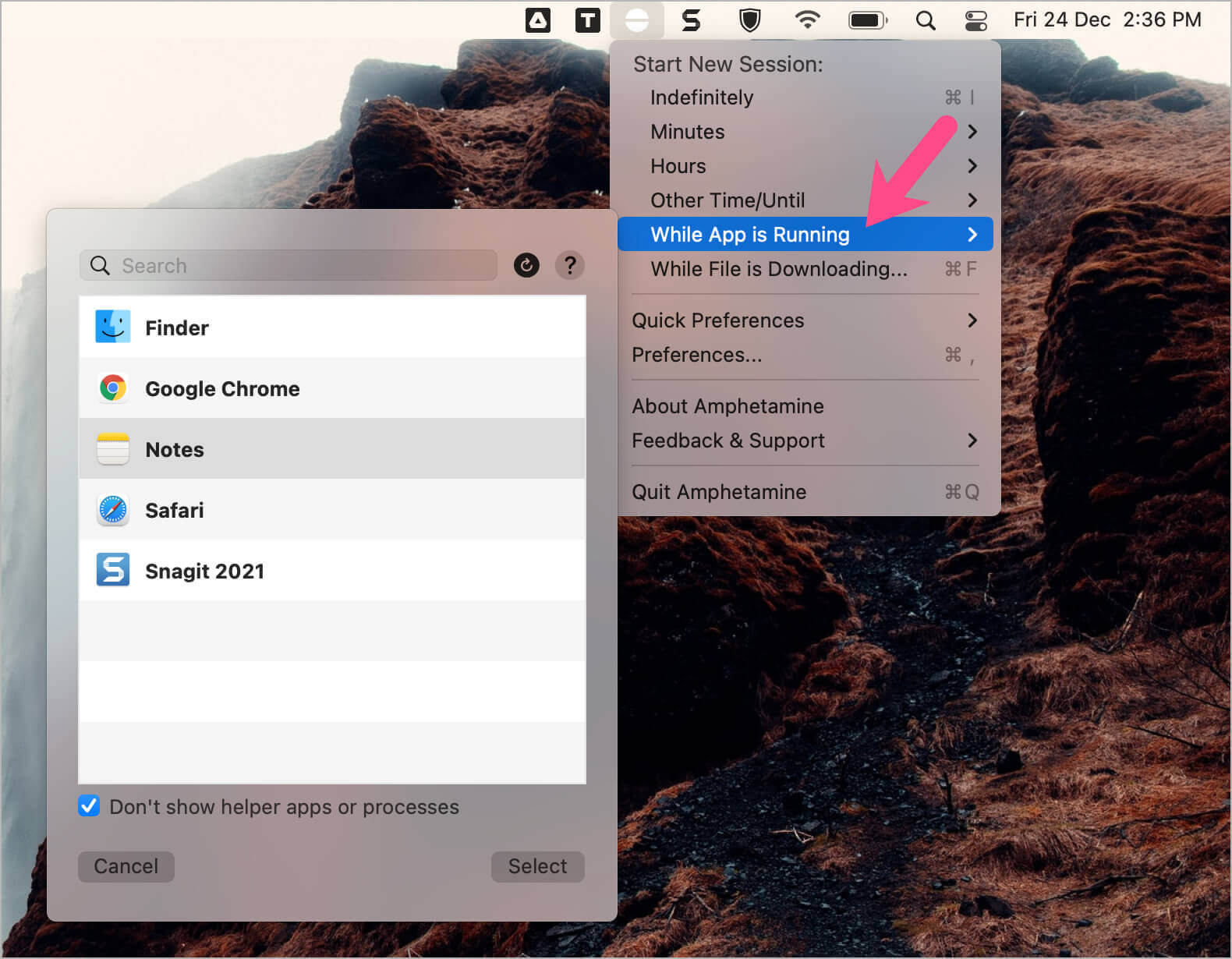
Those unaware, Amphetamine is a very powerful app and you can configure it the way you want. For instance, you can set Amphetamine to keep your Mac awake only when a specific app is running, such as a download manager. Note that Amphetamine should be running for this to work.
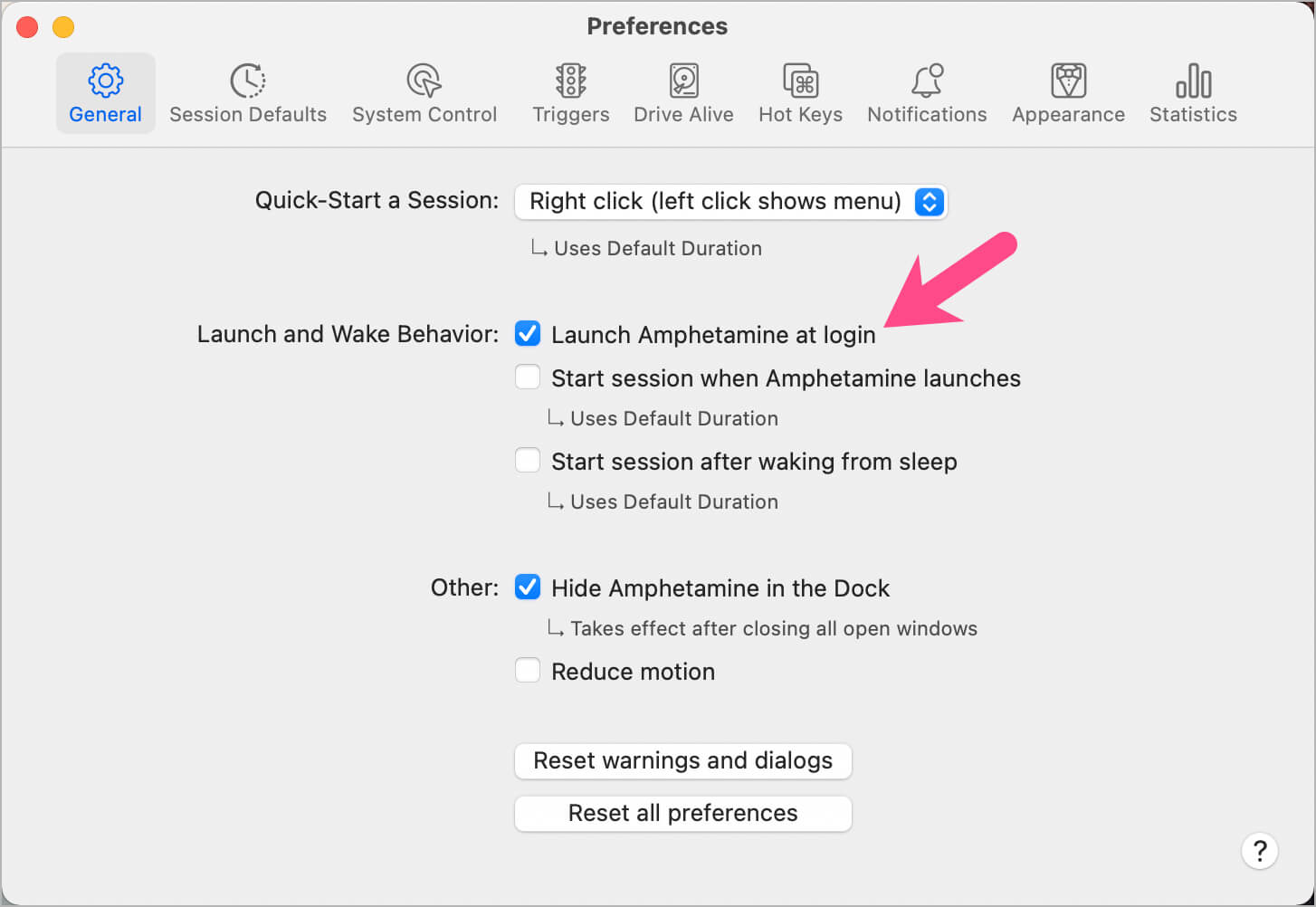
To ensure Amphetamine runs automatically after login, launch Amphetamine and open its Preferences. Under the General tab, simply enable the checkbox next to “Launch Amphetamine at login”.
TIP: To check if your Mac is awake or not when closed, play a YouTube video and you should be able to hear the music even with the lid closed.
NOTE: It’s advisable NOT to keep your Mac awake with the lid closed for long intervals or inside a bag. Doing so can easily overheat your Mac notebook and its battery can drain completely.
MORE TIPS:
- How to turn off notifications on Mac during Zoom meeting
- How to change the startup screen on macOS Monterey
- Add password protection to a PDF without Acrobat on Mac
- Fastest way to change photos from HEIC to JPG on macOS Monterey
- How to change the screen timeout on macOS Big Sur & Monterey
- Menu bar shortcut to enable or disable Low Power Mode on Mac









thank you – best article about that issue
100% agree!!!
Have you considered the possibility that some people use desktop macs instead of laptops? The settings are different for these.
This works for Big Sur, Monterey is a totally different setup.
It works on Monterey as well. We refrain from sharing info without testing it first.
You can do just using command line (no need to install anything):
1. Open Terminal
2. Type “caffeinate” and press Enter
That’s it. You can press Control-C to stop the program if needed.