WebTrickz
TRENDING
  • Claude vs ChatGPT: Which Is Better in 2026?
No Result
View All Result
  • Reviews
  • Editorials
  • Social Media
    • Facebook
    • Twitter
    • YouTube
    • Messenger
    • Instagram
    • Snapchat
    • WhatsApp
    • TikTok
  • Apps
  • How To’s
  • Apple
  • iPhone
  • Google
  • Android
  • Mac
  • Security
  • About Us
    • About Us
    • Contact Us
    • Privacy Policy
  • Reviews
  • Editorials
  • Social Media
    • Facebook
    • Twitter
    • YouTube
    • Messenger
    • Instagram
    • Snapchat
    • WhatsApp
    • TikTok
  • Apps
  • How To’s
  • Apple
  • iPhone
  • Google
  • Android
  • Mac
  • Security
  • About Us
    • About Us
    • Contact Us
    • Privacy Policy
No Result
View All Result
WebTrickz
No Result
View All Result
Home Windows 7

How to get Windows 7 like superbar in Windows Vista ?

Mayur Agarwal by Mayur Agarwal
February 28, 2024
in Windows 7

One cool feature I liked in Windows 7 was the introduction of the new Superbar in place of the old taskbar. The Superbar is a very cool and useful feature because it makes your taskbar clutter-free. It does this by showing only the icons and not the application labels on the taskbar. This makes you open multiple windows simultaneously as the space is taken very less.

Old taskbar in Vista

Before

New Windows 7 like superbar in Vista

After

You can also try and use this amazing feature on Windows Vista to give it a clean look as similar to the Windows 7 Superbar or icon-only taskbar.

Follow the registry hack below to get it done:

1.  Click the Start button, type in regedit, and hit Enter.

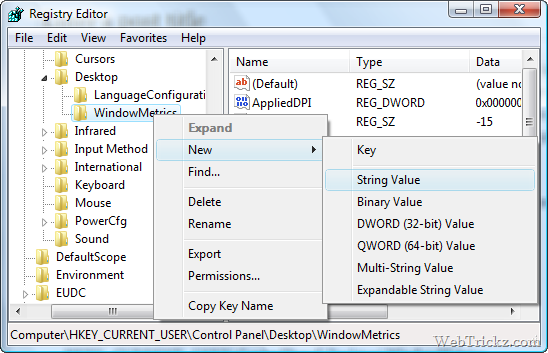
2.  Navigate through HKEY_CURRENT_USER\ControlPanel\Desktop\WindowMetrics.

3.  Create a new string value (REG_SZ value) and rename it as MinWidth
 

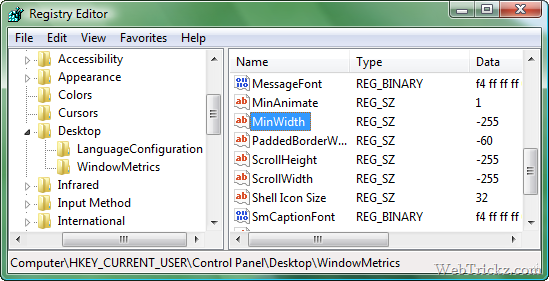
4.  Set the value of MinWidth to –255
5.  Restart Windows and experience the difference.

I have tried out this feature on my Windows Vista and I’m delighted to use it.

Hope you like this post. Thanks  [Tweaks.com]

Tags: Windows Vista
ShareTweetSend
Previous Post

CA Anti-Virus & Internet Security Suite Plus 2009 Free for 90 Days

Next Post

Top 5 freeware Data Recovery Tools for Windows

Mayur Agarwal

Mayur Agarwal

Mayur Agarwal, the founder and editor of WebTrickz, is a tech enthusiast with a Bachelor's degree in Computer Applications and over 15 years of experience in tech writing. His passion for technology and gadgets drives him to create insightful how-to articles and troubleshooting guides.

Next Post

Top 5 freeware Data Recovery Tools for Windows

Comments 2

  1. Vinc says:
    17 years ago

    WOW that gr8!!

    But will it give some error later on when the Windows is undated online later on?

    Do you have any other windows tricks?

    Reply
  2. Phaoloo says:
    17 years ago

    Nice trick!

    Reply

Leave a Reply Cancel reply

Your email address will not be published. Required fields are marked *

Latest Stories

Google Gemini

How to Cancel Your Gemini Subscription (2026 Guide)

June 21, 2026
difference between chatgpt and claude

Claude vs ChatGPT: Which AI Should You Use in 2026?

June 18, 2026
google chrome logo

Google Chrome Offline Installer: Direct Download Links

June 17, 2026
X logo

How to Remove All Bookmarks on X (Twitter) At Once in 2026

June 15, 2026
X logo

How to Find Bookmarks on X (Twitter) in 2026

June 15, 2026
copilot logo

How to Turn Off Copilot Search in Bing on Edge & Chrome

June 10, 2026
microsoft edge new logo

How to Turn Off Notifications in Microsoft Edge (2026 Guide)

June 8, 2026

Trending Stories

  • 1337x logo

    1337x Proxy List 2026: Working Proxy & Mirror Sites

  • How to Turn Off Microsoft Family Safety on Windows 11 & 10

  • How to See Recently Watched Reels on Facebook (2026 Guide)

  • How to Turn Off Microsoft Edge Game Assist in Windows 11

  • How to Turn Off Fn Lock or Fn Key on Windows 11/10 Laptop

  • About Us
  • Contact Us
  • Privacy Policy
  • Advertise

© 2026 WebTrickz. All Rights Reserved.

No Result
View All Result
  • Reviews
  • Apps
  • How To’s
  • Android
  • Google
  • iPhone
  • Mac
  • About Us
  • Contact Us
  • Privacy Policy

© 2026 WebTrickz. All Rights Reserved.