WebTrickz
TRENDING
  • Complete list of 1337x Proxy and Mirror Sites
No Result
View All Result
  • Reviews
  • Editorials
  • Social Media
    • Facebook
    • Twitter
    • YouTube
    • Messenger
    • Instagram
    • Snapchat
    • WhatsApp
    • TikTok
  • Apps
  • How To’s
  • Apple
  • iPhone
  • Google
  • Android
  • Mac
  • Security
  • About Us
    • About Us
    • Contact Us
    • Privacy Policy
  • Reviews
  • Editorials
  • Social Media
    • Facebook
    • Twitter
    • YouTube
    • Messenger
    • Instagram
    • Snapchat
    • WhatsApp
    • TikTok
  • Apps
  • How To’s
  • Apple
  • iPhone
  • Google
  • Android
  • Mac
  • Security
  • About Us
    • About Us
    • Contact Us
    • Privacy Policy
No Result
View All Result
WebTrickz
No Result
View All Result
Home Snapchat

Here’s How to Get Transparent Colors on Snapchat

Taigun by Taigun
March 18, 2024
in How To's, Snapchat

Snapchat makes it really easy to personalise your snaps with a doodle or text before posting them. If you happen to use Snapchat earlier then you might have used transparent colors for doodling on images.

No transparent colors on Snapchat

Unfortunately, Snapchat has removed the ability to add transparent colours in the recent version of the app. The change applies to both iPhone and Android. Hence, users annoyed with this unwanted change are looking for ways to set the transparency. The reality is that you cannot make colors transparent anymore unless Snapchat chooses to revert its decision.
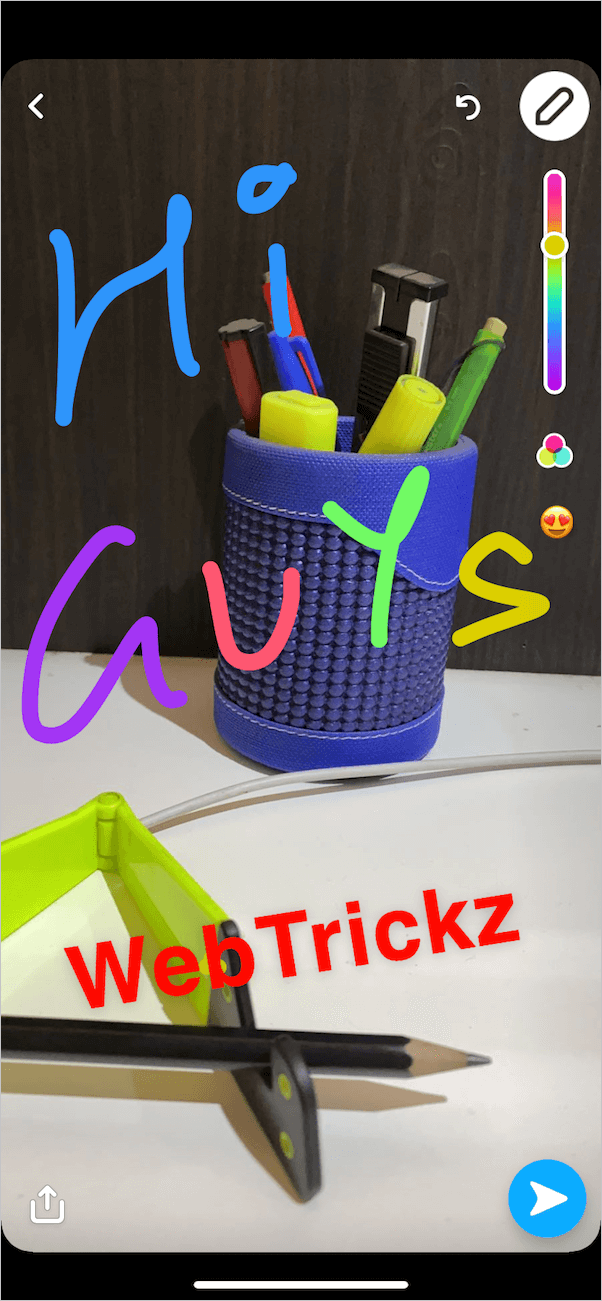
No transparent colors in Snapchat
Solid colours on Snapchat

The color palette, common for both the text and pencil tool, offers a multitude of shades but all of them are solid colours. This means that even the lightest colour gradient doesn’t carry a translucent effect. This is a subtle change, however, pointless considering the said feature was available in earlier versions of Snapchat.

RELATED: How to pin someone on Snapchat

Having said that, those adamant on adding transparency to certain text or doodle art on Snapchat can use a third-party app. Though most users would refrain from doing this but still having a workaround is always good. So let’s see how this can be done.

Workaround to make colors transparent on Snapchat

For this, we will be using Pixlr, a free app available for both iPhone and Android. Besides using it to get transparent colours, you can use Pixlr to edit your photos, create photo collages, add a variety of effects, overlays, filters and so on.

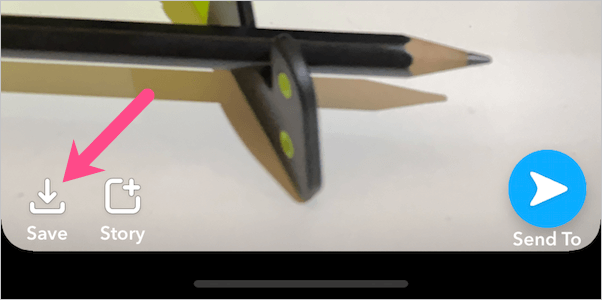
  1. Take a snap on Snapchat and save it to the camera roll. save snap in snapchat
  2. Install Pixlr on your phone from the App Store or Google Play.
  3. Open Pixlr, tap Photos and select the snap you just captured. You can also select an existing photo on your phone that you wish to post on Snapchat.
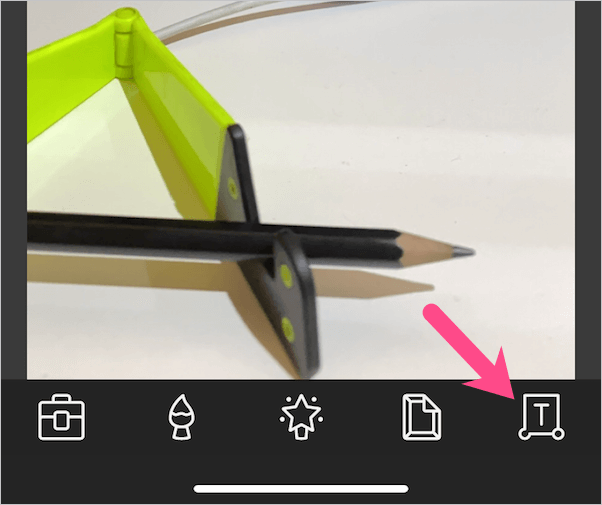
  4. To add text, tap the “Text Tool” and type the text. text tool in pixlr
  5. Tap the droplet icon and move the color slider to pick a color. You can also use the color picker tool to select a color from the imported photo. pick color in pixlr
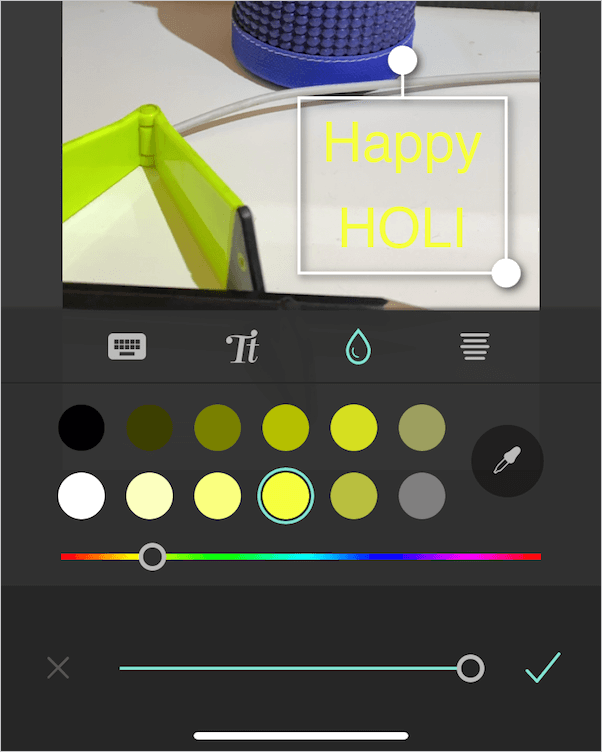
  6. To adjust the transparency or opacity of the text, simply move the slider at the bottom of the screen. The numerical values will change as you adjust it. set colour transparency in pixlr
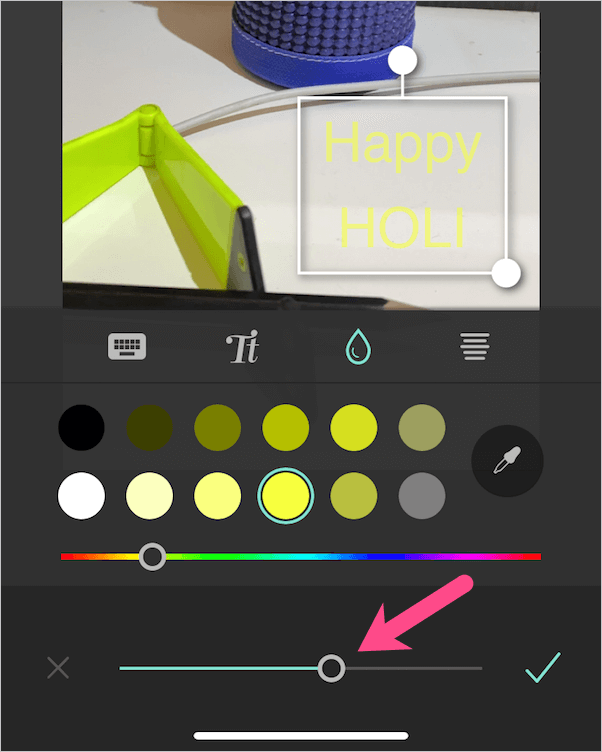
  7. Tap the Tick icon, hit done (at the upper right) and save the image. The saved image retains the resolution of the original one.
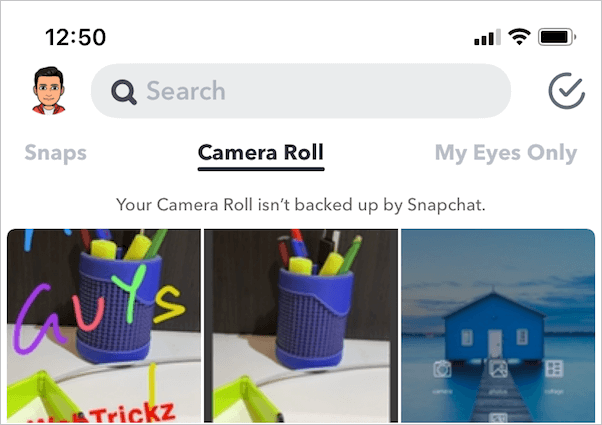
  8. To use the edited image, open Snapchat and swipe up from the bottom. Navigate to the “Camera Roll” tab and select the image you just edited with Pixlr.camera roll in snapchat app
  9. To add effects or stickers to the image, tap the 3 vertical dots (at the top right) and select “Edit Photo”. edit photo in snapchat
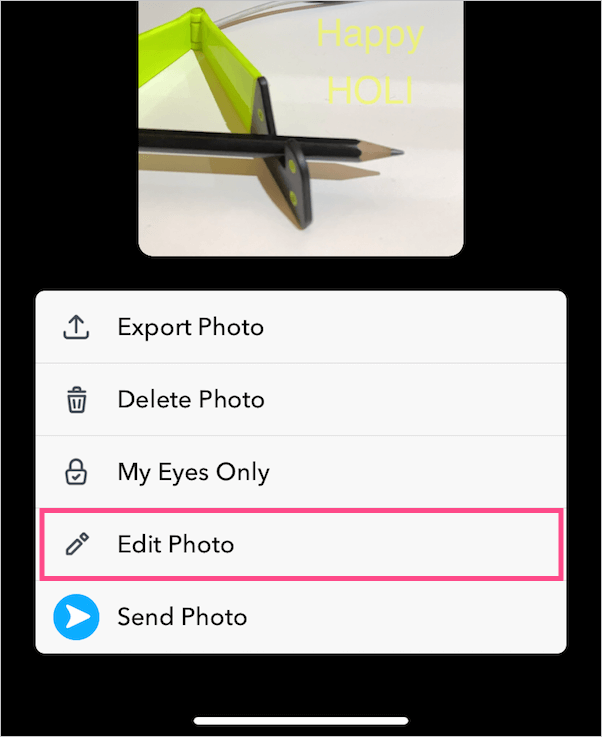
  10. Post the snap after making the desired changes.

In case you like to scribble or add doodle art with transparent colours, go to Pixlr and select a snap saved on your phone. Tap the Brush tool and select doodle. Now pick a color, adjust the size, density for the feather tool and start scribbling. Save the image and use it on Snapchat.
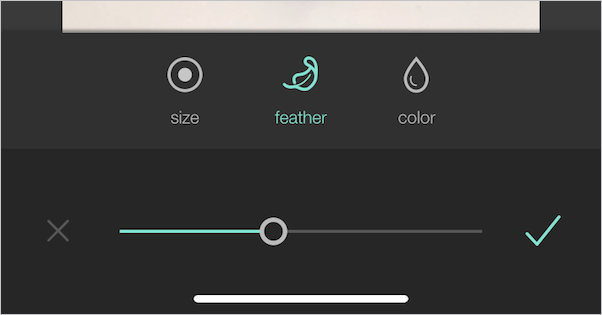
doodle tool in pixlr app
Doodle tool in Pixlr

We hope you found this article helpful.

MORE TIPS:

  • How do I respond to individual messages on Snapchat?
  • Here’s how to get the sparkle effect on TikTok
  • How to get rid of the background blur on Snapchat
Tags: AndroidAppsiPhoneSnapchatTips
ShareTweetSend
Previous Post

How to Unmute Stories on Facebook for iPhone and Android

Next Post

Here’s how you can Like a Reaction on Instagram Story

Taigun

Taigun

Mayur Agarwal, the founder and editor of WebTrickz, is a tech enthusiast with a Bachelor's degree in Computer Applications and over 15 years of experience in tech writing. His passion for technology and gadgets drives him to create insightful how-to articles and troubleshooting guides.

Next Post
red heart by Nicola Fioravanti

Here's how you can Like a Reaction on Instagram Story

Leave a Reply Cancel reply

Your email address will not be published. Required fields are marked *

Latest Stories

1337x logo

1337x Proxy List 2026: Working Proxy & Mirror Sites

June 2, 2026

How to Find Saved Reels on Facebook App & Desktop (2026)

April 1, 2026
microsoft edge browser

How to Restore or Reopen Closed Tabs in Microsoft Edge

March 26, 2026
Facebook app on iPhone

How to See Recently Watched Reels on Facebook (2026 Guide)

April 3, 2026
microsoft edge new logo

Download Microsoft Edge Offline Installer [Latest Version]

March 16, 2026

How to Turn Off Bing SafeSearch in Microsoft Edge

March 12, 2026
google chrome logo

Download Google Chrome Offline Installer [Latest Version]

June 3, 2026

Trending Stories

  • microsoft family safety settings

    How to Turn Off Microsoft Family Safety on Windows 11 & 10

  • How to Turn Off Fn Lock or Fn Key on Windows 11/10 Laptop

  • How to Turn Off Microsoft Edge Game Assist in Windows 11

  • How to See Recently Watched Reels on Facebook (2026 Guide)

  • How to Restore or Reopen Closed Tabs in Microsoft Edge

  • About Us
  • Contact Us
  • Privacy Policy
  • Advertise

© 2026 WebTrickz. All Rights Reserved.

No Result
View All Result
  • Reviews
  • Apps
  • How To’s
  • Android
  • Google
  • iPhone
  • Mac
  • About Us
  • Contact Us
  • Privacy Policy

© 2026 WebTrickz. All Rights Reserved.