


People who love creating fun and entertaining reels on Instagram often like to share reels on other platforms as well. Though Instagram offers a ‘Recommend on Facebook’ option (while sharing a reel) so you can share your reels with anyone on Facebook. At the same time, Instagram doesn’t allow users to cross-post their reels on Facebook-owned WhatsApp.
You can, however, share a reel’s link on your WhatsApp status using the Share option in reels. That said, it isn’t a feasible way to share reels on WhatsApp as most viewers won’t bother to open the link. Moreover, those who don’t have the Instagram app on their device won’t be able to watch your reels.
Thankfully, there is an easy workaround to put Instagram reels on WhatsApp status without link. Doing so will let you share your own or someone else’s reel on your WhatsApp status with music. The step involves using a third-party app to first save a reel to the camera roll with audio and then post the reel to WhatsApp status or story.
Now let’s see how to upload reels video on WhatsApp status, both on iPhone and Android.
How to post reels on WhatsApp status without a link
- Install “Repost: For Instagram” from the App Store (on iPhone) or Google Play (on Android).
- Open Instagram and find the reel video you want to repost on WhatsApp.
- Tap the ellipsis button (3-dot icon) at the bottom-right corner and select “Copy link”.
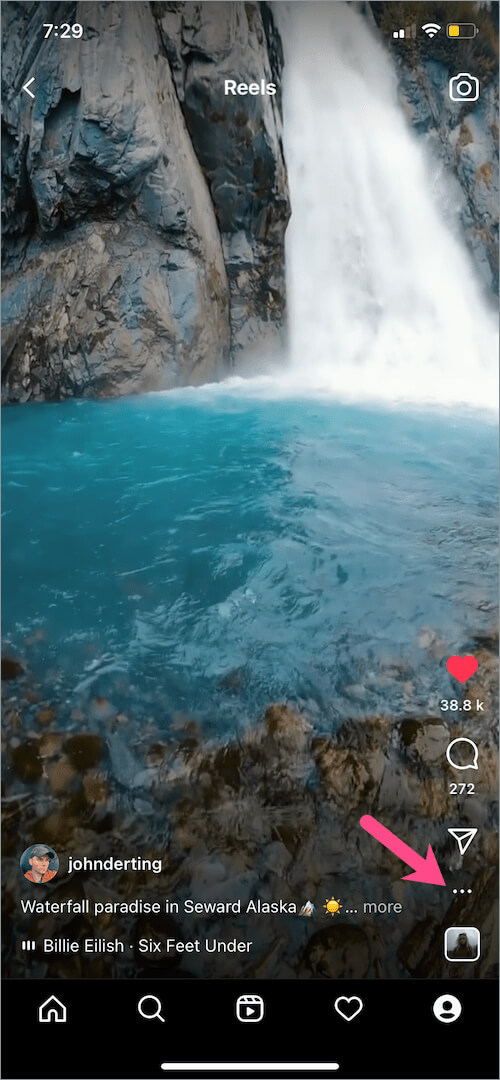
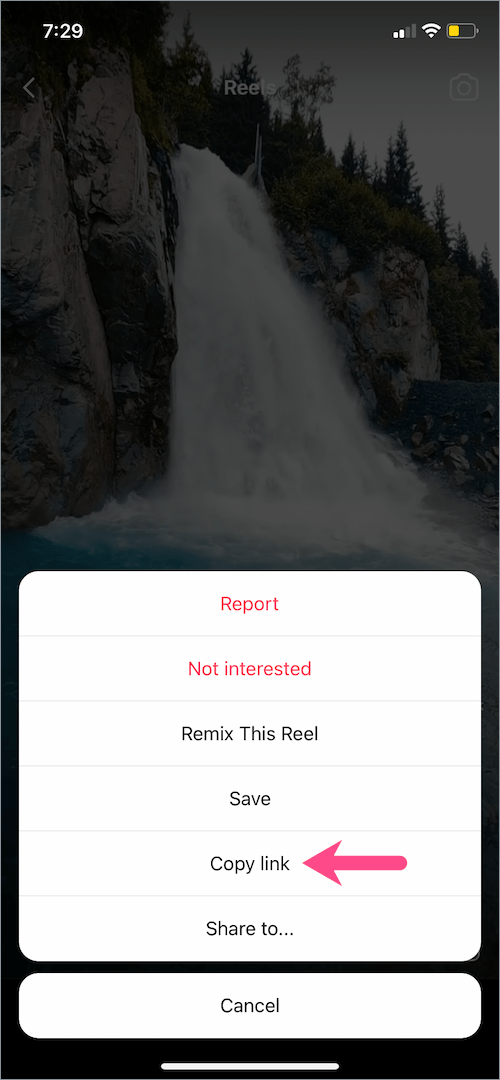
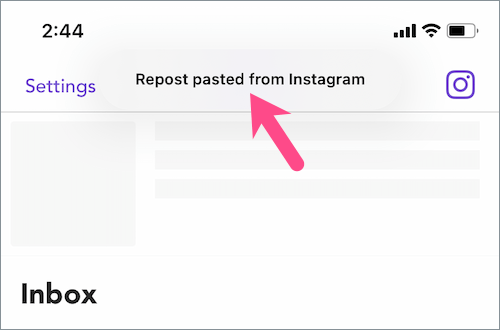
- Go to the Repost app. The app will automatically fetch the reel link and show ‘Repost pasted from Instagram’. Then tap the particular reel.

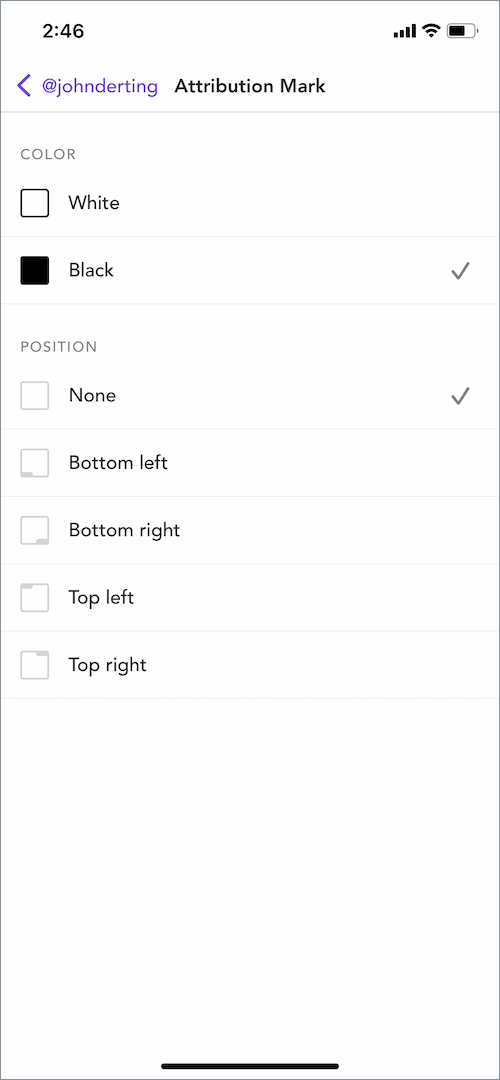
- Optional: Hide the Attribution mark if you want. To do so, tap the ‘Attribution mark’ option and set its position to ‘None’.
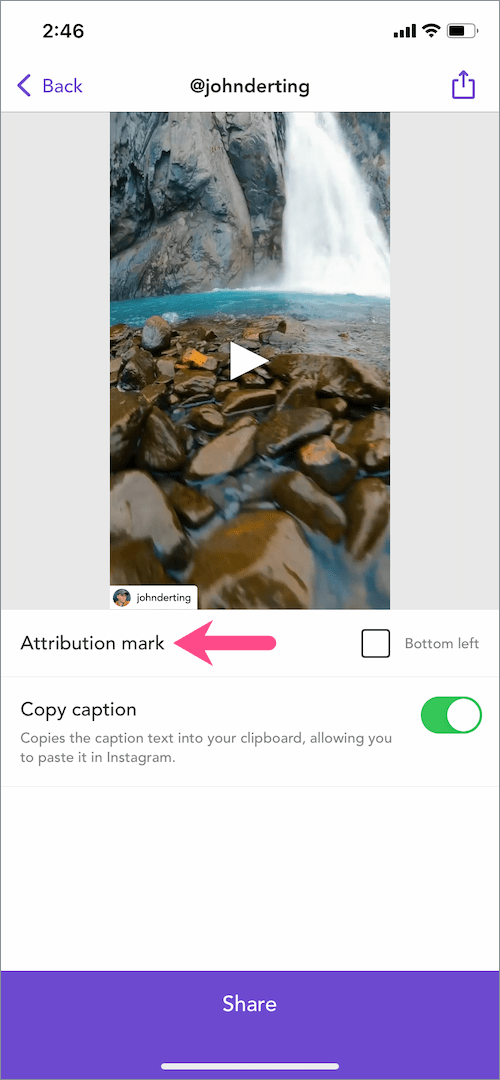
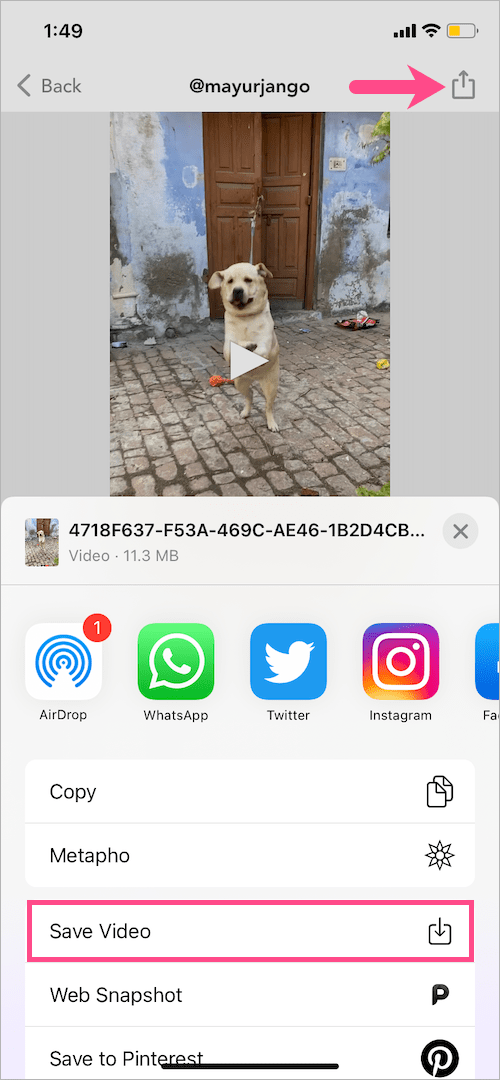
- Tap the ‘Share’ button at the top-right corner and select “Save Video” to save the reel to the Photos app on iPhone.
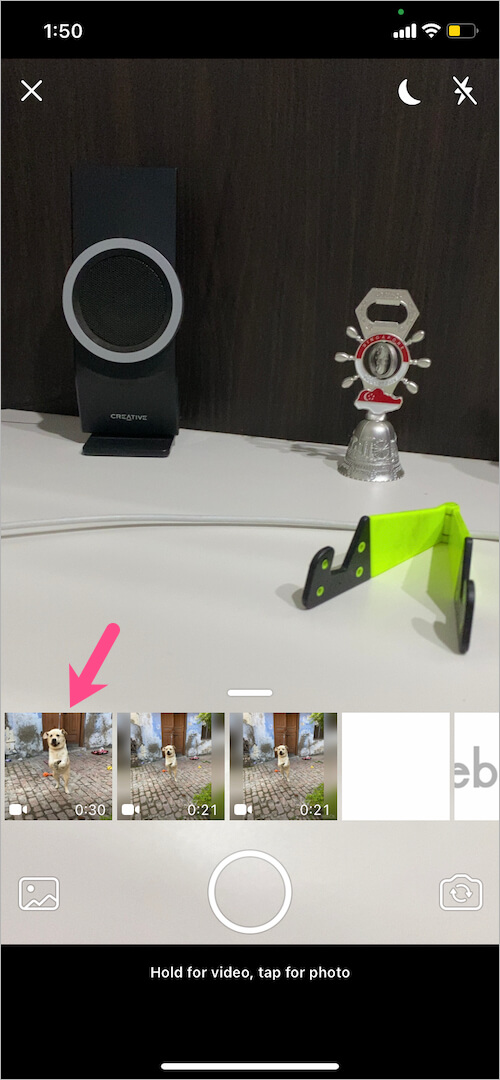
- Open WhatsApp and go to the ‘Status’ tab to add a new status.
- On the add status screen, select the saved reel from your camera roll.
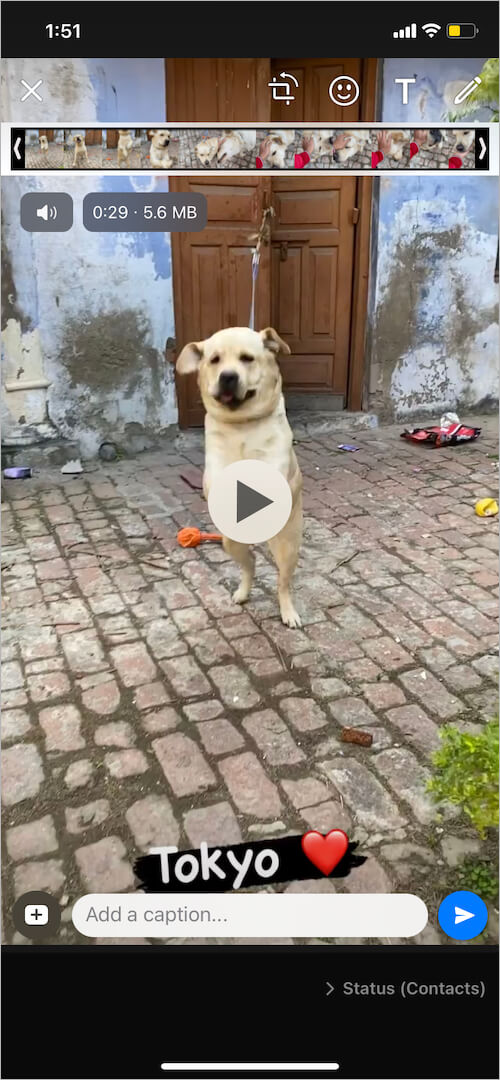
- Optional: Add a caption, filter, stickers, or text to the reel video if you want.
- Tap the share button to share the reel video on your WhatsApp story.
That’s it. Meanwhile, you can directly send a reel video to your contacts on WhatsApp. For those running Android, the steps are similar to the iOS version of the Repost app.
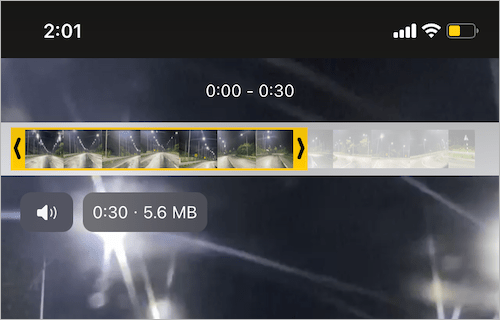
NOTE: It is not possible to post reels longer than 30 seconds as your WhatsApp status. To get over this limitation, simply share the initial 30-second portion of the reel video first. Then accordingly trim and upload the remaining segment of the reel in your follow-up status.
ALSO READ: How to repost a reel to your Instagram Feed, Reels, or Story
How to share Instagram draft reels on WhatsApp
Want to share reels on WhatsApp without posting?
If you’re looking to post a draft reel on your WhatsApp status then that’s not possible. That’s because Instagram reels saved as drafts are saved without audio when you download them to your gallery. And it certainly wouldn’t make sense to post a reel without music to your status or story.
What you can rather do is, share the particular draft reel on Instagram. Then download the reel using the Repost app and then quickly delete that reel from your Instagram account. Now go ahead and share the draft reel on WhatsApp or any other social media platform.
RELATED: How to select multiple photos for WhatsApp Status on iPhone









