


Smartphone users who frequently install apps usually end up with a lot of unnecessary and unused apps over time. Perhaps, if your iPhone is running out of storage then you should get rid of apps that you haven’t used for a long time. This will help you clean up your iPhone and only have the most useful and frequently used apps on your device.
That said, if you have hundreds of unwanted apps then deleting each app manually can be a daunting task. Though one can enable the ‘Offload Unused Apps’ feature to automatically offload unused apps when the iPhone is low on storage. However, offloading apps isn’t an apt solution unless you want to keep the documents and data linked with an app.
How can I mass delete apps on my iPhone?
While you can hide individual app pages and remove multiple apps at once from iPhone Home Screen, there is no way to bulk delete apps on iPhone. Similarly, iOS offers no option to delete all apps on iPhone at once.
Luckily, DearMob iPhone Manager, a third-party program offers an effortless and free solution to batch delete apps from iPhone or iPad. With this feature-packed tool, you can install, delete, and manage iOS apps directly from your PC or Mac. It supports all versions of iOS and iPadOS.
The only downside is that this procedure requires using a computer. Nevertheless, users looking for a convenient and fastest way to uninstall multiple apps at once on iPhone will definitely find this tool useful.
Now let us guide you through the steps to delete multiple apps on iPhone at once using DearMob iPhone Manager.
Prerequisites: A Windows PC or Mac, Lightning Cable, and DearMob iPhone Manager.
How to delete multiple apps at once on iPhone
- Download and install “DearMob iPhone Manager” on your PC or Mac.
- Launch the program and connect the iPhone to your computer using a Lightning cable.
- Once the device is successfully connected, click the “App” option.
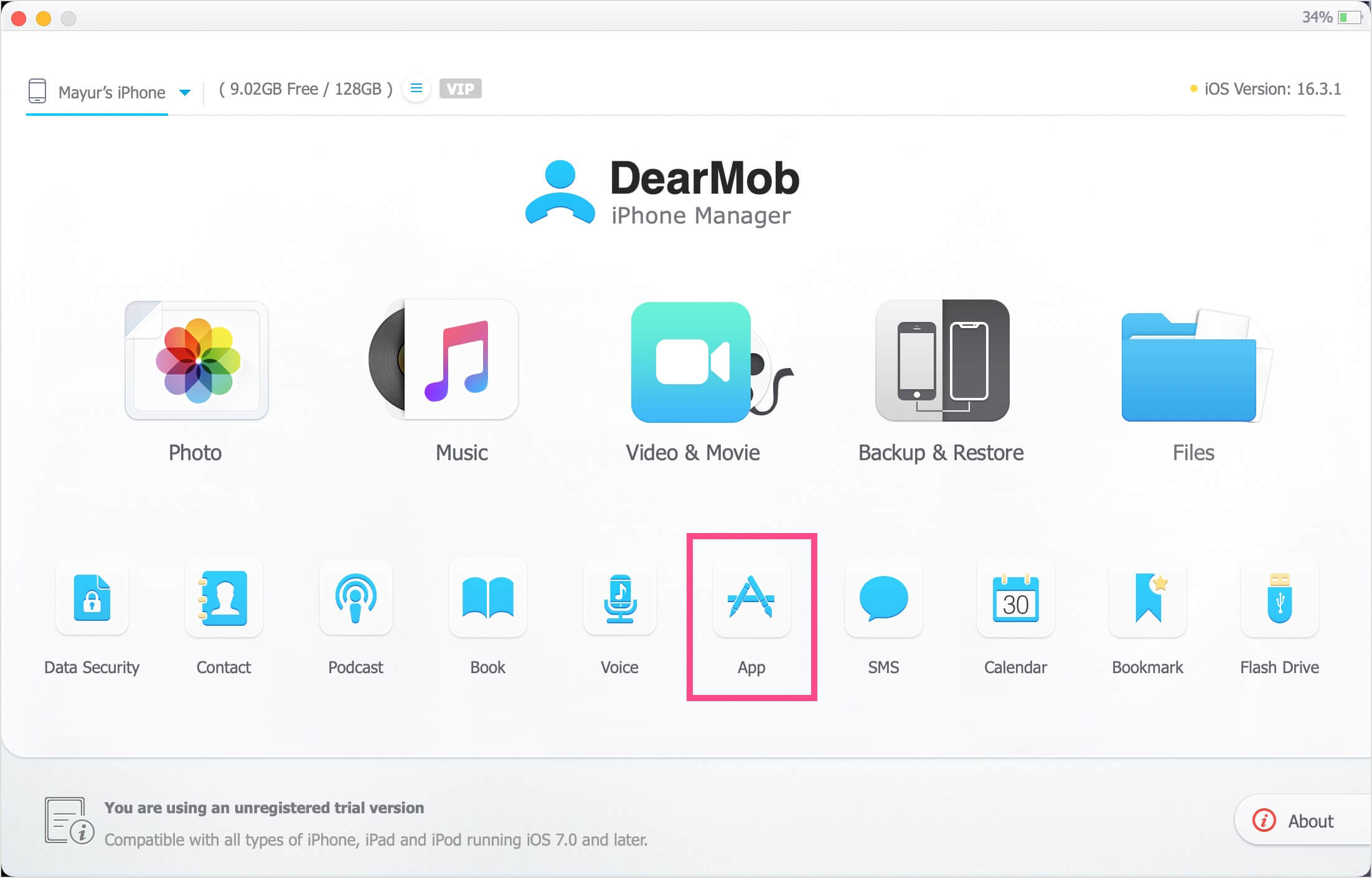
- The App Manager sidebar shows the total number of user-installed apps as well as pre-installed Apple apps like Clips and GarageBand.
- Optional: Switch from Grid to List View to see the app version and amount of storage occupied by a particular app.
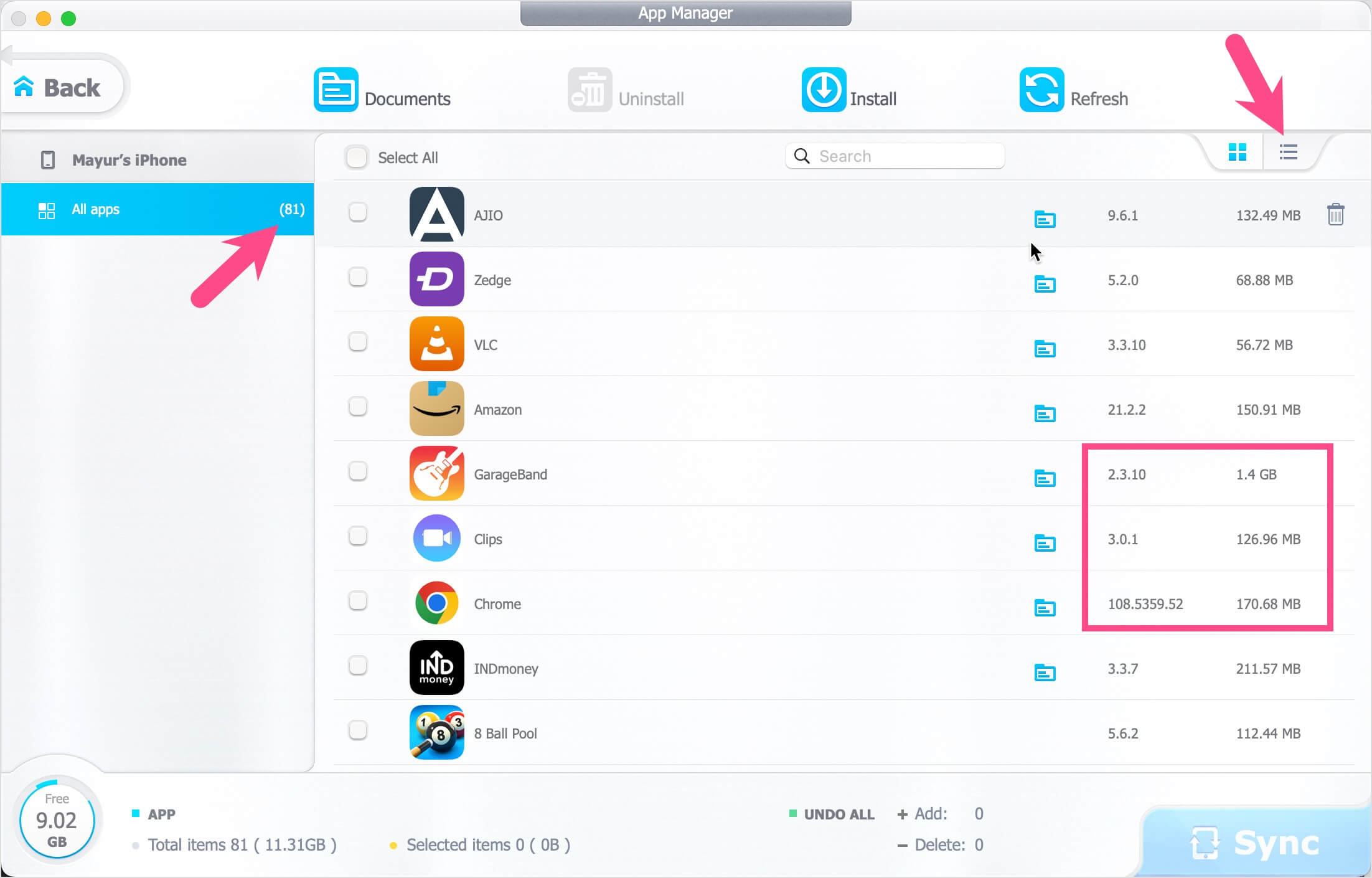
- To select multiple apps, scroll through and tick mark the checkbox next to all the apps you want to delete at once. You can also search for the desired apps.
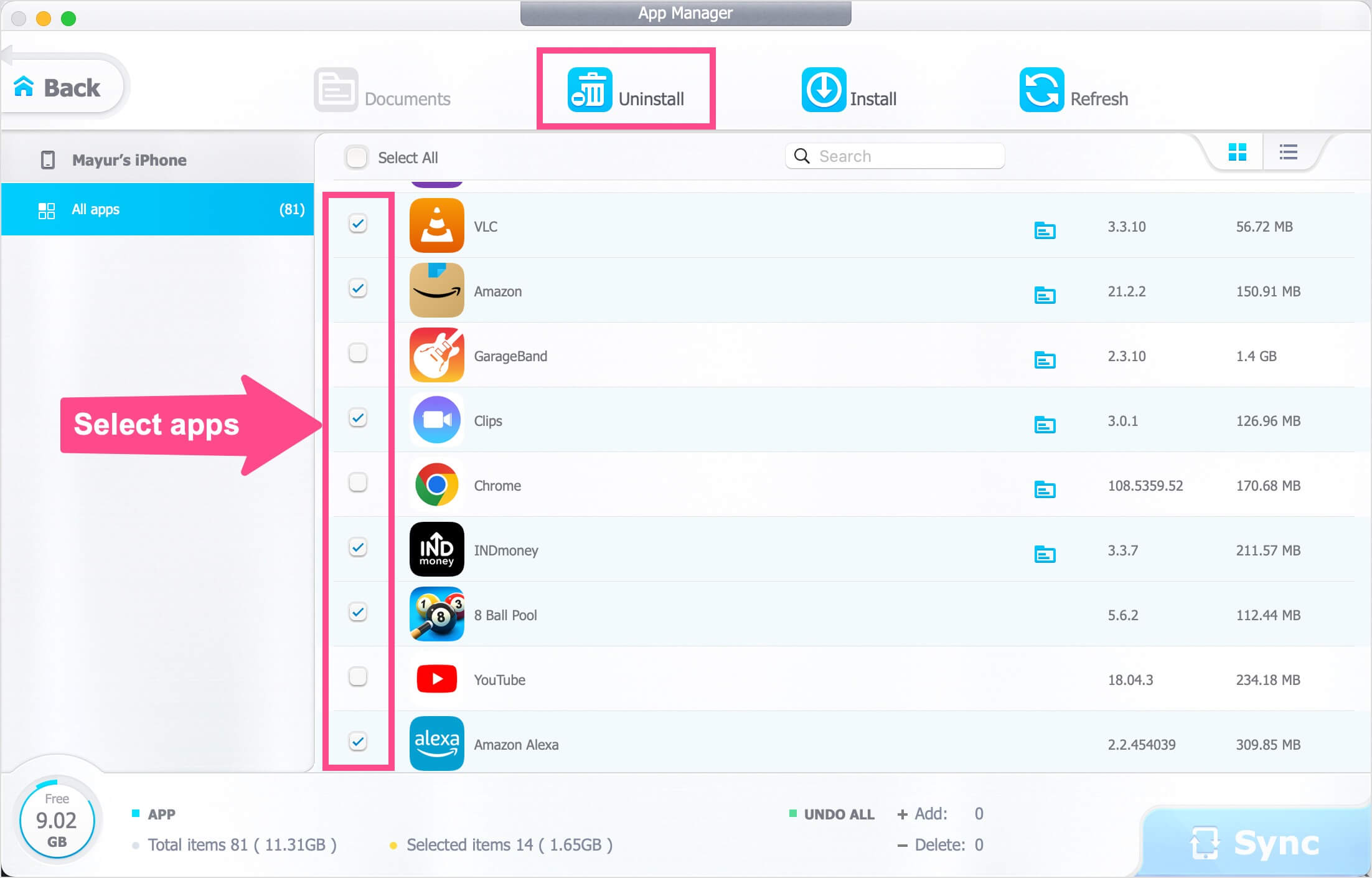
- Click on the “Uninstall” button at the top.
- NOTE: The selected apps aren’t deleted yet. You can click the red Undo icon to remove an app from the uninstall list.
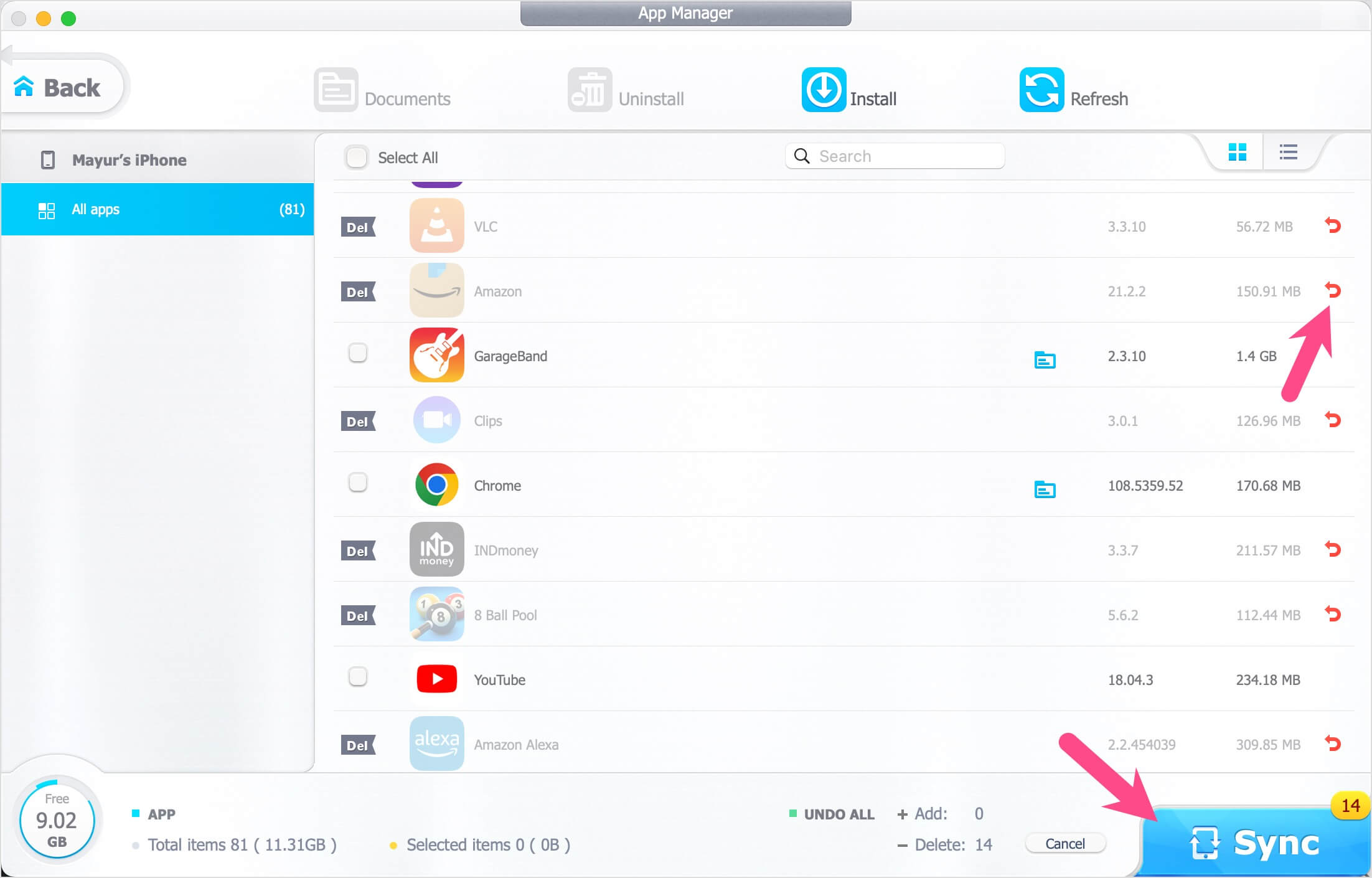
- To bulk uninstall apps, click the Sync button at the bottom right and select Continue. (Note: The unregistered copy of DearMob offers 100 credit points per day for free use but batch deletion of apps consumes 0 credit points.)
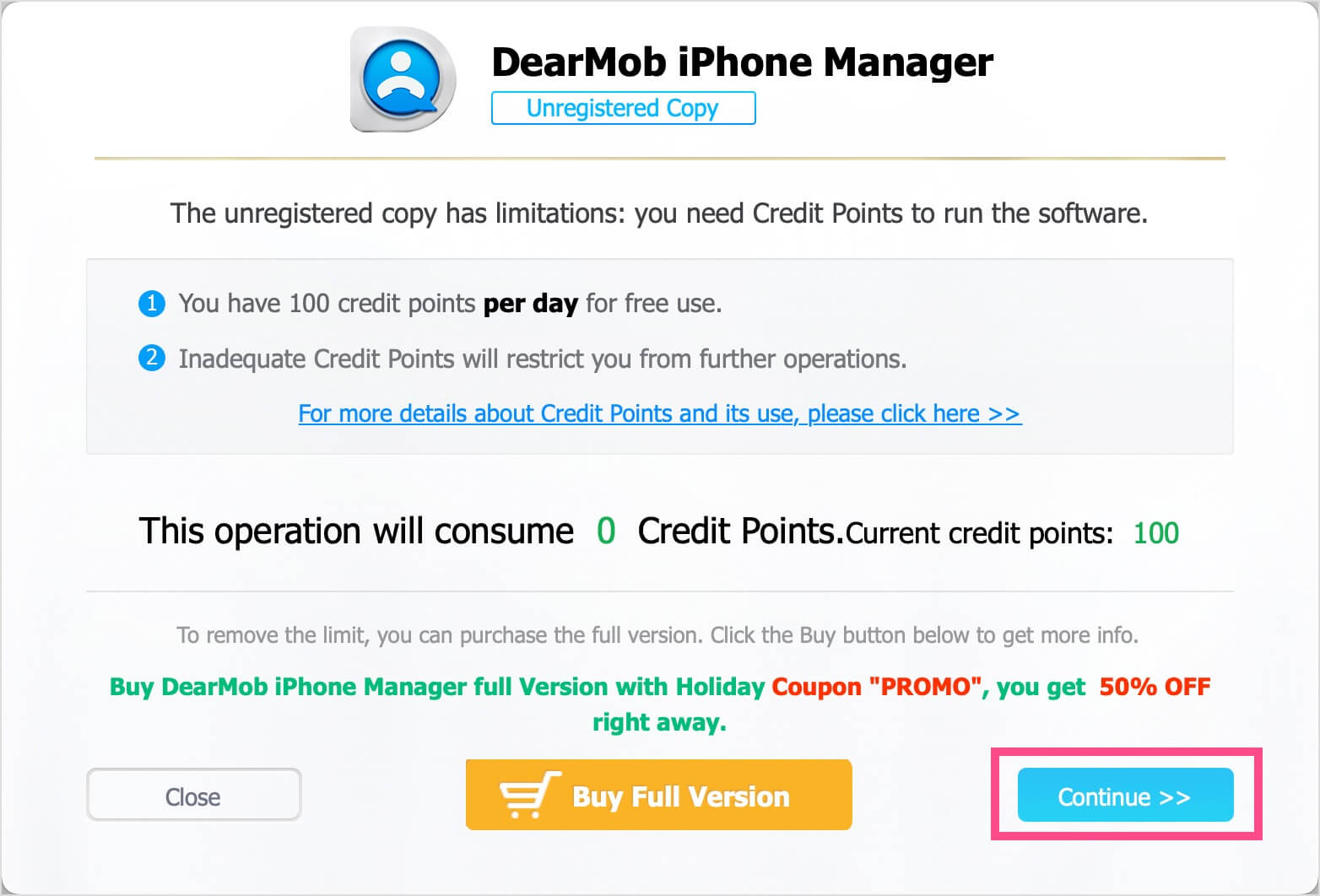
- Check your iPhone and the chosen apps will be deleted. You can now disconnect the iPhone from your computer.
How to delete all apps on iPhone at once
Looking for a way to quickly delete all apps from your iPhone without erasing all the content and settings? Thankfully, DearMob also lets you permanently uninstall all apps on iPhone and iPad.
To delete all your apps at once on iPhone, follow the steps below.
- Go through the above-mentioned steps as is till Step #5.
- Tick mark the “Select All” option at the top-left to select all the apps.
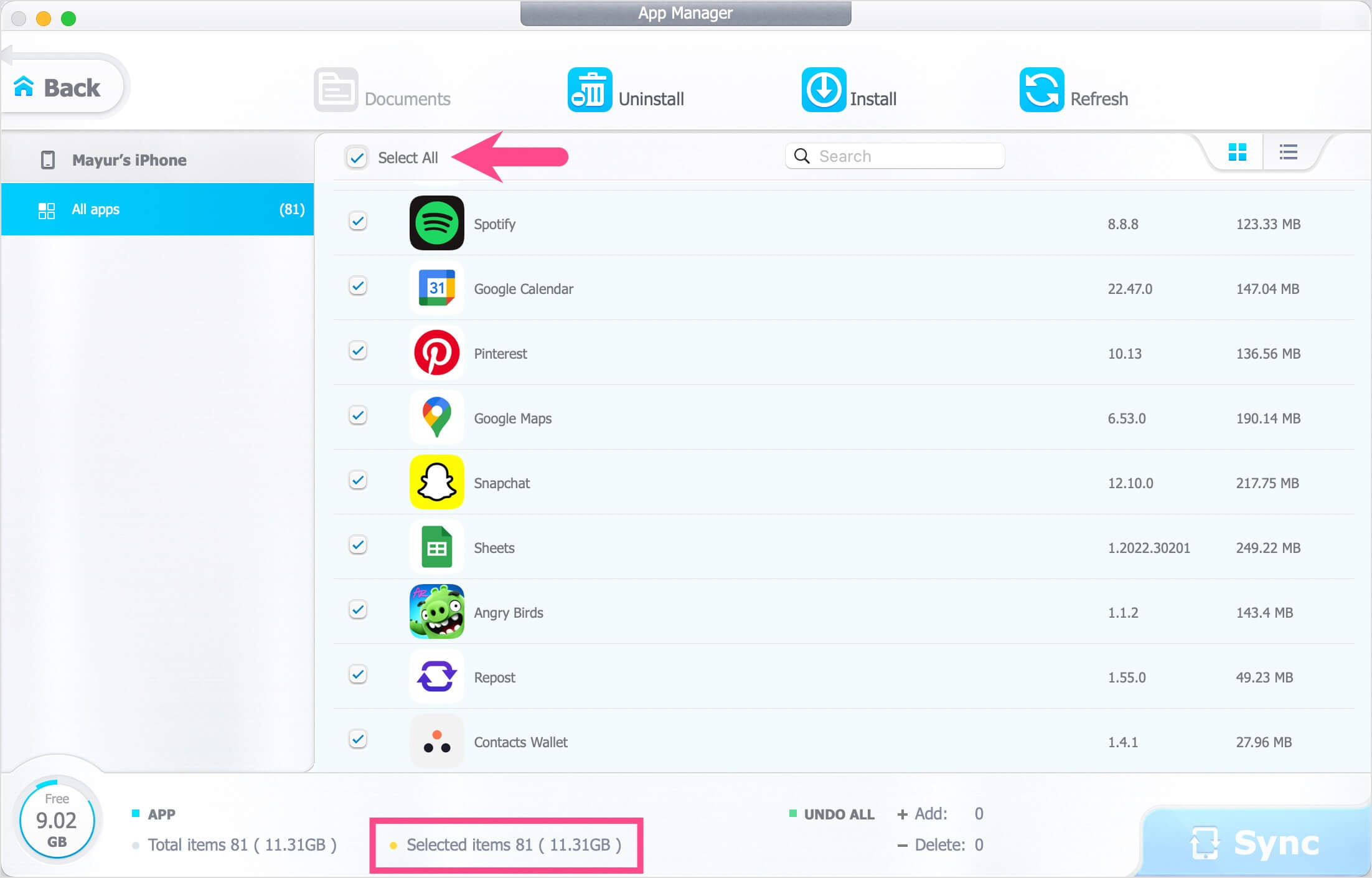
- You can see the total number of selected items and their storage size at the bottom.
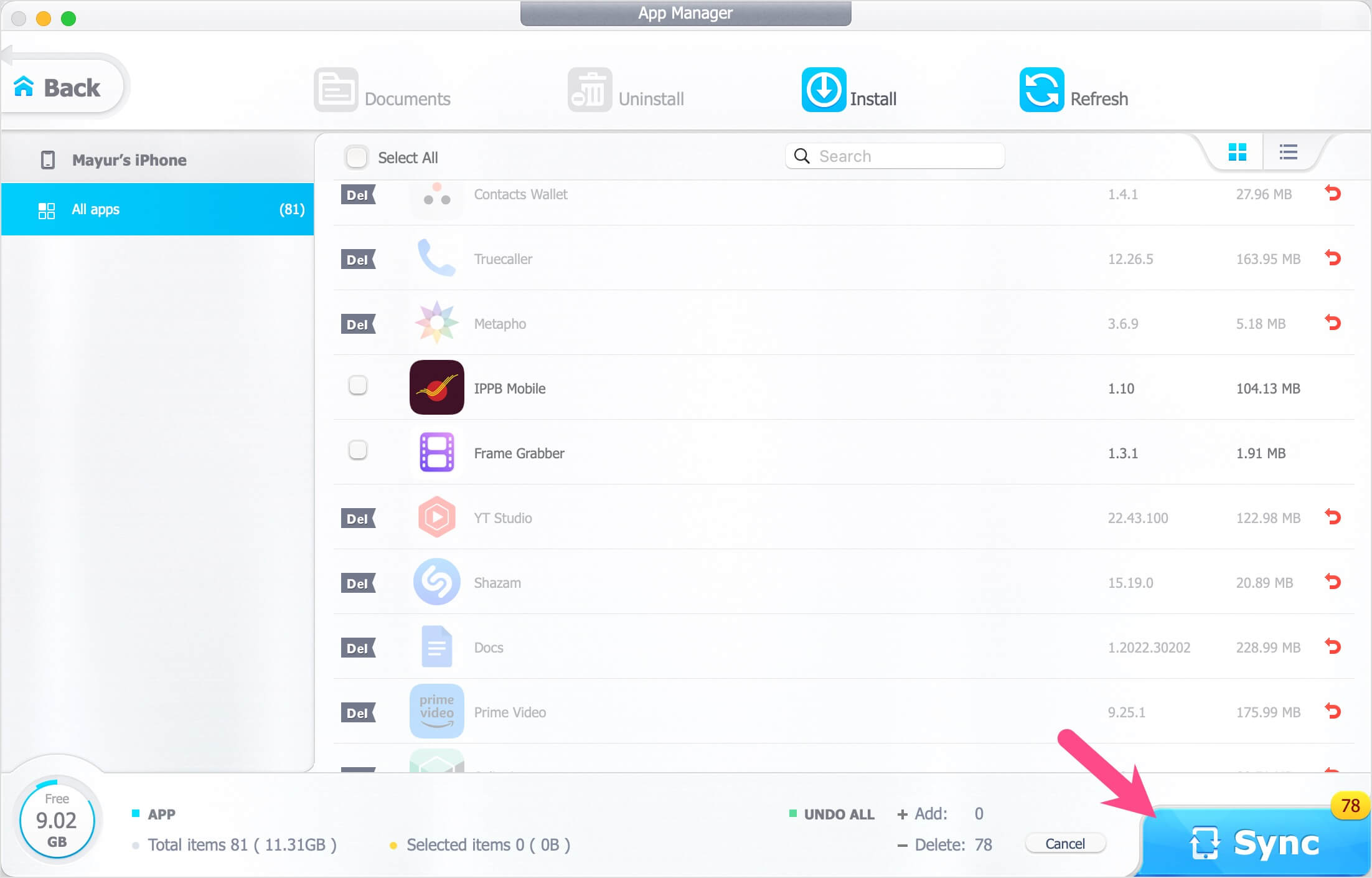
- Optional: Deselect the apps you want to exclude from all apps uninstall list.
- Click the “Uninstall” button.
- Hit the Sync button and click ‘Continue‘ to delete all your apps instantly.
Summing up, we hope you found this guide to delete multiple apps at once on iPhone helpful. Do share your views in the comments section below.
RELATED TIPS:









