


Microsoft Edge, like most modern browsers, comes with a built-in password manager that can save your login details for websites and apps. This feature helps you sign in quickly without remembering every password. All your saved passwords in Edge are securely synced with your Microsoft account, so you can access them on any device — Windows PC, Mac, iPhone, or Android.
In this guide, we’ll show you where to find saved passwords in Edge, how to update or remove them, and even how to clear all stored passwords if needed.
Where Are My Passwords Stored in Edge?
When you save a password in Edge, it is stored in the Microsoft Edge password manager and synced to your Microsoft account. You can access them under:
- Edge Settings > Passwords and autofill
- Or directly from this link:
edge://settings/autofill/passwords
Earlier, Edge used the Wallet password manager (edge://wallet/passwords) to store passwords, payment methods, and personal info. With Wallet being phased out, all your data remains intact and is now accessible through the Passwords and autofill section in Edge’s Settings.
Note: If your saved passwords are not showing in Edge, make sure you’re signed in with the correct Microsoft account and syncing is enabled.
How to Save Passwords in Microsoft Edge
Before you can view or manage passwords, make sure Edge is set to save passwords automatically. To confirm this:
- Open Microsoft Edge.
- Click the three-dot menu in the top-right corner and select Settings.
- In the left sidebar, go to Passwords and autofill.
- Click on Microsoft password manager.
- Turn on the toggle for Ask to save passwords.
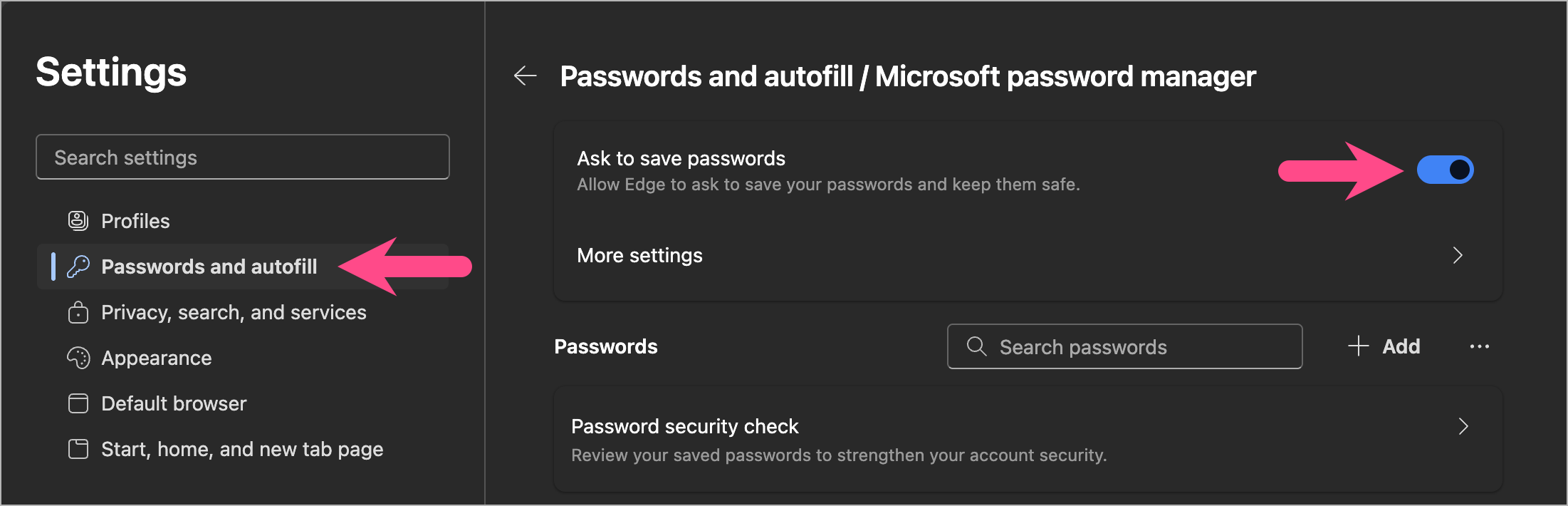
Now, whenever you sign in to a new website, Edge will prompt you to save the login info.
How to See Saved Passwords in Microsoft Edge
Here’s how you can check or see your saved passwords in Edge on Computer and Mobile:
On Windows 11/10 and Mac
- Open Microsoft Edge and click the three-dot menu (…) in the top-right corner.
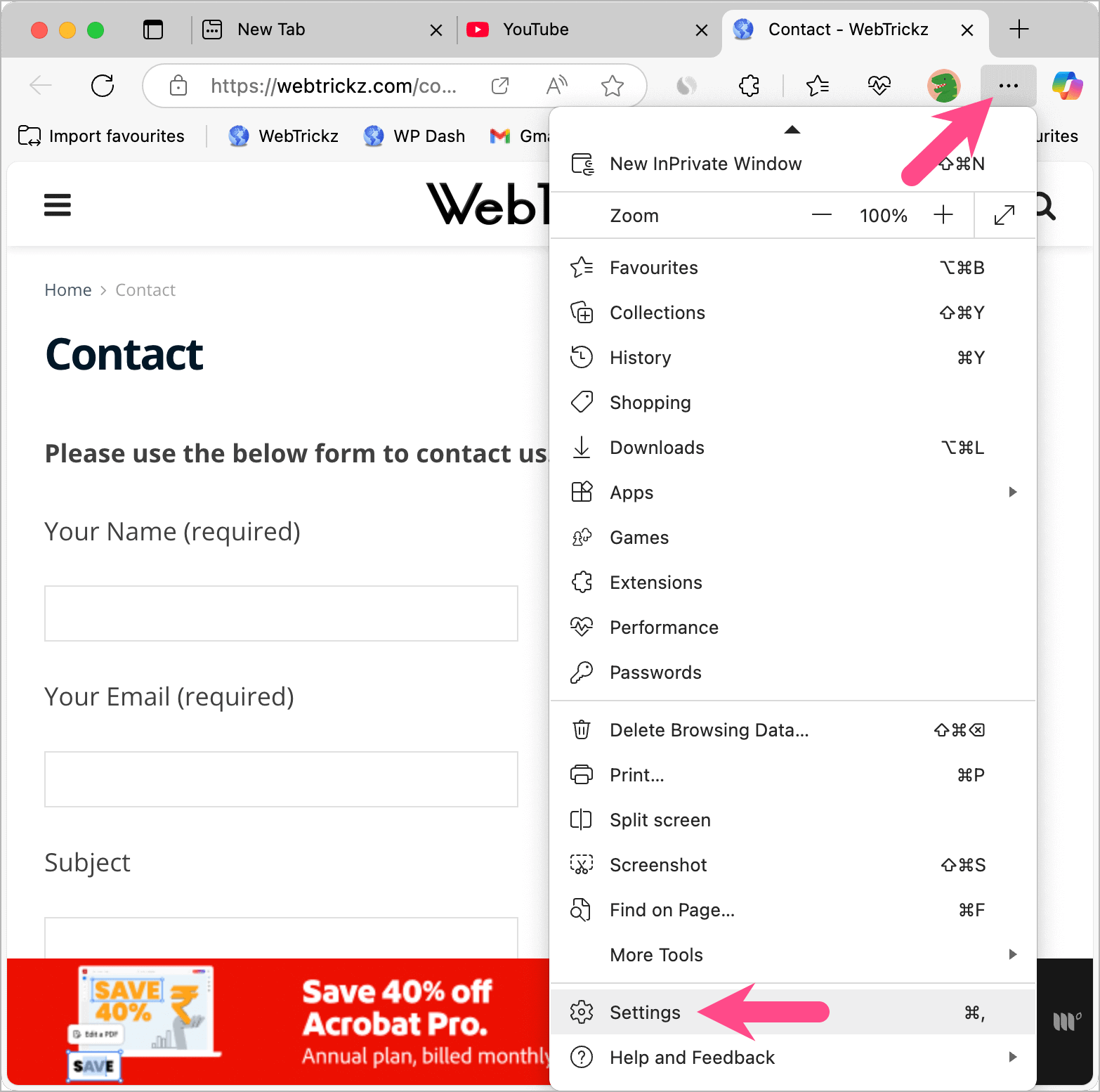
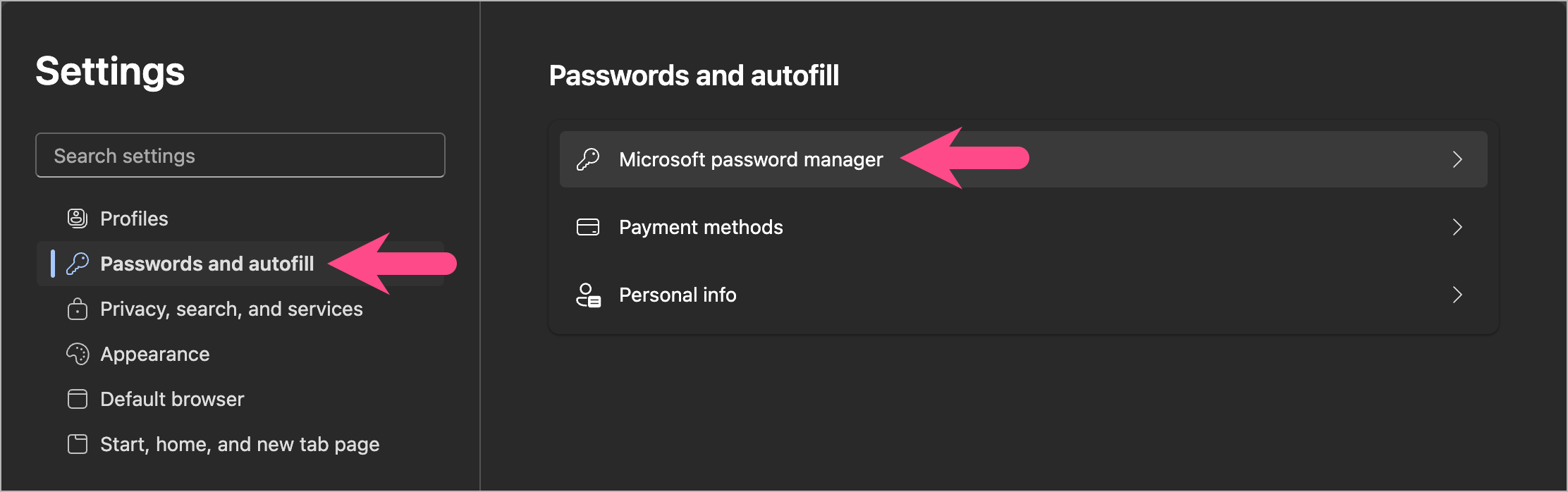
- Go to Settings > Passwords and autofill.
- To view and manage your saved passwords list, open the Microsoft password manager.
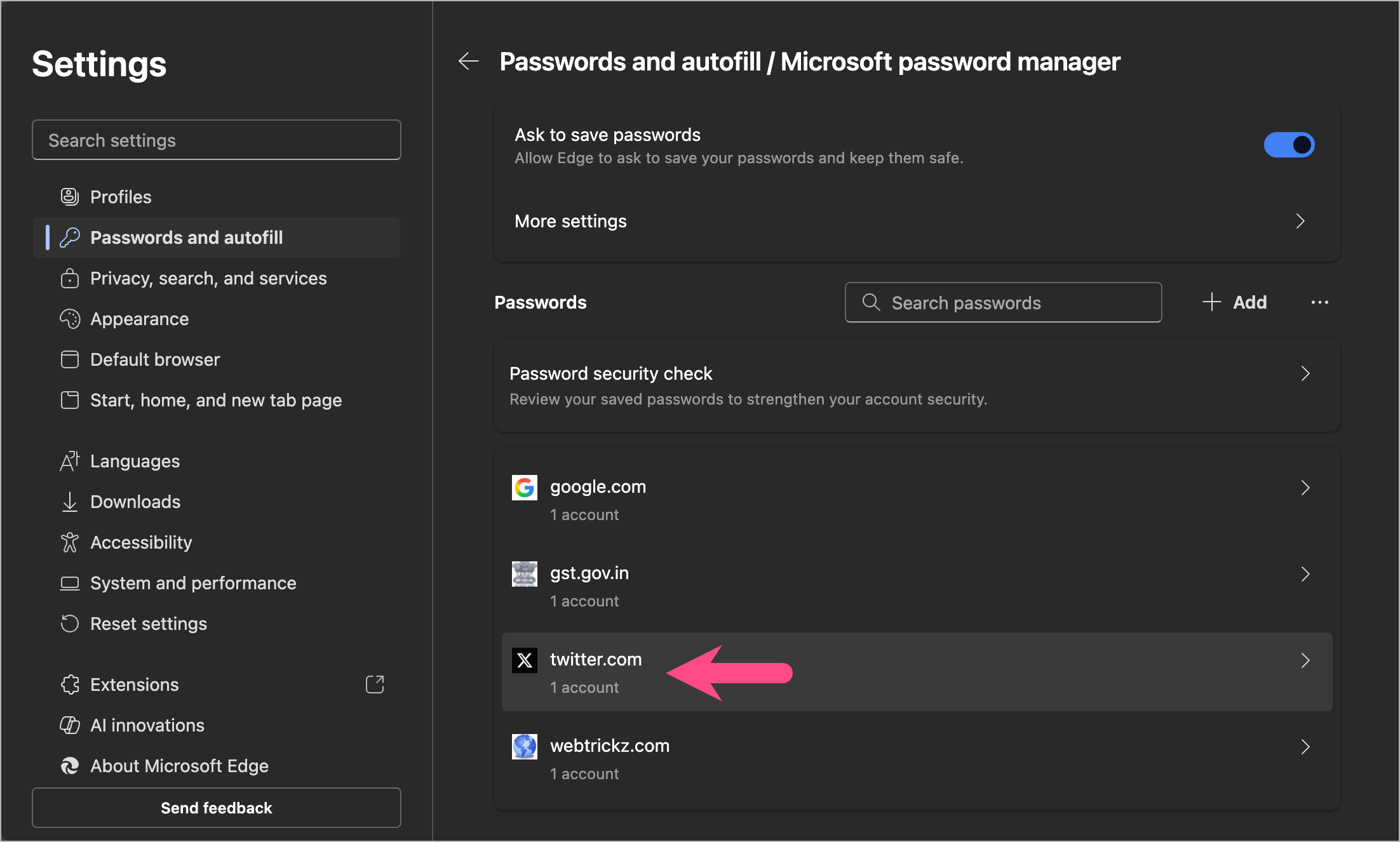
- Under Passwords, you’ll see a list of sites.
- Click the website URL to see added accounts and relevant login details.
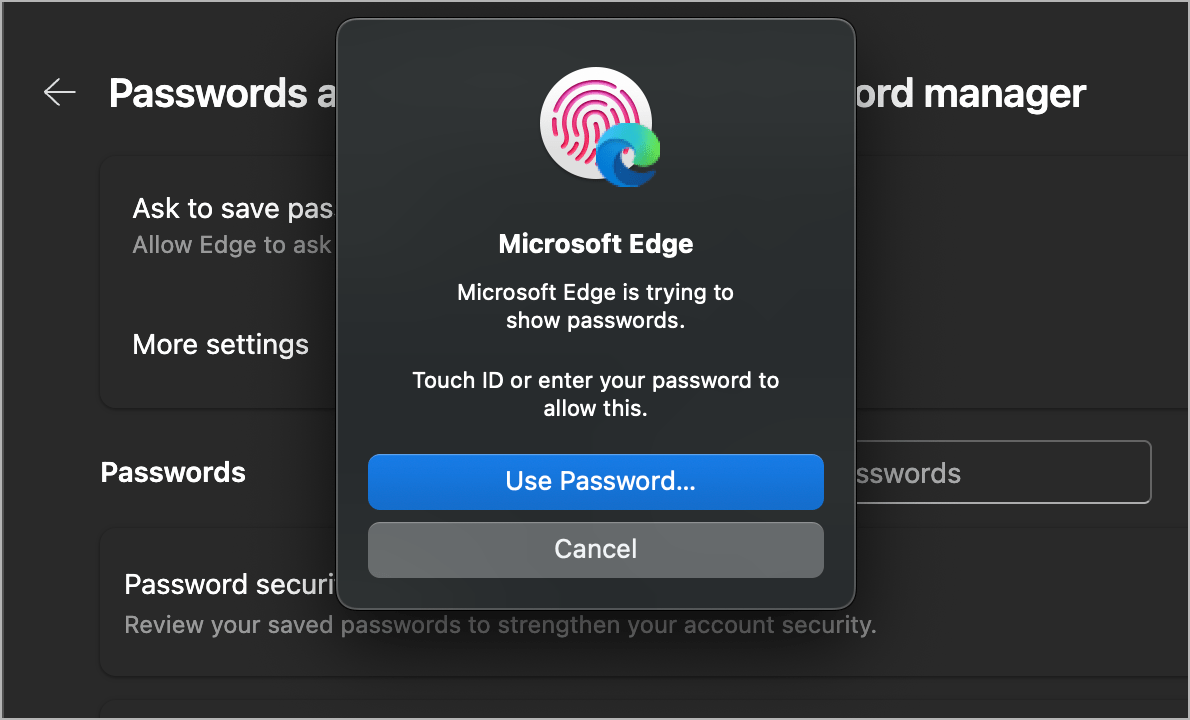
- Enter your Windows or macOS device password to allow Microsoft Edge to show passwords.
- Click the eye icon next to the password you want to view.
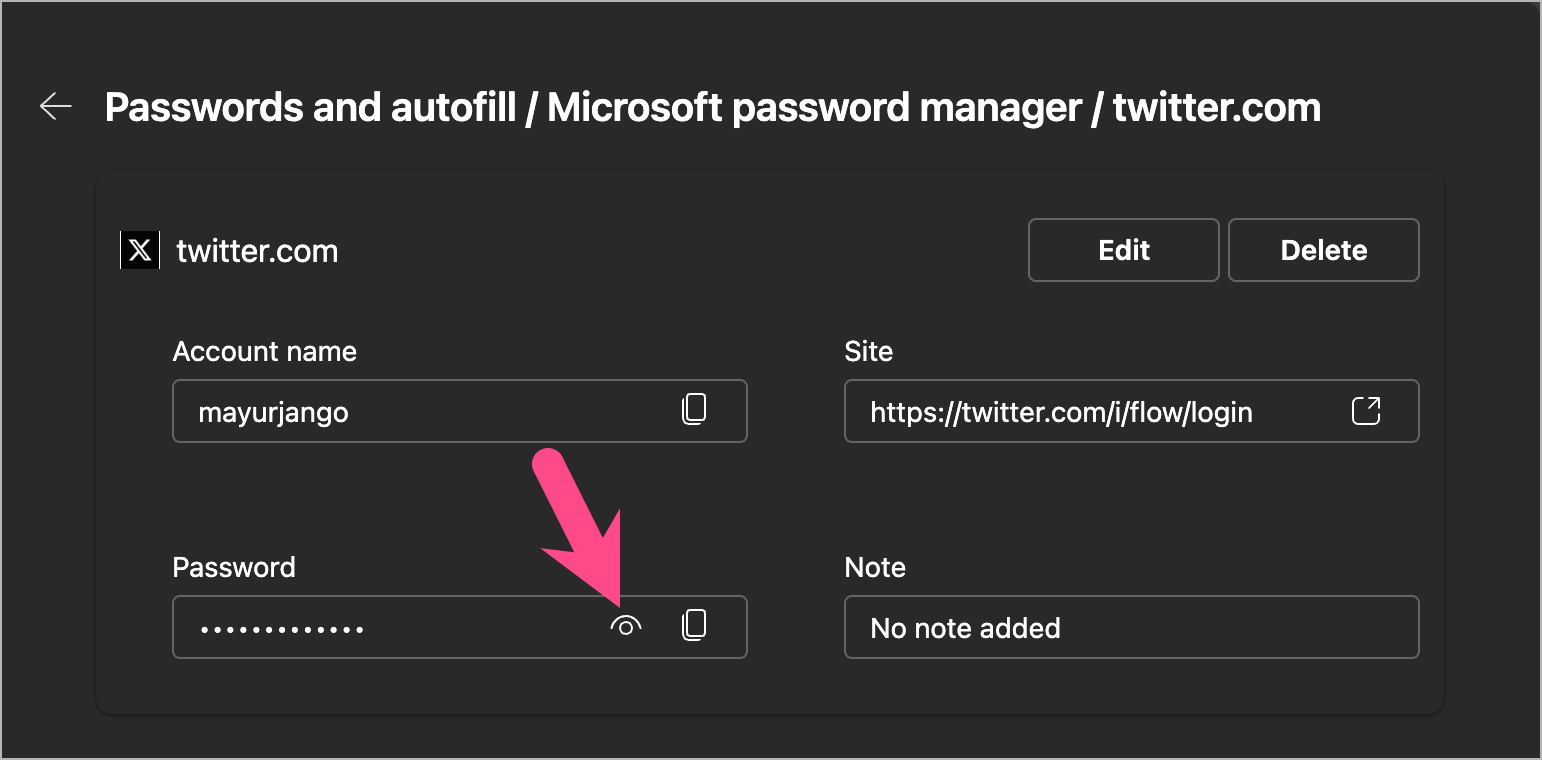
Tip: Click the copy icon to quickly copy the password to the clipboard.
On iPhone and Android
- Open the Edge app.
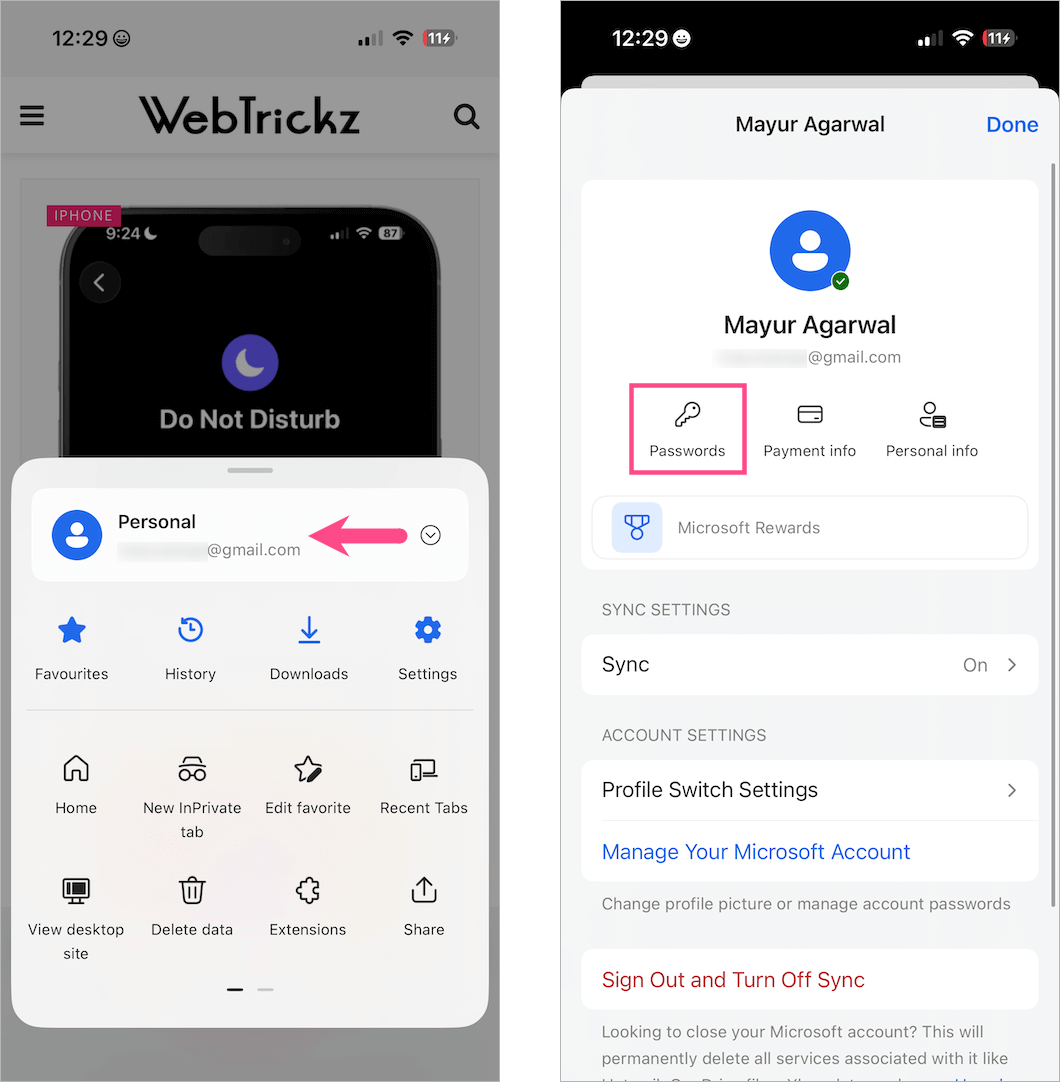
- Tap the Menu button at the bottom-right corner.
- Tap your profile icon and select Passwords.
- Authenticate using Face ID, Touch ID, PIN, or Passcode.
- Tap the website name whose username or password you want to see.
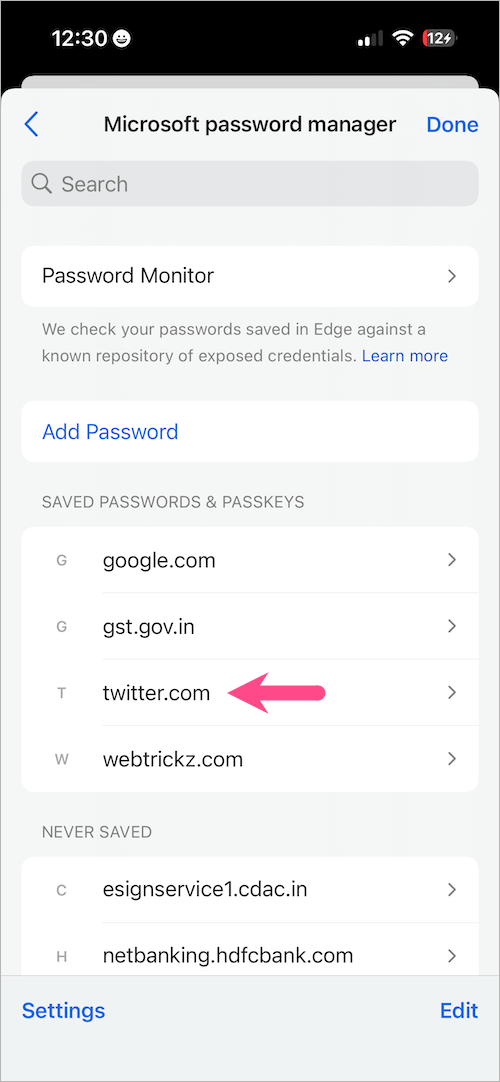
- Tap the eye icon next to the password field to view the saved password.
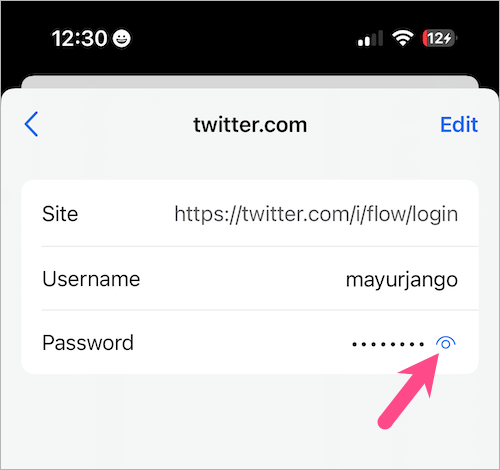
Alternatively, navigate to Menu > Settings > Password Manager to access your saved passwords in Edge on iPhone or Android.
How to Remove Saved Passwords in Edge
To delete or remove login information from Edge for a specific website:
On Computer (Windows/Mac)
- Visit
edge://settings/autofill/passwordsin the Edge browser. - In the Passwords section, search or find the website whose login info you want to remove.
- Click the website URL to view its login details.
- Enter your device password to authenticate.
- To delete saved login information, click the Delete option.
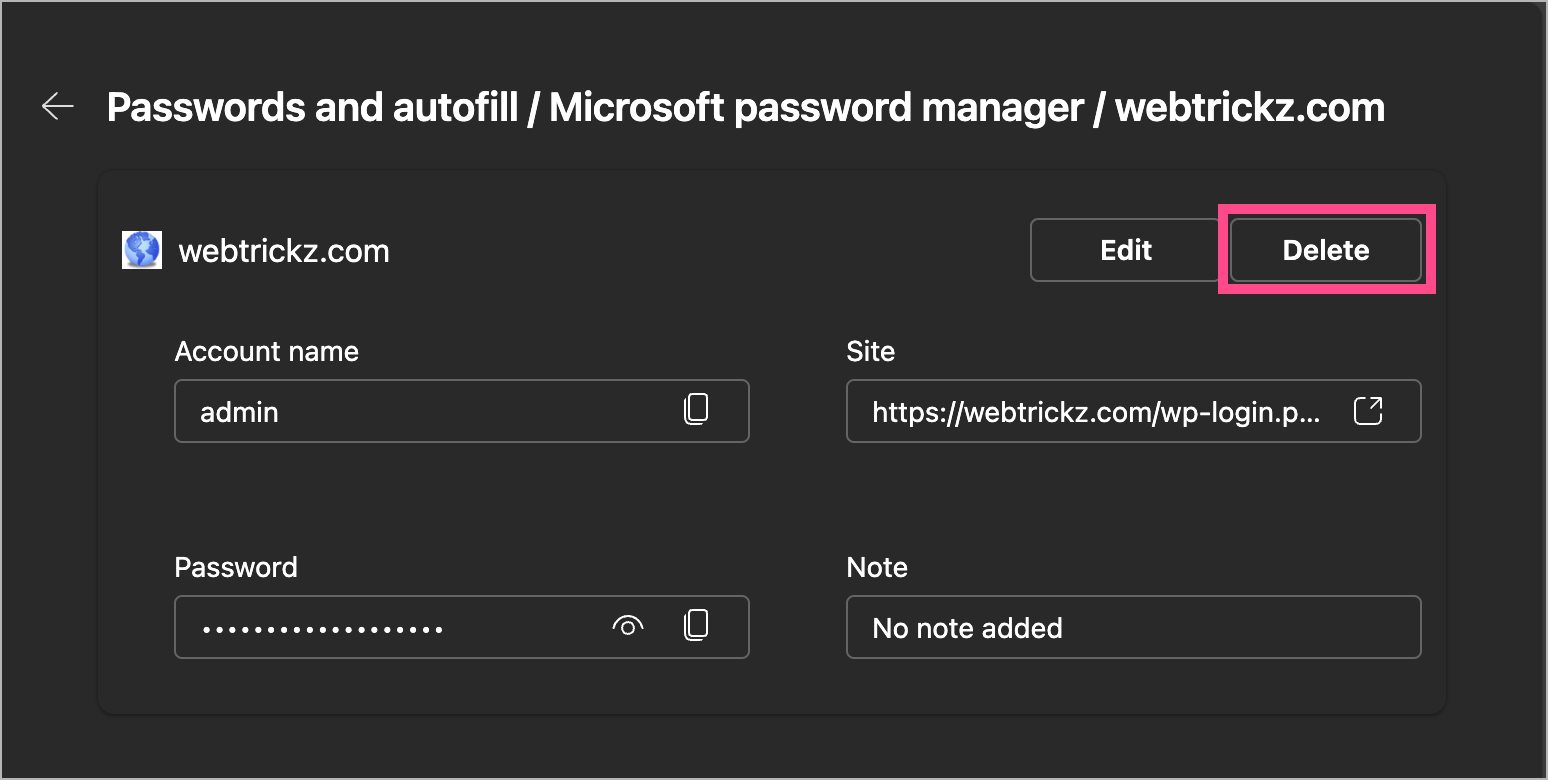
- Select Delete again to confirm.
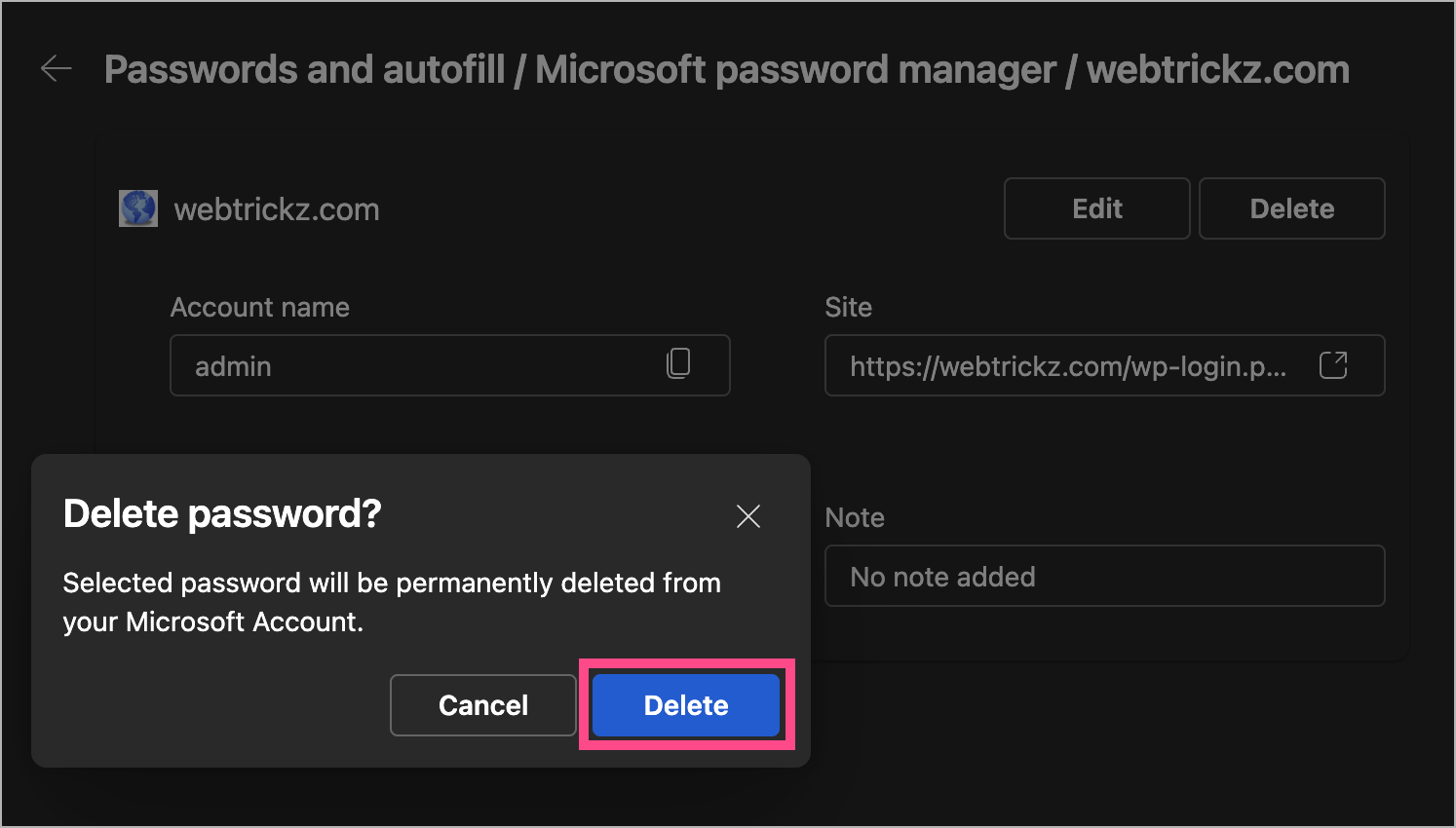
The saved username and password will now be permanently deleted from your Microsoft Account.
On Mobile (iPhone/Android)
- Open Edge and go to Menu > Settings > Password Manager.
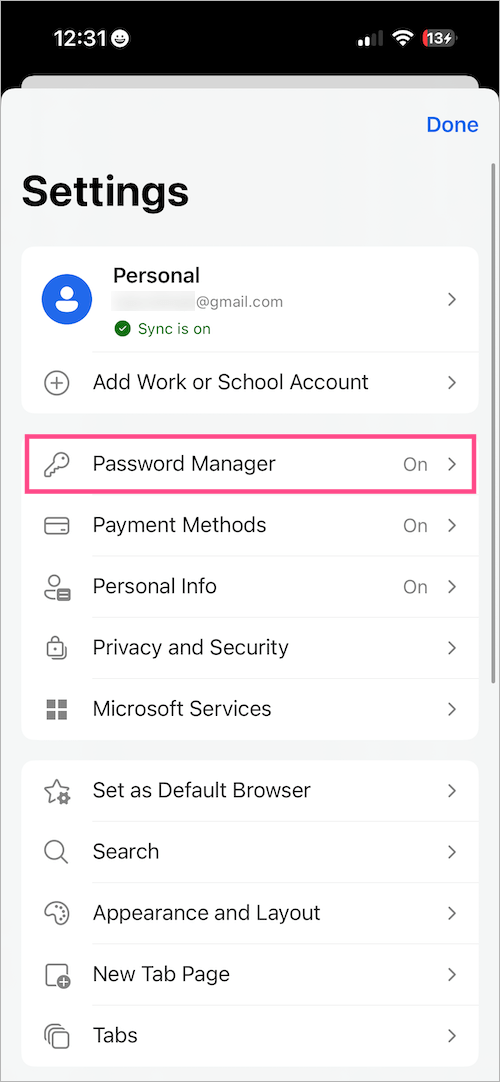
- Use Face ID, Touch ID, PIN, or Passcode for authentication.
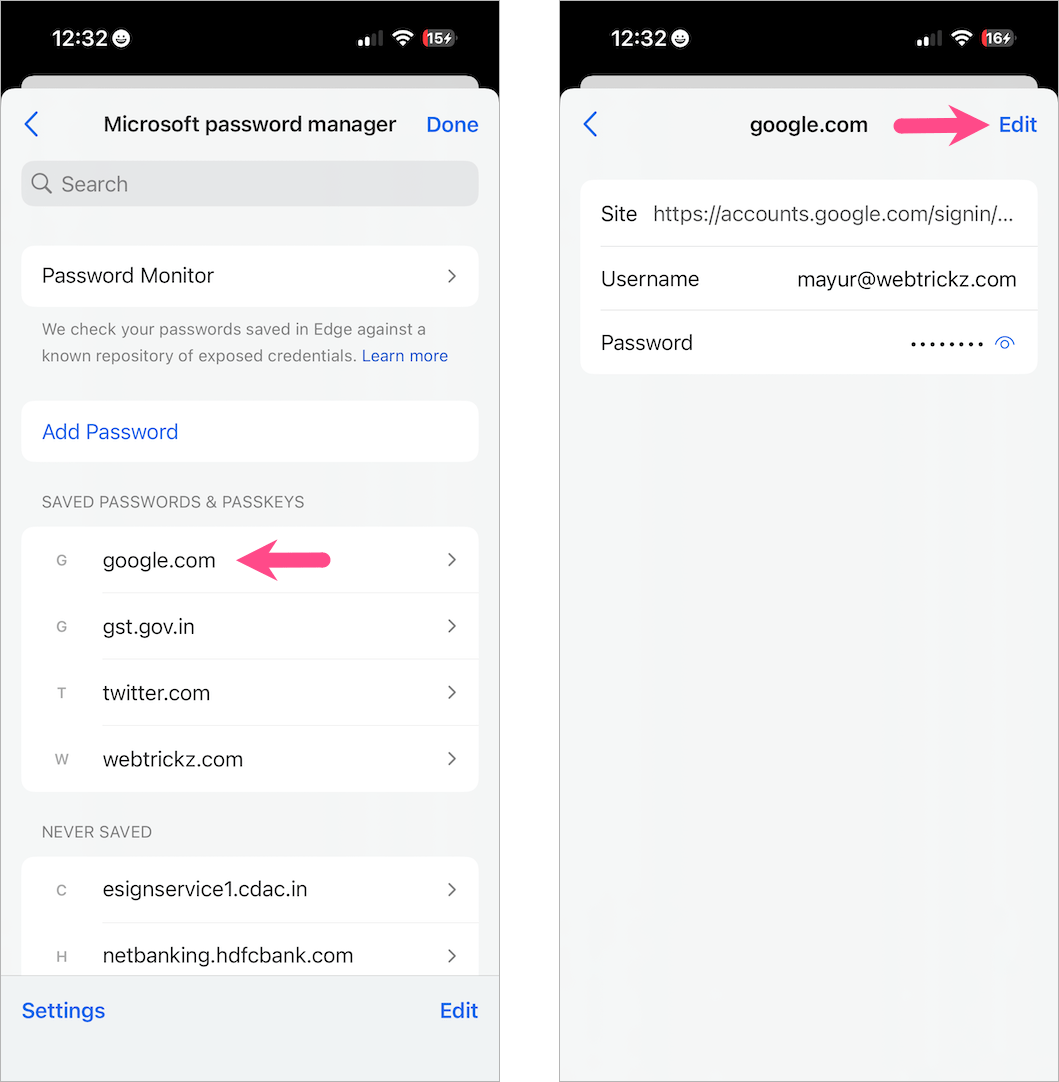
- Search or select the website whose saved info you want to delete.
- Tap Edit in the top-right.
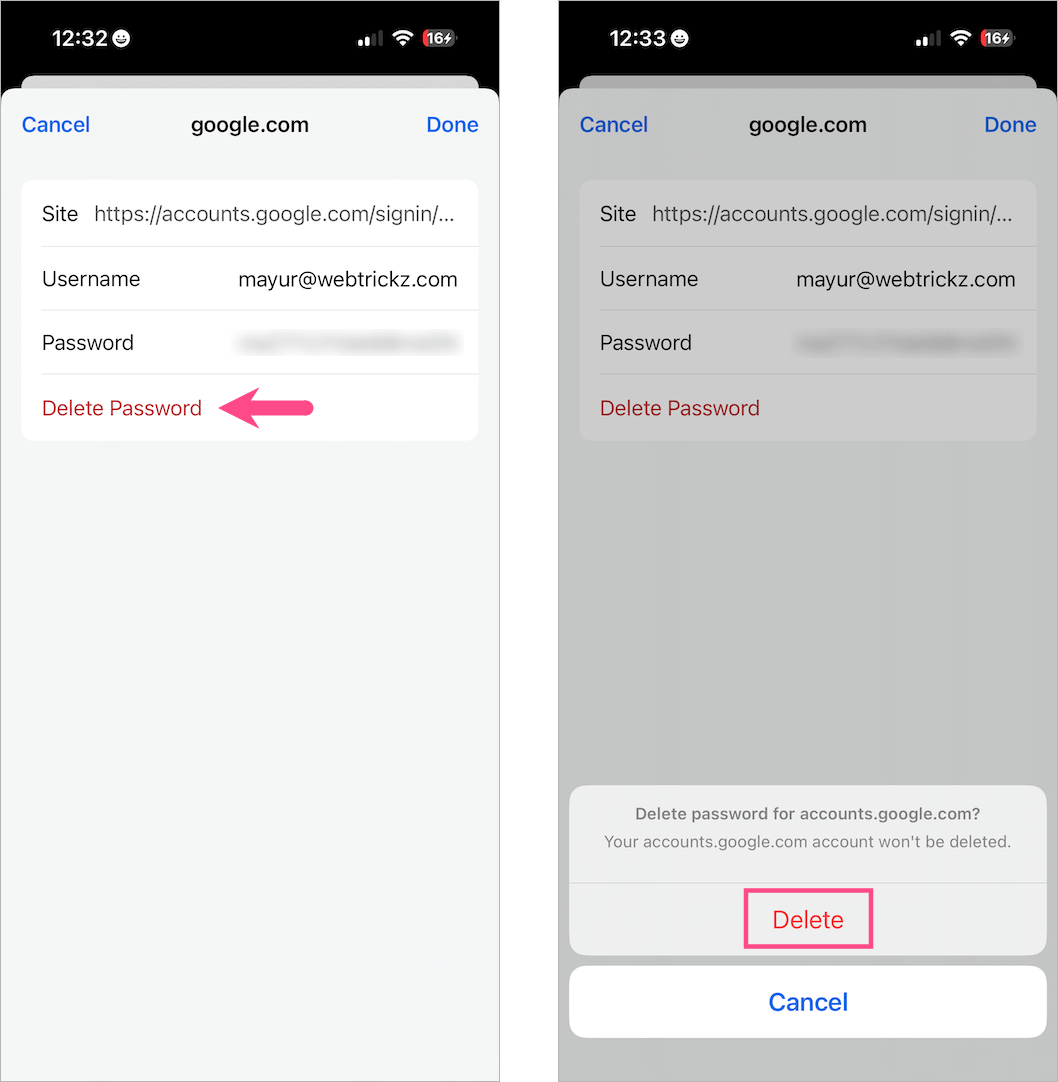
- Tap Delete Password, then tap Delete again.
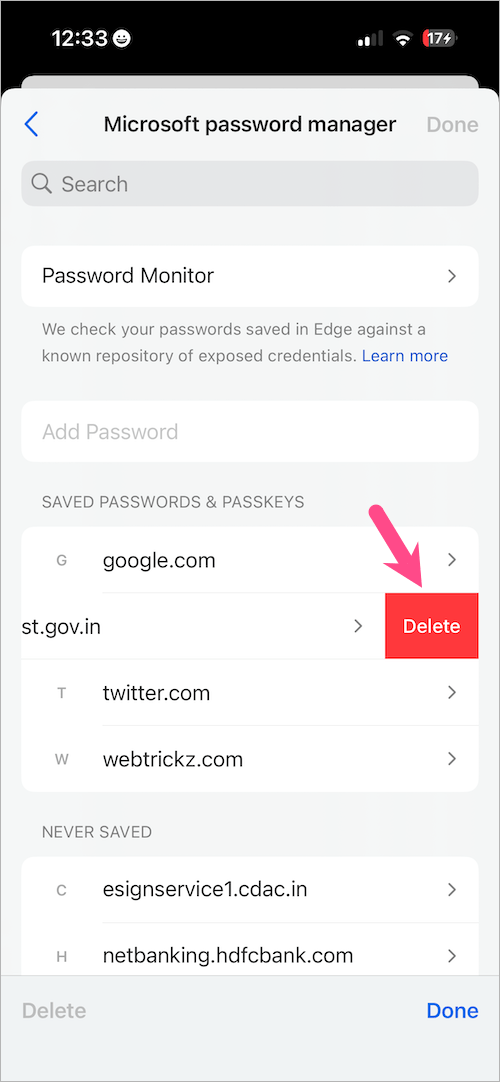
Alternate Way (iPhone) – Open the Microsoft password manager and swipe left on the website name you wish to delete. Tap Delete again to confirm.
How to Change Your Saved Passwords in Edge
If you’ve changed your password on a website, you should also change it in Edge. Follow these steps to edit and update saved passwords in Edge:
- Open Edge and visit
edge://settings/autofill/passwords. - Under Passwords, search or locate the specific website.
- Authenticate using your device password.
- To change a saved password, click the Edit option.
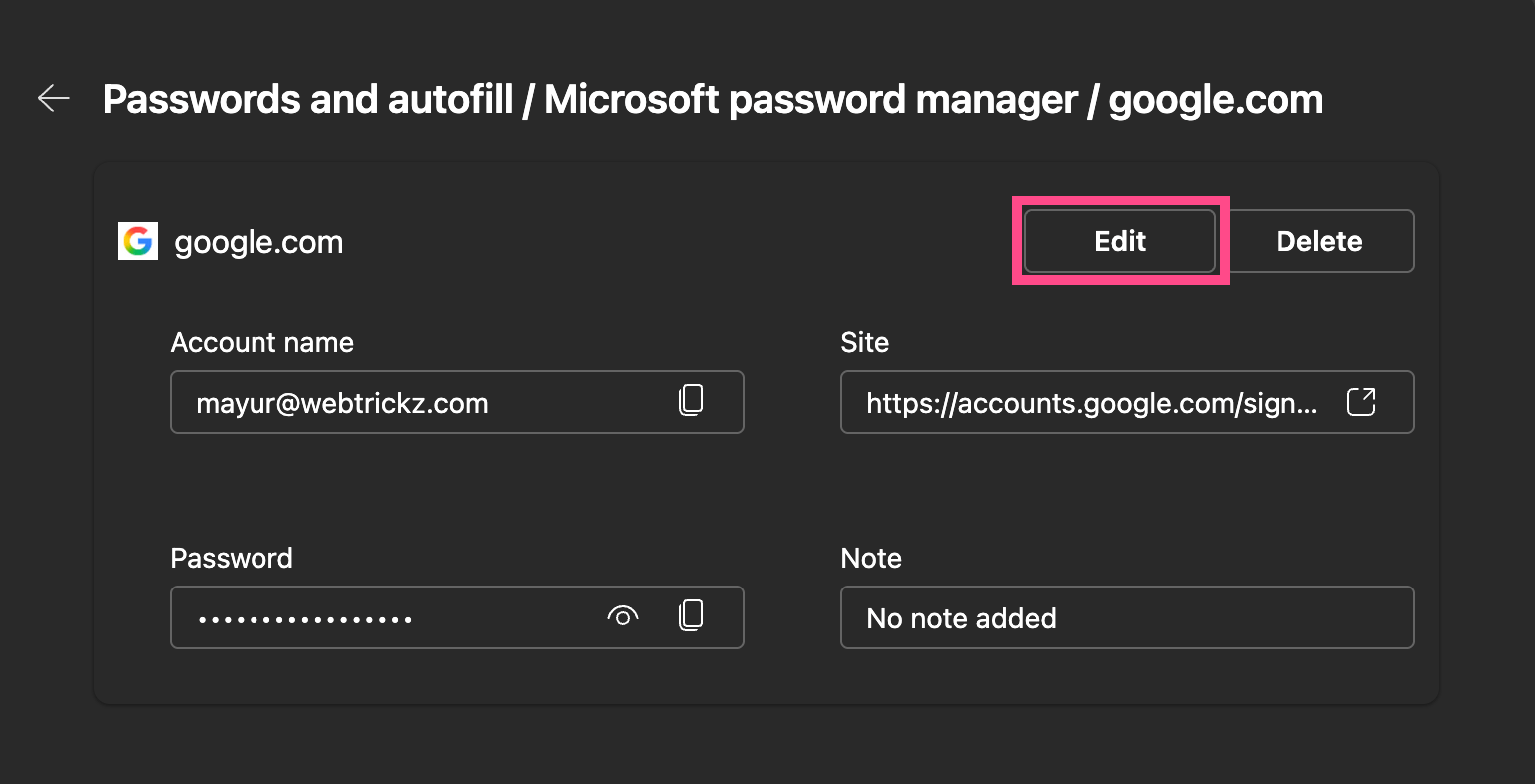
- Update the username or password, then click Save.
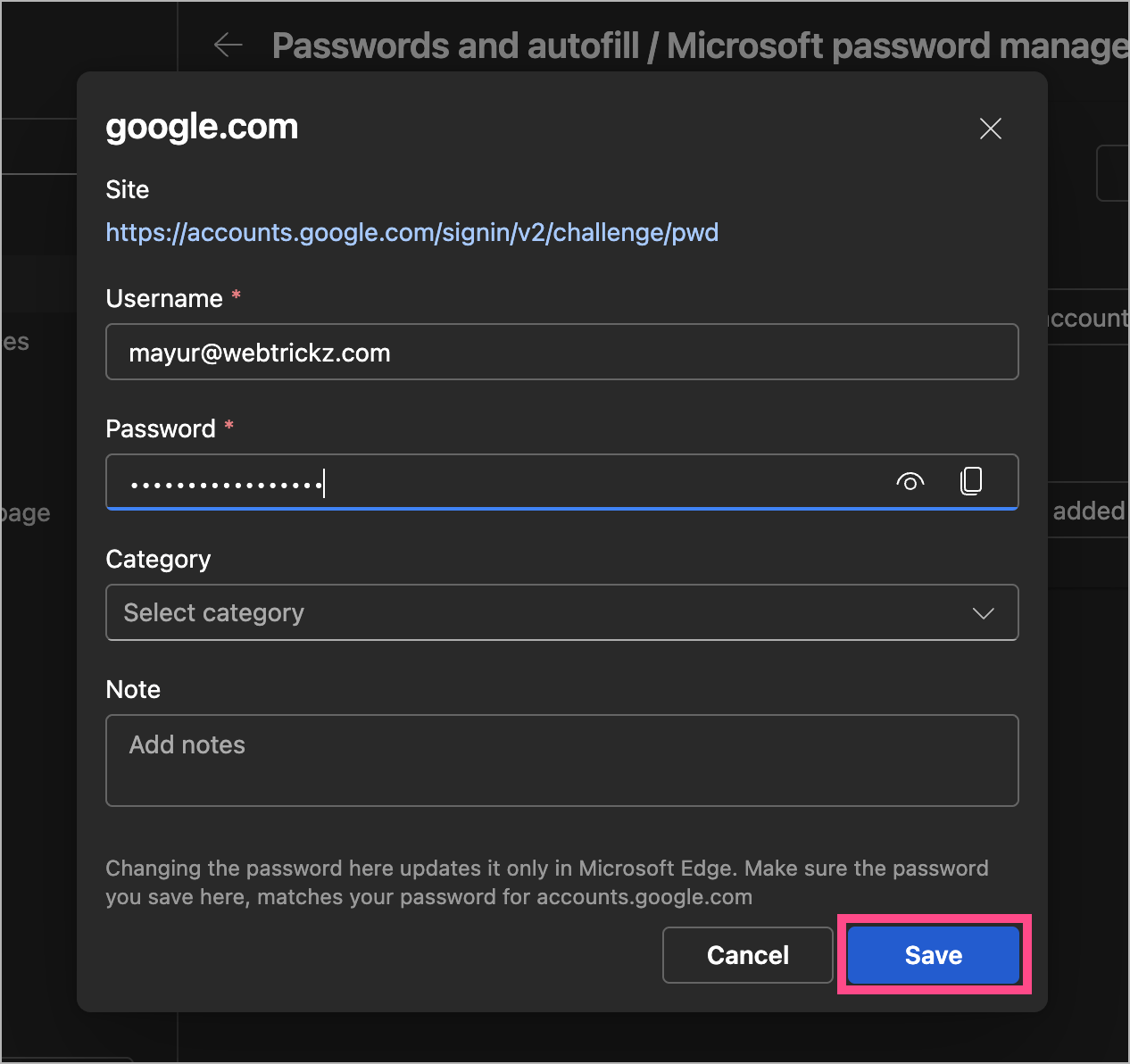
On mobile, the steps are similar: go to Passwords, select the website, then tap Edit to update your login info.
How to Delete All Saved Passwords in Microsoft Edge
Looking to clear all saved passwords in Edge at once? Here’s how you can delete all your saved passwords from Edge:
On Windows 11/10 and Mac
- Open Microsoft Edge on your computer.
- Go to Settings > Privacy, search, and services.
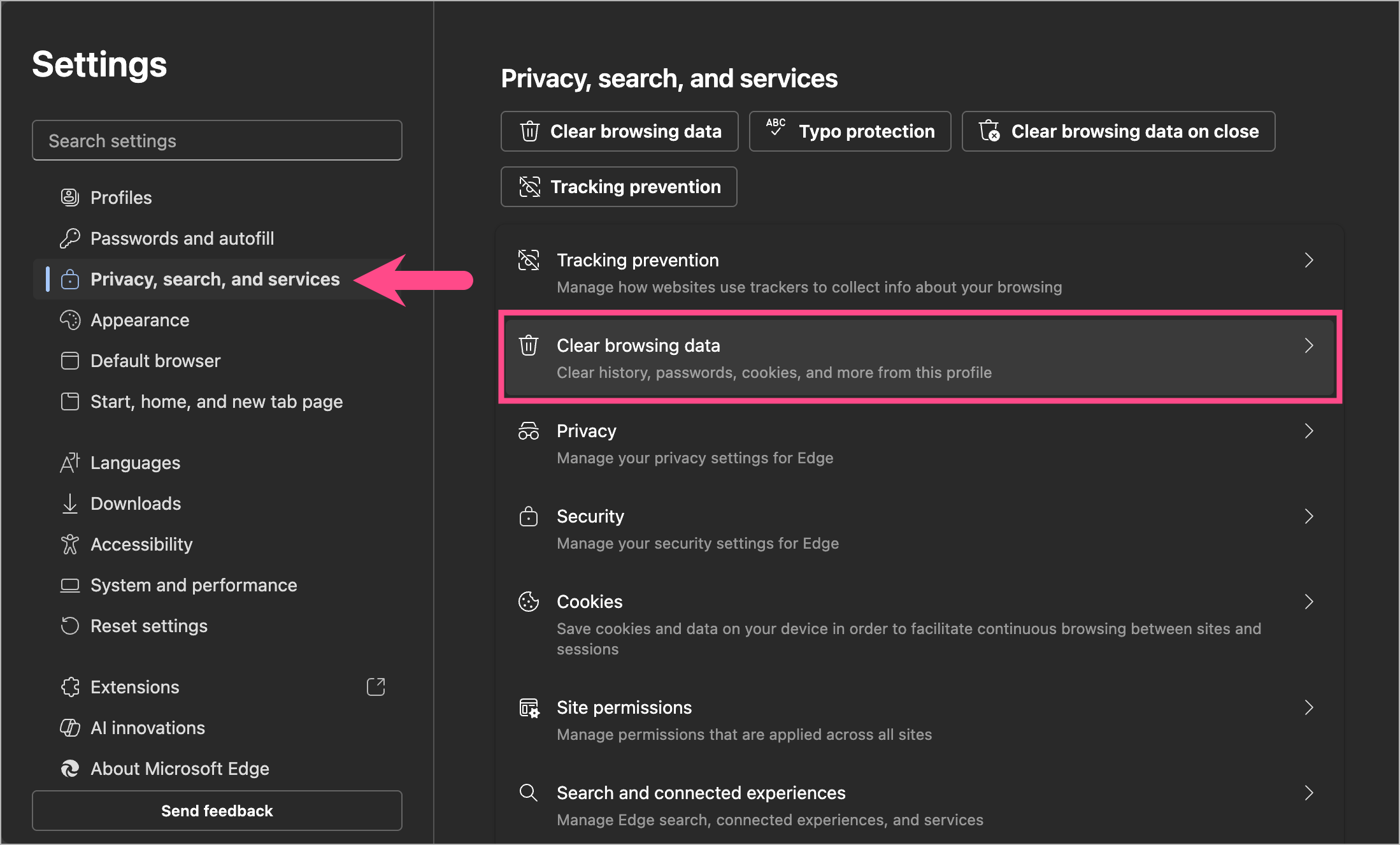
- Click on Clear browsing data and select Choose what to clear.
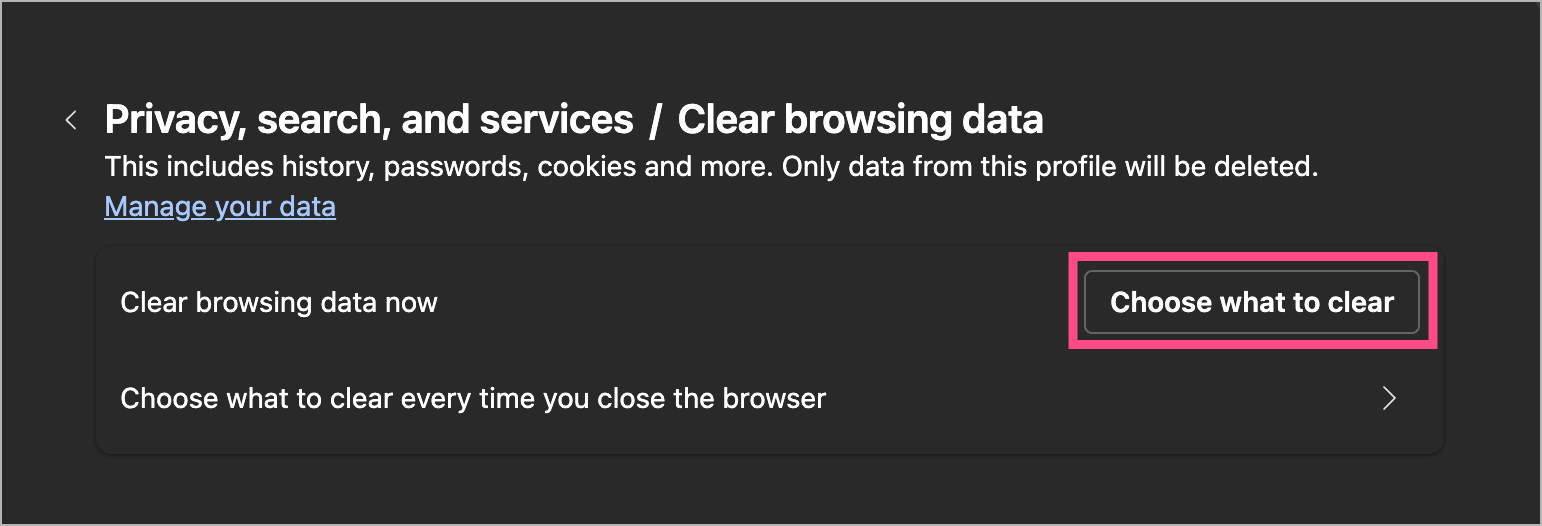
- Choose the Time range and select the Passwords option.
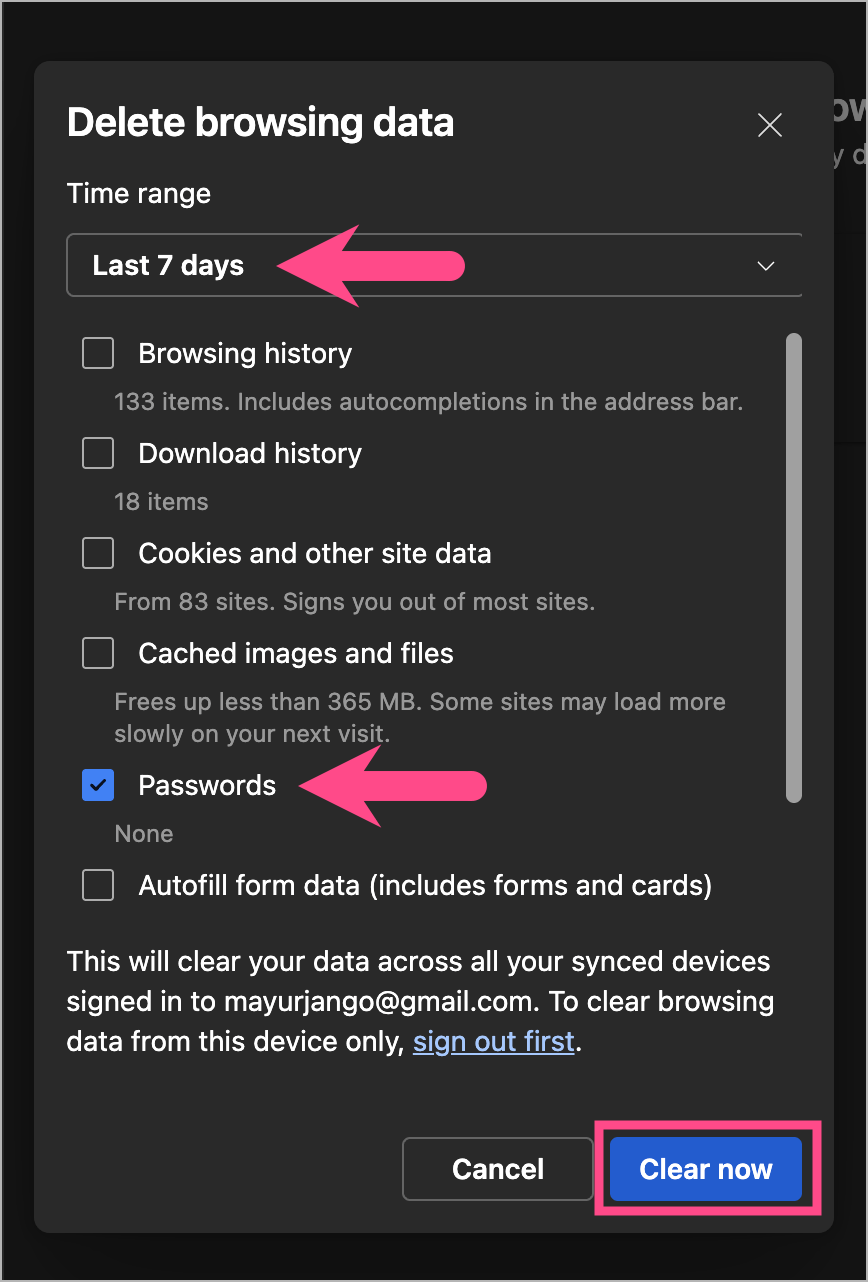
- Click Clear now.
This removes every saved password from your browser and Microsoft account sync.
On iPhone and Android
- Open Edge on your phone.
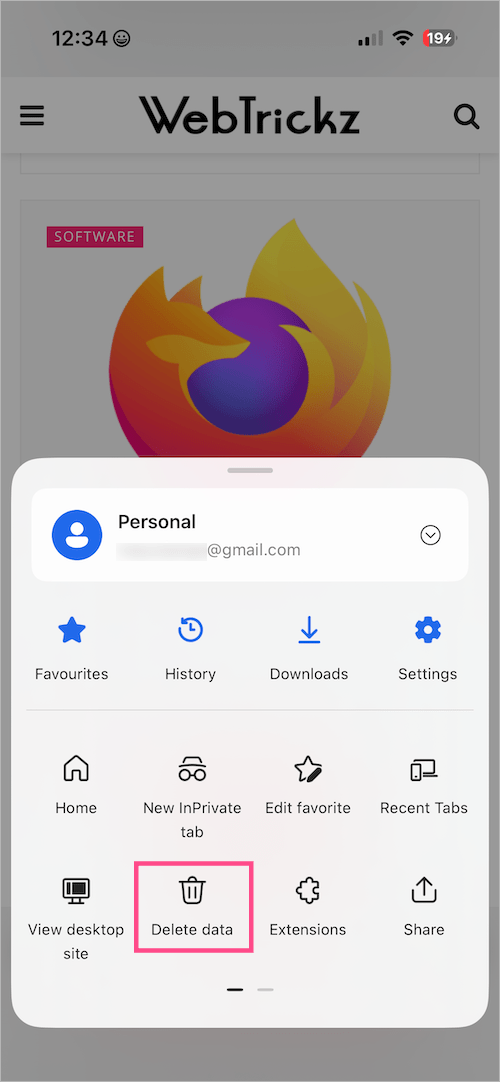
- Go to Menu and tap Delete data.
- Choose a Time range.
- Tap Browsing data and select Passwords.
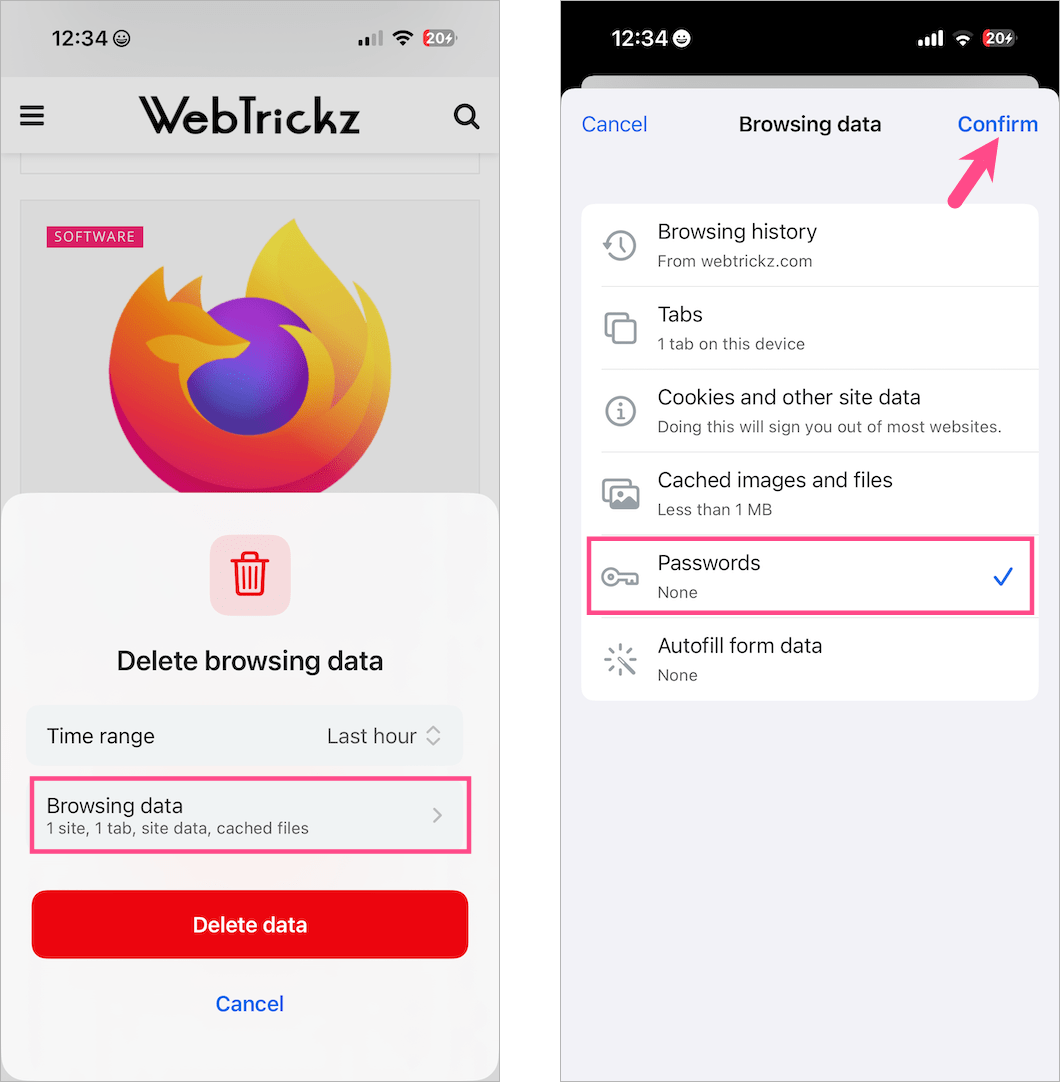
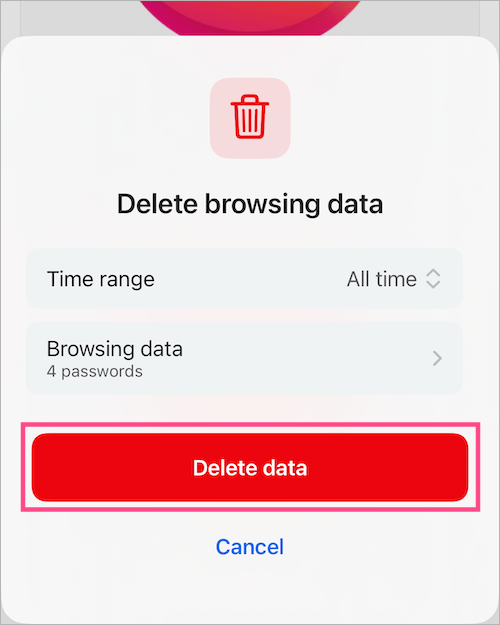
- Tap Confirm and tap Delete data.
ALSO READ:









