


Do Not Disturb (DND) mode on iPhone is a handy feature that silences calls, notifications, and alerts, allowing you to focus or rest without interruptions.
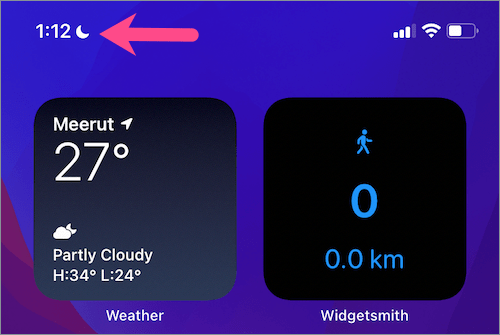
When DND is active, you’ll see a crescent moon icon in the status bar or on the Lock Screen. All incoming calls, text messages, and app notifications are delivered silently during DND unless you’ve set exceptions.
You can also use Do Not Disturb to automatically silence calls and notifications on your iPhone at night and prevent its screen from lighting up.
This quick guide shows how to turn off or disable Do Not Disturb in iOS 18 or iOS 26 on iPhone 17, iPhone Air, iPhone 16, iPhone 15, and other supported devices.
Where is Do Not Disturb on iPhone?
On iOS 15 or later, the Do Not Disturb mode is now part of Focus, a more advanced version that lets you create custom profiles to manage notifications. This means you won’t find a separate “Do Not Disturb” setting like before. Instead, it’s grouped under Focus in Settings and Control Center.
Looking to turn off Do Not Disturb on iPhone?
If you’ve enabled DND and want to get your iPhone out of Do Not Disturb mode, it can be tricky at first, especially since the option to turn Do Not Disturb on or off isn’t directly present in Focus settings.
How to Turn Off Do Not Disturb Mode on iPhone in iOS 18 & iOS 26
There are multiple ways to switch off Do Not Disturb on an iPhone running iOS 18 or iOS 26.
Using Control Center
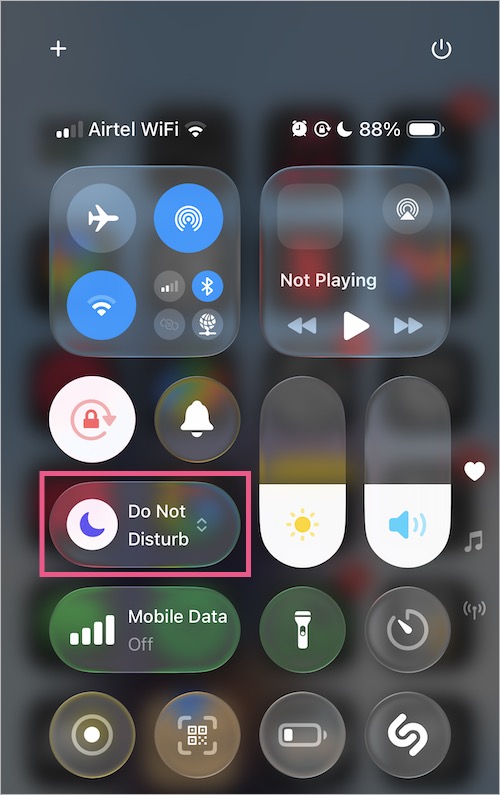
- Swipe down from the top-right corner of the screen to open the Control Center.
- Tap the Do Not Disturb/Focus control.
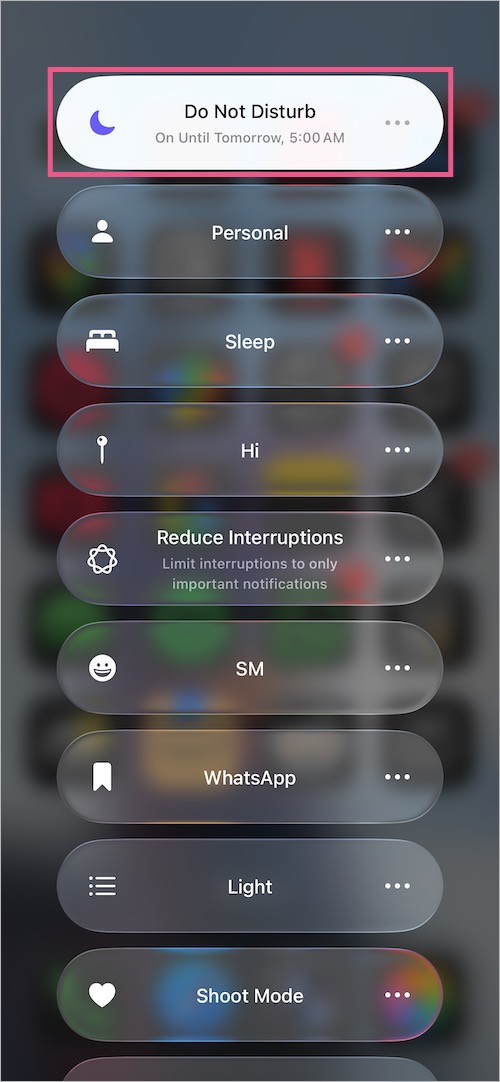
- Tap Do Not Disturb at the top to turn it off.
The crescent moon icon will now disappear from the top left of the status bar and Lock Screen, indicating that DND is off.
Alternate Way –
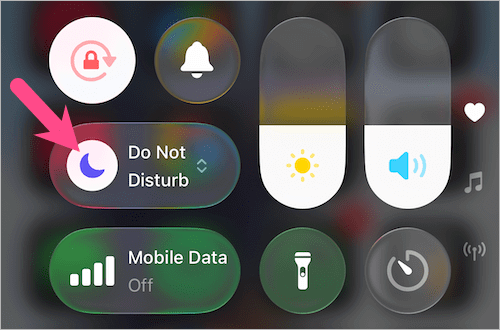
Simply tap the purple crescent moon icon in Control Center to quickly disable Do Not Disturb. The text “Do Not Disturb” will then change to “Focus”.
From Lock Screen
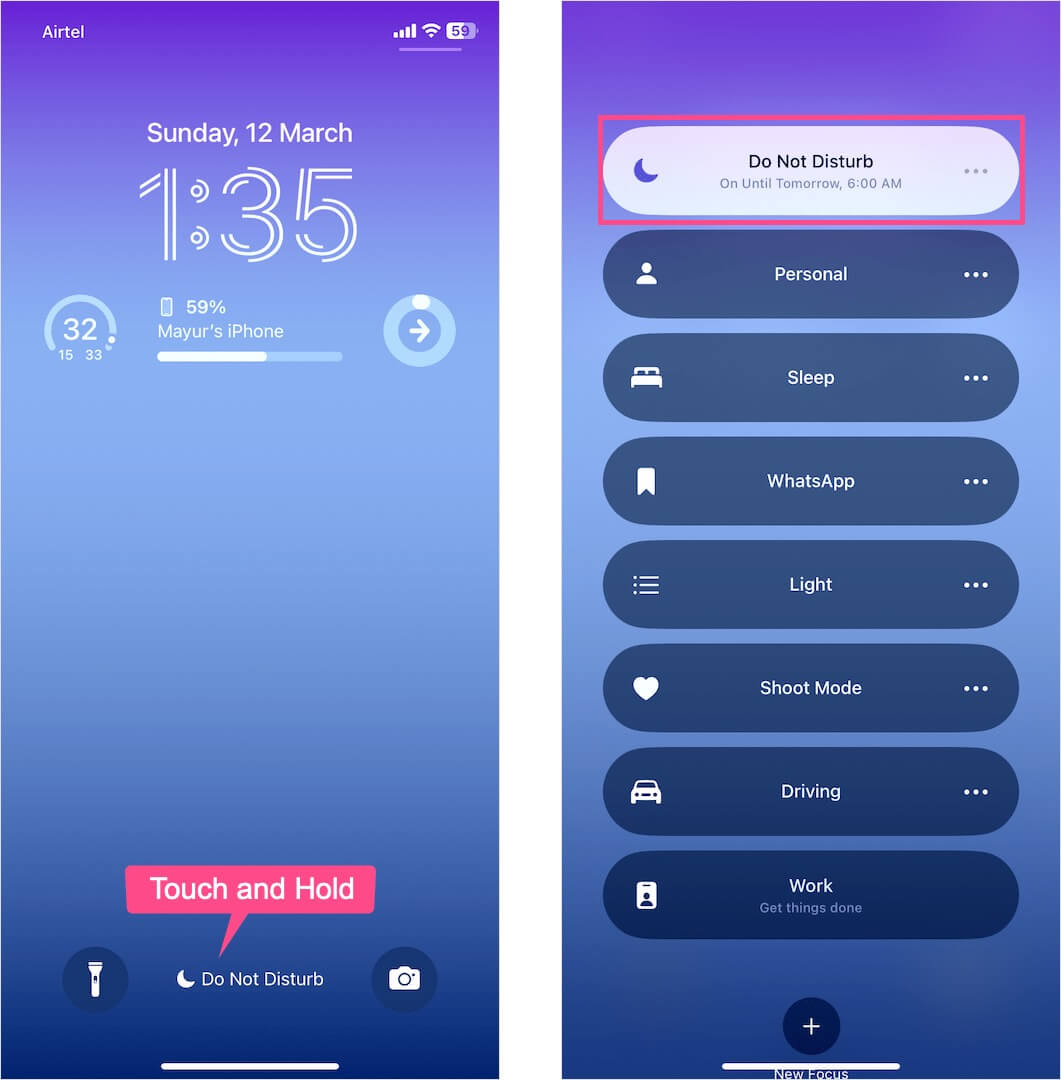
When DND is active, you’ll see “Do Not Disturb” displayed at the bottom of the Lock Screen.
To quickly turn off DND mode from your iPhone Lock Screen (when the device is unlocked):
- Touch and hold the Do Not Disturb Focus icon on the Lock Screen.
- Tap Do Not Disturb to disable it.
Using Siri
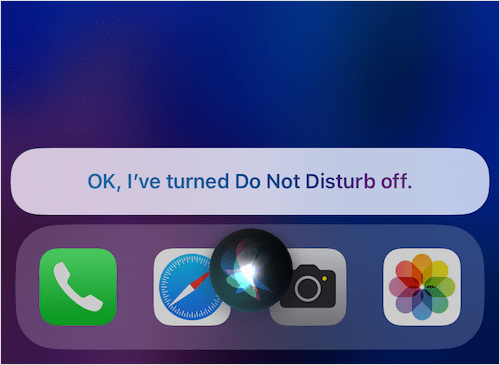
Like other tasks, such as restarting iPhone 17 or taking a screenshot on iPhone 17, you can ask Siri to toggle DND.
To do this, activate Siri by saying “Hey Siri” or pressing the Side button. Then use one of these commands:
- Turn off DND
- Turn off Do Not Disturb
To enable DND again, simply say:
- Turn on DND
- Switch on Do Not Disturb
Once disabled, all notifications and alerts will be delivered normally.
Turn Off Do Not Disturb While Driving on iPhone
The Driving Focus on iPhone automatically silences notifications when your iPhone detects driving activity. Driving mode silences calls, texts, and alerts, except when CarPlay is connected or repeated calls are allowed in DND settings.
To turn off Do Not Disturb while driving in iOS 18 or iOS 26:
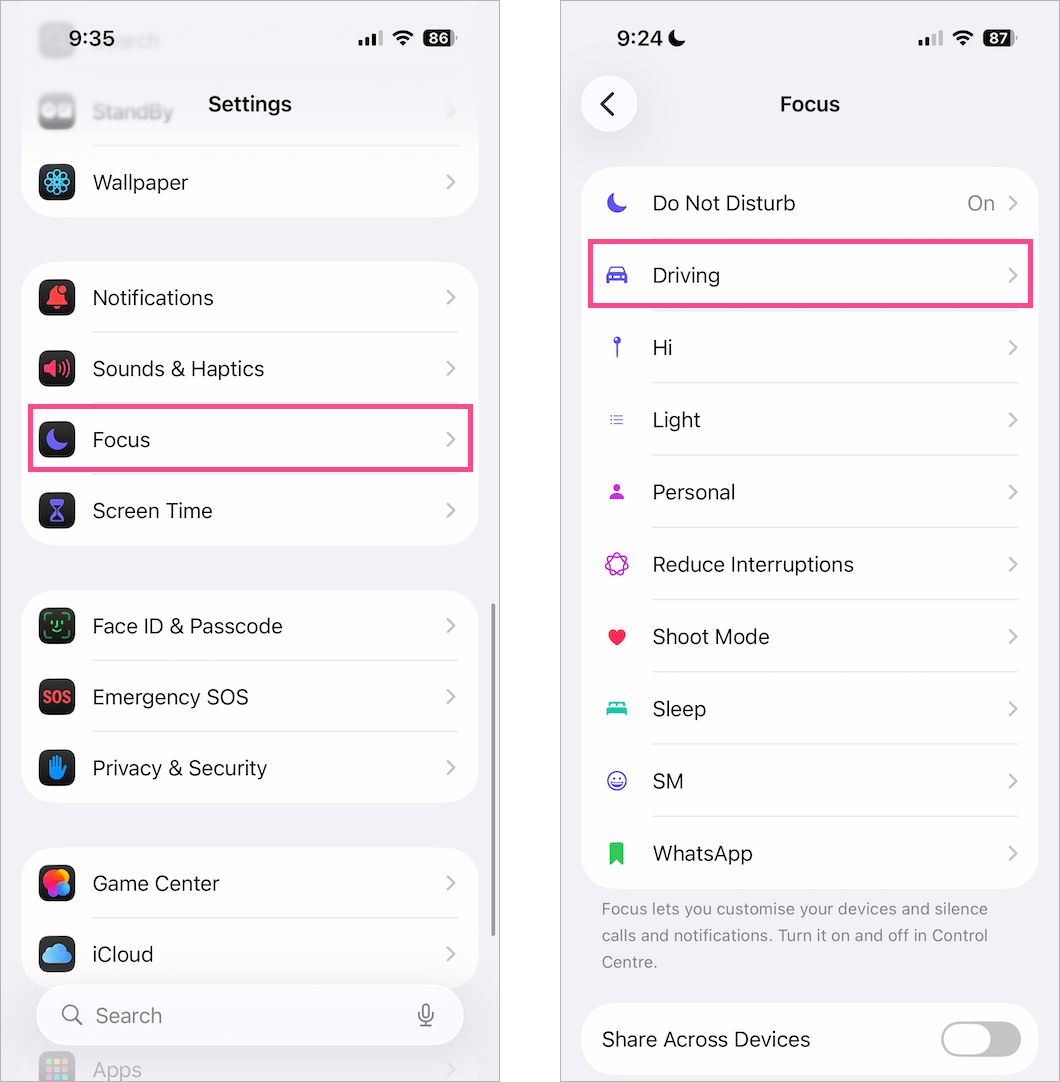
- Go to Settings > Focus and tap on Driving Focus.
- Under the Turn On Automatically section, tap While Driving.
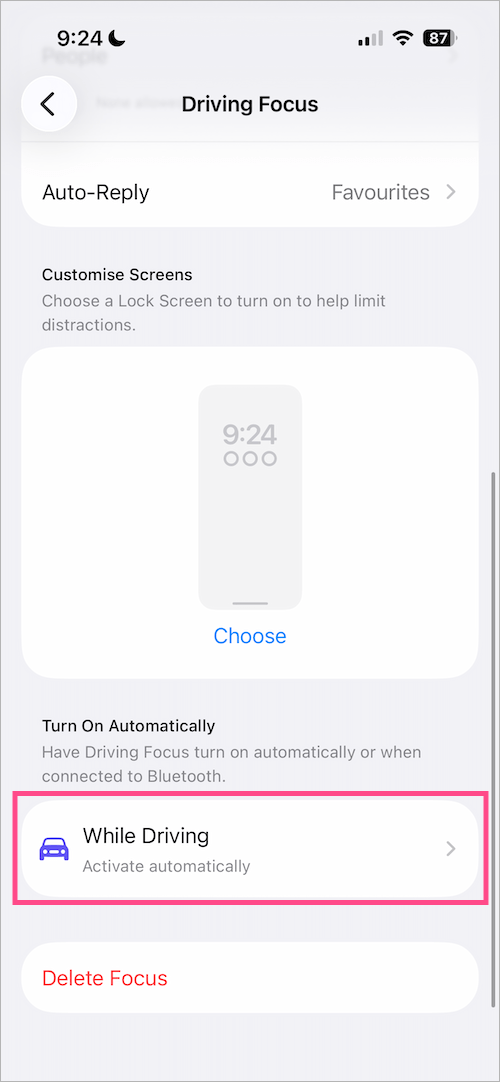
- Select Manually to manually activate Driving Focus from Control Center.
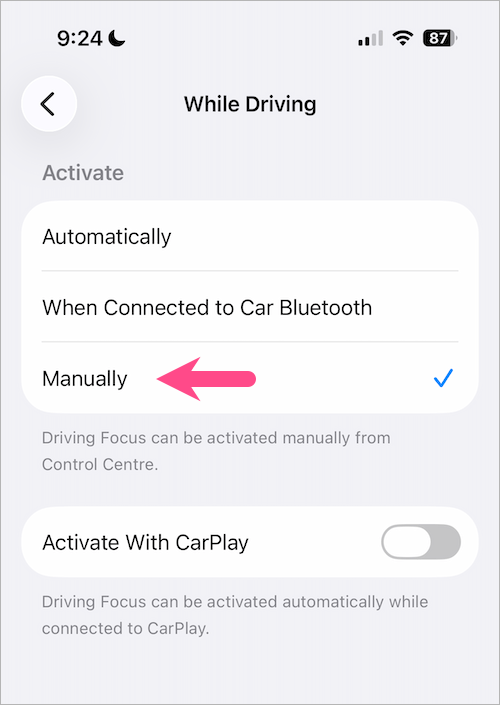
- Optional: Turn off Activate With CarPlay to completely turn driving mode off on your iPhone.
For a detailed guide, check how to disable Do Not Disturb While Driving on iPhone.
Why Does Do Not Disturb Turn On Automatically?
It can be frustrating if your iPhone keeps enabling Do Not Disturb, causing you to miss important calls and notifications.
Do Not Disturb may turn on by itself if you’ve set a schedule or enabled Smart Activation, which triggers DND at certain times or locations.
Here’s how you can stop DND from turning on automatically on your iPhone:
Disable Do Not Disturb Schedule or Automation
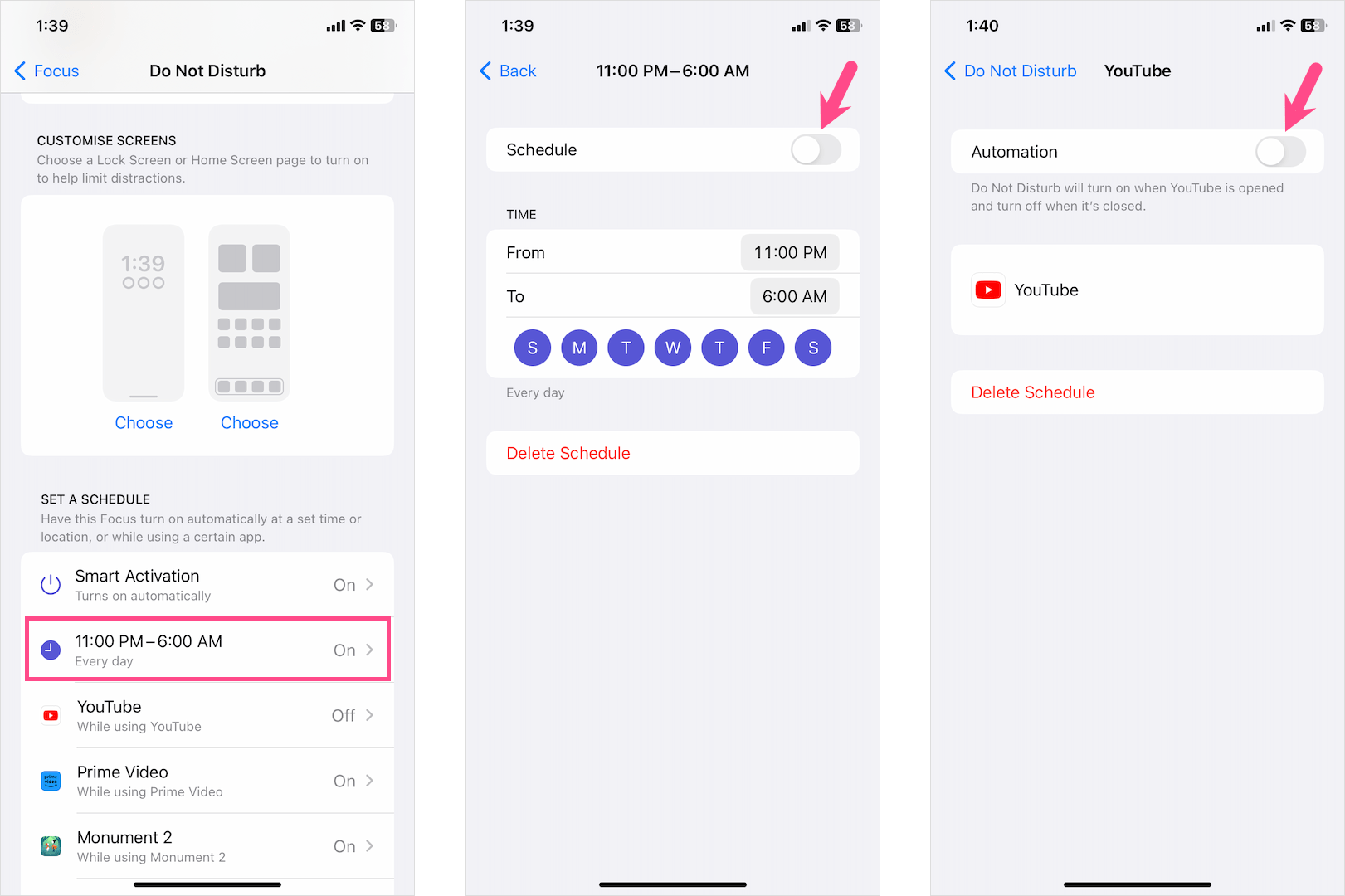
- Go to Settings > Focus > Do Not Disturb.
- Under Set a Schedule, look for any schedules you’ve added.
- Turn off the toggle for a Schedule or Automation. You can also delete the schedule if you no longer use it.
Turn Off Smart Activation
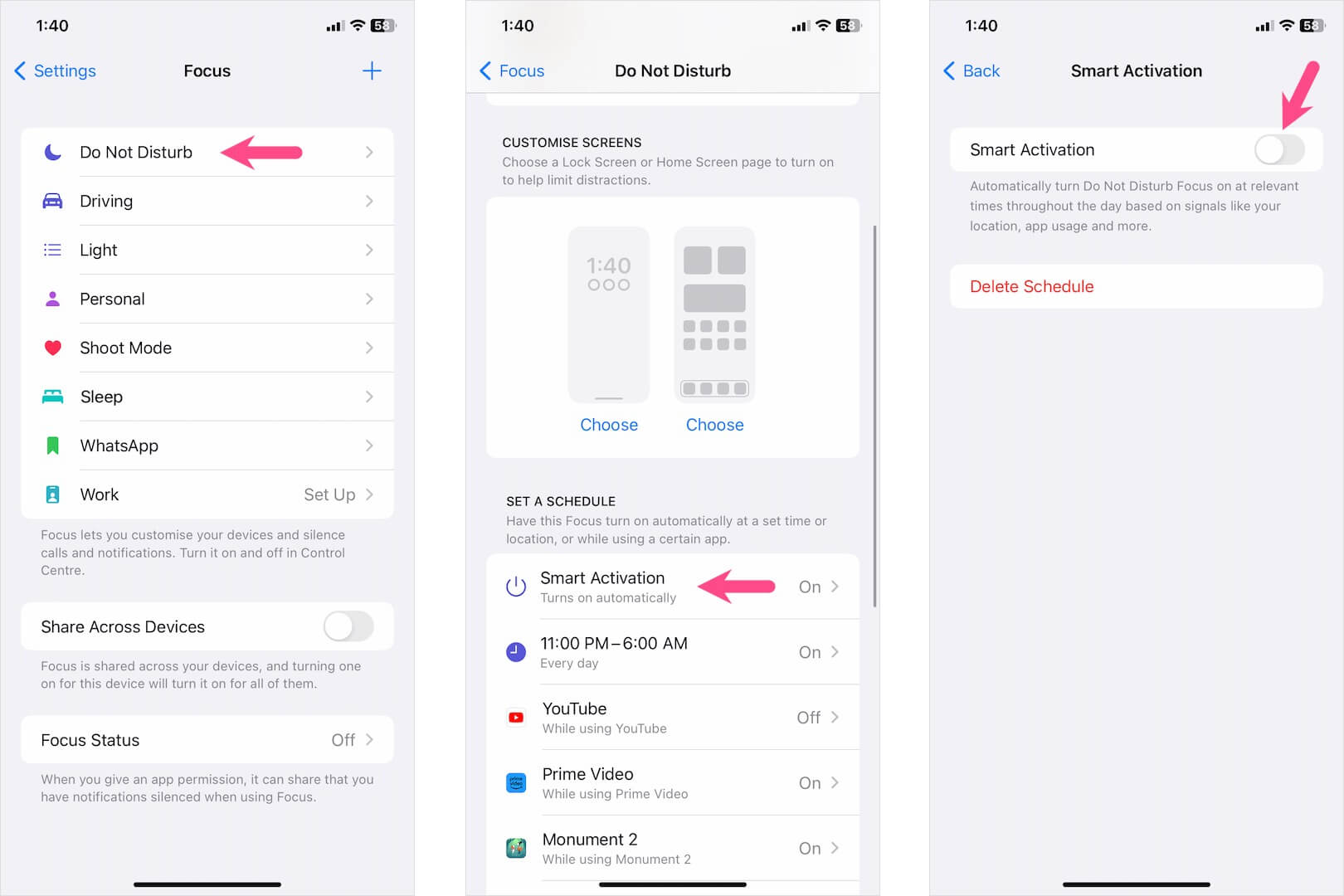
- Head to Settings > Focus > Do Not Disturb.
- Under Set a Schedule, tap Smart Activation.
- Turn off the toggle next to Smart Activation.
DND may also turn on unexpectedly if ‘Share Across Devices’ is enabled in Focus settings or if a Focus is linked to a specific Lock Screen.
FAQs
1. Will my alarm still go off on Do Not Disturb?
Yes. Even when Do Not Disturb (DND) is enabled, all alarms set on your iPhone will still ring at their scheduled times. DND only silences incoming calls, messages, and notifications; it does not affect your alarms.
2. Where are Do Not Disturb settings on iPhone?
Go to Settings > Focus > Do Not Disturb. Here, you can customize how DND works, such as allowing calls from specific contacts, enabling or disabling notifications from certain apps, or setting schedules.
3. Do Not Disturb on iPhone won’t turn off – what to do?
If DND keeps turning on automatically, go to Settings > Focus > Do Not Disturb. Review any schedules or automations, and disable the ones that may be reactivating DND.
4. Can I remove Do Not Disturb completely?
No, you cannot completely remove Do Not Disturb from your iPhone. However, you can turn it off at any time and prevent it from enabling automatically by adjusting DND settings in Focus.
PRO TIP: Automatically Silence Notifications While Watching Videos on iPhone










