WebTrickz
TRENDING
  • Complete list of 1337x Proxy and Mirror Sites
No Result
View All Result
  • Reviews
  • Editorials
  • Social Media
    • Facebook
    • Twitter
    • YouTube
    • Messenger
    • Instagram
    • Snapchat
    • WhatsApp
    • TikTok
  • Apps
  • How To’s
  • Apple
  • iPhone
  • Google
  • Android
  • Mac
  • Security
  • About Us
    • About Us
    • Contact Us
    • Privacy Policy
  • Reviews
  • Editorials
  • Social Media
    • Facebook
    • Twitter
    • YouTube
    • Messenger
    • Instagram
    • Snapchat
    • WhatsApp
    • TikTok
  • Apps
  • How To’s
  • Apple
  • iPhone
  • Google
  • Android
  • Mac
  • Security
  • About Us
    • About Us
    • Contact Us
    • Privacy Policy
No Result
View All Result
WebTrickz
No Result
View All Result
Home How To's

How to Export Bookmarks or Favorites from Microsoft Edge

Guide to export Edge bookmarks and favorites to another computer or browser.

Mayur by Mayur
February 10, 2026
in How To's, Tips 'n' Tricks

Bookmarks (called Favorites in Microsoft Edge) help you quickly access your favorite websites. If you’re switching to a new computer or moving to another browser like Chrome, Firefox, or Safari, you’ll want to download your bookmarks.

The easiest way to do that is by exporting your Edge bookmarks to an HTML file. This guide shows you how to export and import bookmarks in Microsoft Edge on Windows and Mac.

Reasons to Export Edge Bookmarks

You may want to export bookmarks from Edge for several reasons, such as:

  • You’re setting up a new computer
  • You’re switching from Edge to Chrome, Firefox, or Safari
  • You want a backup of your bookmarks
  • Browser sync isn’t working
  • You want to manually transfer bookmarks between browsers

When you export all bookmarks in Edge, everything is saved into a single HTML file that works with almost any browser.

How to Export Bookmarks in Microsoft Edge

Looking to export favorites or bookmarks from Microsoft Edge? Follow these steps to export Edge bookmarks to HTML on Windows or Mac.

  1. Open Microsoft Edge on your computer.
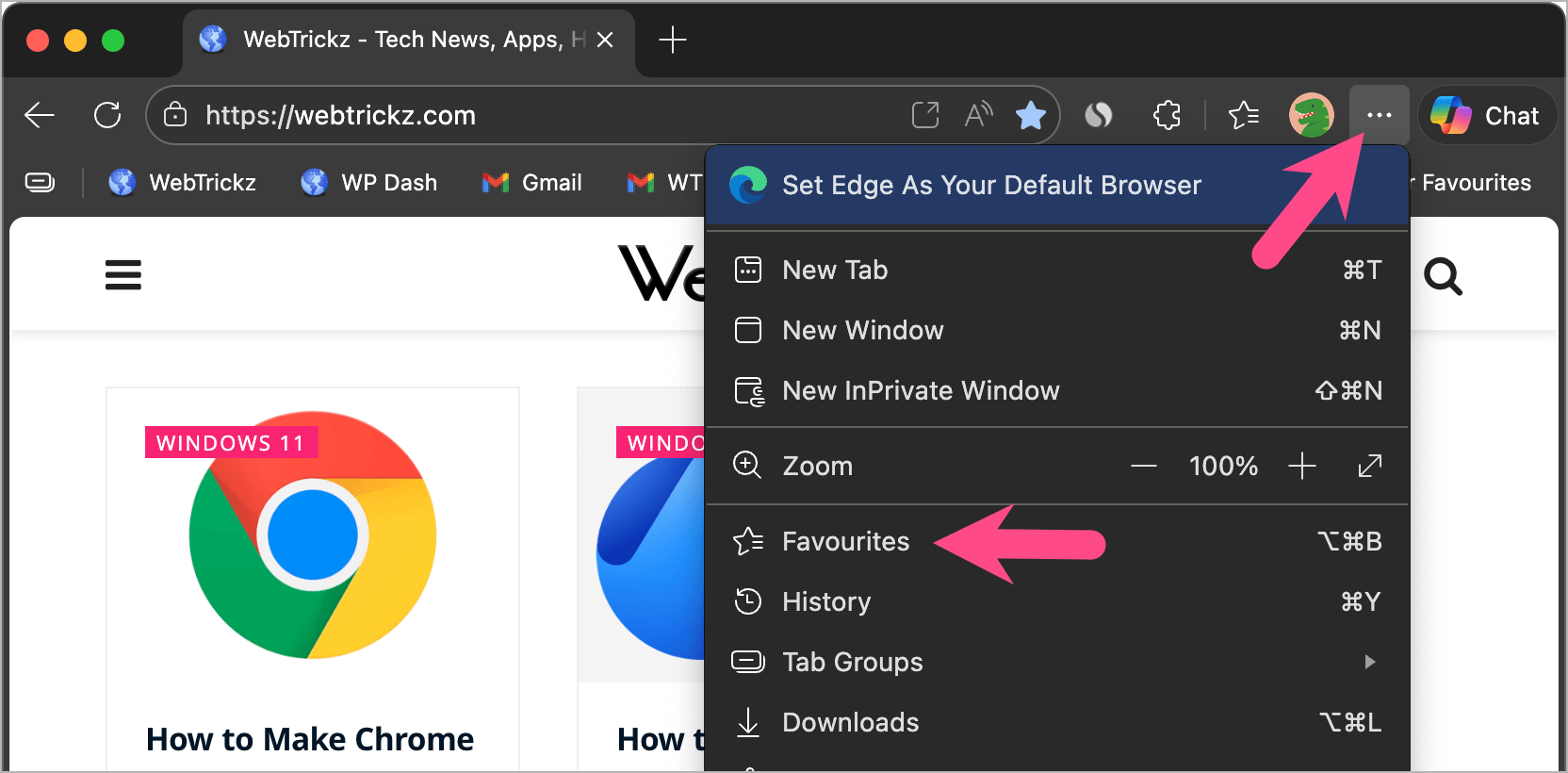
  2. Click the three-dot menu in the top-right corner and select Favorites. where are favorites in microsoft edge
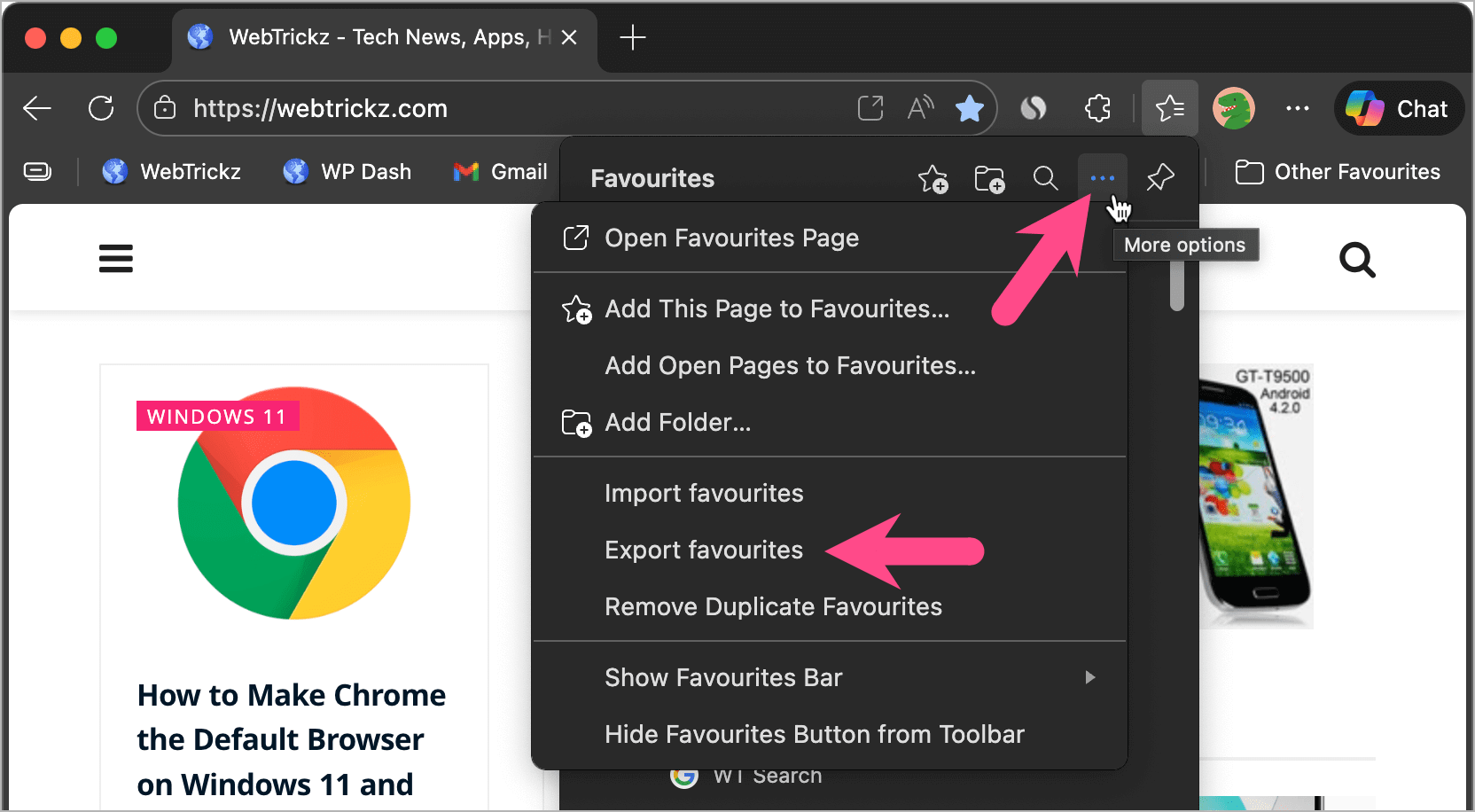
  3. Click More options (three-dots) inside the Favorites pop-up.
  4. Choose Export favorites. how to export bookmarks from edge in windows 11
  5. Select a location on your computer and click Save. how to export edge bookmarks to HTML file
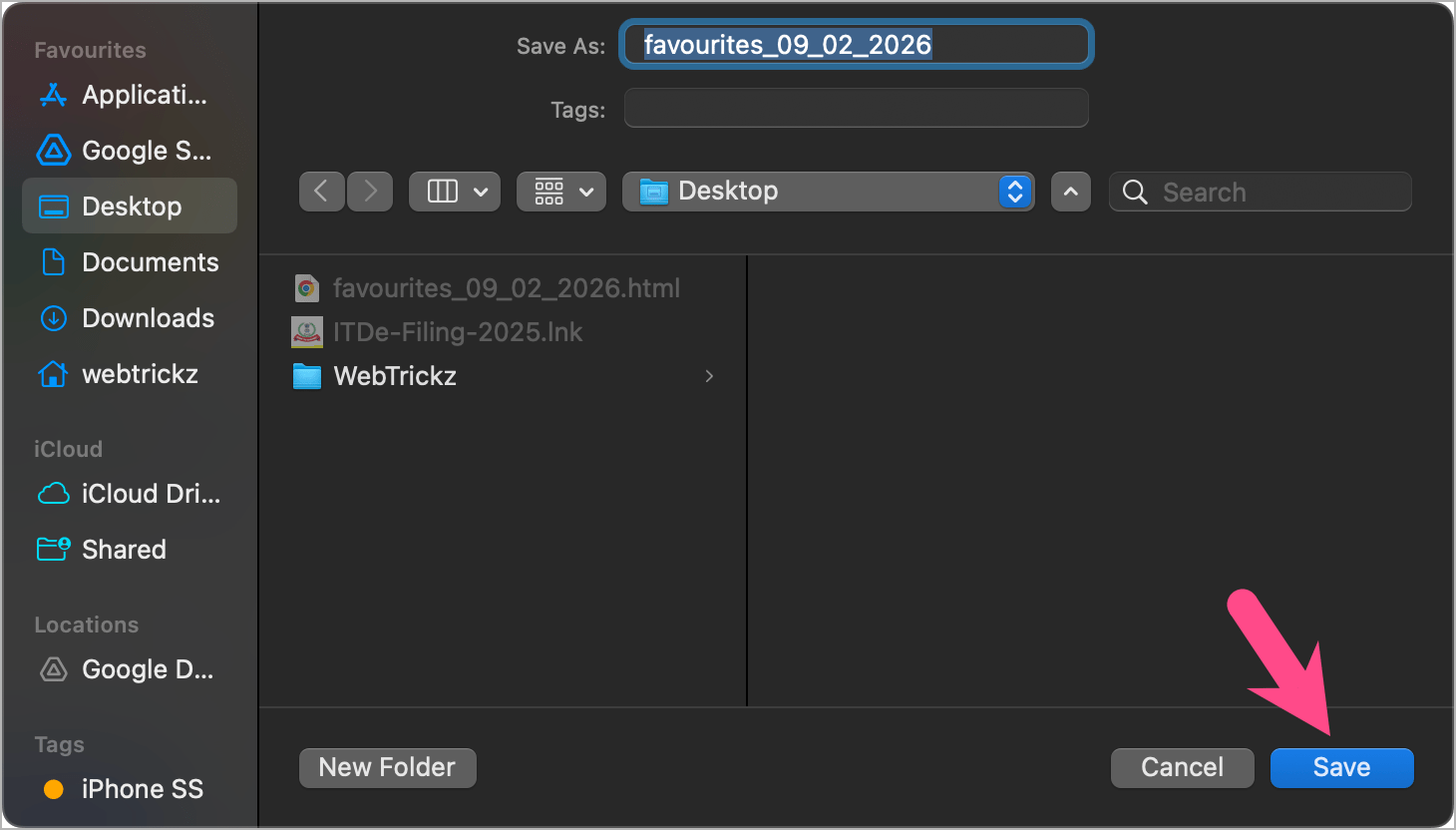
That’s it. Your Edge bookmarks are now saved as an HTML file, which you can transfer to another computer or browser.

How to Import Bookmarks into Edge from an HTML File

If you already have a bookmarks HTML file (from Chrome, Firefox, or another computer), you can easily import it back into Edge.

Here’s how to import bookmarks in Edge from an HTML file:

  1. Open Microsoft Edge.
  2. Click the three-dot icon in the top right and go to Favorites.
  3. Click the ellipsis icon in the Favorites pop-up and select Import favorites. how to import bookmarks in edge browser
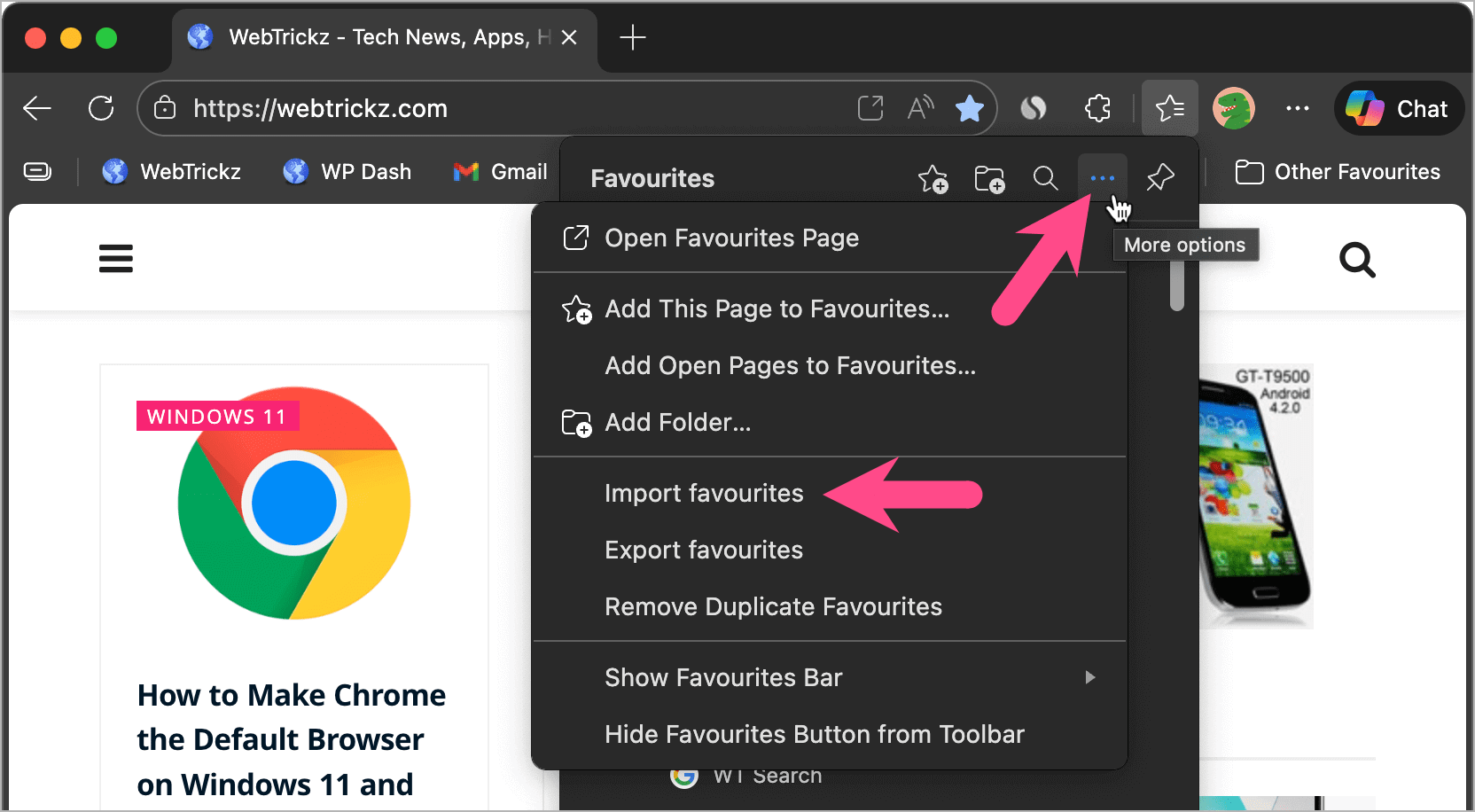
  4. Under ‘Other import locations’, click the Import button next to “Import browser data now”. import bookmarks in edge from html file
  5. From the Import from dropdown menu, select Favorites or Bookmarks HTML File. how to import favorites in edge from another browser
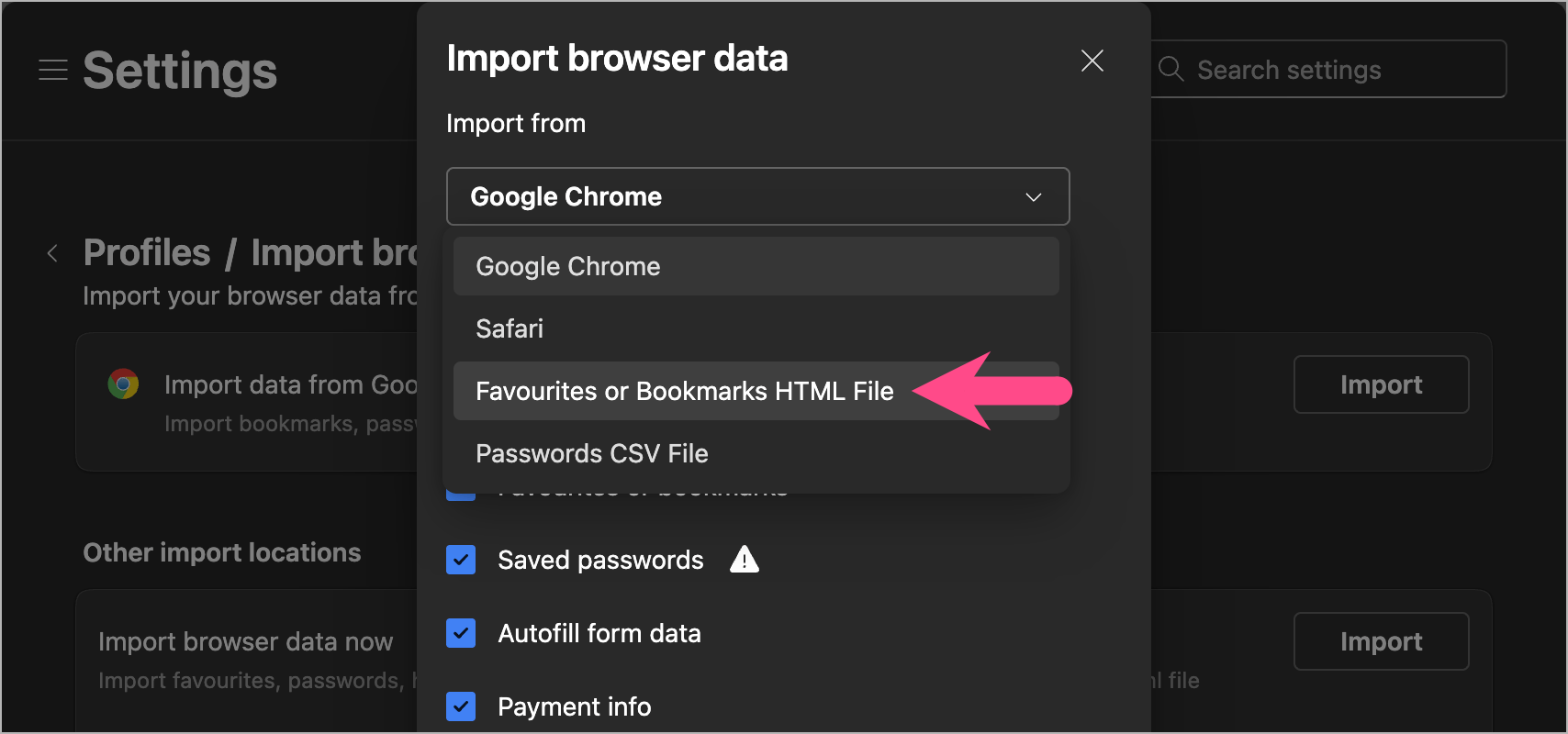
  6. Click Choose file. import edge bookmarks from file
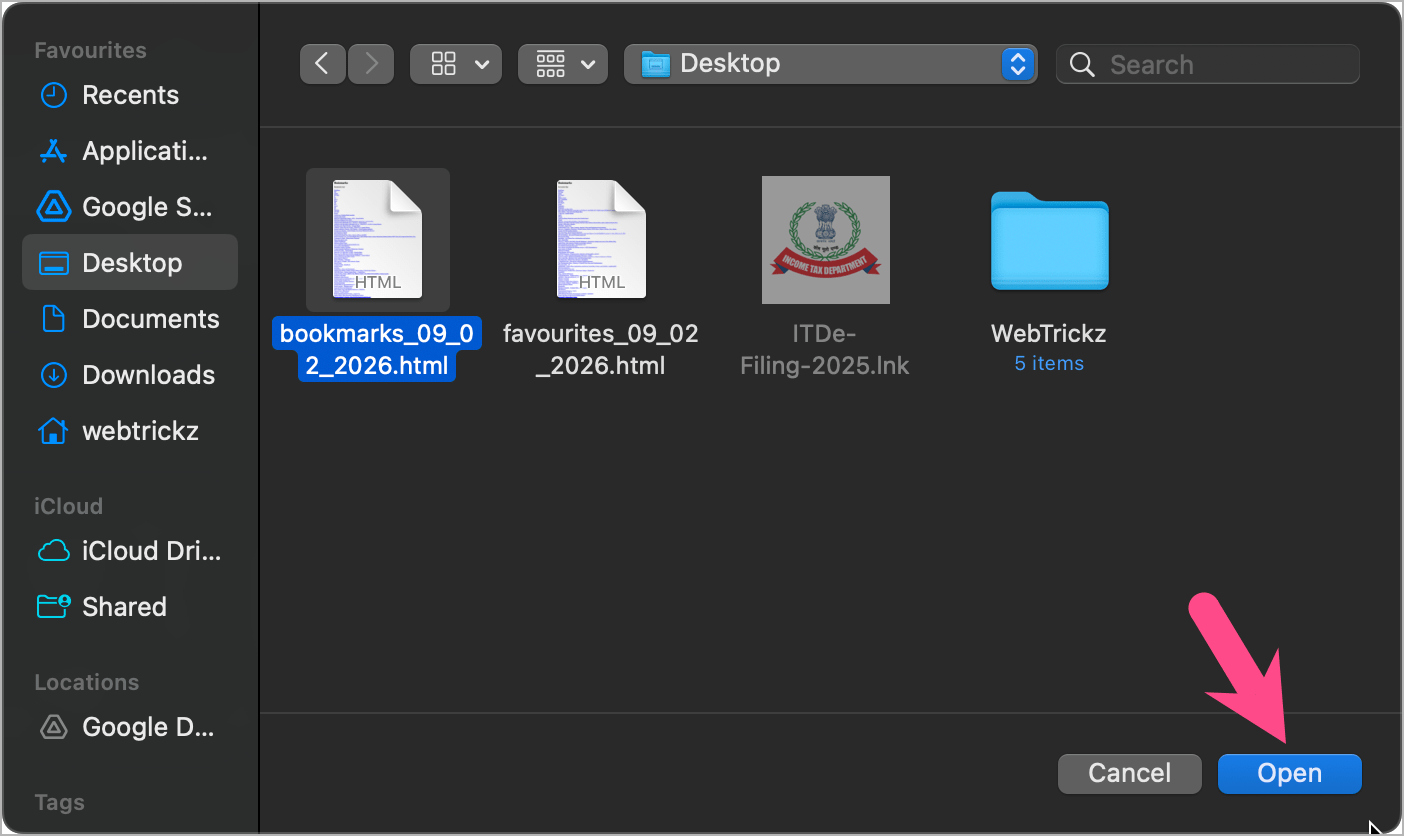
  7. Select the HTML file and click Open. how to import favorites to microsoft edge from another computer

All your imported bookmarks will now appear in Edge Favorites.

How to Import Bookmarks from Chrome to Edge

If you’re switching from Google Chrome to Edge, you can import Chrome bookmarks to Edge using an HTML file.

Step 1: Export Bookmarks from Chrome

  1. Open Google Chrome.
  2. Click the three-dot menu and go to Bookmarks and lists > Bookmark manager. bookmark manager in google chrome
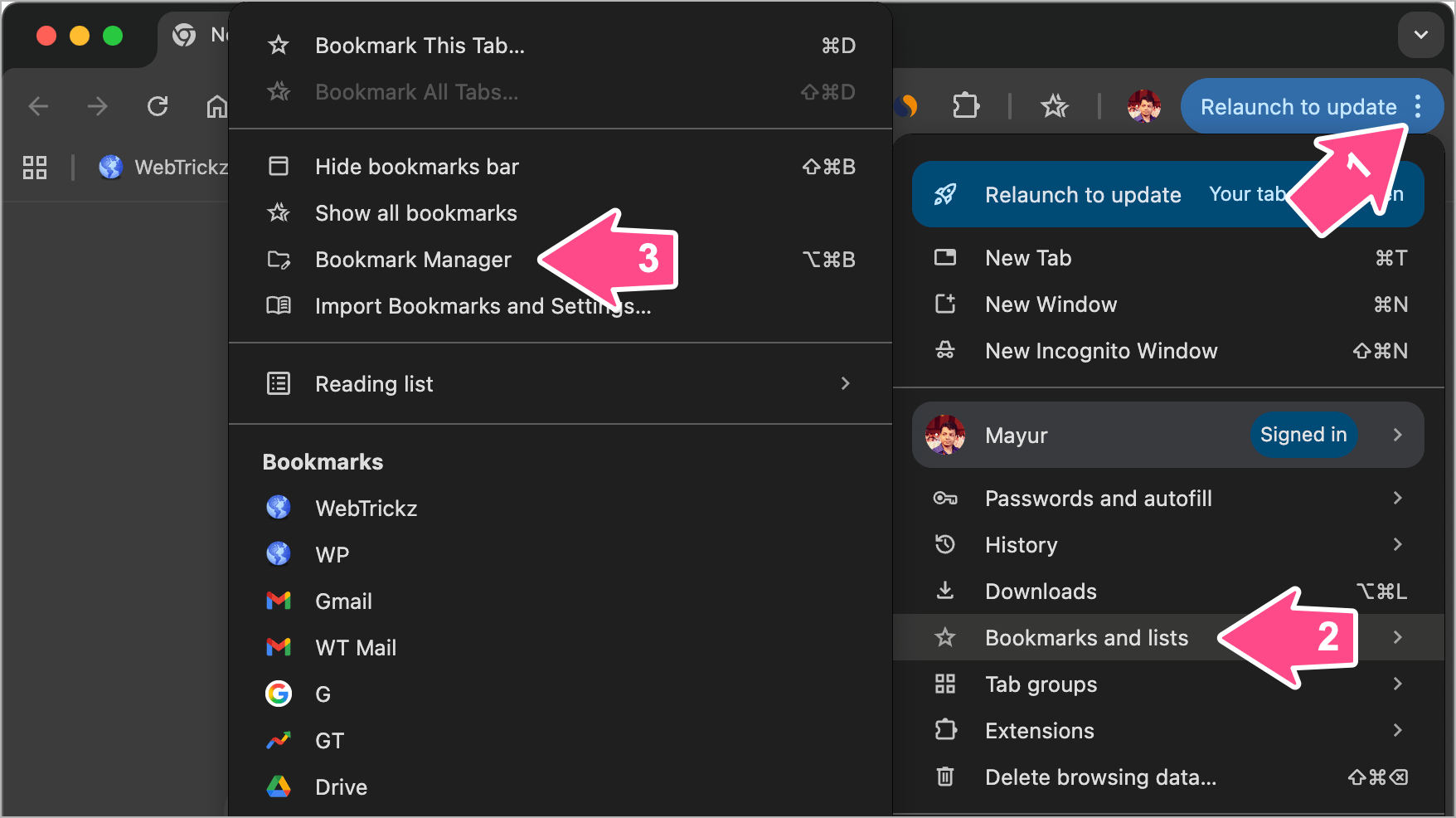
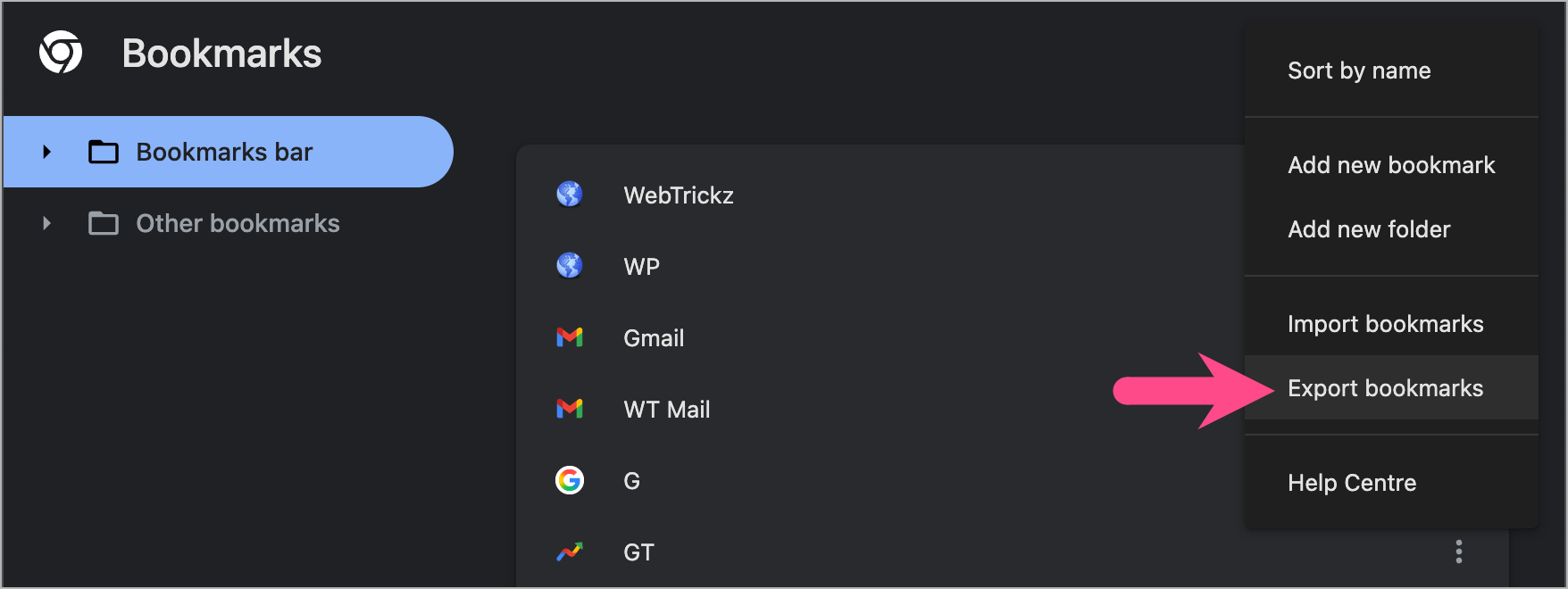
  3. Click the ellipsis icon at the top right corner. how to export your bookmarks in chrome
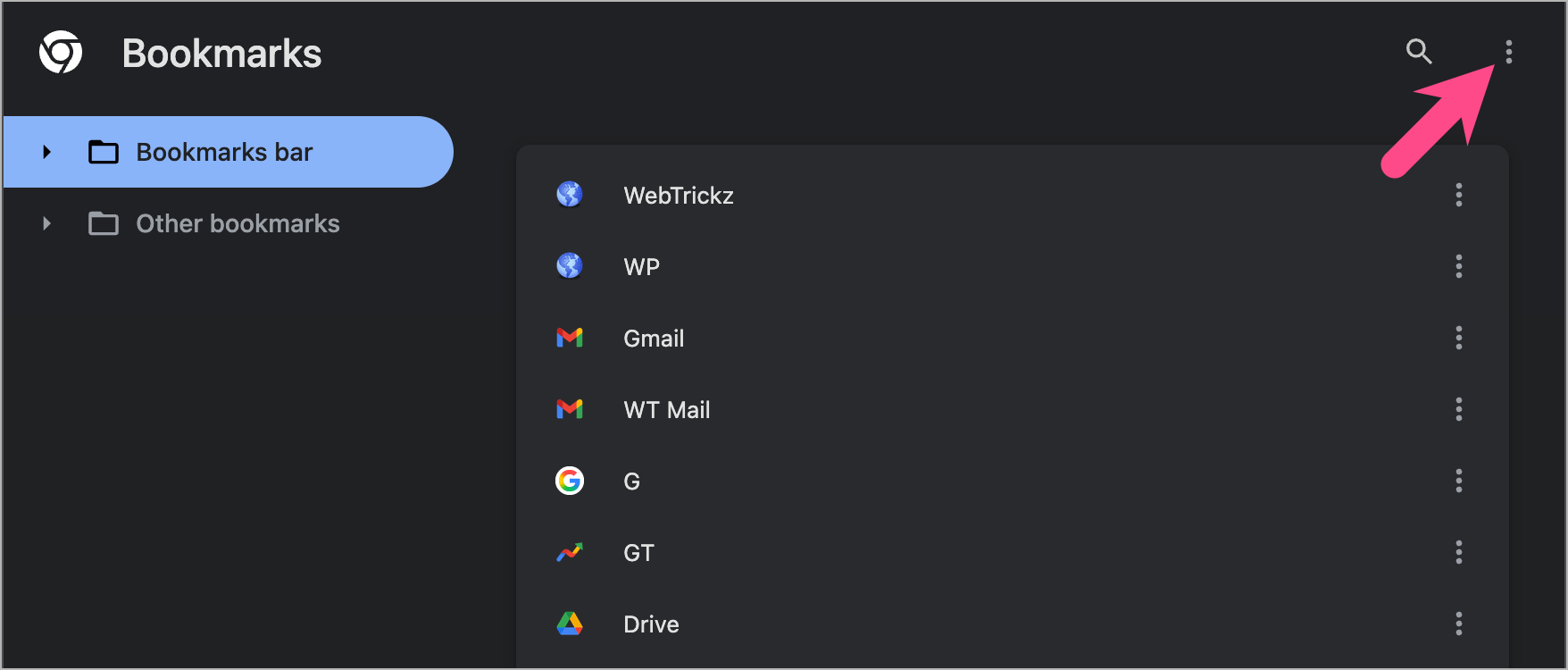
  4. Select Export bookmarks. how to import bookmarks from chrome to edge
  5. Save the HTML file.

Step 2: Import Chrome Bookmarks into Edge

  1. Open Microsoft Edge.
  2. Go to Favorites > Import favorites.
  3. Click the Import button next to “Import data from Google Chrome”. import chrome bookmarks to edge from file
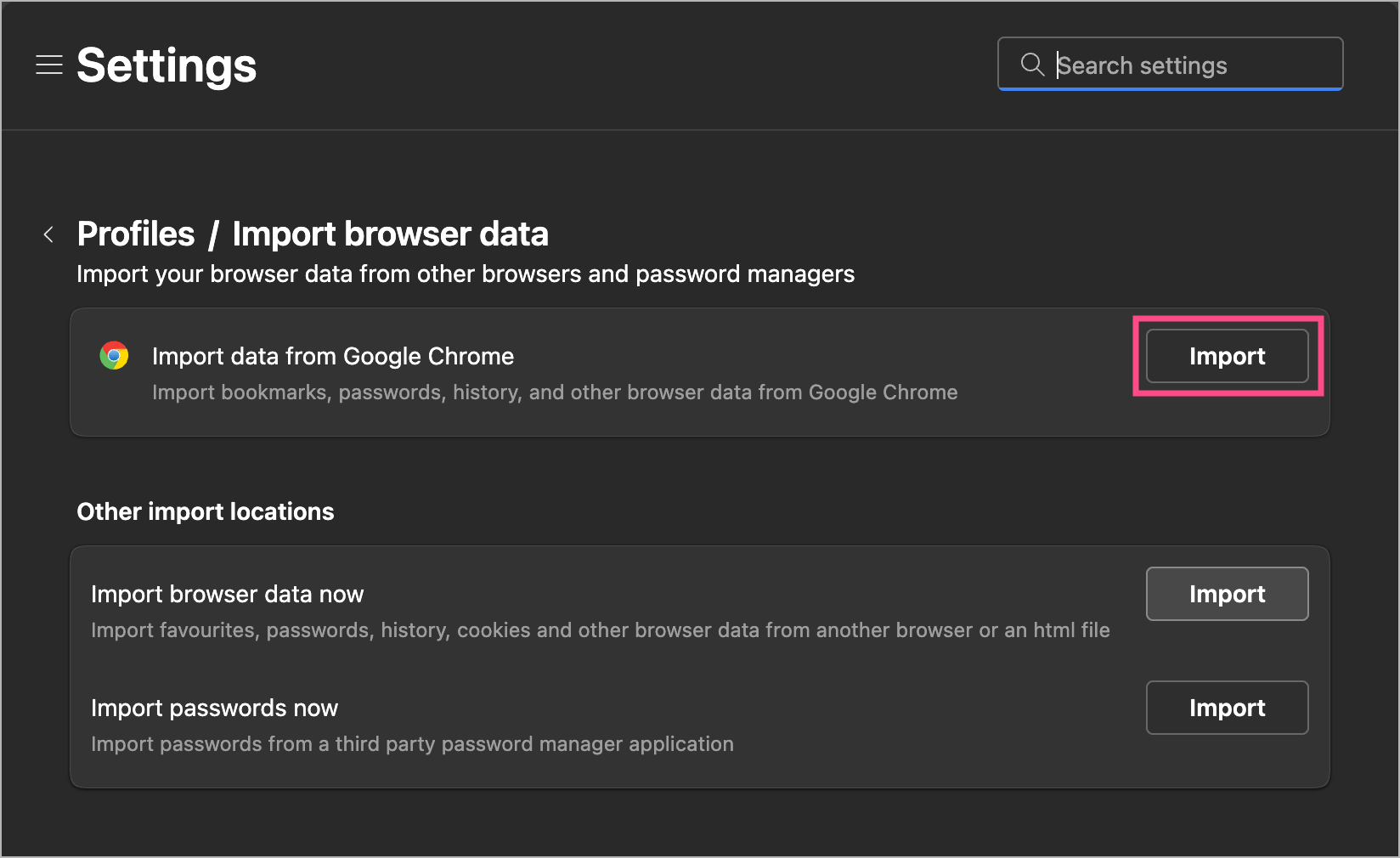
  4. Click the Import from dropdown menu and select Favorites or Bookmarks HTML File.
  5. Click Choose file.
  6. Choose the Chrome bookmarks HTML file and click Open.

Your Chrome bookmarks will now be available in Microsoft Edge.

How to Save Bookmarks in Microsoft Edge

Saving bookmarks in Edge lets you quickly access your favorite websites later. Edge refers to bookmarks as Favorites, and you can save them with just a click.

Here’s how you can save a bookmark in Edge:

  1. Open the website you want to bookmark in Microsoft Edge.
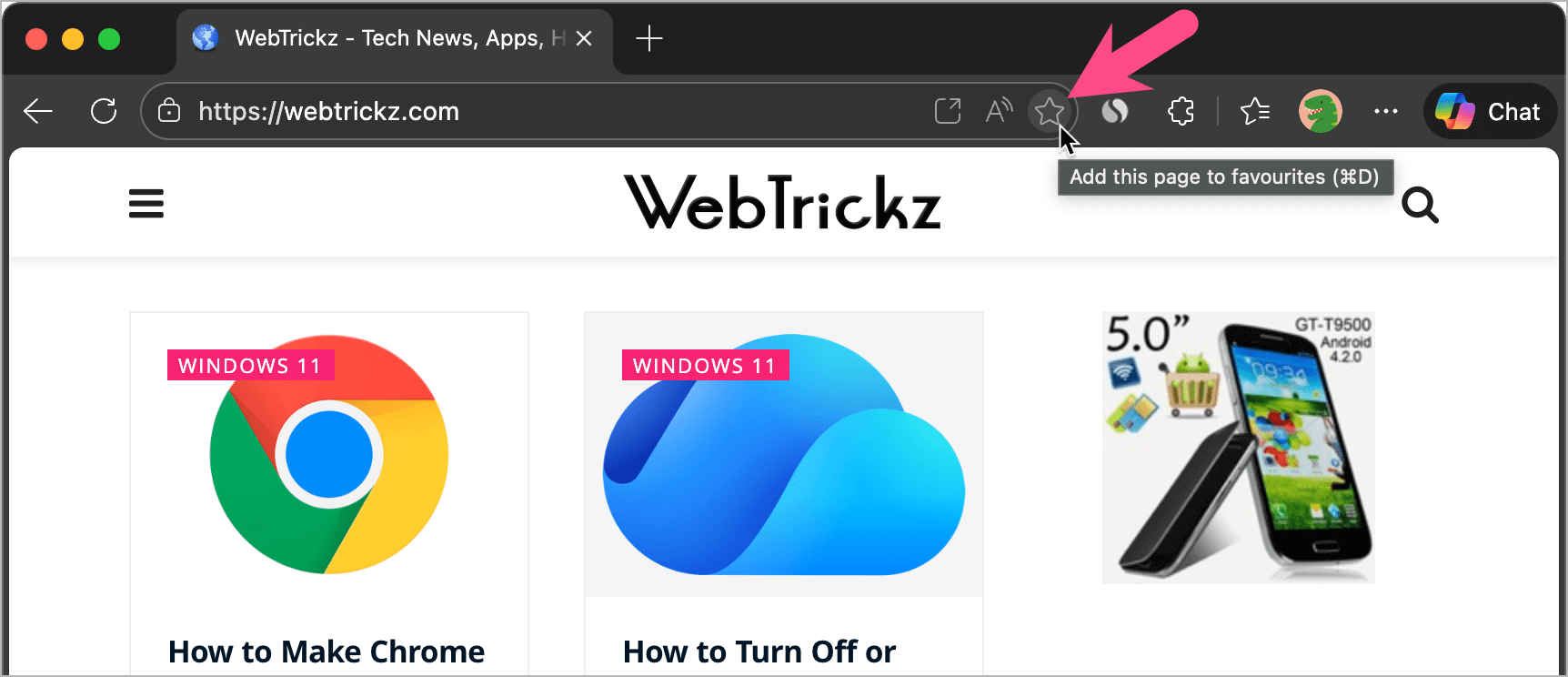
  2. Click the star icon at the extreme right of the address bar (Or press Ctrl + D on Windows / Command + D on Mac). how to save bookmarks in edge
  3. Optional: Give the bookmark a name and choose a folder to save it. add website to favorites in microsoft edge
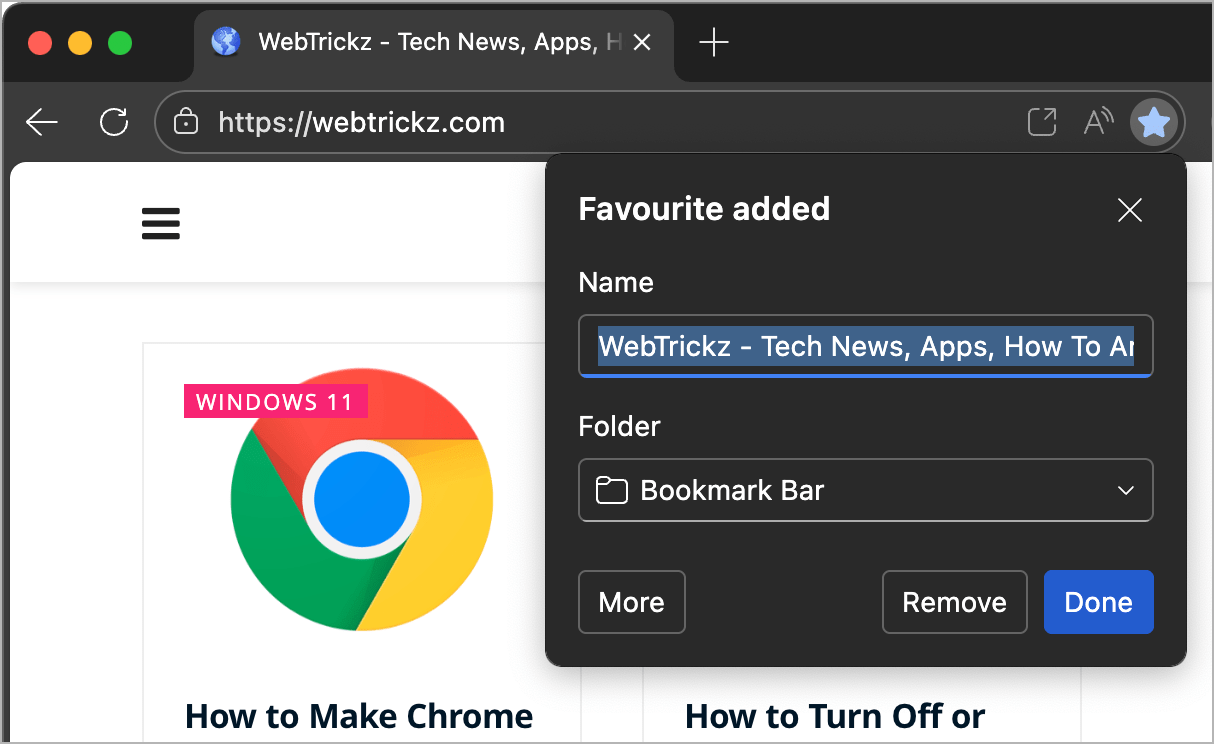
  4. Click Done.

The website is now saved to your Edge Favorites.

Where Are Saved Bookmarks Stored in Edge?

  • Click the Favorites (star icon) in the toolbar
  • Or open Favorites from the Settings menu

From there, you can open, edit, move, or delete your saved bookmarks anytime.

RELATED TIPS:

  • How to Always Show Bookmarks Bar in Microsoft Edge
  • How to Turn Off the Pop-Up Blocker in Microsoft Edge
  • How to Delete Microsoft Copilot Activity History
Tags: BookmarksBrowserChromeMacMicrosoft EdgeTipsWindows 11
ShareTweetSend
Previous Post

How to Make Chrome the Default Browser on Windows 11 and 10

Next Post

Download Google Chrome Offline Installer [Latest Version]

Mayur

Mayur

Mayur Agarwal, the founder and editor of WebTrickz, is a tech enthusiast with a Bachelor's degree in Computer Applications and over 15 years of experience in tech writing. His passion for technology and gadgets drives him to create insightful how-to articles and troubleshooting guides.

Next Post
google chrome logo

Download Google Chrome Offline Installer [Latest Version]

Leave a Reply Cancel reply

Your email address will not be published. Required fields are marked *

Latest Stories

chatgpt logo

How to Clear or Delete Memory in ChatGPT on PC and Mobile

June 4, 2026
1337x logo

1337x Proxy List 2026: Working Proxy & Mirror Sites

June 2, 2026

How to Find Saved Reels on Facebook App & Desktop (2026)

April 1, 2026
microsoft edge browser

How to Restore or Reopen Closed Tabs in Microsoft Edge

March 26, 2026
Facebook app on iPhone

How to See Recently Watched Reels on Facebook (2026 Guide)

April 3, 2026
microsoft edge new logo

Download Microsoft Edge Offline Installer [Latest Version]

March 16, 2026

How to Turn Off Bing SafeSearch in Microsoft Edge

March 12, 2026

Trending Stories

  • microsoft family safety settings

    How to Turn Off Microsoft Family Safety on Windows 11 & 10

  • How to Turn Off Microsoft Edge Game Assist in Windows 11

  • How to Turn Off Fn Lock or Fn Key on Windows 11/10 Laptop

  • How to See Recently Watched Reels on Facebook (2026 Guide)

  • 1337x Proxy List 2026: Working Proxy & Mirror Sites

  • About Us
  • Contact Us
  • Privacy Policy
  • Advertise

© 2026 WebTrickz. All Rights Reserved.

No Result
View All Result
  • Reviews
  • Apps
  • How To’s
  • Android
  • Google
  • iPhone
  • Mac
  • About Us
  • Contact Us
  • Privacy Policy

© 2026 WebTrickz. All Rights Reserved.