


Can’t see the Favorites bar in Microsoft Edge? By default, Edge may hide it or show it only on new tabs. You can make the Favorites bar always visible from Edge Settings or instantly toggle it using a keyboard shortcut on Windows and Mac.
This guide shows how to always display the Favorites bar in Microsoft Edge on Windows 10, Windows 11, and Mac.
Favorites Bar Not Showing in Microsoft Edge?
If you can’t see the Favorites bar in Microsoft Edge, one of these settings is usually the cause:
- The Favorites bar is set to appear only on new tabs.
- A recent Edge update may have reset your appearance settings.
- You accidentally hid the Favorites bar using the Ctrl + Shift + B keyboard shortcut.
Use one of the methods below to restore the Favorites bar and keep it visible on every webpage.
Favorites Bar Settings in Microsoft Edge
You can control when the Favorites bar appears from Settings > Appearance > Toolbar > Favorites bar. Edge offers three display options:
| Option | What it does |
|---|---|
| Always | Shows the Favorites bar on every webpage. |
| Only on new tabs | Shows the Favorites bar only when you open a new tab. |
| Never | Hides the Favorites bar completely. |
How to Always Show the Favorites Bar in Edge on Windows
You can show the Favorites bar in Edge using any of these methods.
1. Using the Keyboard Shortcut
The quickest way to show or hide the Favorites bar in Edge is by pressing:
Ctrl + Shift + B (Windows)
If the Favorites bar was accidentally hidden, press the shortcut once to show it again. Press it again to hide the bar.
2. From Edge Settings
If you want to always show the Favorites bar in Edge on top of the page:
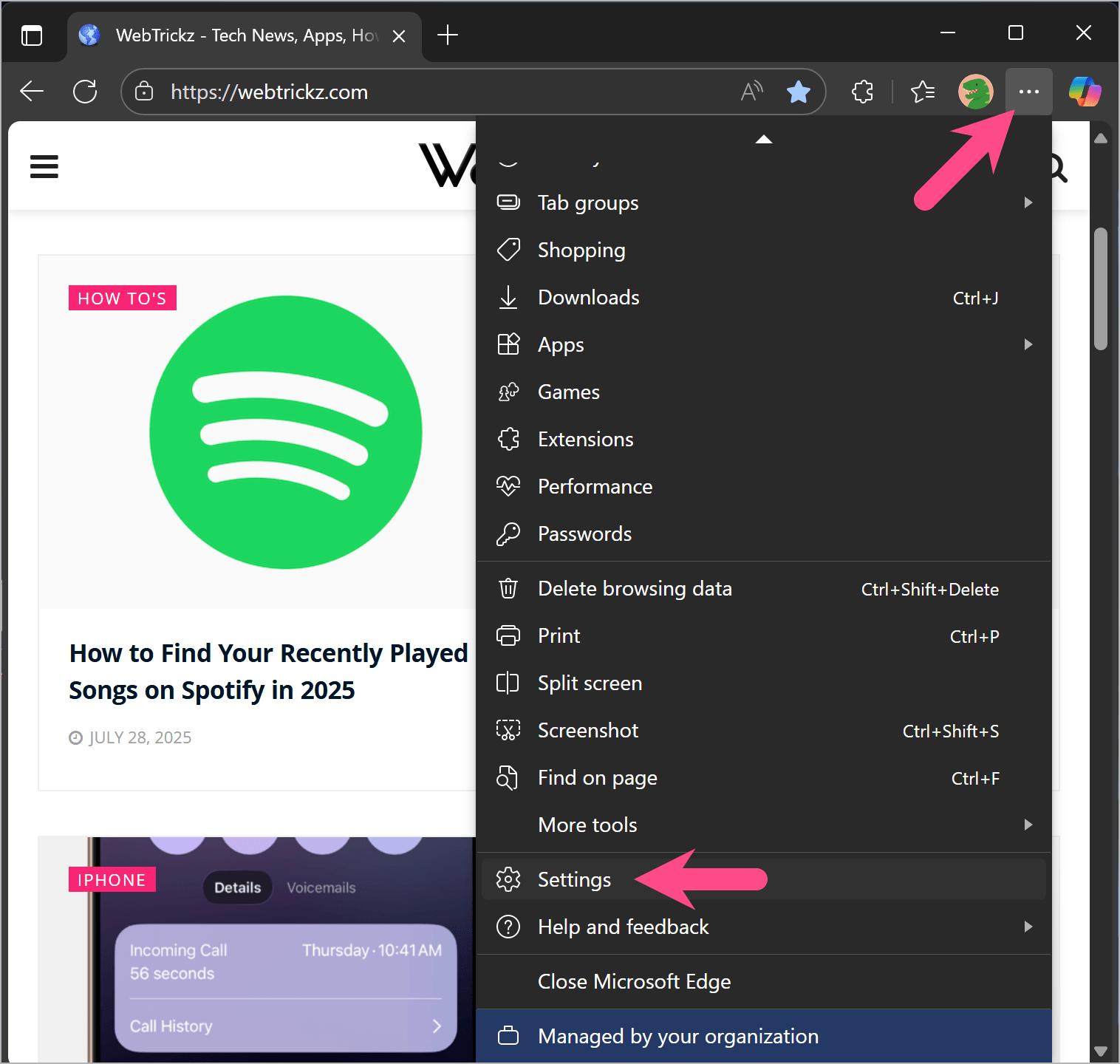
- Open Microsoft Edge on your Windows PC.
- Click the three-dot menu in the top-right corner and go to Settings.
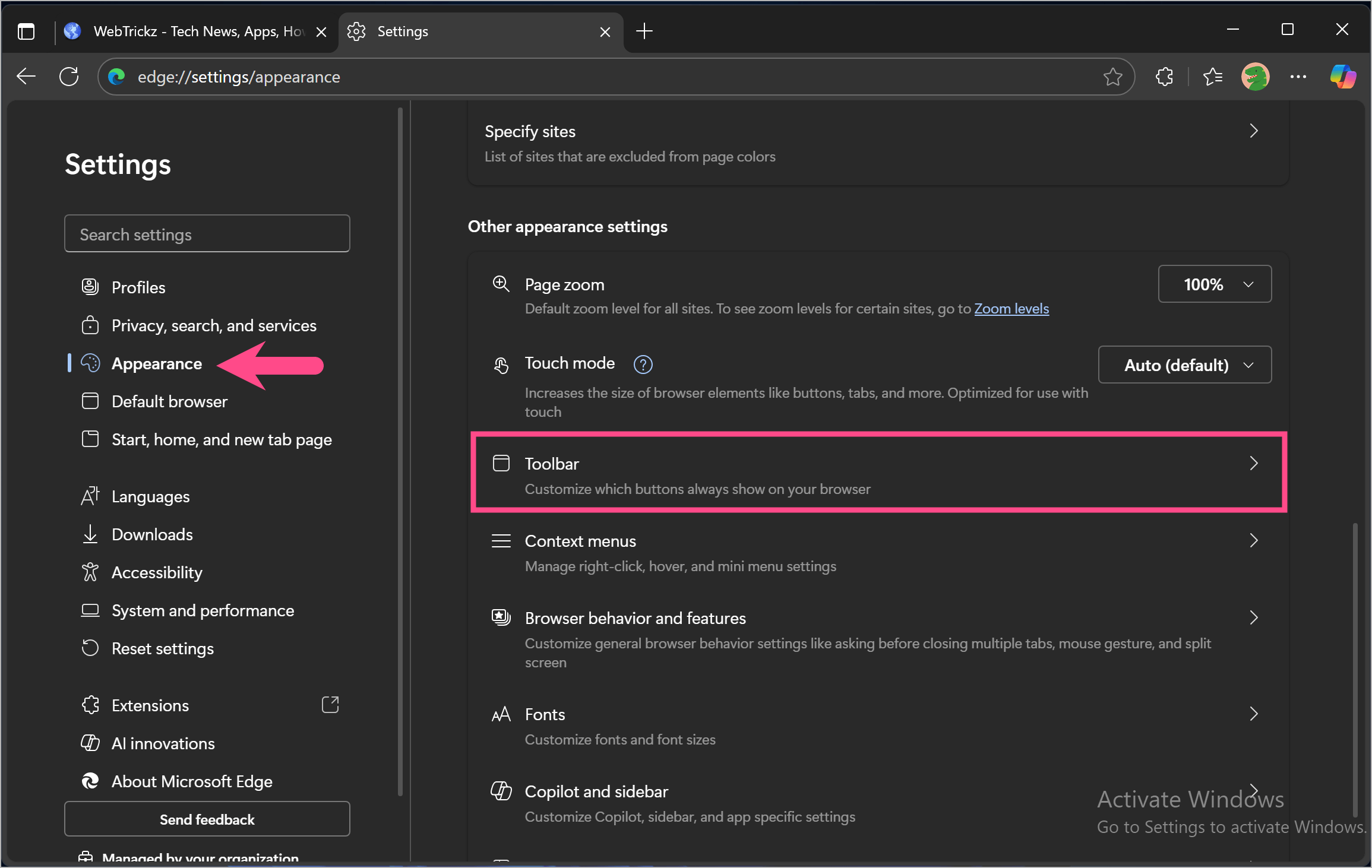
- In the sidebar, click on Appearance.
- Under Other appearance settings, click on Toolbar.
- Click the dropdown menu next to the Favorites bar and select Always.
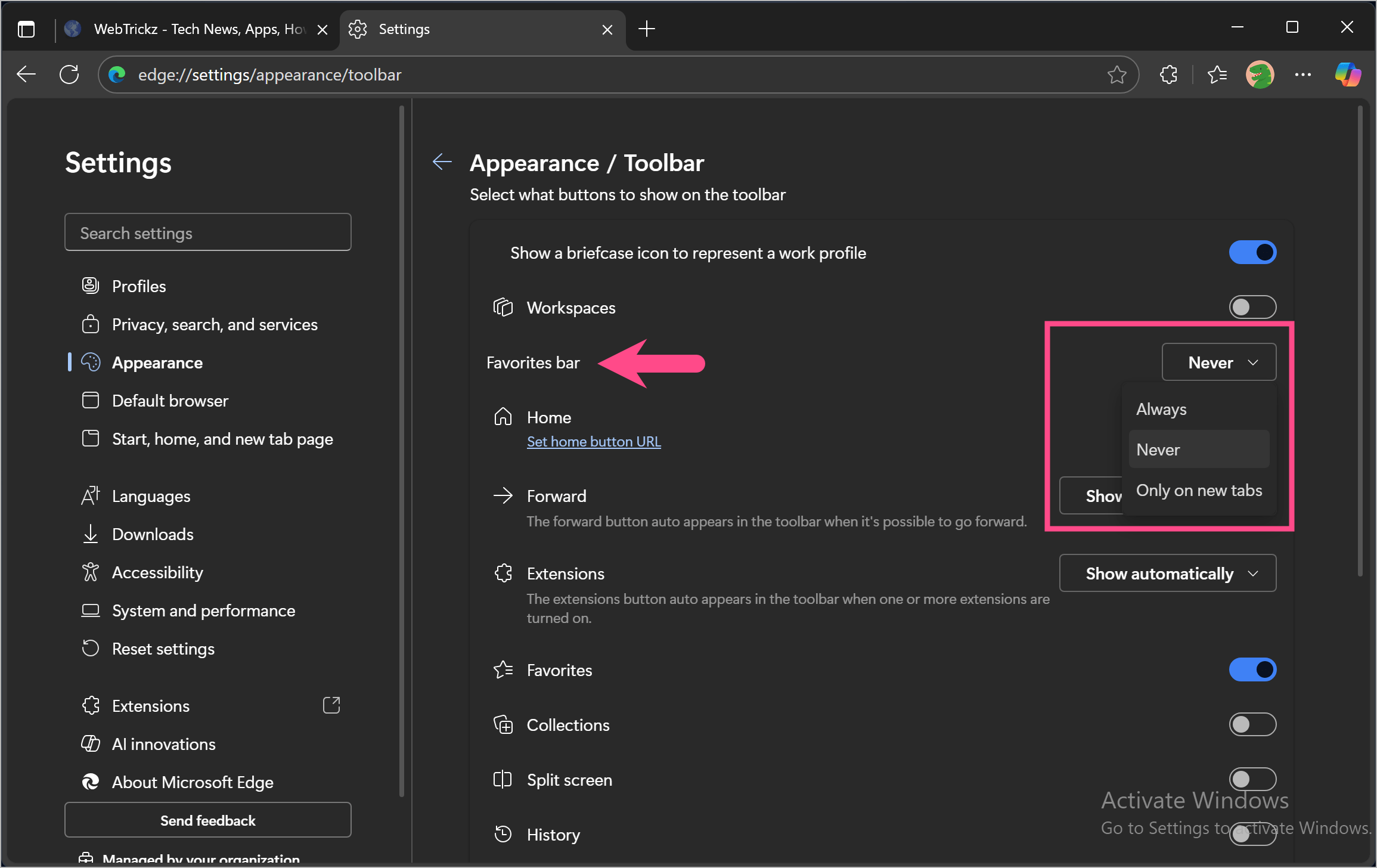
The Favorites bar will now remain visible across all tabs until you change this setting again.
Tip: You can also open the Favorites bar settings directly by entering edge://settings/appearance/toolbar in the Edge address bar.
Also read: How to Export Bookmarks or Favorites in Microsoft Edge
3. From the Favorites Menu
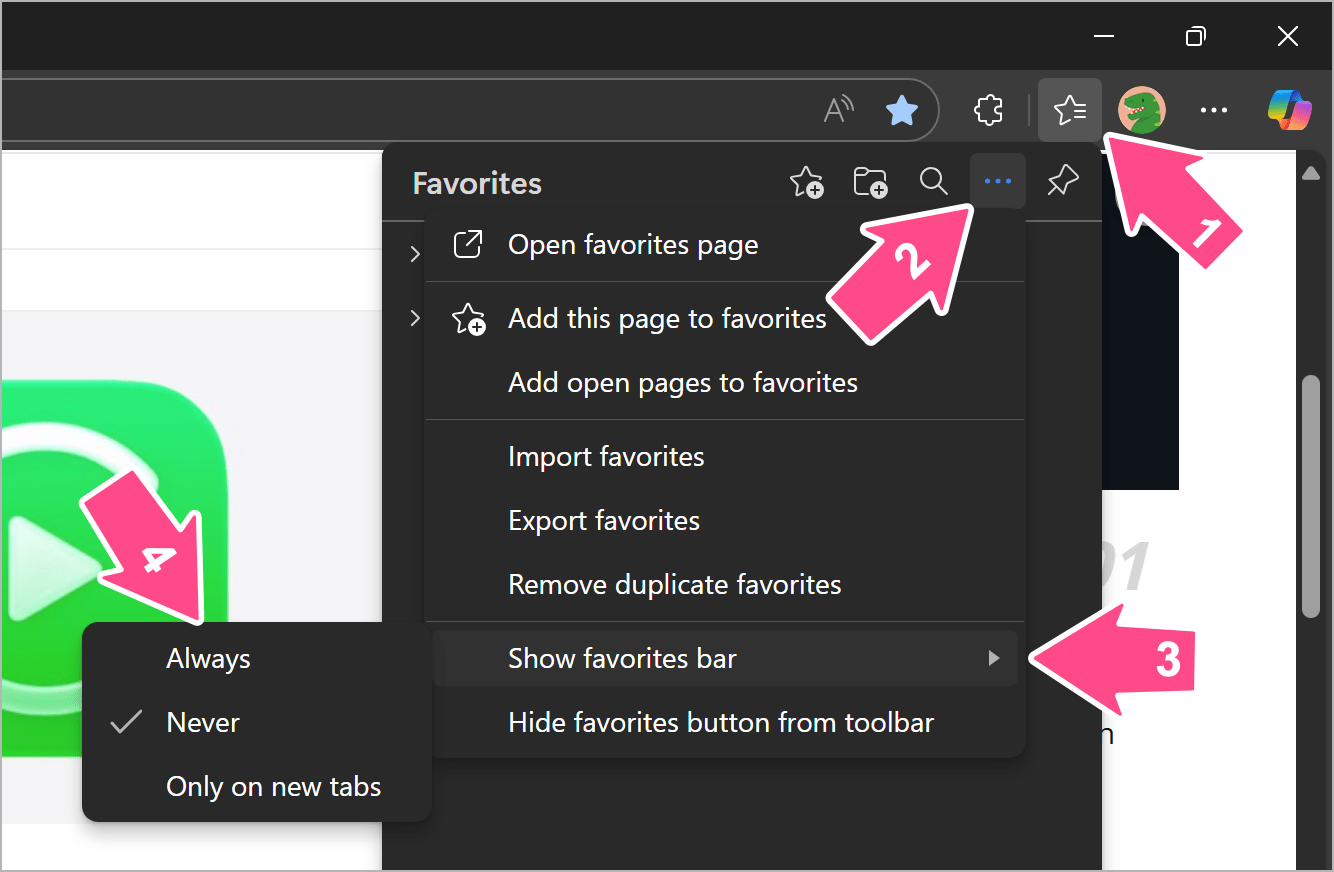
You can also enable the Favorites bar directly from the Edge toolbar:
- Click the Favorites (star with lines) icon in the toolbar.
- Click More options (three-dot menu) inside the Favorites popup.
- Navigate to the Show Favorites Bar menu and select Always.
How to Show the Favorites Bar in Edge on Mac
On Mac, you can show the Favorites bar using the keyboard shortcut or the View menu.
1. Use the Keyboard Shortcut
Press Command + Shift + B to show or hide the Favorites bar.
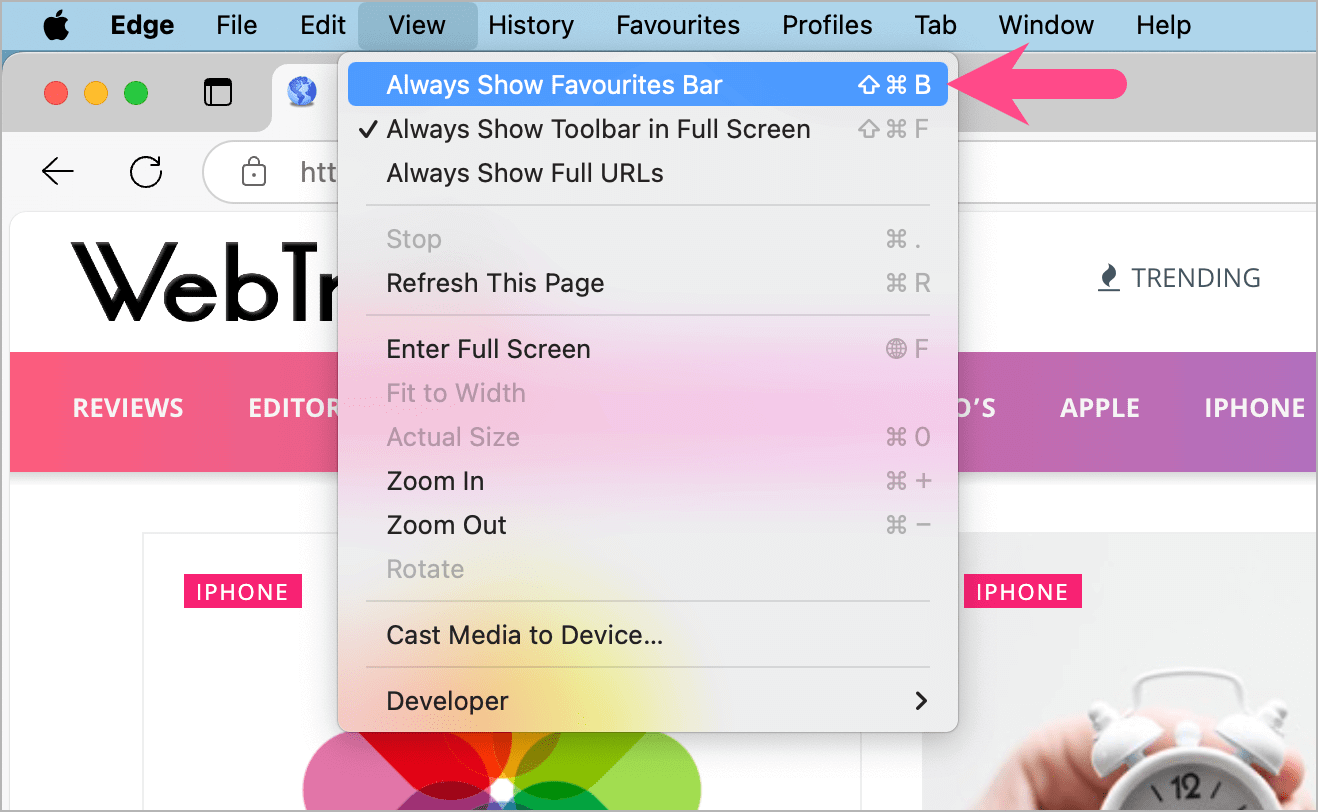
2. From the macOS Menu Bar
Mac users can also control the Favorites bar from the top menu:
- Make sure Microsoft Edge is the active window.
- Click View in the Menu bar at the top of the screen.
- Select Always Show Favorites Bar (or Show Favorites Bar > Always).
Troubleshooting Tips
- If the Favorites bar is still missing, make sure the Favorites bar setting is set to Always instead of Only on new tabs.
- Sign in with your Microsoft account to sync your favorites across devices so they stay available even after reinstalling Edge.
FAQs
Why did my Favorites bar disappear in Microsoft Edge?
The Favorites bar may be hidden, set to appear only on new tabs, or its appearance settings may have changed after an Edge update. You can restore it by pressing Ctrl + Shift + B or changing the Favorites bar setting to Always.
Why is my Favorites bar only visible on the New Tab page?
Your Favorites bar is set to appear only on new tabs. To show it on every page, go to Settings > Appearance > Toolbar > Favorites bar and select Always.
Does Ctrl + Shift + B delete my favorites?
No. Ctrl + Shift + B only shows or hides the Favorites bar. Your saved favorites remain unchanged.
More Microsoft Edge Guides
- Export Bookmarks or Favorites from Microsoft Edge
- Change the Default Search Engine to Google in Edge
- Set Google as the New Tab Page in Edge








