


With millions of users worldwide, Amazon caters to a diverse audience and offers a host of languages, including Spanish and English. In India, users can also select regional languages like Hindi, Tamil, Telegu, Malayalam, or Marathi. As language preferences may vary among users, sometimes it becomes necessary to change the language settings on Amazon to navigate the platform seamlessly.
Perhaps, are you an Amazon shopper stuck with the Spanish interface or any other language unfamiliar to you. Worry not, you’re not alone. A lot of users tend to accidentally switch to a different language and then find it difficult to revert back to their native language.
Why is my Amazon in Spanish?
By default, the Amazon app or website shows the pre-chosen language depending on your geolocation, browser settings, and account settings. However, Amazon’s interface may suddenly be in a different language such as Spanish. Here are a few reasons why your Amazon interface is in Spanish.
1. Browser or Device Language Settings: Amazon usually detects the language settings of your web browser or device and automatically displays the relevant language. If your browser or device is set to Spanish as the preferred language, Amazon will display the site in Spanish.
2. Previous Language Selection: If you have previously visited Amazon and selected Spanish as your preferred language, Amazon may remember this preference and continue displaying the site in Spanish during subsequent visits.
3. Changing the country: Amazon automatically switches to the corresponding language when you change your preferred country or region. For example, changing the country from India to Spain will redirect you to Amazon.es, and the language will be set to Espanol.
So, how do I change language on Amazon from Spanish to English?
Let’s assume you don’t speak Spanish and accidentally switched to Spanish while shopping online. Since you do not understand Spanish or Espanol, it becomes necessary to change your language from Spanish to English on Amazon.
Thankfully, both the Amazon website and app offer a dedicated setting to change language preferences. In this article, we outline the steps to change Amazon back to English to enhance your browsing and shopping experience.
Now let’s see how you can change Amazon language from Spanish to English on different platforms.
How to change Amazon language from Spanish to English
Follow the steps below to change the language on the Amazon app from Spanish to English.
On iPhone
- Make sure to update the Amazon app to the latest version.
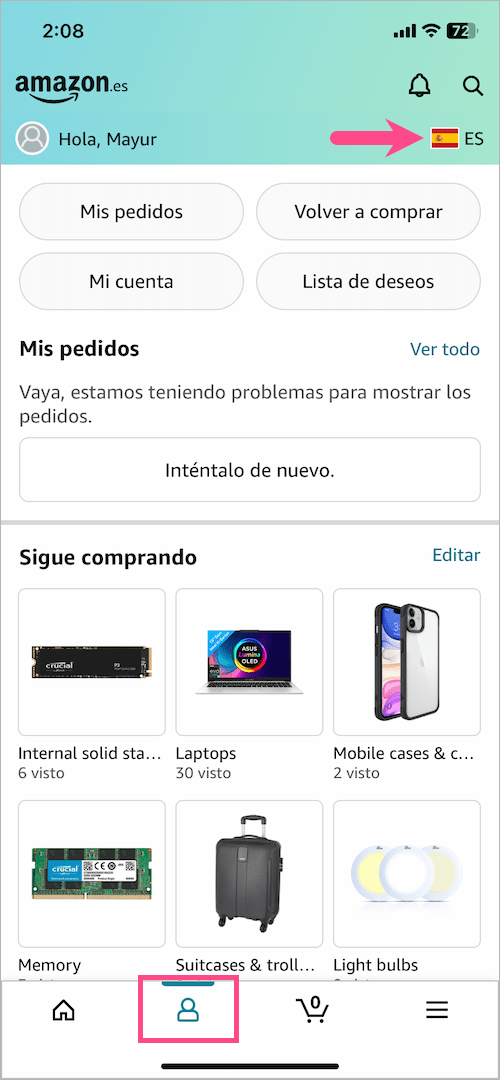
- Open the app and go to the ‘My Account’ (user icon) tab.
- Tap the country flag icon at the top-right. (TIP: Swipe down to refresh the page if you don’t see the flag icon.)
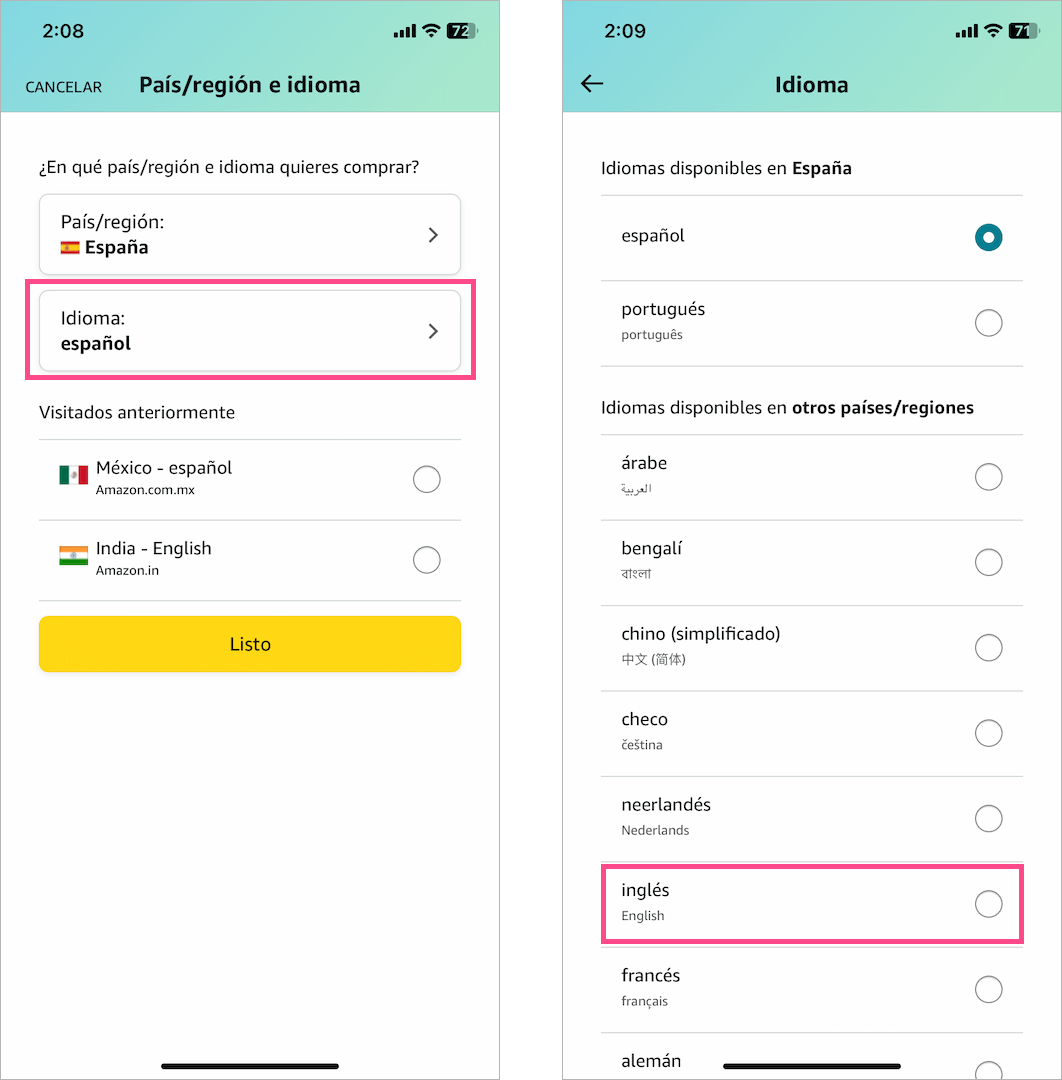
- Select the Idioma (language) dropdown menu and choose the ‘ingles‘ (English) language option from the list.
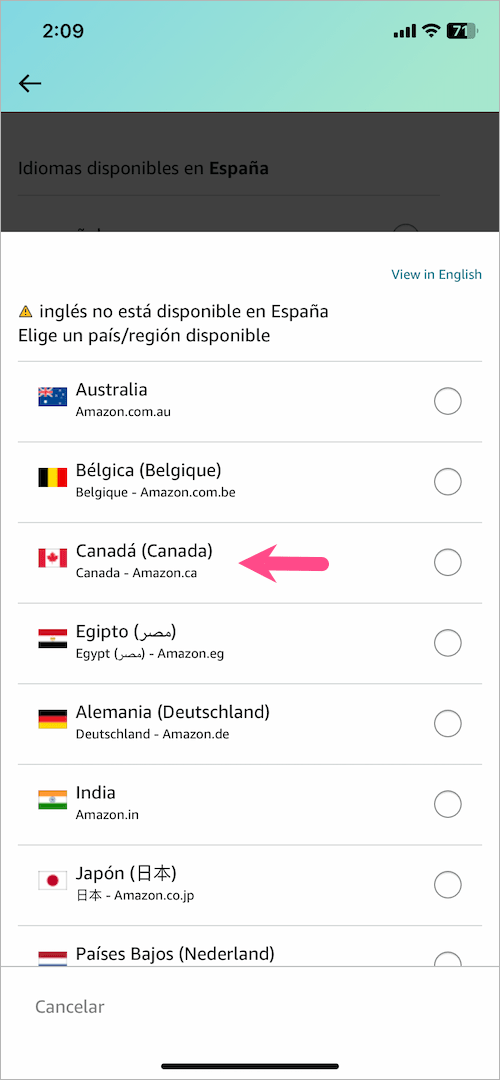
- Important: Since English is not available in Spain and Mexico, you may need to choose an available country/region that speaks English.
- Select a preferred county such as the United States, United Kingdom, Australia, Canada, or India.
- Tap the ‘Done‘ button to save the changes.
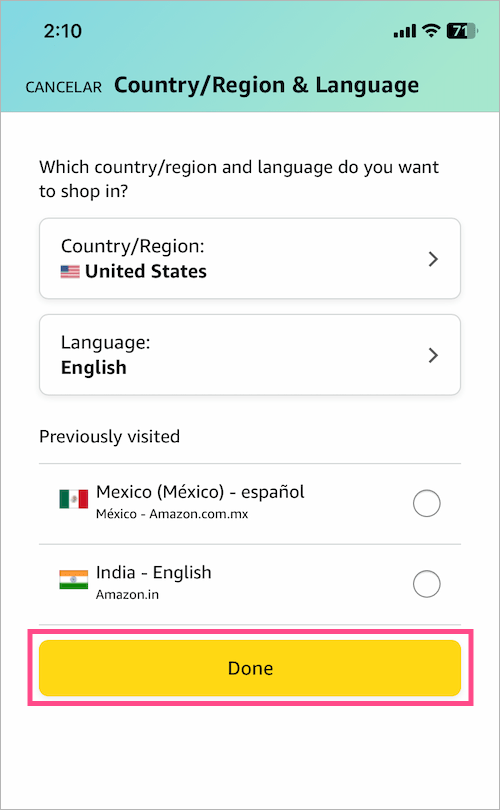
That’s it. The app UI will refresh and you will see all the page contents in English.
On Android
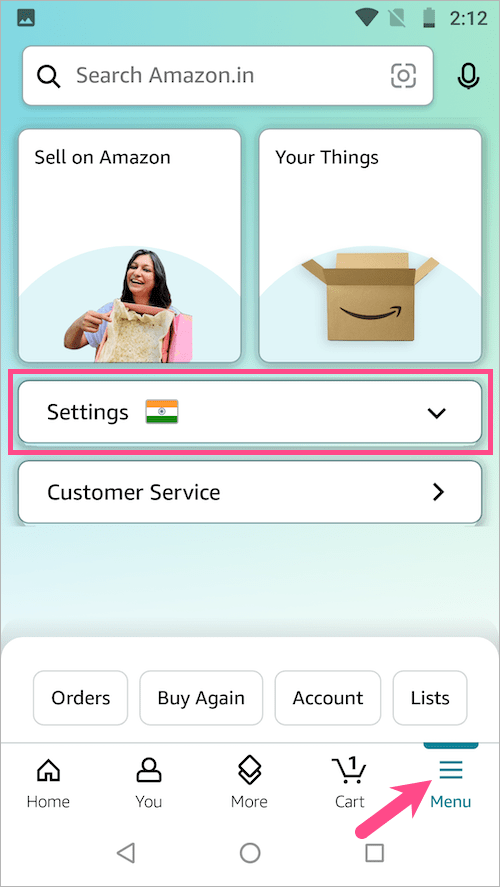
- In the Amazon app, tap the Menu tab in the bottom right corner.
- Scroll down to the bottom of the screen and tap the Settings dropdown button.
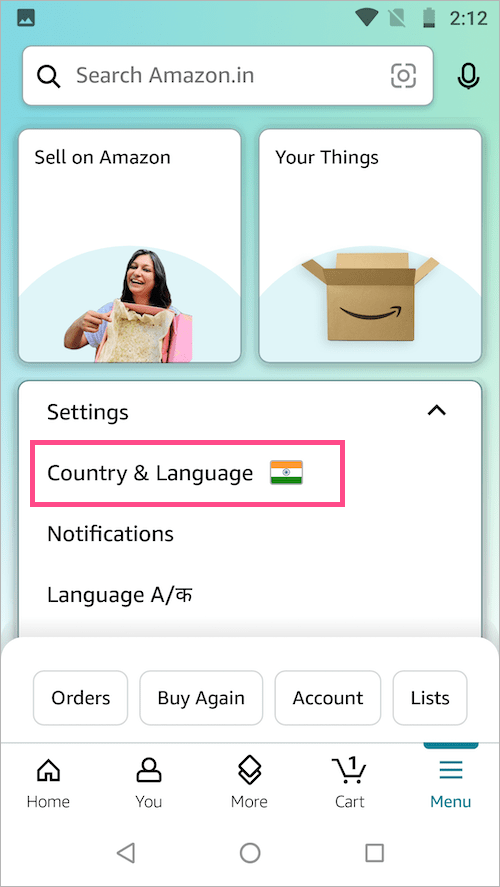
- Tap on ‘Country & Language’.
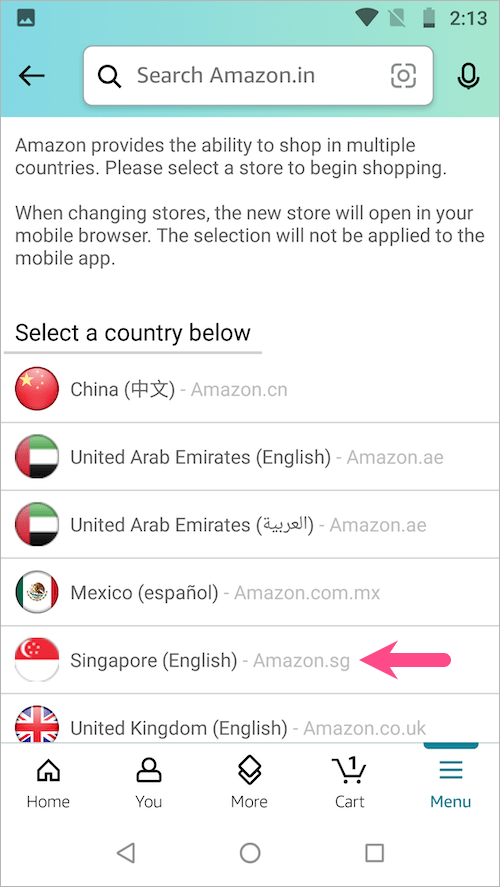
- Select a country with your preferred language from the list such as the United States (English) or Japan (English).
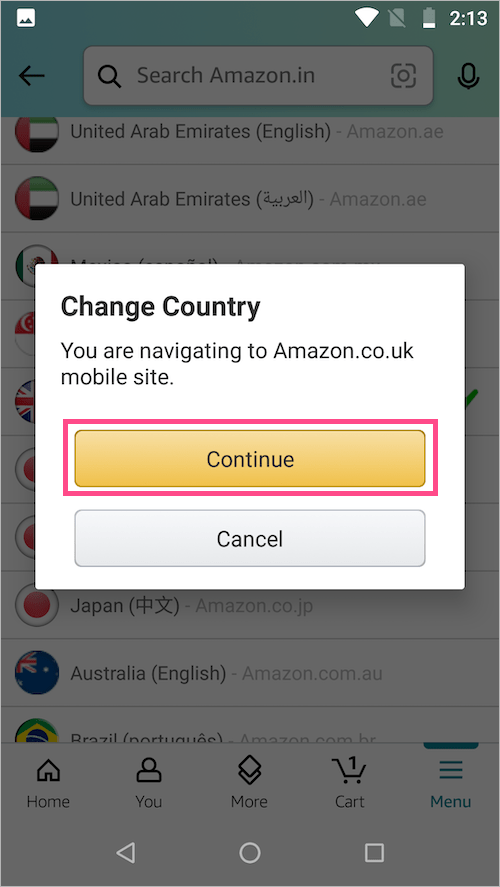
- Tap ‘Continue’ to proceed. The new store in your desired language will now open in your mobile browser. Note: Unlike the iPhone app, the changes won’t be applied to the mobile app.
On Mobile Website
Follow the below steps instead if you’re accessing Amazon in a web browser on your mobile phone.
- Open the Amazon website in your mobile browser.
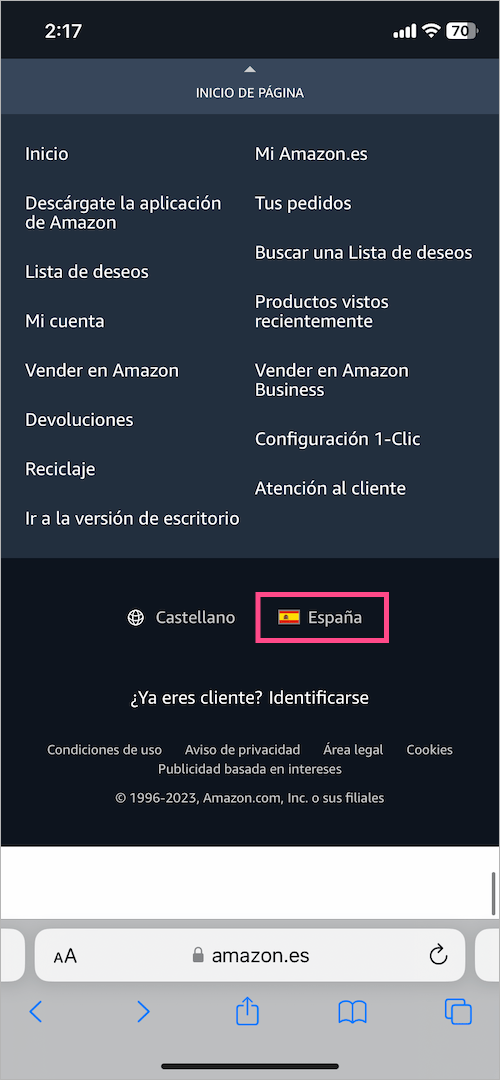
- Scroll down to the bottom of the screen while you’re on Amazon’s homepage or a product page.
- Tap the country flag (Espana).
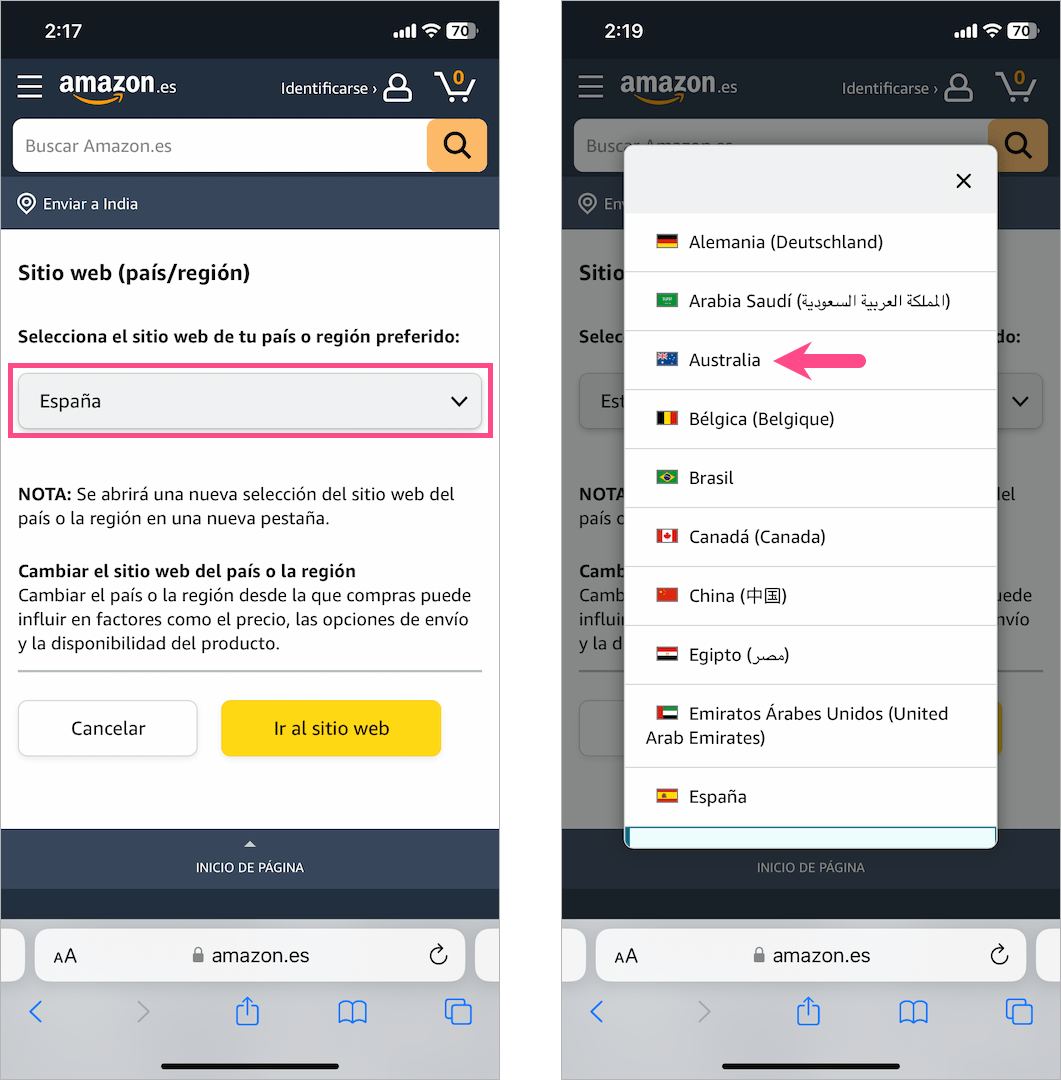
- Tap the Espana or Mexico dropdown menu and select any other country that speaks English.
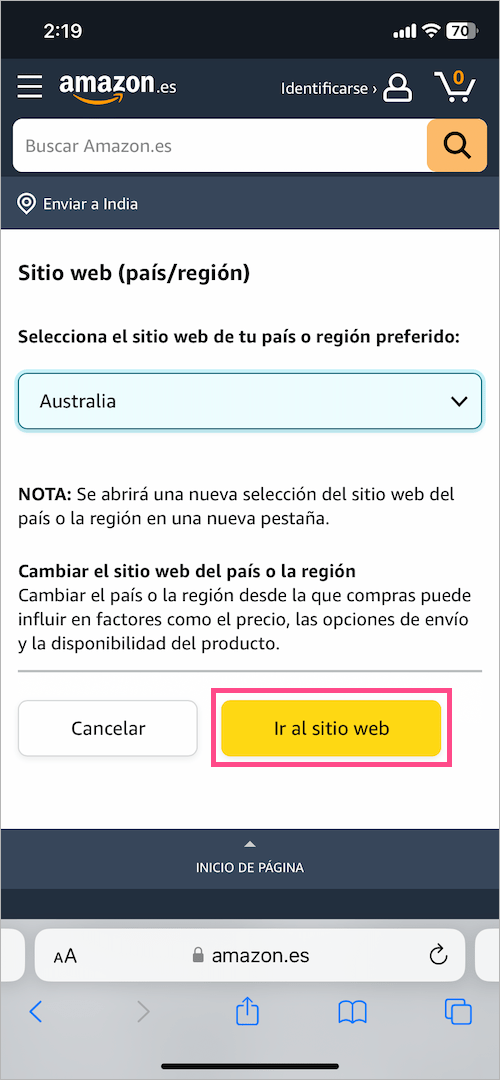
- Hit the yellow ‘Ir al sitio web‘ button to save your selection.
- The selected country or region’s website will now open in a new tab or in the Amazon app.
On Desktop
- Here’s how you can change your Amazon account back to English on a computer.
- Open the Amazon website in a web browser on your computer.
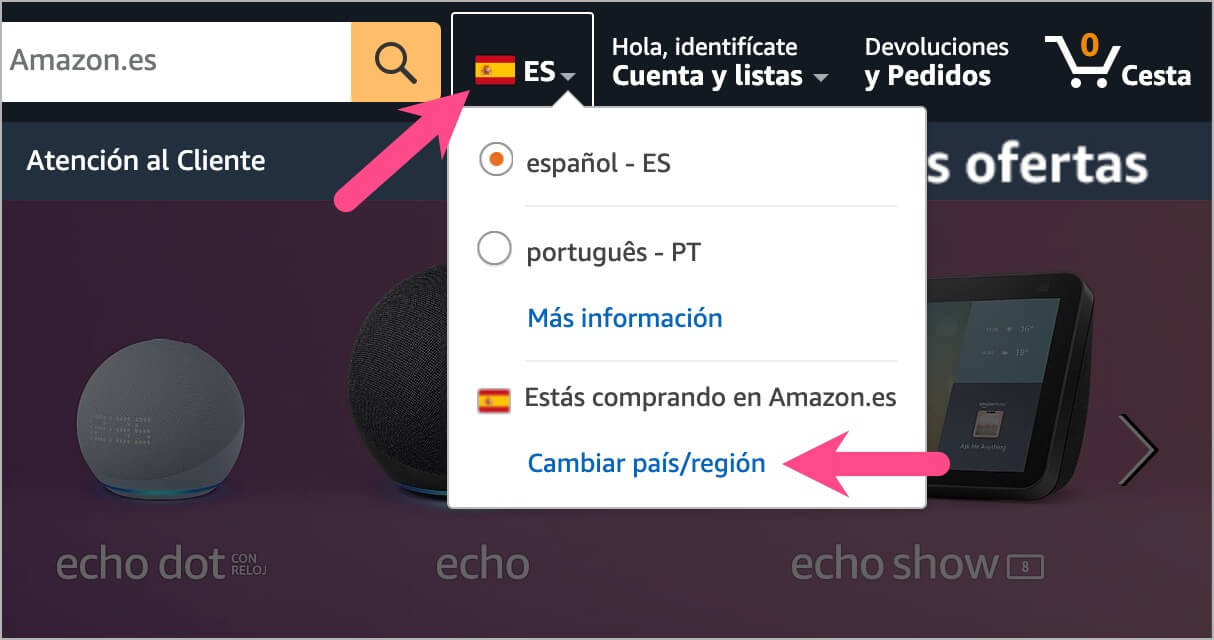
- Hover your mouse over the country flag icon next to ‘Cuenta y Listas’ (Account & Lists).
- In the language dropdown menu, select English – EN from the list of available languages.
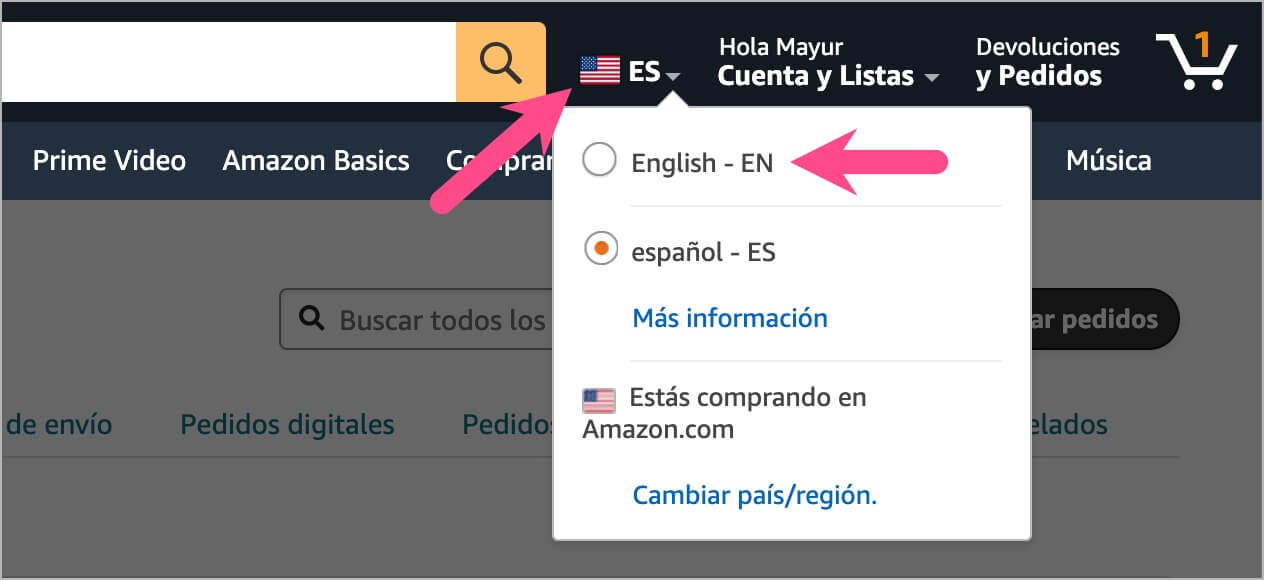
- NOTE: If the English language isn’t listed, then proceed with the below steps.
- Click the ‘Cambiar país/región‘ option to switch to a different country or region.
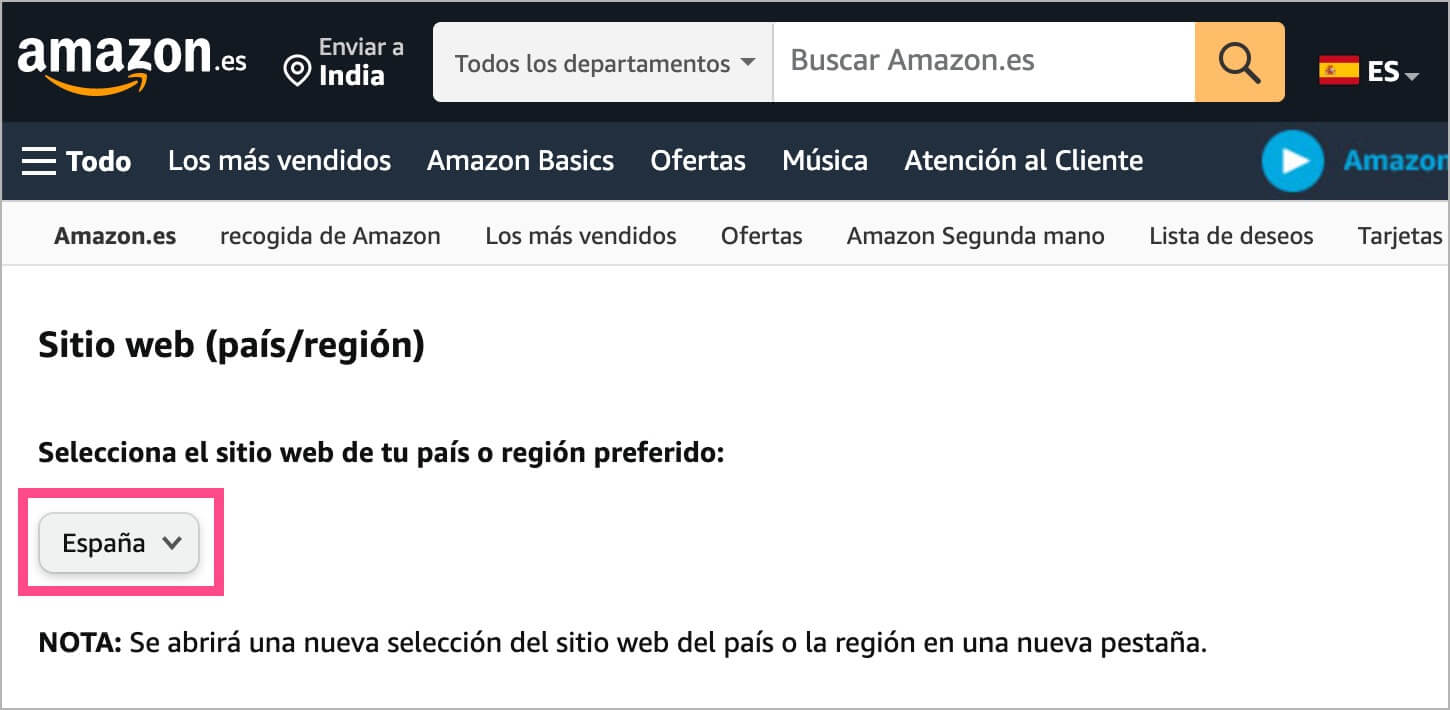
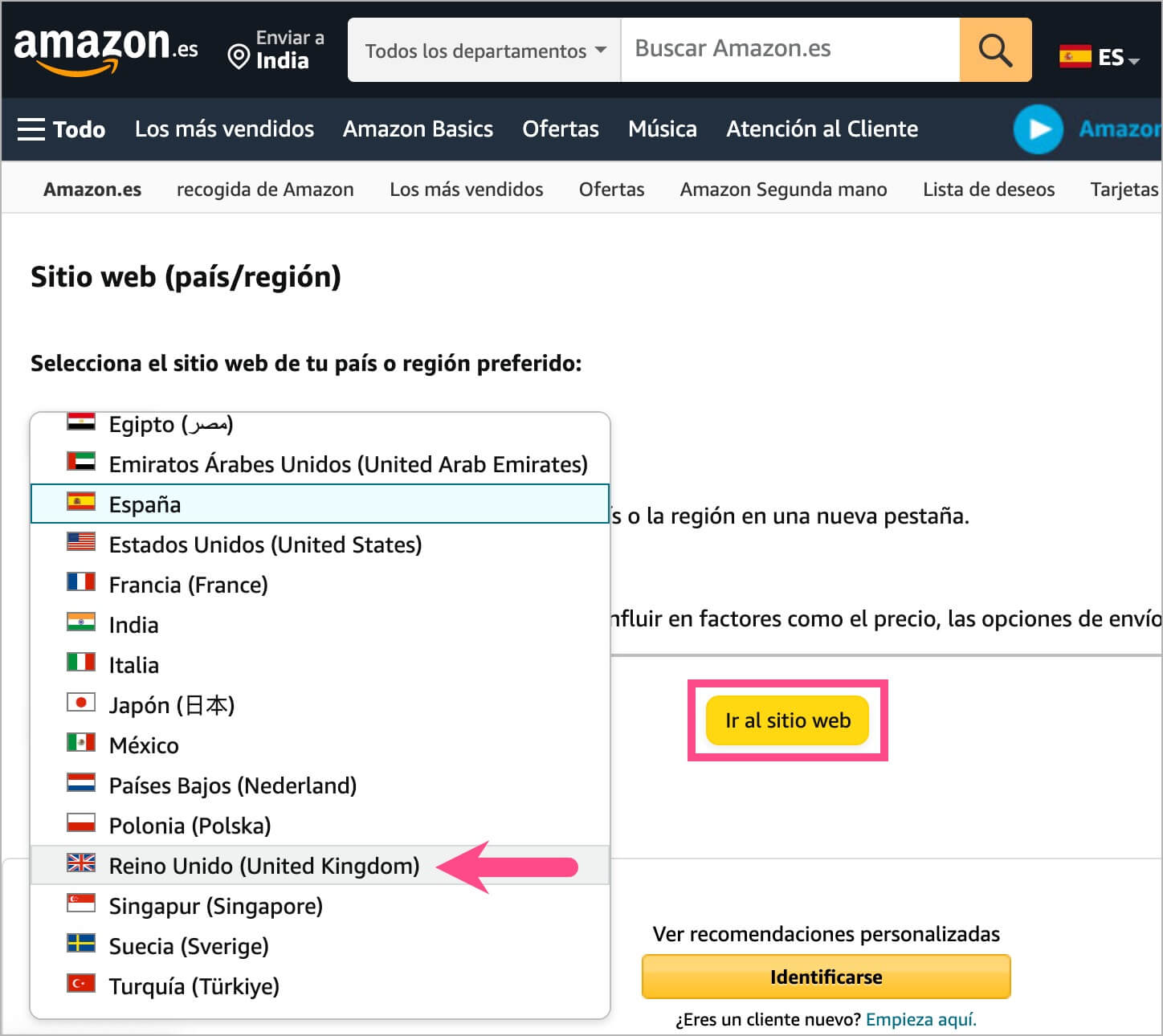
- Next, click the dropdown button and choose a country that speaks English natively such as the United States or the UK.
- Click the yellow ‘Ir al sitio web‘ button and the new country/region website will open in a new tab.
Few points to note:
- Any changes made to the language on the desktop won’t be applied to the Amazon app or mobile website and vice-versa.
- The chosen language will become the default language when you are logged in to your Amazon account.
- Any communications or email newsletters you receive from Amazon will be in your preferred language.
Conclusion
Changing the language settings on Amazon allows users to navigate the platform comfortably in their preferred language. Whether you’re an English speaker seeking a familiar interface or someone learning Spanish but needing assistance in English, Amazon provides the flexibility to switch between languages.
By following the above step-by-step guide, you can easily change the language settings on Amazon from Spanish to English. Doing so will ensure a more personalized and user-friendly experience while shopping on Amazon.
RELATED: How to Switch Accounts on Amazon and Prime Video App










