

WebTrickz
TRENDING
  • Complete list of 1337x Proxy and Mirror Sites
No Result
View All Result
  • Reviews
  • Editorials
  • Social Media
    • Facebook
    • Twitter
    • YouTube
    • Messenger
    • Instagram
    • Snapchat
    • WhatsApp
    • TikTok
  • Apps
  • How To’s
  • Apple
  • iPhone
  • Google
  • Android
  • Mac
  • Security
  • About Us
    • About Us
    • Contact Us
    • Privacy Policy
  • Reviews
  • Editorials
  • Social Media
    • Facebook
    • Twitter
    • YouTube
    • Messenger
    • Instagram
    • Snapchat
    • WhatsApp
    • TikTok
  • Apps
  • How To’s
  • Apple
  • iPhone
  • Google
  • Android
  • Mac
  • Security
  • About Us
    • About Us
    • Contact Us
    • Privacy Policy
No Result
View All Result
WebTrickz
No Result
View All Result
Home iPhone

How to Manually Update Apps in iOS 18 & iOS 26 on iPhone

Mayur by Mayur
July 21, 2025
in How To's, iPhone

If you’re new to iOS or recently upgraded to iOS 18 or iOS 26, then you might find it tricky to manually update apps on your iPhone. That’s because Apple has made subtle yet significant interface changes in recent iOS versions, which make the option to update apps less obvious than before.

In iOS 12 and older versions, there was a dedicated “Updates” tab at the bottom of the App Store. However, in iOS 13 and later, the Updates tab has been replaced with “Arcade,” Apple’s game subscription service. However, the ability to manually update apps is still available; it’s just tucked away in a new location.

In this guide, we’ll show you how to manually check for and install app updates on your iPhone running iOS 18 or iOS 26.

Steps to Manually Update Apps in iOS 18 and iOS 26

Follow these steps to update individual apps or all apps manually:

  1. Open the App Store on your iPhone.
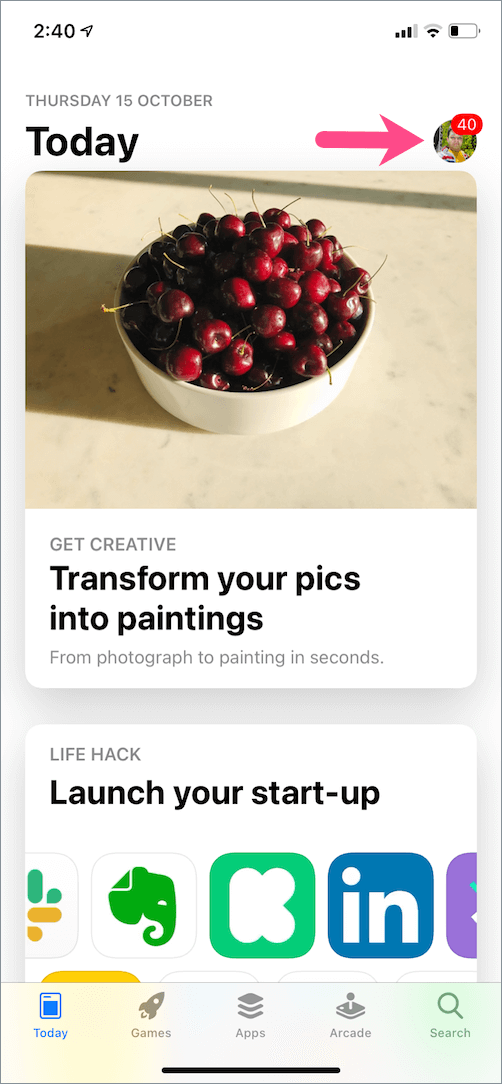
  2. Tap your profile icon at the top-right corner. app store with Arcade tab
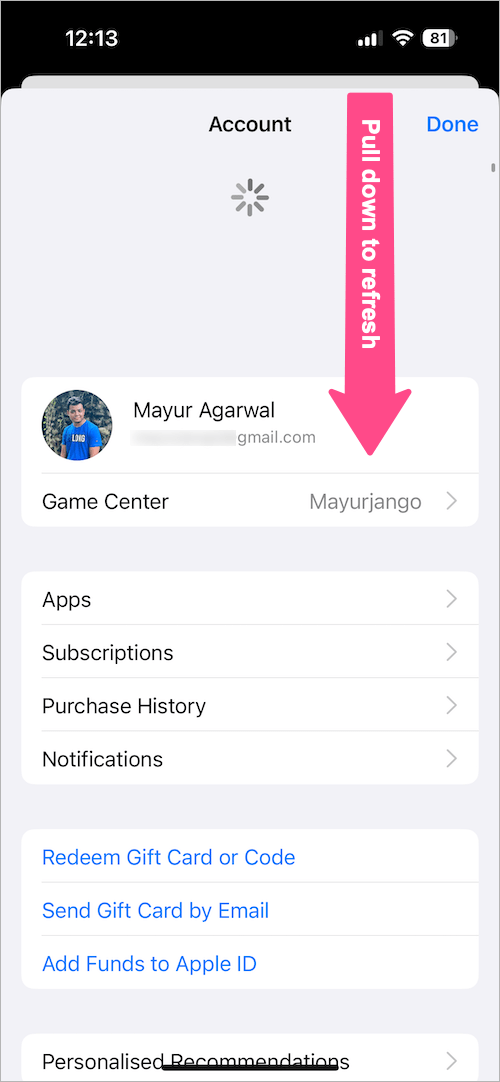
  3. Pull down to refresh the page to see apps with the most recent updates. how to manually update apps on your iphone
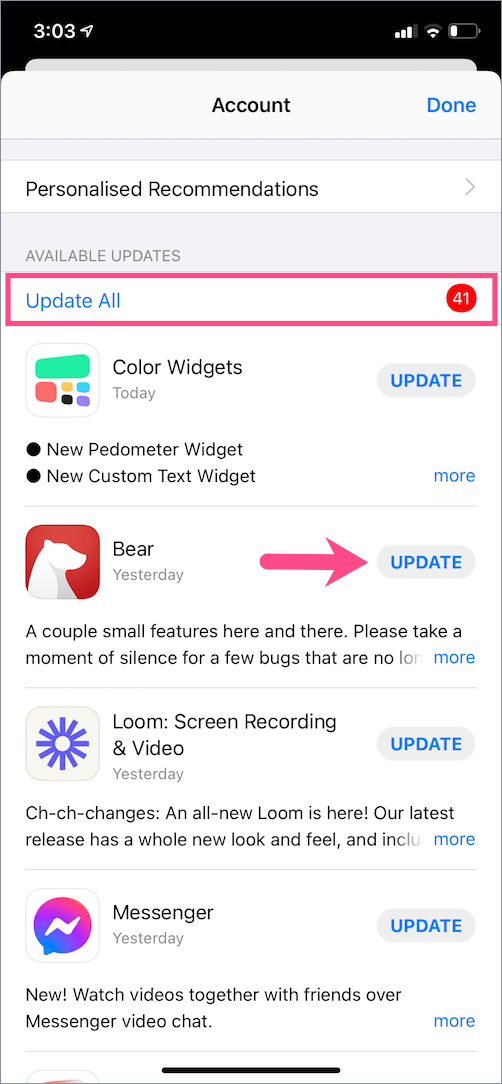
  4. Scroll down to view pending app updates under Available Updates.
  5. Tap Update All to update all apps at once, or tap Update next to a specific app you want to update individually. how to update apps on iOS 18 and iOS 26
Tip: To check which apps were recently updated, scroll further down and check the “Updated Recently” section.
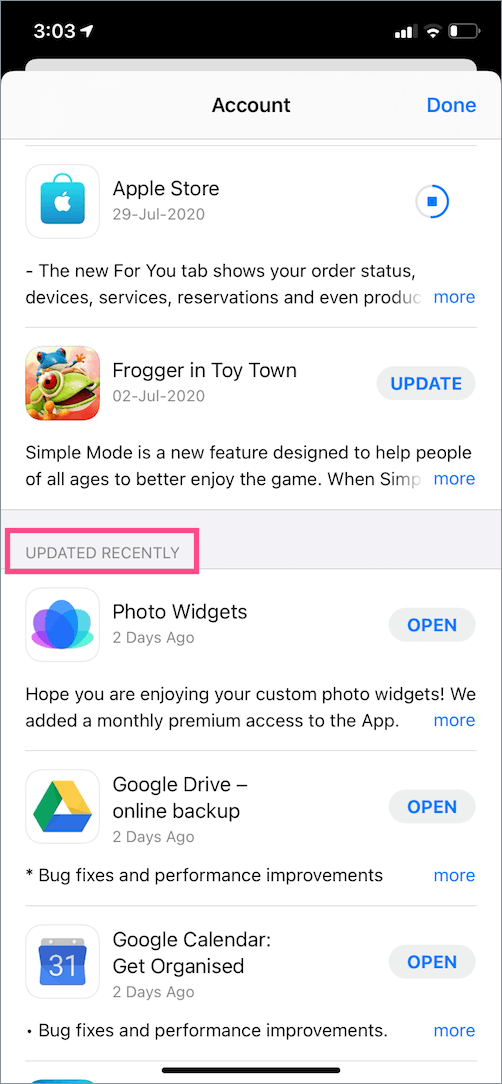
find recently updated apps on ios

ALSO READ: How to Turn Off Double Tap for Screenshots on iPhone

Shortcut to View App Updates

This is a quicker way to find the list of available updates for all the apps.

  • Long-press the App Store icon on your home screen or in the App Library.
  • From the pop-up menu, tap “Updates.”

This shortcut takes you directly to the updates section, saving a few taps.
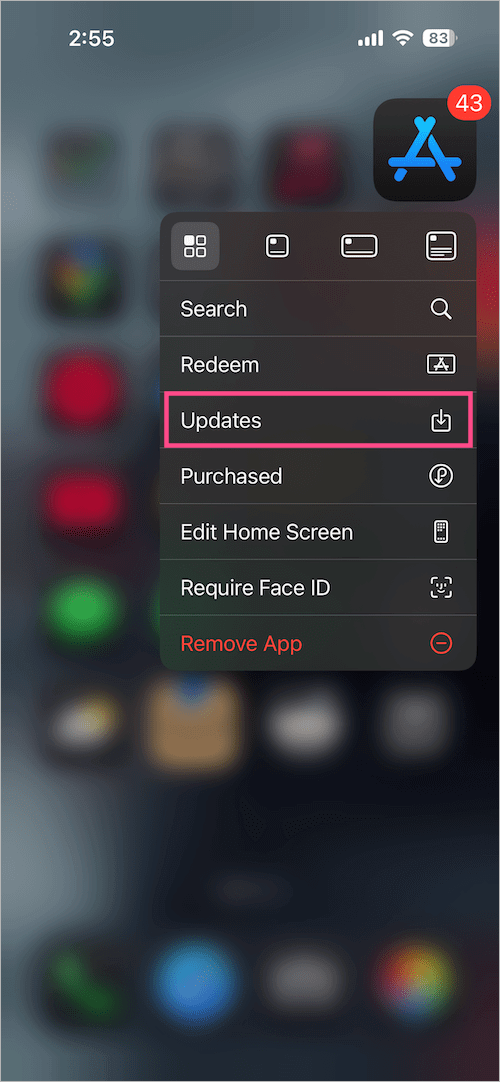
how to find app updates on iOS 18 and iOS 26

If you see a red badge with a number on the App Store icon, it’s a reminder that certain apps have pending updates. It keeps users updated on the latest features and bug fixes released by app developers.

How to Enable Automatic App Updates in iOS 18 and iOS 26

If you don’t prefer to update apps manually, you can set your iPhone to update them automatically in the background.

Here’s how to enable auto-updates for apps in iOS 18 and iOS 26:

  1. Open the Settings app.
  2. Scroll down to the bottom and select Apps.
  3. In Apps, tap App Store.
  4. Under the Automatic Downloads section, turn on the toggle for App Updates. enable auto update apps in iPhone on iOS 18 and iOS 26
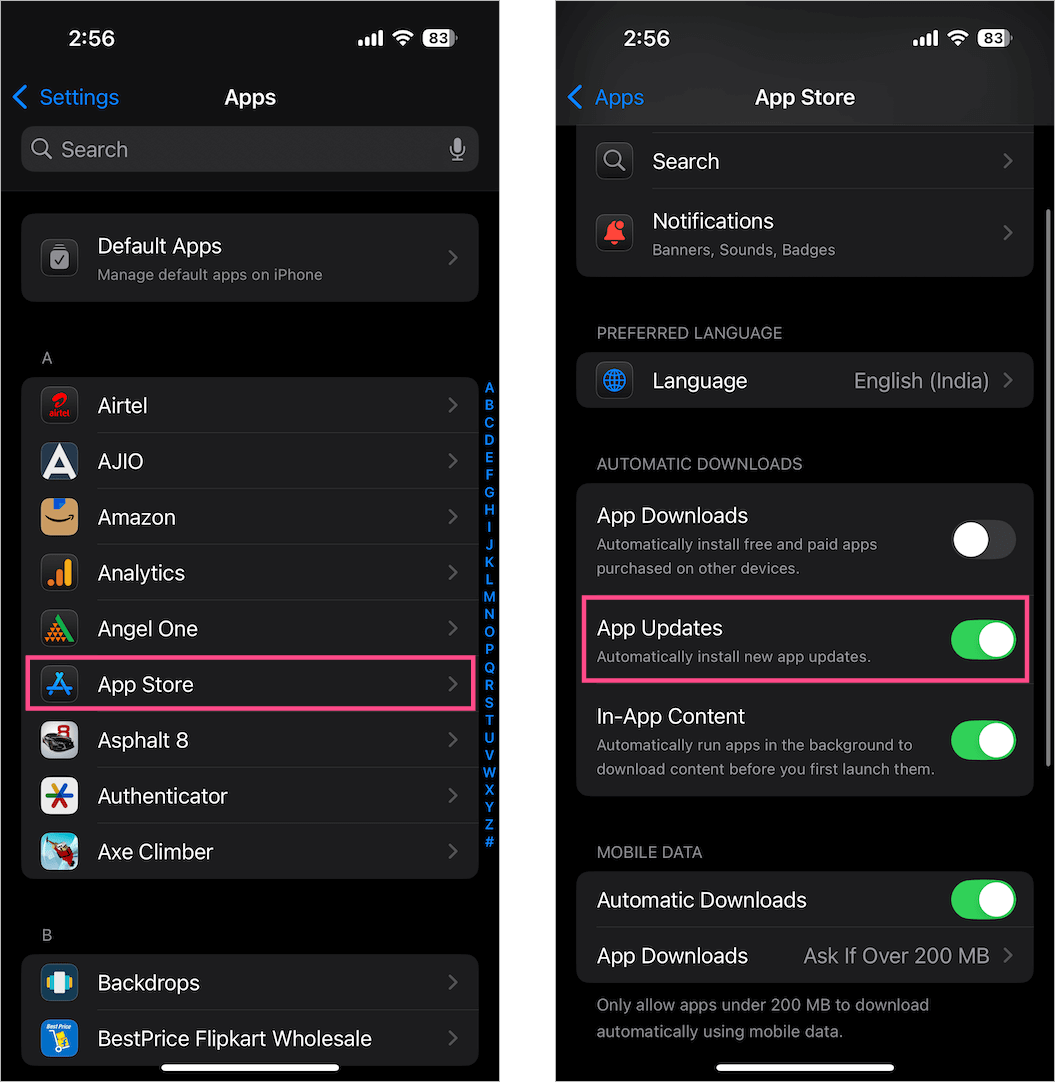
With this setting enabled, your iPhone will automatically download and install updates when it’s connected to Wi-Fi (or mobile data, if enabled).

Tags: App StoreAppsiOS 18iOS 26iPadiPhone
ShareTweetSend
Previous Post

How to Convert DVDs to an ISO Image on Windows 10

Next Post

How to Claim Free Data Coupons in Airtel Thanks app

Mayur

Mayur

Mayur Agarwal, the founder and editor of WebTrickz, is a tech enthusiast with a Bachelor's degree in Computer Applications and over 15 years of experience in tech writing. His passion for technology and gadgets drives him to create insightful how-to articles and troubleshooting guides.

Next Post
airtel logo

How to Claim Free Data Coupons in Airtel Thanks app

Leave a Reply Cancel reply

Your email address will not be published. Required fields are marked *

Latest Stories

chatgpt logo

How to Clear or Delete ChatGPT Memory on PC and Mobile

June 5, 2026
1337x logo

1337x Proxy List 2026: Working Proxy & Mirror Sites

June 2, 2026

How to Find Saved Reels on Facebook App & Desktop (2026)

April 1, 2026
microsoft edge browser

How to Restore or Reopen Closed Tabs in Microsoft Edge

March 26, 2026
Facebook app on iPhone

How to See Recently Watched Reels on Facebook (2026 Guide)

April 3, 2026
microsoft edge new logo

Download Microsoft Edge Offline Installer [Latest Version]

March 16, 2026

How to Turn Off Bing SafeSearch in Microsoft Edge

March 12, 2026

Trending Stories

  • microsoft family safety settings

    How to Turn Off Microsoft Family Safety on Windows 11 & 10

  • How to Turn Off Microsoft Edge Game Assist in Windows 11

  • How to Turn Off Fn Lock or Fn Key on Windows 11/10 Laptop

  • How to See Recently Watched Reels on Facebook (2026 Guide)

  • 1337x Proxy List 2026: Working Proxy & Mirror Sites

  • About Us
  • Contact Us
  • Privacy Policy
  • Advertise

© 2026 WebTrickz. All Rights Reserved.

No Result
View All Result
  • Reviews
  • Apps
  • How To’s
  • Android
  • Google
  • iPhone
  • Mac
  • About Us
  • Contact Us
  • Privacy Policy

© 2026 WebTrickz. All Rights Reserved.



