WebTrickz
TRENDING
  • Complete list of 1337x Proxy and Mirror Sites
No Result
View All Result
  • Reviews
  • Editorials
  • Social Media
    • Facebook
    • Twitter
    • YouTube
    • Messenger
    • Instagram
    • Snapchat
    • WhatsApp
    • TikTok
  • Apps
  • How To’s
  • Apple
  • iPhone
  • Google
  • Android
  • Mac
  • Security
  • About Us
    • About Us
    • Contact Us
    • Privacy Policy
  • Reviews
  • Editorials
  • Social Media
    • Facebook
    • Twitter
    • YouTube
    • Messenger
    • Instagram
    • Snapchat
    • WhatsApp
    • TikTok
  • Apps
  • How To’s
  • Apple
  • iPhone
  • Google
  • Android
  • Mac
  • Security
  • About Us
    • About Us
    • Contact Us
    • Privacy Policy
No Result
View All Result
WebTrickz
No Result
View All Result
Home Windows 11

How to Make Windows 11 Taskbar Transparent

Transform your Windows 11 desktop with a clean, invisible taskbar.

Taigun by Taigun
August 25, 2025
in How To's, Windows 11

The Windows 11 taskbar is designed to blend with the modern UI, but by default, it appears solid or slightly translucent. If you want a clear taskbar that blends seamlessly with your wallpaper, you’ll need more than the default settings.

In this guide, you’ll learn how to change taskbar transparency in Windows 11, from the built-in translucent effect to making your taskbar completely transparent or invisible using a free third-party tool.

Why Use a 100% Transparent Taskbar on Windows
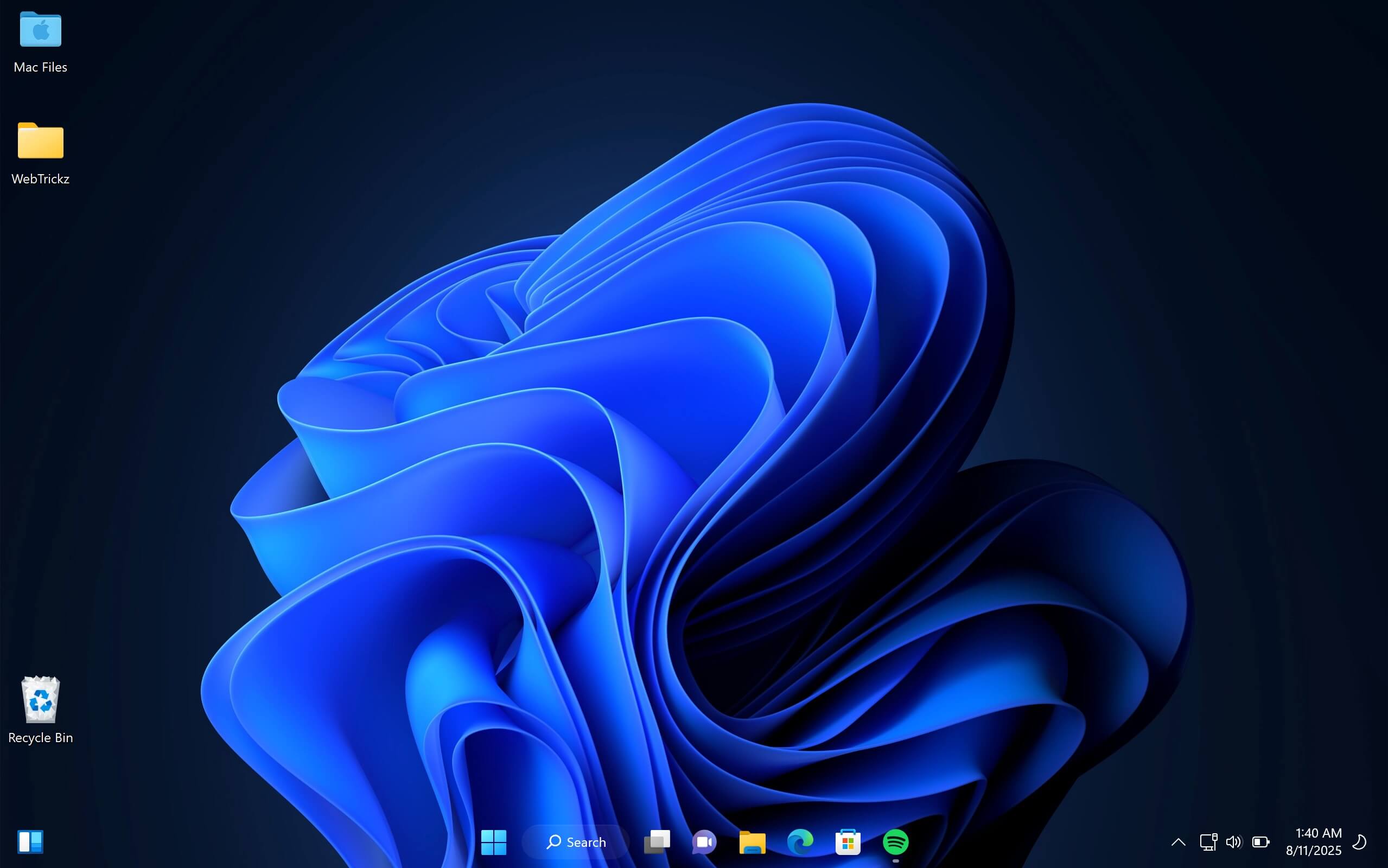
how to make taskbar transparent in windows 11 without activation
Fully Transparent Taskbar on Windows 11

While translucent mode looks modern, it’s not the same as a fully transparent taskbar, which has no visible background.

Switching to an invisible taskbar in Windows 11 can:

  • Create a clean and modern look.
  • Let your wallpaper extend across the entire screen, including the taskbar area.
  • Enhance your desktop’s appearance and make it feel larger and more visually appealing.

How to Get a Translucent Taskbar on Windows 11

If you’re happy with a semi-transparent taskbar and your copy of Windows 11 is activated, you can use the built-in setting:

  1. Open Settings by pressing Windows + I.
  2. Go to Personalization > Colors.
  3. Scroll down and turn on Transparency effects. how to get translucent taskbar in windows 11
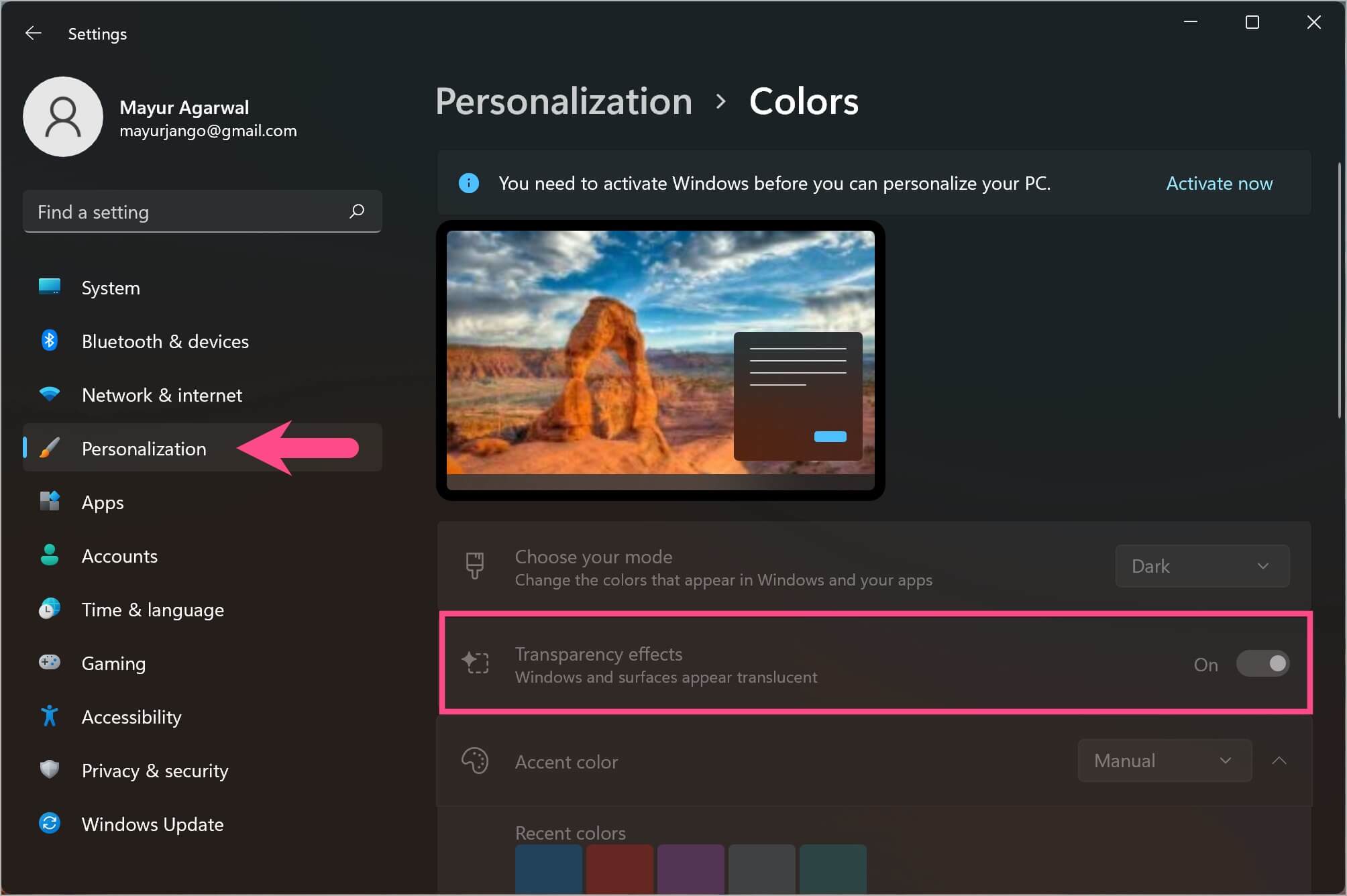
Note: This method only provides a translucent appearance, not a completely transparent one.

Follow the steps below if your Windows isn’t activated and the above option is disabled or greyed out.

How to Make the Taskbar Transparent in Windows 11 Without Activation

If you want a clear taskbar on Windows 11, a free and lightweight tool like TranslucentTB is the easiest option.

Steps to Use TranslucentTB

To make your Windows 11 taskbar transparent without activating:

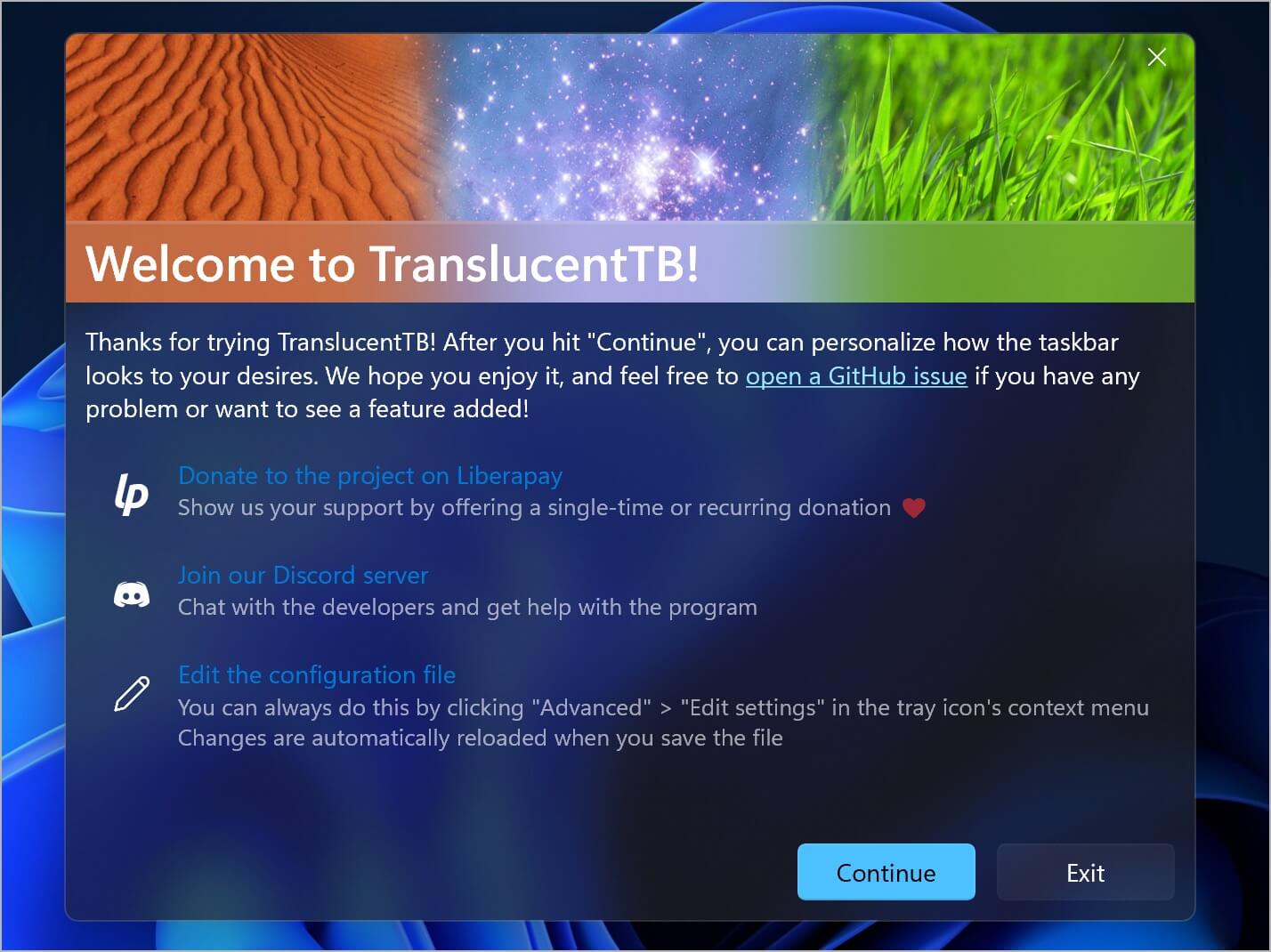
  1. Download TranslucentTB from the Microsoft Store or the official site. TranslucentTB for windows 11
  2. Install and launch the app. how to get clear taskbar in windows 11
  3. TranslucentTB will appear in your system tray (bottom-right corner). how to change taskbar transparency on windows 11
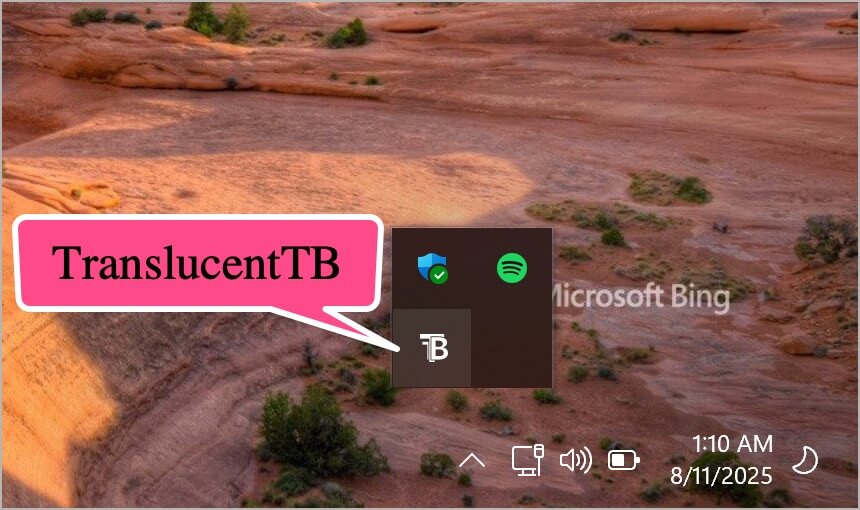
  4. By default, it sets your taskbar to Clear mode.

Customizing the transparency:

If you prefer a translucent taskbar, then switch to Acrylic or Blur effect in the app settings.

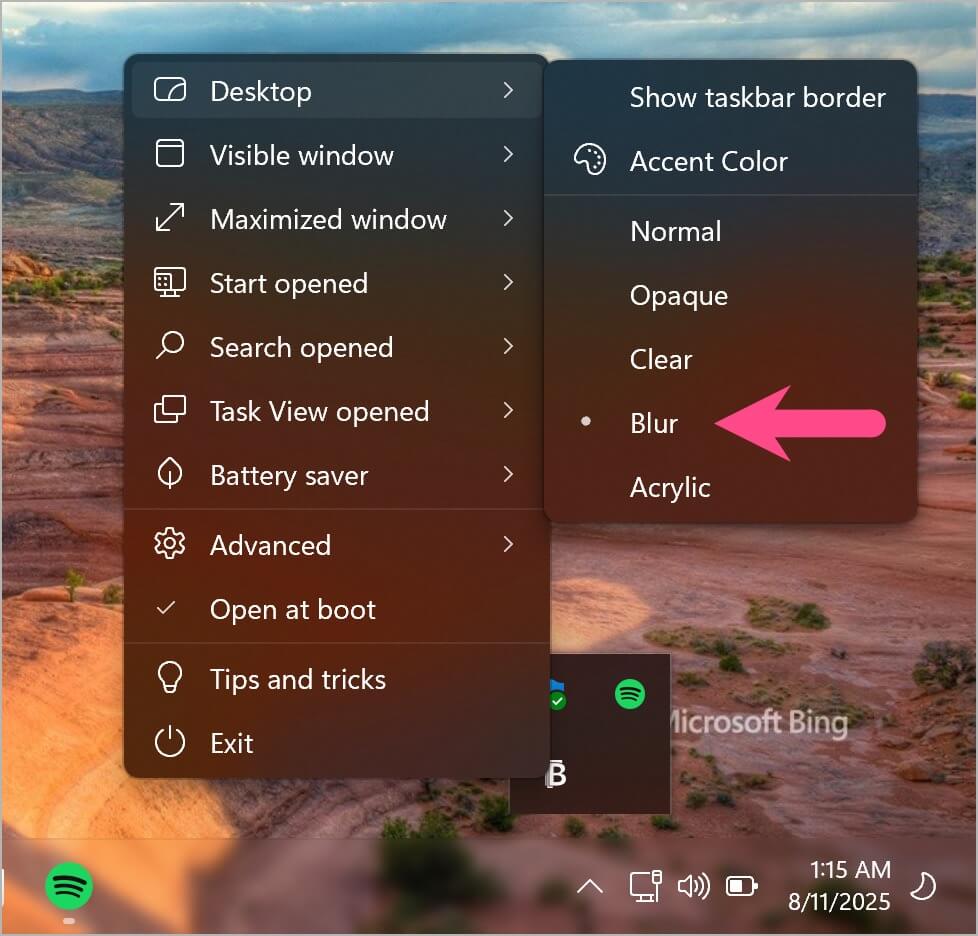
To change the transparency style, right-click the TranslucentTB icon in the system tray. Then go to the Desktop menu and select the desired look:

  • Clear – 100% transparent taskbar background.
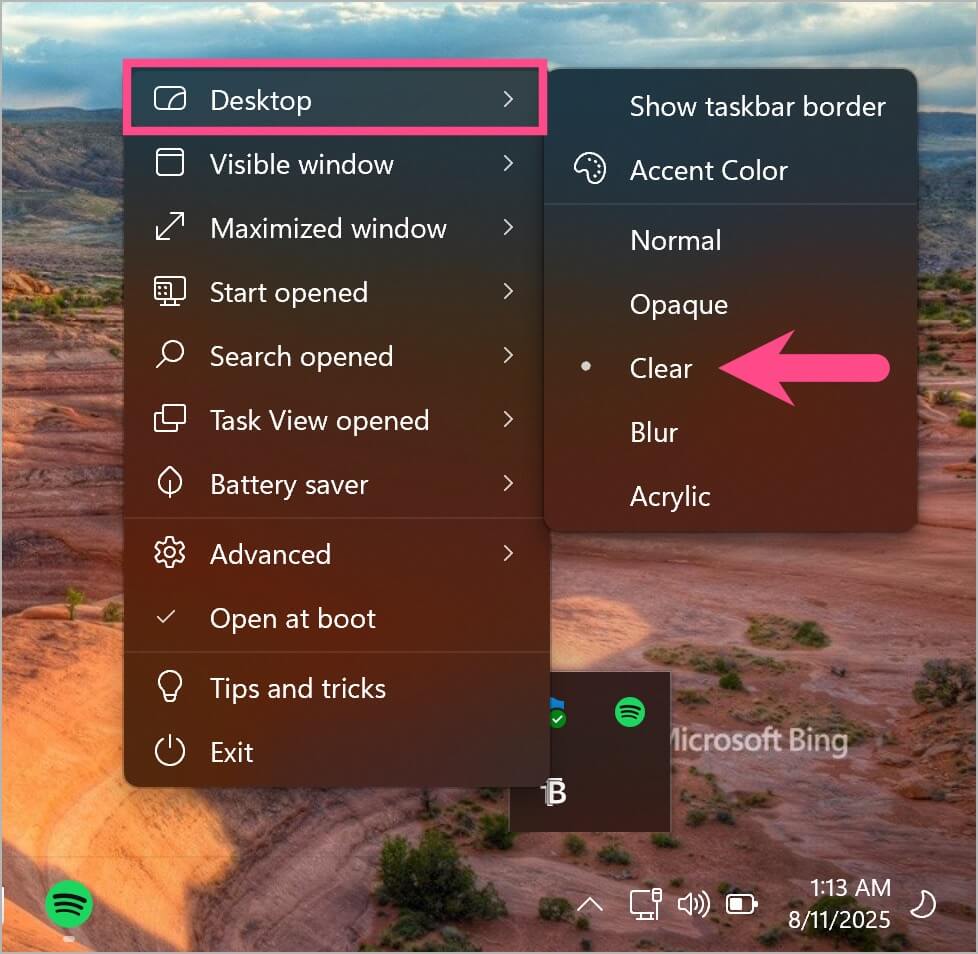
    how to make windows 11 taskbar transparent completely
    Clear effect
  • Acrylic – semi-transparent with a blurred effect.
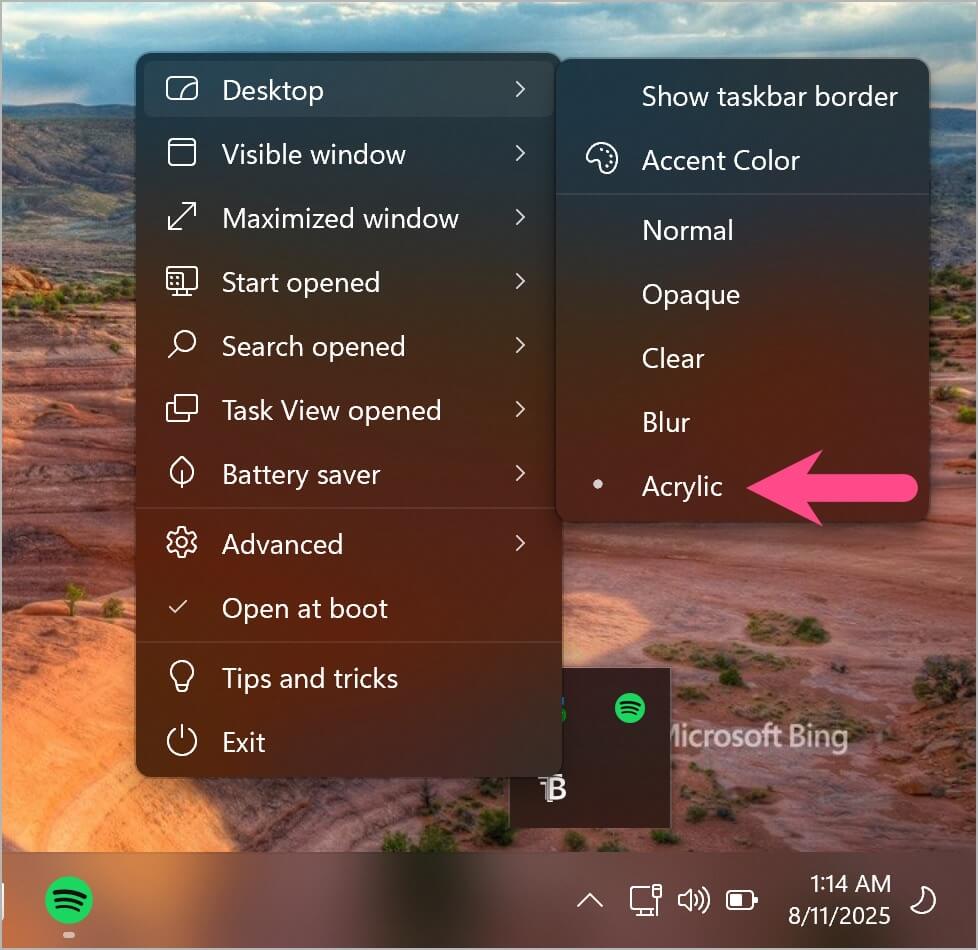
    transparent background taskbar in windows 11
    Acrylic effect
  • Blur – frosted-glass style.

    how to make your taskbar invisible in windows 11
    Blur effect

Tip: Disable the “Show taskbar border” option (under Desktop) to remove the taskbar border for an even cleaner look.

Why choose TranslucentTB:

  • Very lightweight (4-5 MB in size, uses minimal RAM, almost no CPU).
  • Changes are applied automatically upon installation – no restart needed.
  • Default mode gives you a fully transparent taskbar instantly.
  • No registry edits or system hacks needed.

Troubleshooting:

If TranslucentTB is not working after restarting, make sure it’s added to your Startup programs (it’s added by default). To do this, right-click the tool in the system tray and enable the “Open at boot” setting.

Whether you prefer a frosted look or want your desktop wallpaper to stand out, customizing your taskbar transparency is a simple personalization trick that can make a big visual difference.

ALSO READ:

  • How to Turn Off or Disable the Fn Key on Windows 11 and 10
  • How to Remove Recycle Bin from Desktop Without Activating Windows

Tags: AppsMicrosoftTaskbarTipsWallpaperWindows 11
ShareTweetSend
Previous Post

How to Turn Off or Disable Reposting on Instagram

Next Post

Guide to Turn Off Location Sharing on Instagram in 2026

Taigun

Taigun

Mayur Agarwal, the founder and editor of WebTrickz, is a tech enthusiast with a Bachelor's degree in Computer Applications and over 15 years of experience in tech writing. His passion for technology and gadgets drives him to create insightful how-to articles and troubleshooting guides.

Next Post
Instagram map on iphone

Guide to Turn Off Location Sharing on Instagram in 2026

Leave a Reply Cancel reply

Your email address will not be published. Required fields are marked *

Latest Stories

1337x logo

1337x Proxy List 2026: Working Proxy & Mirror Sites

June 2, 2026

How to Find Saved Reels on Facebook App & Desktop (2026)

April 1, 2026
microsoft edge browser

How to Restore or Reopen Closed Tabs in Microsoft Edge

March 26, 2026
Facebook app on iPhone

How to See Recently Watched Reels on Facebook (2026 Guide)

April 3, 2026
microsoft edge new logo

Download Microsoft Edge Offline Installer [Latest Version]

March 16, 2026

How to Turn Off Bing SafeSearch in Microsoft Edge

March 12, 2026
google chrome logo

Download Google Chrome Offline Installer [Latest Version]

June 3, 2026

Trending Stories

  • microsoft family safety settings

    How to Turn Off Microsoft Family Safety on Windows 11 & 10

  • How to Turn Off Fn Lock or Fn Key on Windows 11/10 Laptop

  • How to Turn Off Microsoft Edge Game Assist in Windows 11

  • How to See Recently Watched Reels on Facebook (2026 Guide)

  • How to Restore or Reopen Closed Tabs in Microsoft Edge

  • About Us
  • Contact Us
  • Privacy Policy
  • Advertise

© 2026 WebTrickz. All Rights Reserved.

No Result
View All Result
  • Reviews
  • Apps
  • How To’s
  • Android
  • Google
  • iPhone
  • Mac
  • About Us
  • Contact Us
  • Privacy Policy

© 2026 WebTrickz. All Rights Reserved.