


Instagram can share your location in more ways than you might realize. This can happen through tagged posts, location stickers in stories, or even the new Instagram Map feature that shows friends your last active location. While these features can be fun, they also raise serious privacy concerns – especially if you prefer to keep your whereabouts private.
Thankfully, you can turn off your location on Instagram and control exactly what it knows about you, both on iPhone and Android. Here’s how to do it.
What Are Location Services on Instagram?
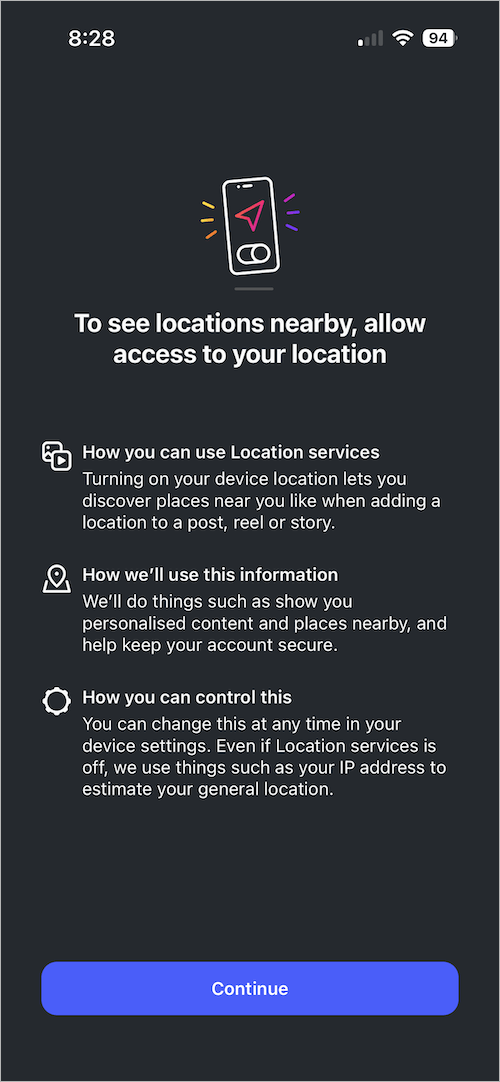
Location Services on Instagram let the app use your device’s GPS, Wi-Fi, and mobile network to determine your exact location. When enabled, location can be added to posts, stories, reels, or used in features like the Instagram Map.
When you disable Location Services on Instagram:
- The app can’t access your precise GPS coordinates.
- You won’t be able to tag a location when creating new posts, reels, or stories.
- Features that rely on your location (such as Nearby Places on Instagram Map) may be limited.
Why You Might Want to Turn Off Instagram Location
Here are a few reasons to disable location access:
- Privacy – Prevent Instagram from storing and sharing your exact location.
- Safety – Avoid revealing where you live, work, or frequently visit.
- Limit tracking – Reduce data collection for ads and recommendations.
Note: Even with Location Services turned off, Instagram can still estimate your general location from your IP address.
How to Turn Off Location on Instagram (2026)
On iPhone
To stop sharing location on Instagram for iPhone:
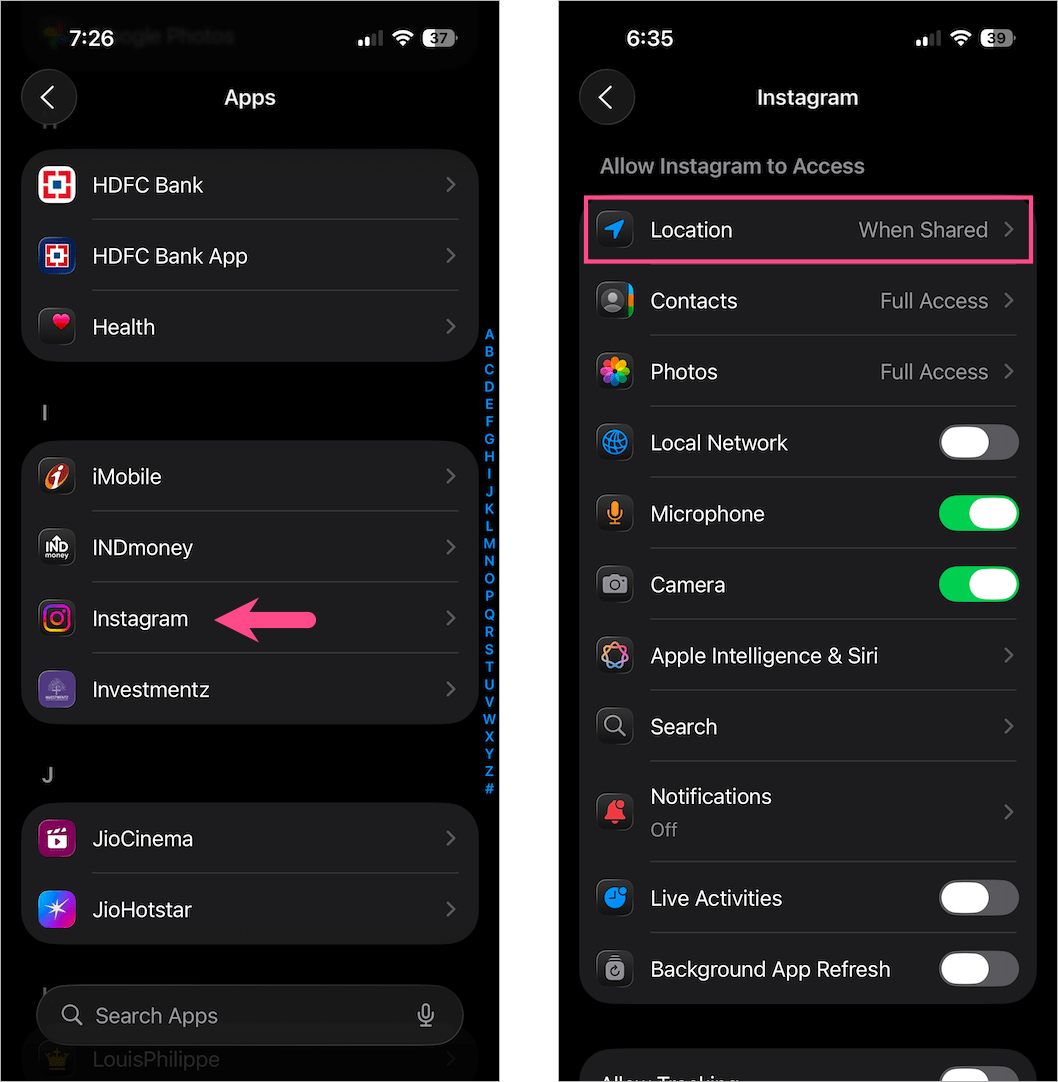
- Open the Settings app.
- Scroll down to the bottom and go to Apps.
- Tap Instagram from the list and select Location.
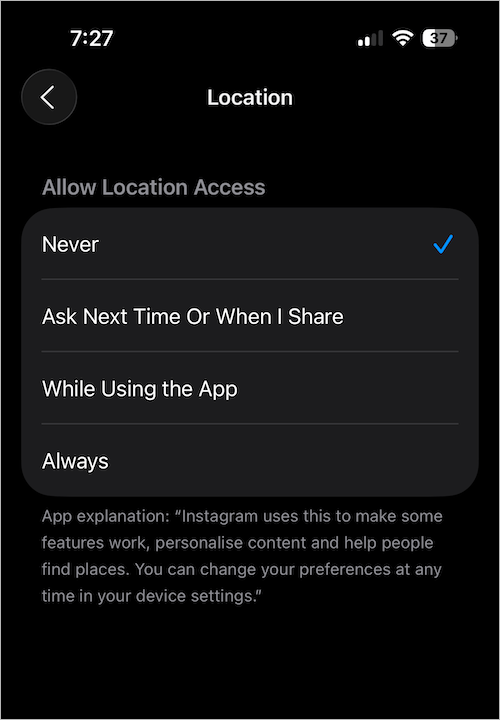
- Choose Never to completely stop Instagram from accessing your device location.
Alternate Method:
Go to Settings > Privacy & Security > Location Services, and find Instagram. Under “Allow Location Access,” select Never or Ask Next Time or When I Share.
On Android
To turn off Instagram location on Android:
- Go to your profile and tap the Menu button (three lines) at the top right corner.
- Under ‘Your app and media’, tap Device permissions.
- Select Location services.
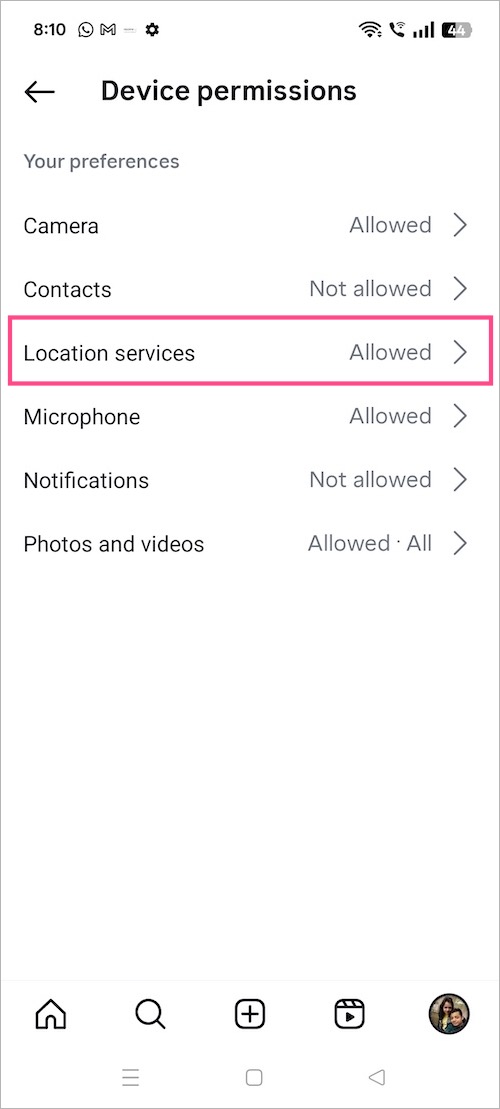
- Tap Update device settings, then tap Open device settings.
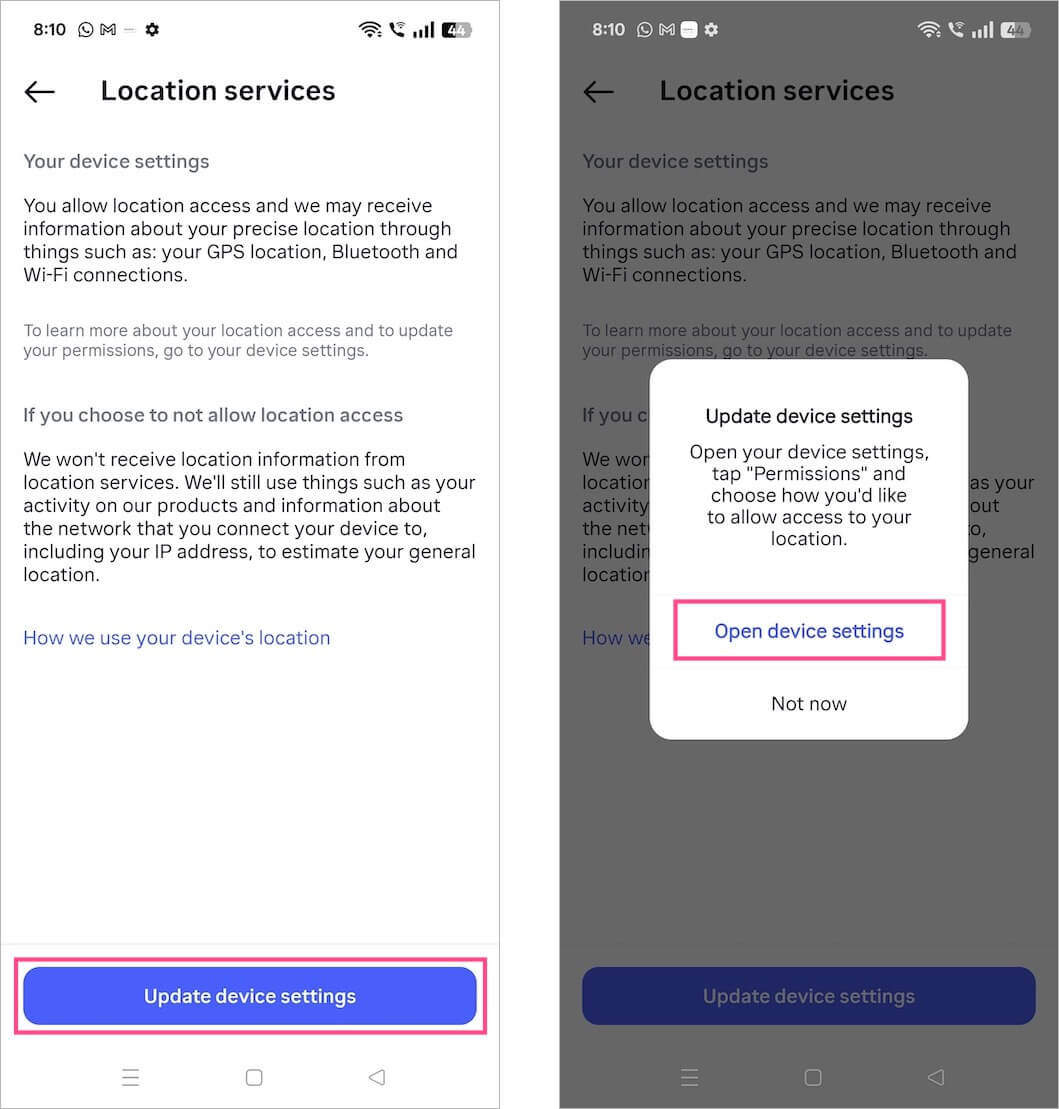
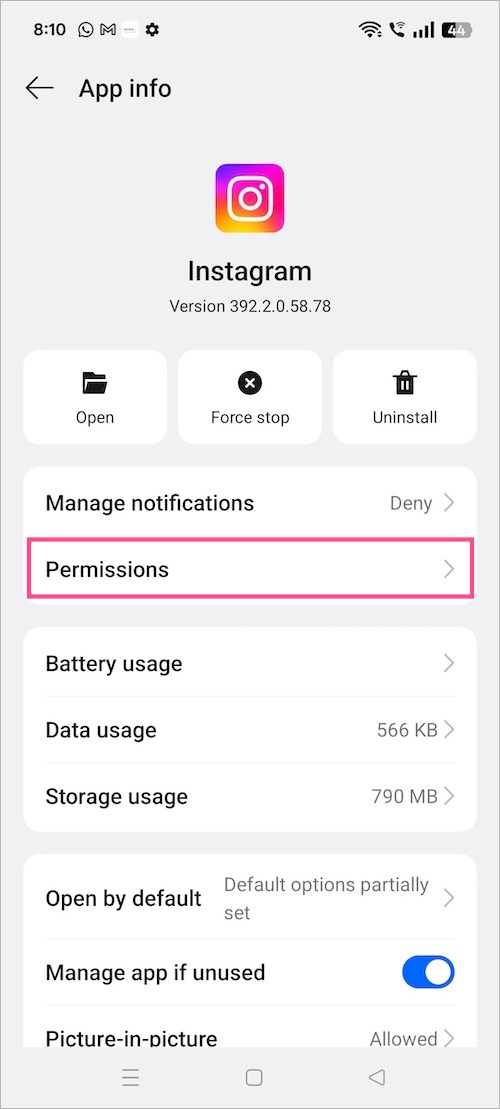
- Tap Permissions (or App permissions).
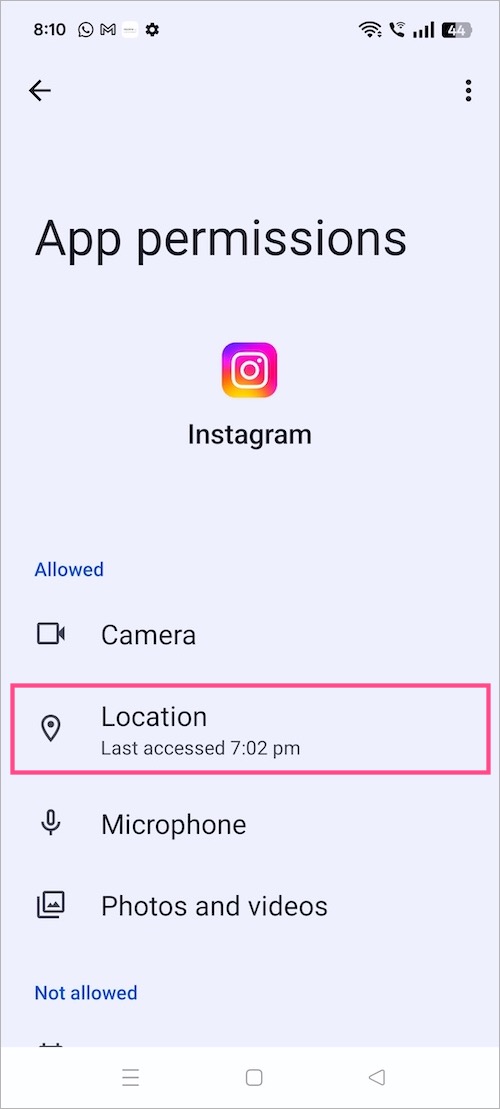
- Select Location.
- Choose Don’t allow (or Deny) to restrict access to the location.
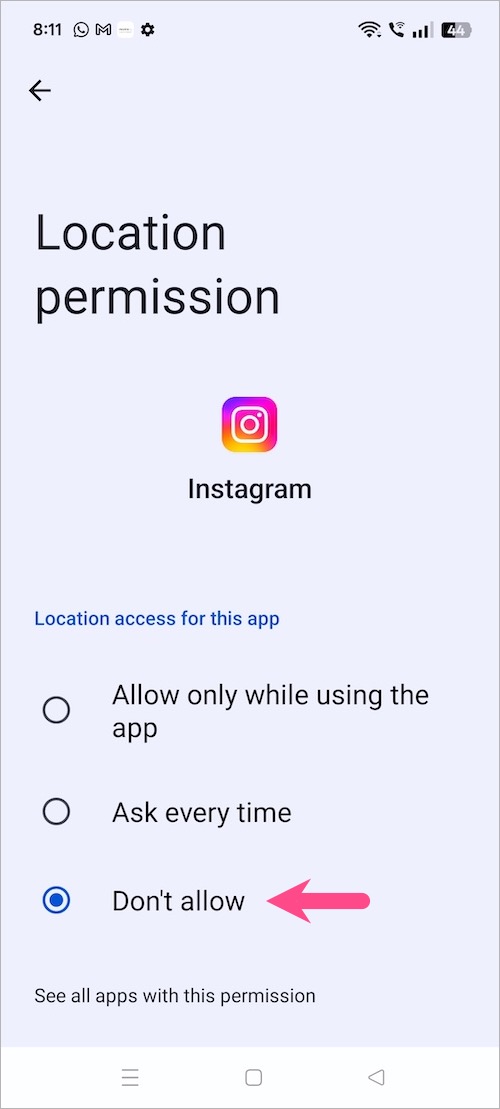
Note: Selecting Never or Don’t allow disables the location entirely, including your Precise location.
How to Disable Precise Location on Instagram
Disabling Precise location ensures that if you ever decide to share your location, Instagram will only get a broad, approximate area rather than your specific or real-time location.
On iPhone
Here’s how you can turn off precise location on Instagram on your iPhone:
- Open the Settings app.
- Scroll down to the bottom and open Apps.
- Tap Instagram and select Location.
- Turn off the toggle next to Precise Location.
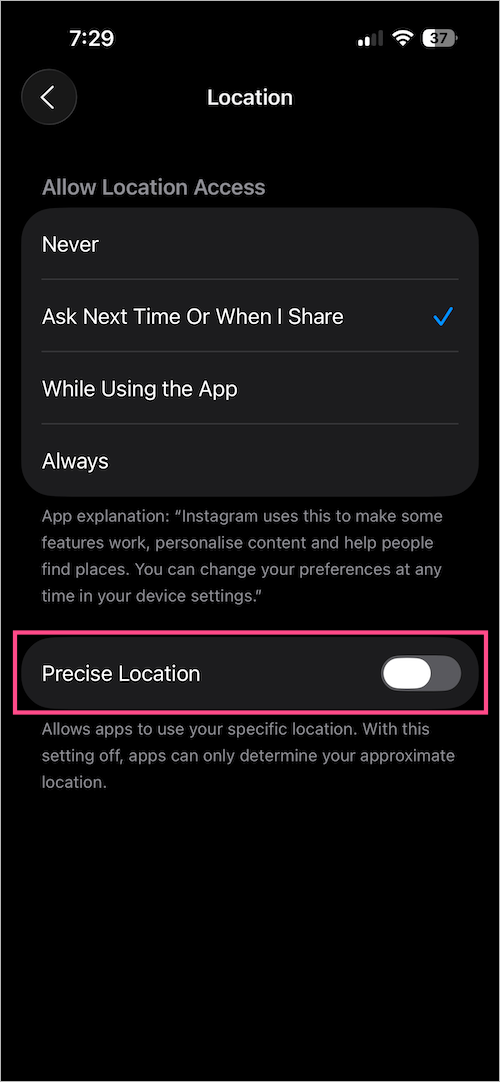
That’s it. Now Instagram won’t be able to use your exact location.
Alternate Method:
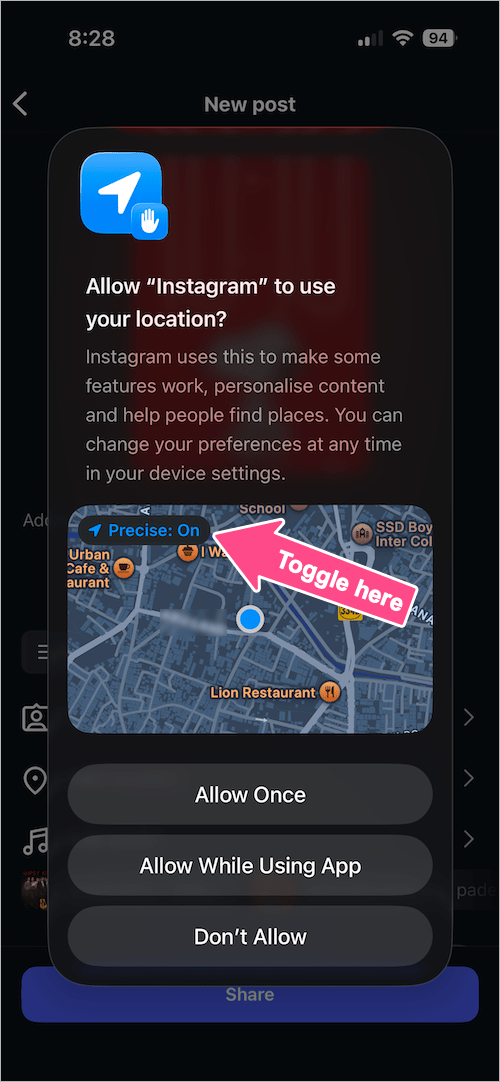
At times, Precise location on iPhone might get enabled automatically even if you’ve turned it off in settings. However, you can easily enable or disable it when adding a location on Instagram.
To do so, just tap the Precise: On option at the top left of the map. Doing so will instantly turn it off. You can then select one of the options (Allow Once, Allow While Using App, or Don’t Allow) for location sharing.
On Android
- Go to Settings and open Apps.
- Select or search for Instagram in the apps list.
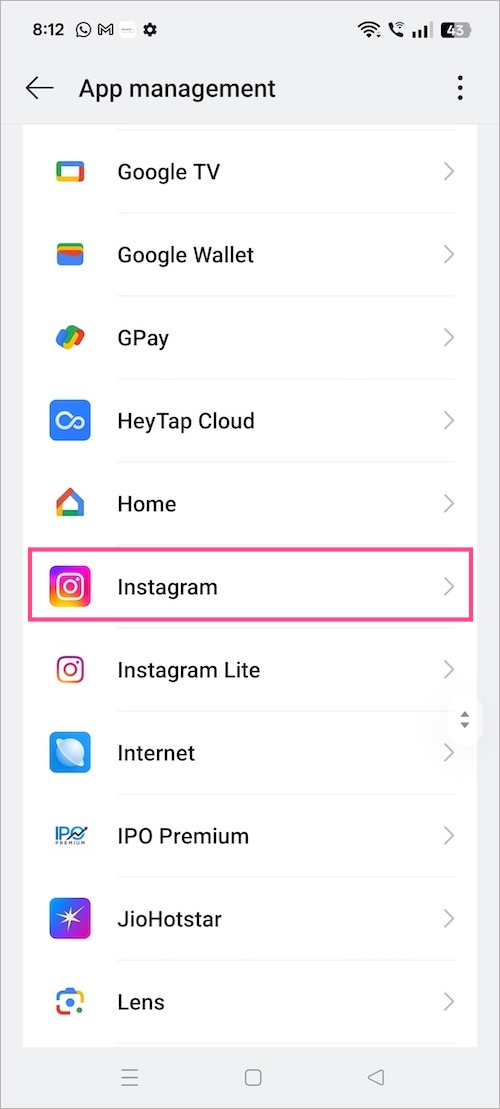
- On the App info screen, tap Permissions and then tap Location.
- Turn off the toggle for Use precise location.
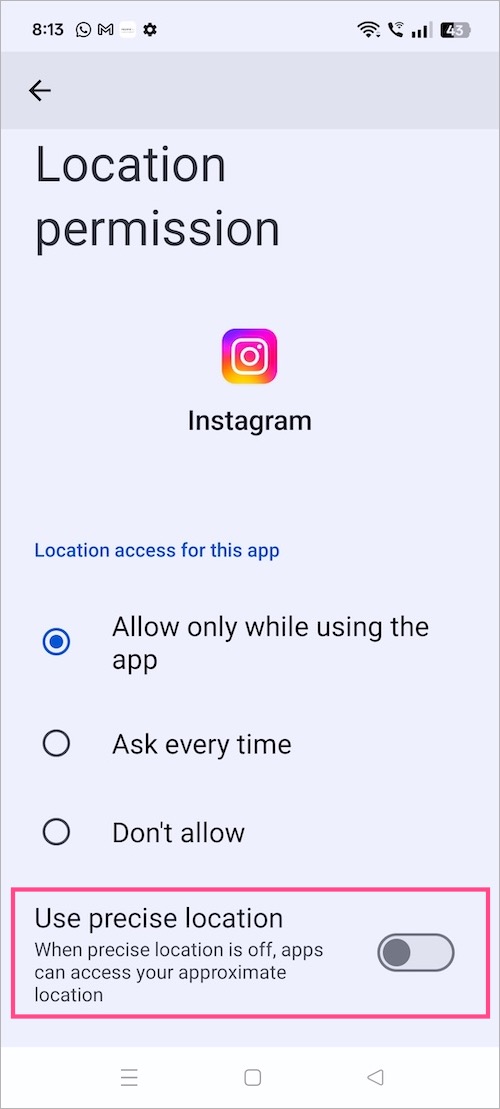
Note: The Precise Location or Use precise location option won’t be visible when your location access setting is set to Never or Don’t allow.
How to Turn Off Map Location on Instagram
Instagram’s Map feature can update your location every time you open the app – even if you don’t post anything.
While you cannot turn off Maps on Instagram, you can disable location sharing for Maps to protect your privacy. Below are two ways to turn off Instagram Map location on iPhone:
Method 1: From Instagram Map in DMs
- Go to your Direct Messages (DMs) in the Instagram app.
- Tap the Map icon at the top of your inbox.
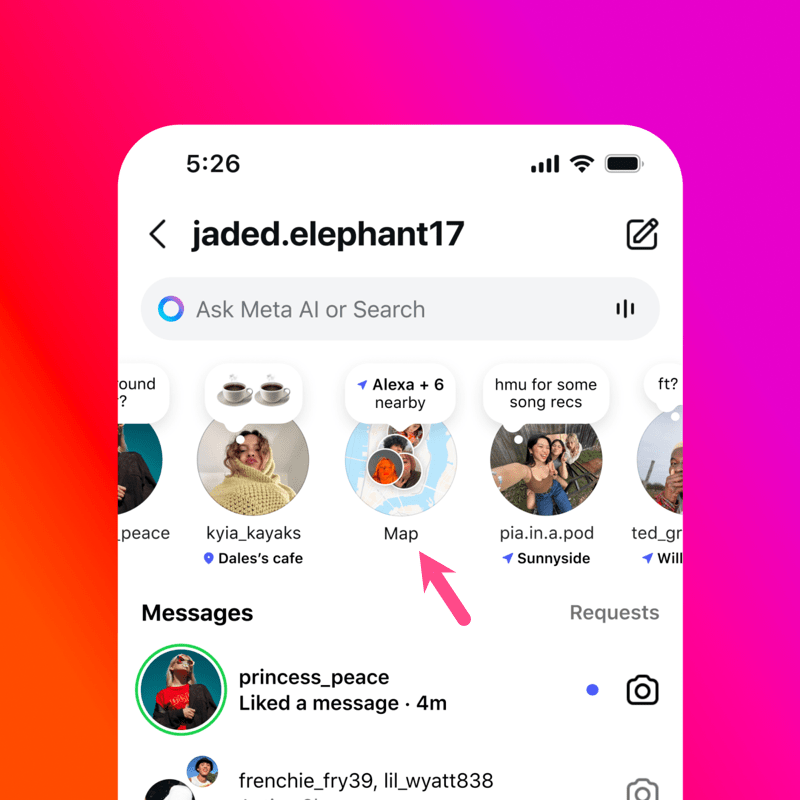
- Tap the Settings (gear icon) in the top-right corner of the map.
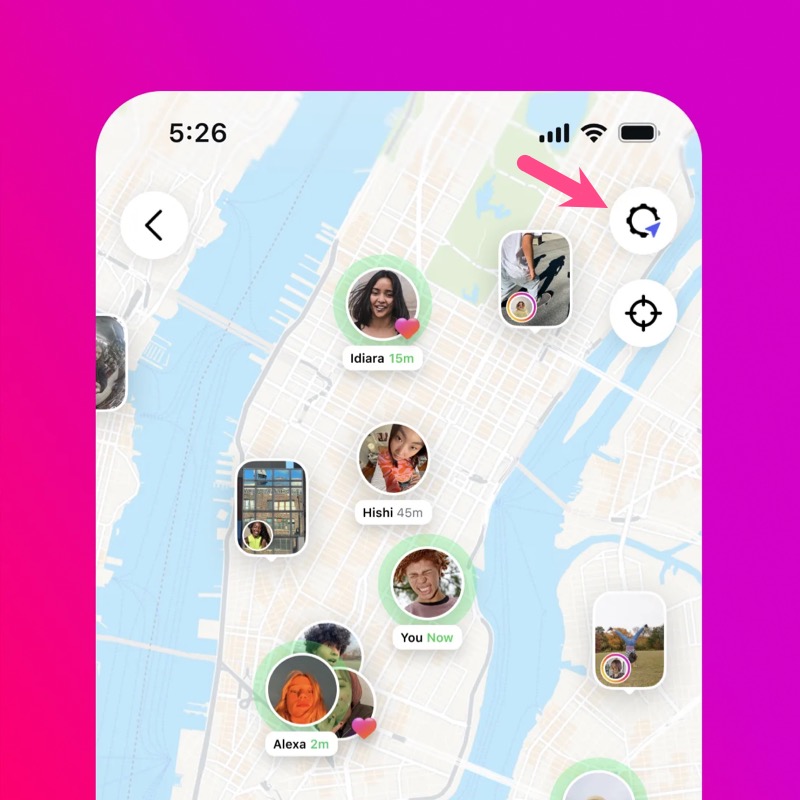
- Under Who can see your location, select No one to stop sharing location in Maps.
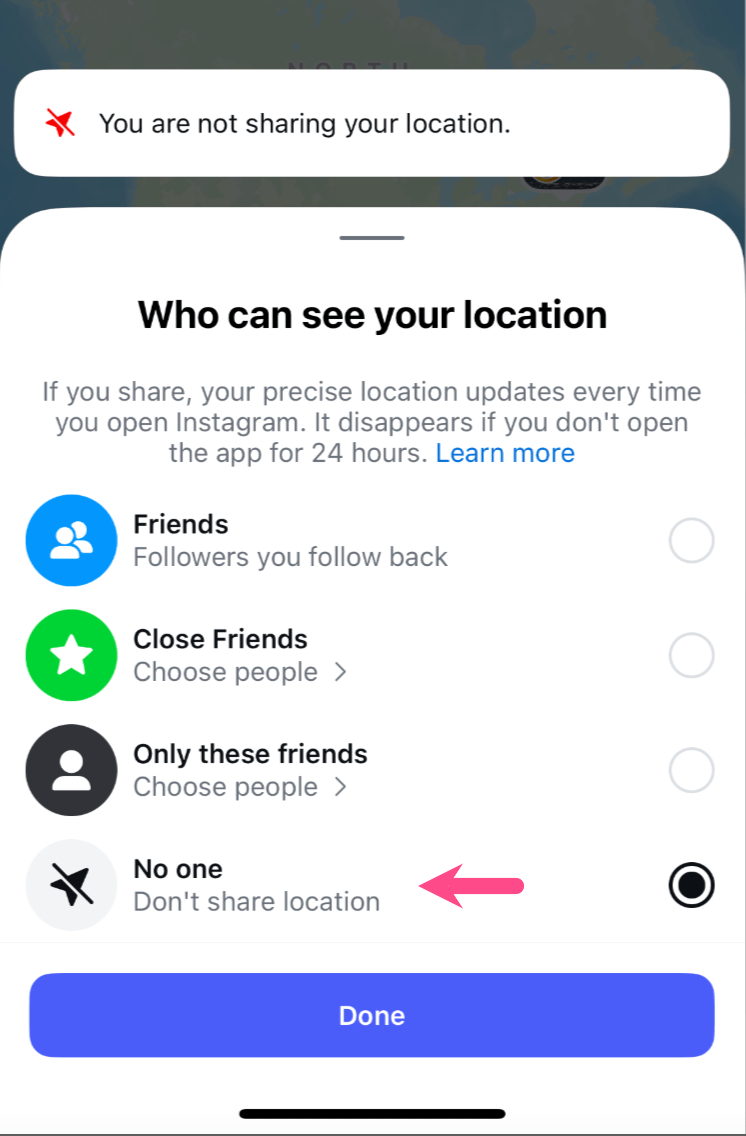
Instagram Map Location Setting - Choose Until you turn it back on if a pop-up appears asking “How long would you like to turn off location sharing?”.
- Tap Done or Update to confirm.
Method 2: From Instagram Settings
- Go to your profile and tap the Menu button (three lines) in the top-right corner.
- Under ‘Who can see your content’, tap Story, live and location.
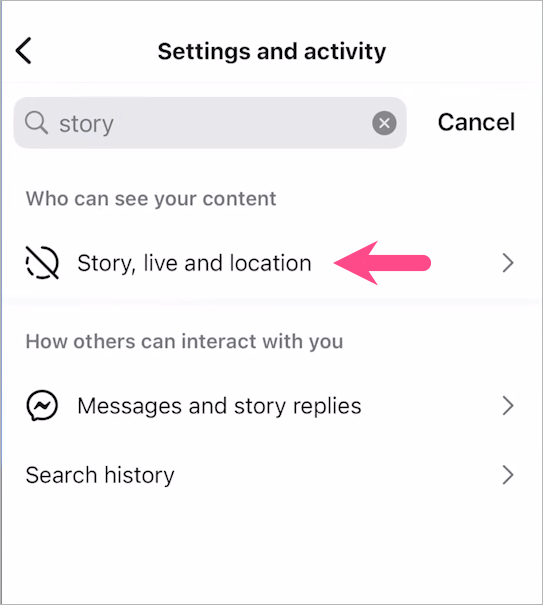
- Tap Location sharing (Instagram map).
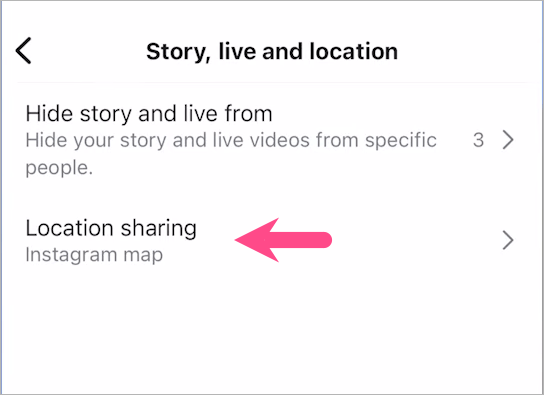
- Set Who can see your location to No one.
- Tap Done.
This feature is currently available only in the US and should be rolled out globally soon.
How to Remove Location from Existing Posts & Reels
If you’ve already shared posts or reels with location tags, you can still hide or remove the location afterward.
For Posts:
Here’s how to remove location from an Instagram post on iPhone:
- Open Instagram and go to your profile.
- Find and open the post whose location you want to remove.
- Tap the three dots (…) in the top-right corner, then select Edit.
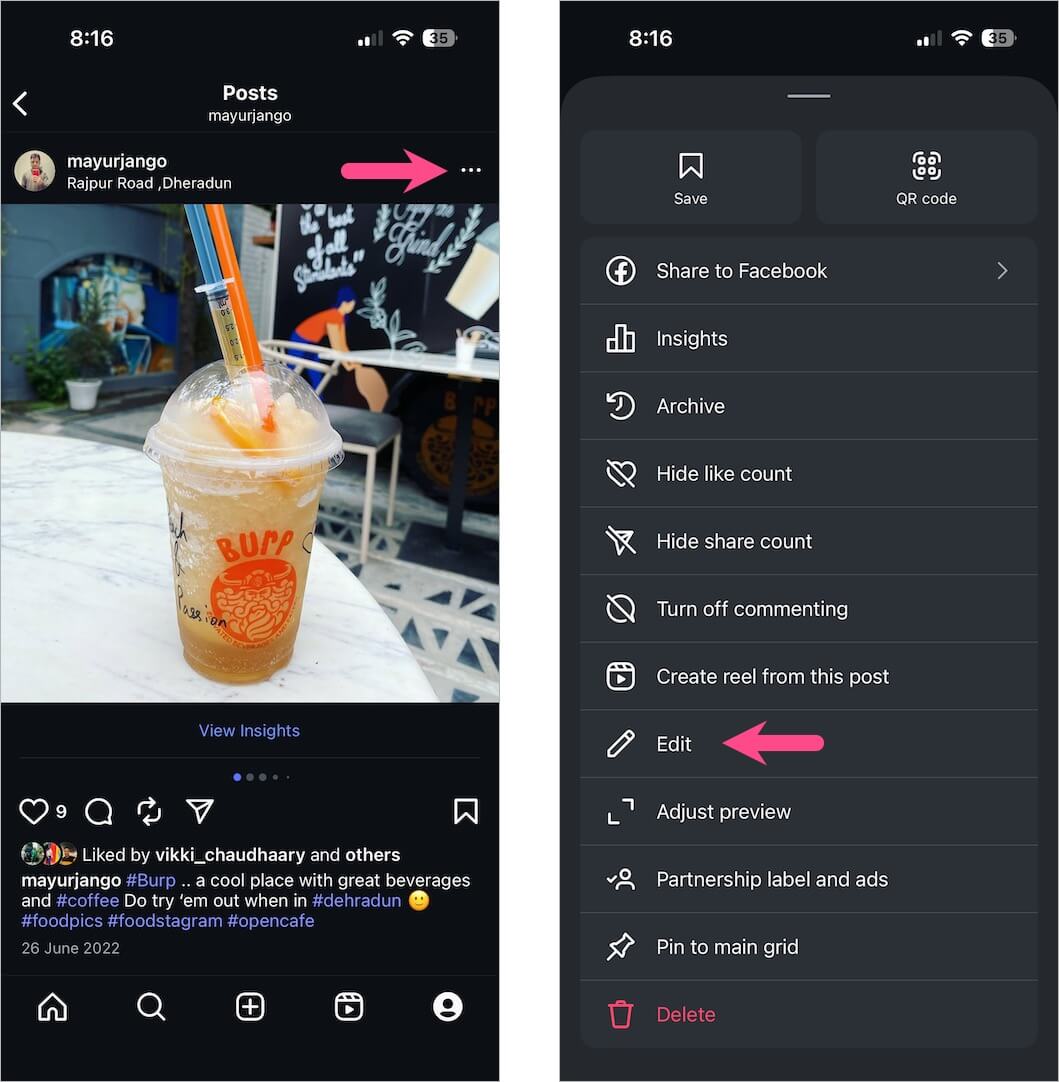
- Tap the location tag (just below your username).
- Select Edit location, then select Remove Location.
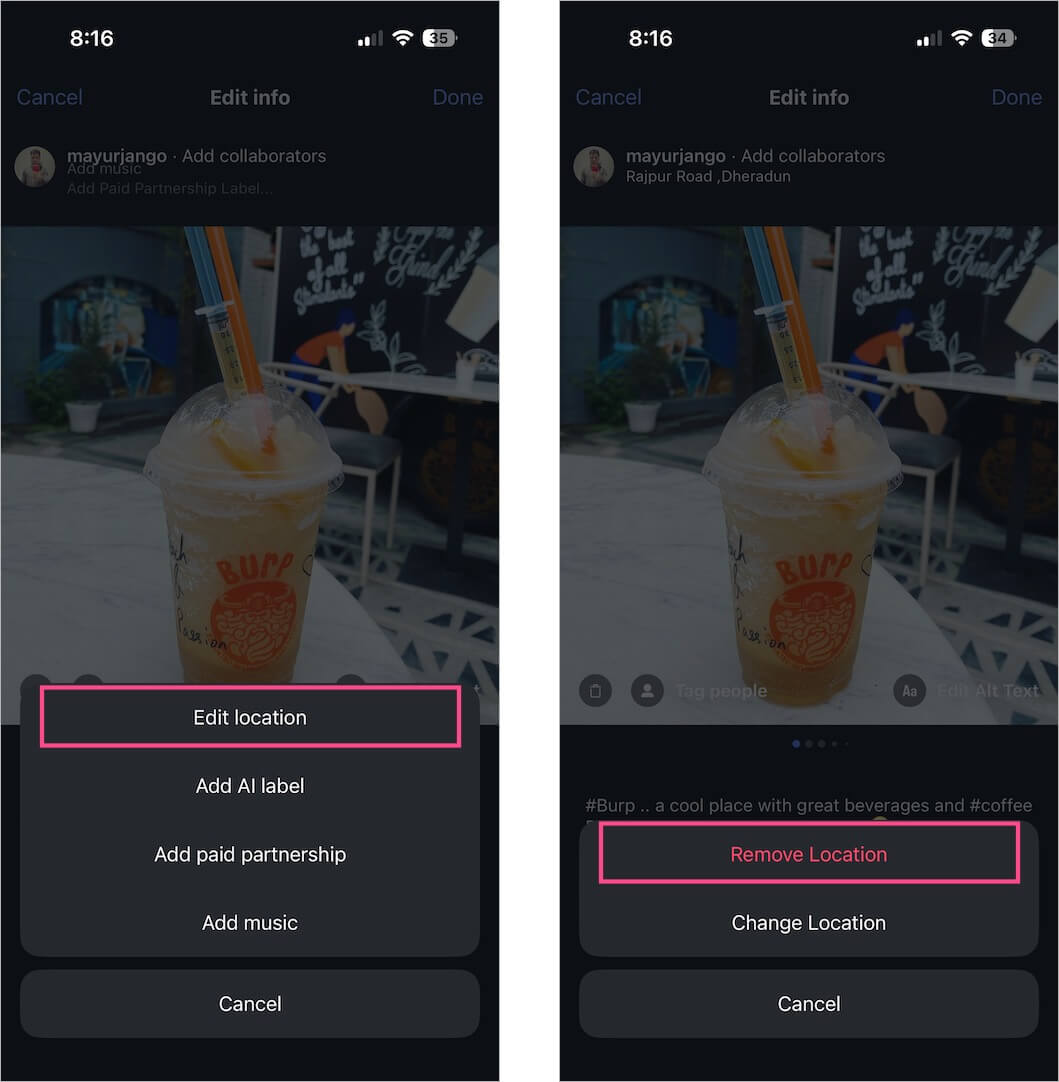
- Tap Done.
For Reels:
- Go to your profile and view the desired reel.
- Tap the three dots (…) in the top-right corner, then select Edit.
- Tap the x icon (cross) next to the location.
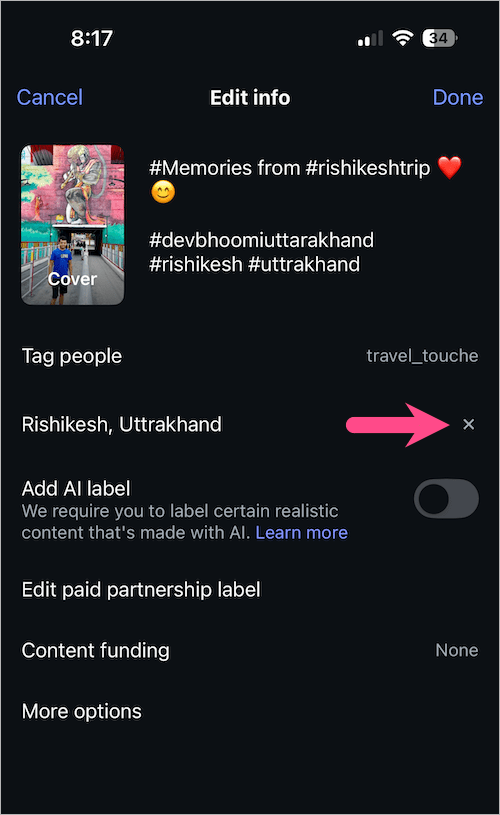
- Hit Done to save.
Note: Removing location data from posts or reels hides it from public view, but it may not delete the location metadata stored on Instagram’s servers.










