


Like the iPhone 16 series, the new iPhone Air and iPhone 17 lineup come with the customizable Action button, replacing the traditional Ring/Silent switch. By default, the Action button toggles between Silent mode and Ring mode, but you can assign other shortcuts such as opening the Camera, launching Focus, or turning on the Flashlight.
If you’ve customized the Action button for something else, you may wonder how to silence the iPhone 17 without the switch. Thankfully, iOS 26 offers multiple ways to put your iPhone 17 on silent mode or make it vibrate.
This quick guide covers all the methods to turn silent mode on or off on iPhone 17, iPhone 17 Pro, iPhone 17 Pro Max, or iPhone Air.
How to Put iPhone 17 and iPhone Air on Silent
You can silence the ringer on iPhone 17 in multiple ways:
Using the Action Button
- Locate the Action button above the volume keys on the left side.
- Press and hold the button to enable Silent mode.
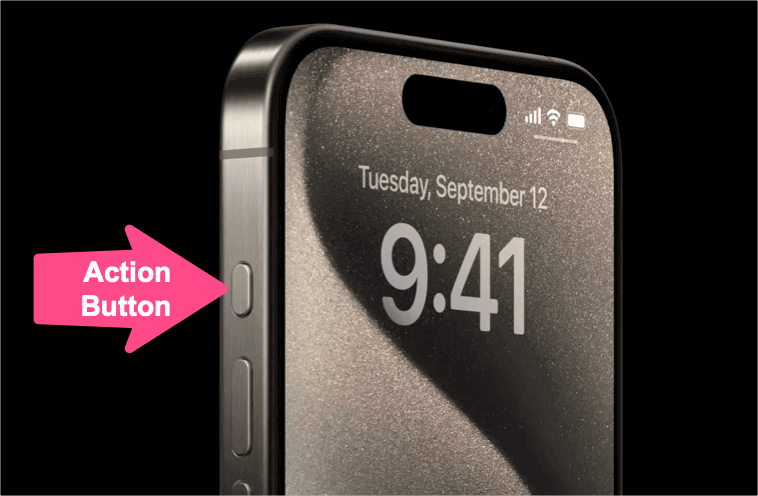
- You’ll feel a short vibration, and a Silent icon will briefly appear in the Dynamic Island.
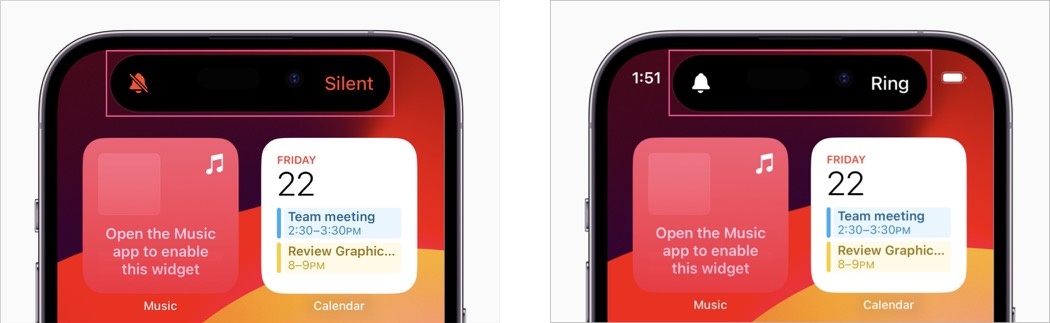
- Press and hold the Action button again to switch back to Ring mode.
From Control Center
Use this method to enable or disable silent mode on iPhone 17 if your Action button is set to a different function:
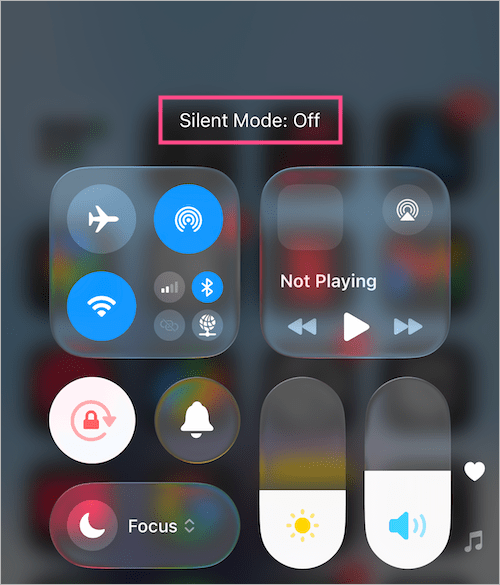
- Swipe down from the top-right corner to open Control Center.
- Tap the Mute control (bell icon).
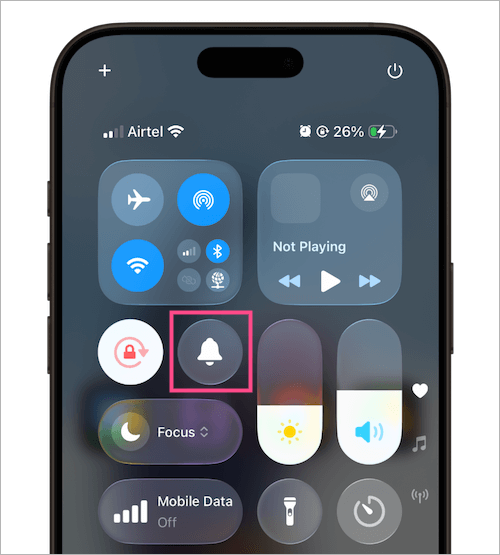
Mute/Unmute button in Control Center on iPhone 17 - You’ll see Silent Mode: On at the top.
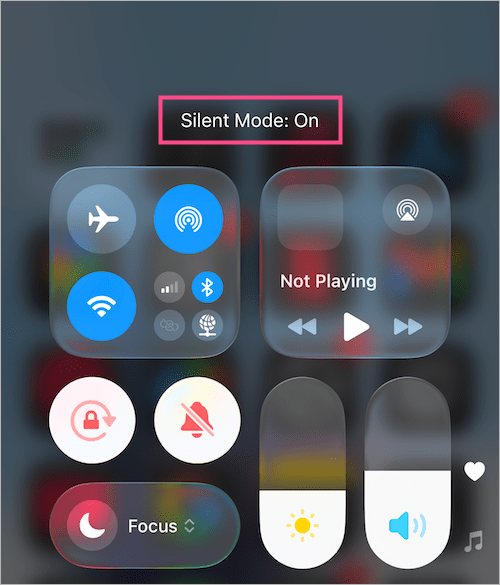
- Tap the Mute control again to get out of silent mode (Silent Mode: Off).
From Settings
- Go to Settings > Sounds & Haptics.
- At the top, turn on the toggle for Silent Mode to mute your iPhone.
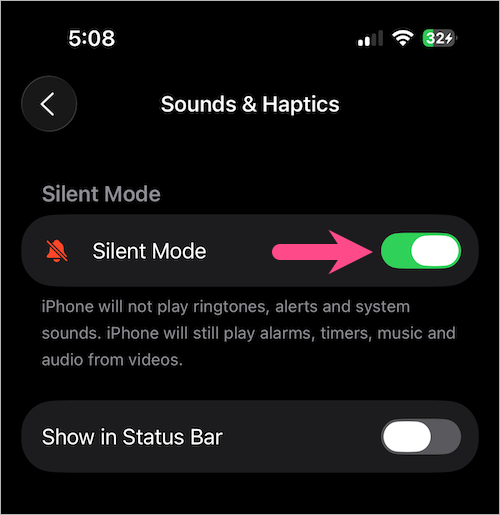
- Toggle it off to re-enable ringer sounds.
How to Turn Ringer On or Off on iPhone 17 and iPhone Air
You can silence the ringer on iPhone 17 or iPhone Air using the Action button, Control Center, or by toggling Silent Mode in Settings.
You can also turn on or off the ringer by adjusting its volume directly. To do so:
- Navigate to Settings > Sounds & Haptics.
- Under Ringtone and Alerts, drag the ringer volume slider to the extreme left to mute the ringer.
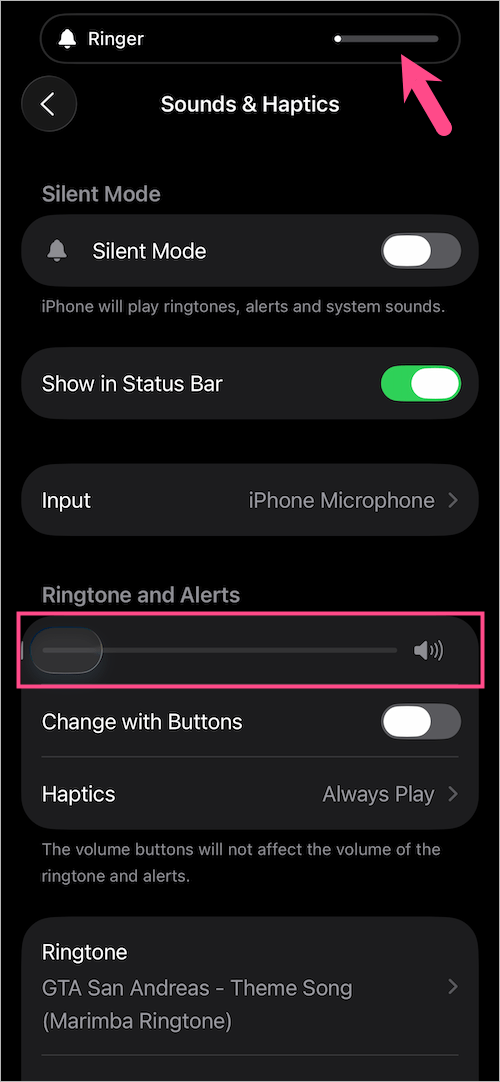
- Turn the ringer volume up (drag it right) to turn the ringer back on.
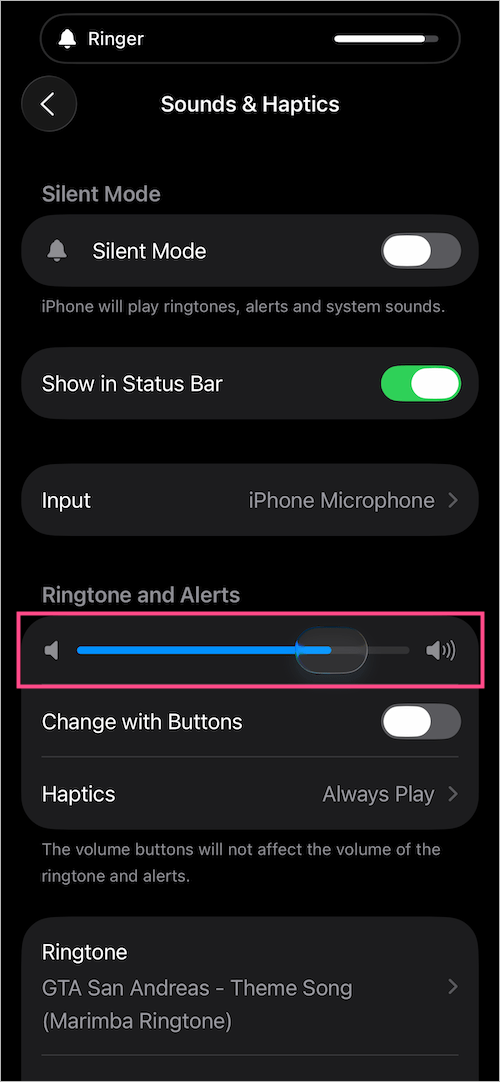
- The ringer volume status will appear right above in the Dynamic Island.
How to Hide the Silent Mode Icon on iPhone 17
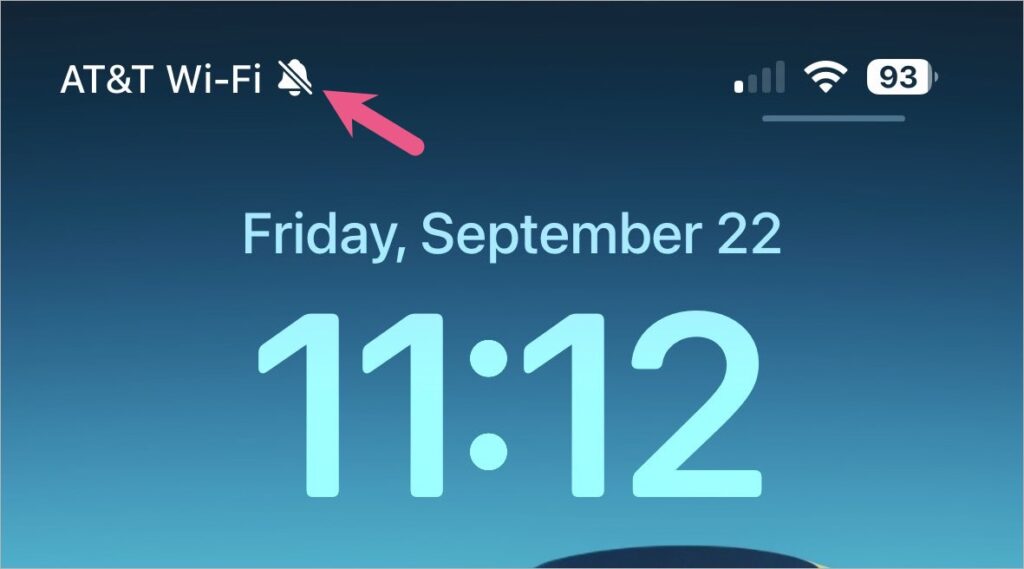
When Silent mode is enabled, a crossed bell icon appears in the status bar. If you find it distracting, you can easily hide it.
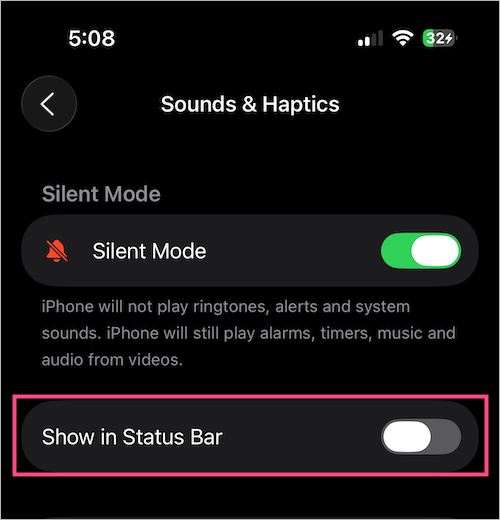
To hide the Silent mode icon from the status bar, open Settings > Sounds & Haptics. Under Silent Mode, toggle off Show in Status Bar.
How to Put iPhone 17 on Vibrate
Vibration is enabled by default in both Ring and Silent modes, but you can customize this behavior.
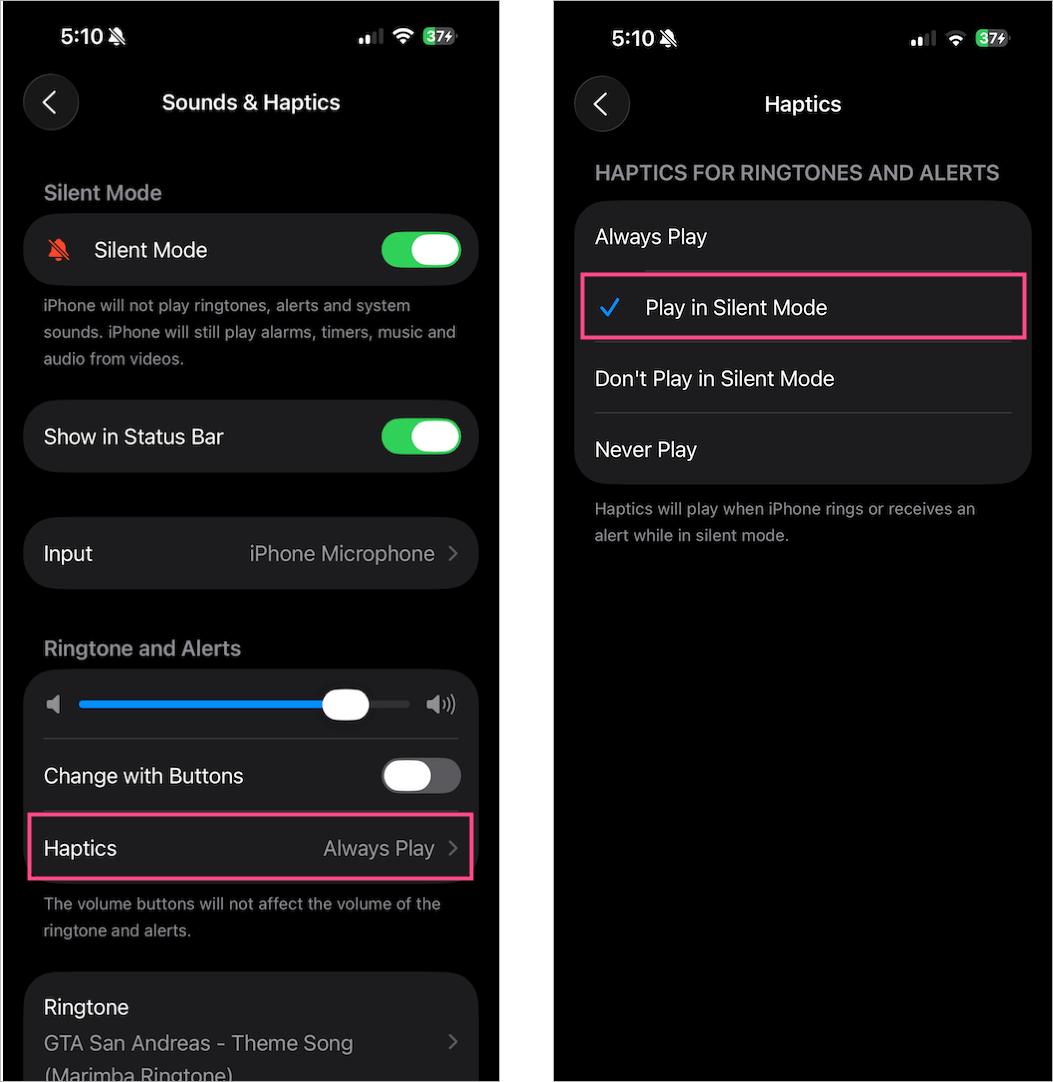
To make iPhone 17 vibrate on Silent:
- Go to Settings > Sounds & Haptics.
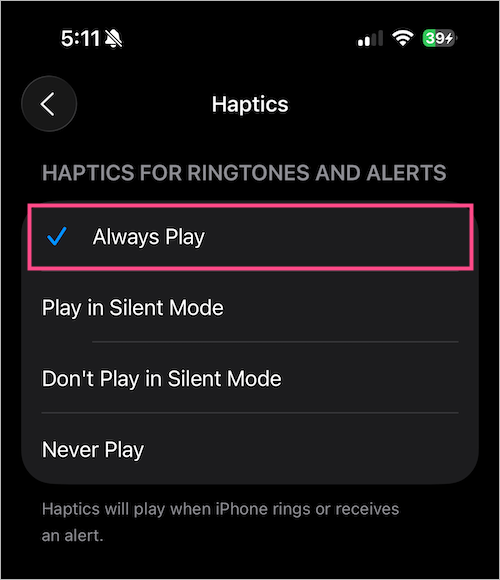
- Under Ringtone and Alerts, tap Haptics.
- Select Play in Silent Mode.
To disable vibration on Silent:
- Go to the Haptics menu.
- Select Don’t Play in Silent Mode.
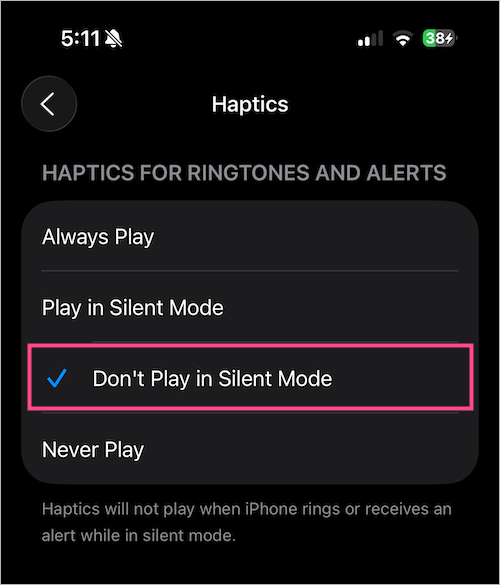
Note: Turning off vibration in Silent mode means your iPhone won’t buzz or ring — so you might miss calls or notifications.
To turn on vibration in Ring mode:
- Open Settings > Sounds & Haptics > Haptics.
- Select Always Play.
FAQs About Silent & Vibrate on iPhone 17 and iPhone Air
1. What does Silent mode do on iPhone?
In Silent mode, your iPhone won’t ring or play alert sounds for calls, texts, or notifications. However, it may still vibrate if vibration is enabled. Sounds from alarms, timers, music, and videos will continue to play even when Silent mode is turned on.
2. How to silence iPhone 17, 17 Pro, and iPhone Air?
You can silence your iPhone by long-pressing the Action button, tapping the Mute (bell) icon in Control Center, or enabling Silent mode from Settings > Sounds & Haptics.
3. How to set up vibration on iPhone 17?
Navigate to Settings > Sounds & Haptics > Haptics. Here, you can choose between:
- Always Play – vibration works in both Ring and Silent mode.
- Play in Silent Mode – vibration only works in Silent mode.
- Don’t Play in Silent Mode – vibration is disabled in Silent mode.
4. How to turn off vibrate on Silent on iPhone 17 and iPhone Air?
Open Settings > Sounds & Haptics > Haptics, then select “Don’t Play in Silent Mode.” This will completely disable vibration when Silent mode is active.
5. How do I mute or unmute my iPhone 17?
To mute your iPhone 17, long-press the Action button, tap the Mute control in Control Center, or go to Settings > Sounds & Haptics and toggle Silent Mode on. To unmute, repeat the same steps and switch back to Ring mode.
RELATED TIPS:









