


Need to take a screenshot on your iPhone 17, iPhone 17 Pro, or iPhone Air? You can capture the screen using the Side and Volume Up buttons, Back Tap, AssistiveTouch, Siri, or the Action Button. This guide explains all five methods, plus how to take full-page screenshots, change the screenshot preview, and save screenshots in HDR on iOS 26.
Take a Screenshot on iPhone 17, 17 Pro, or iPhone Air
1. Use the Side and Volume Up Buttons
The quickest way to capture your screen is with the physical buttons.
- Open the screen you want to capture.
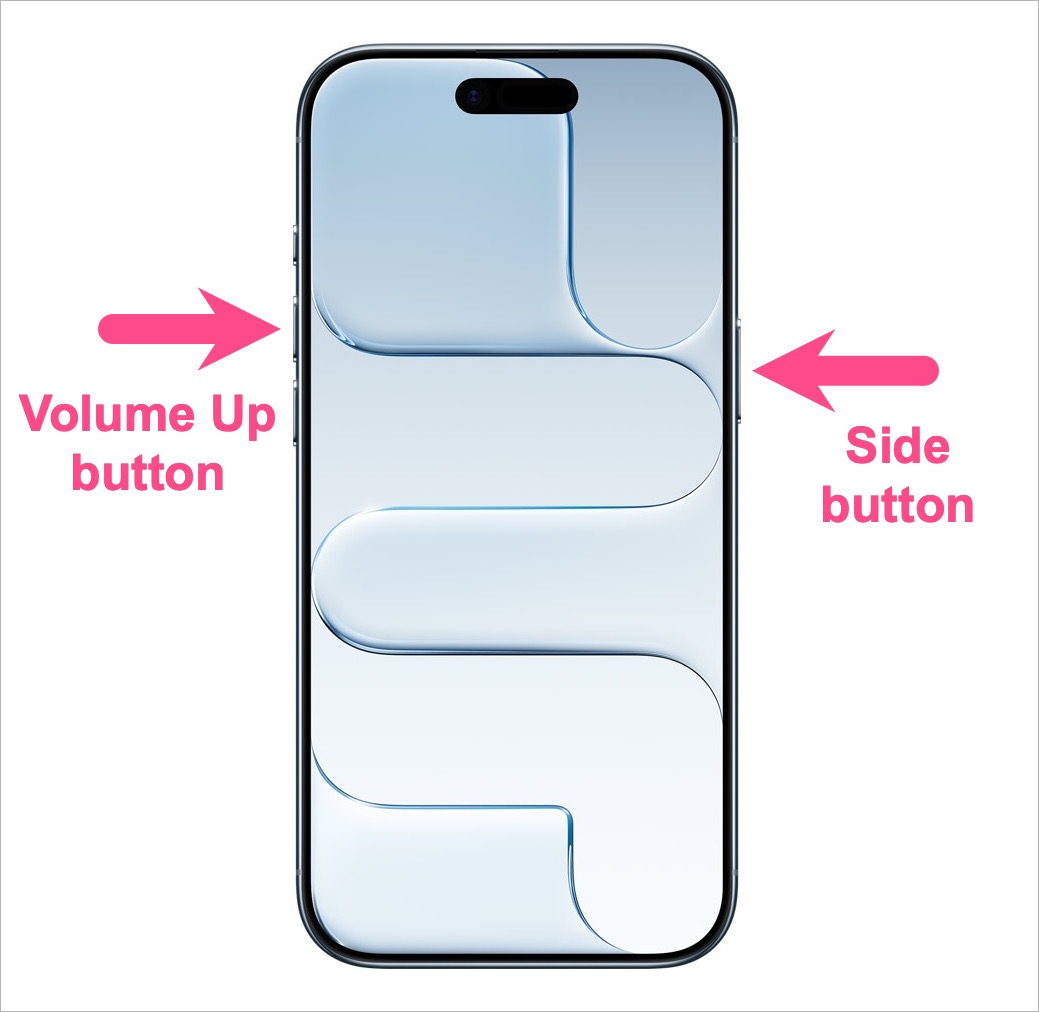
- Press the Side button and the Volume Up button at the same time.
- The screen flashes briefly, and you’ll hear the camera shutter sound (unless your iPhone is in Silent mode).
- Your screenshot opens in the new full-screen preview introduced in iOS 26.
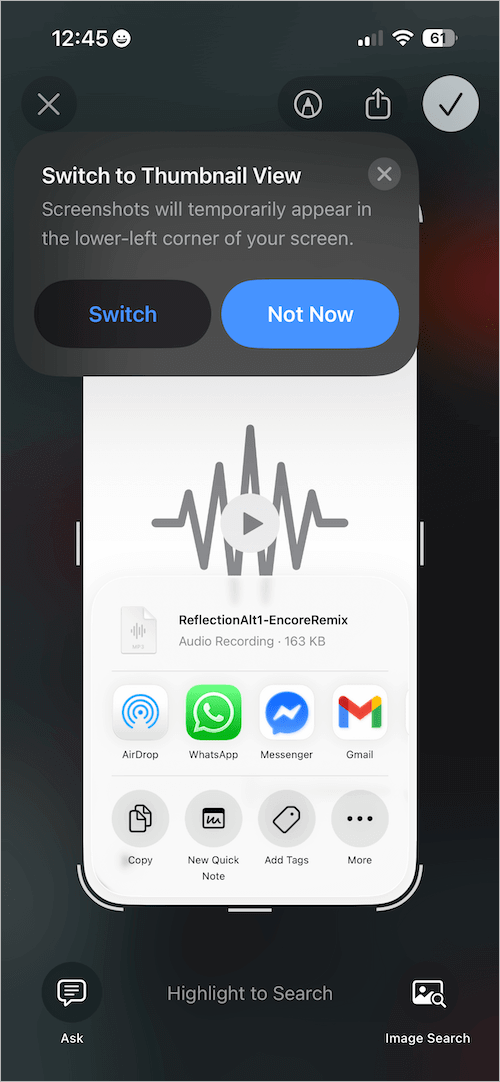
- (Optional) Annotate the screenshot using Markup tools or explore Apple’s new Visual Intelligence features, such as Highlight to Search or Lookup.
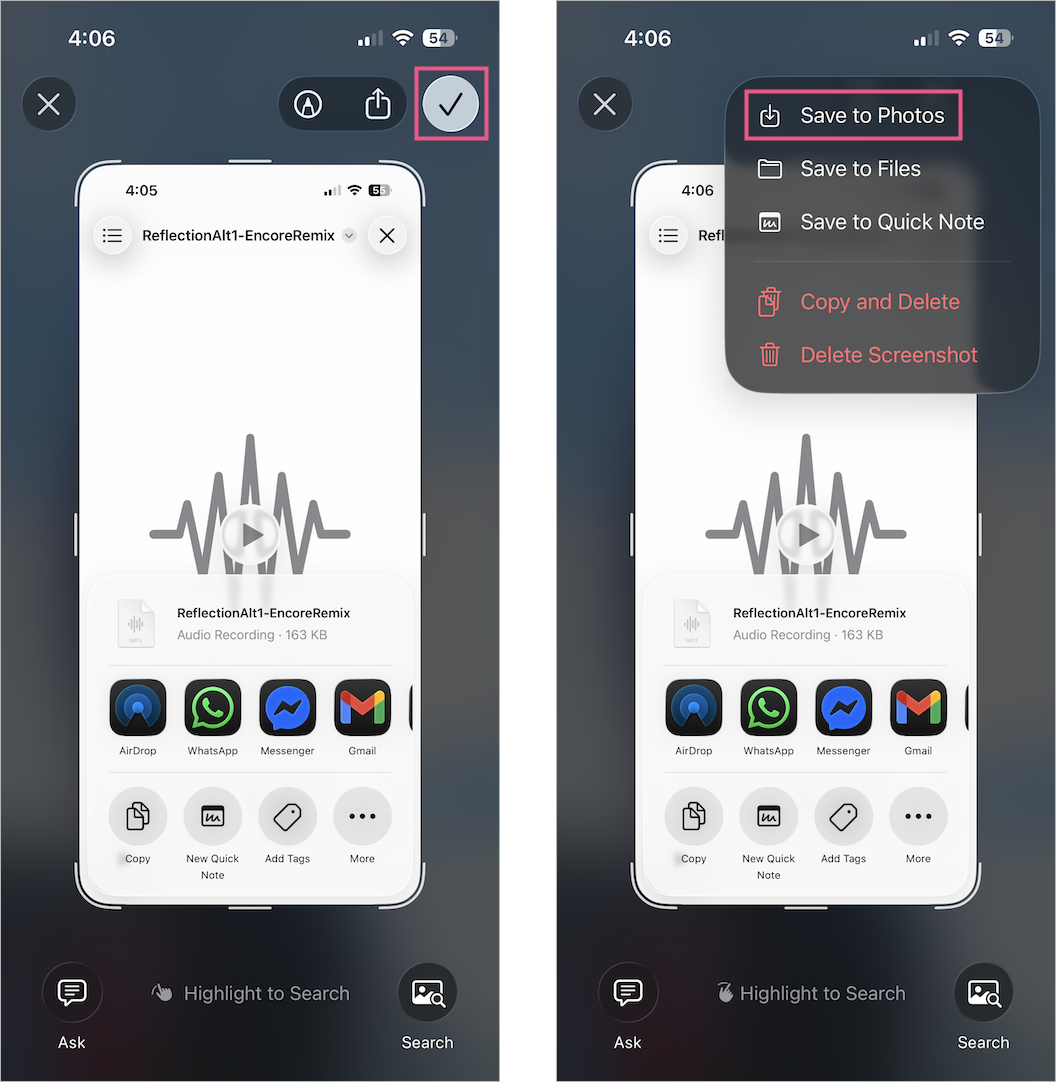
- Tap the checkmark in the upper-right corner and choose Save to Photos.
Tip: Prefer the old thumbnail preview? Learn how to automatically save screenshots to Photos in iOS 26 by turning off Full-Screen Previews.
2. Take a Screenshot Using Back Tap
If you prefer gestures instead of buttons, Back Tap lets you capture screenshots by double- or triple-tapping the back of your iPhone.
- Go to Settings > Accessibility > Touch.
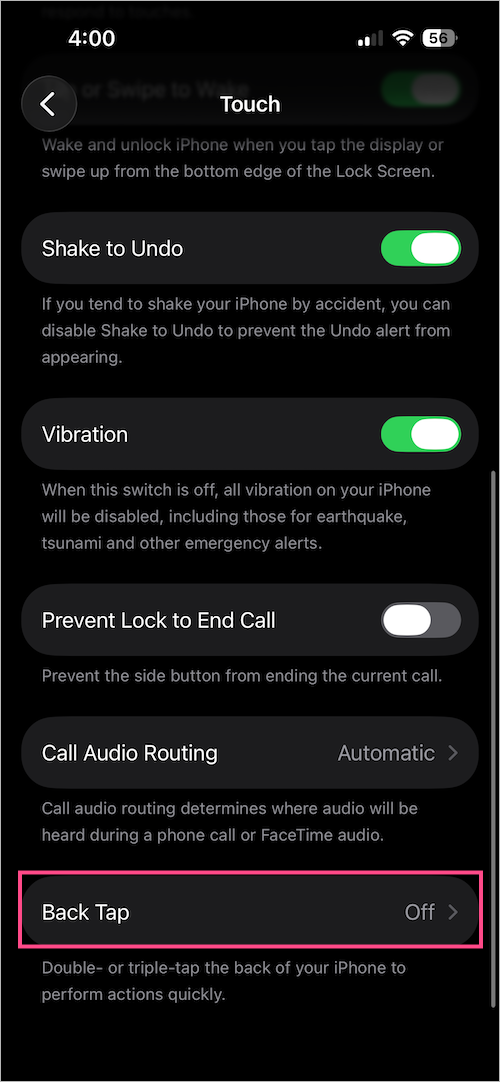
- Scroll down to the bottom and tap Back Tap.
- Select Double Tap (or Triple Tap).
- Choose Screenshot.
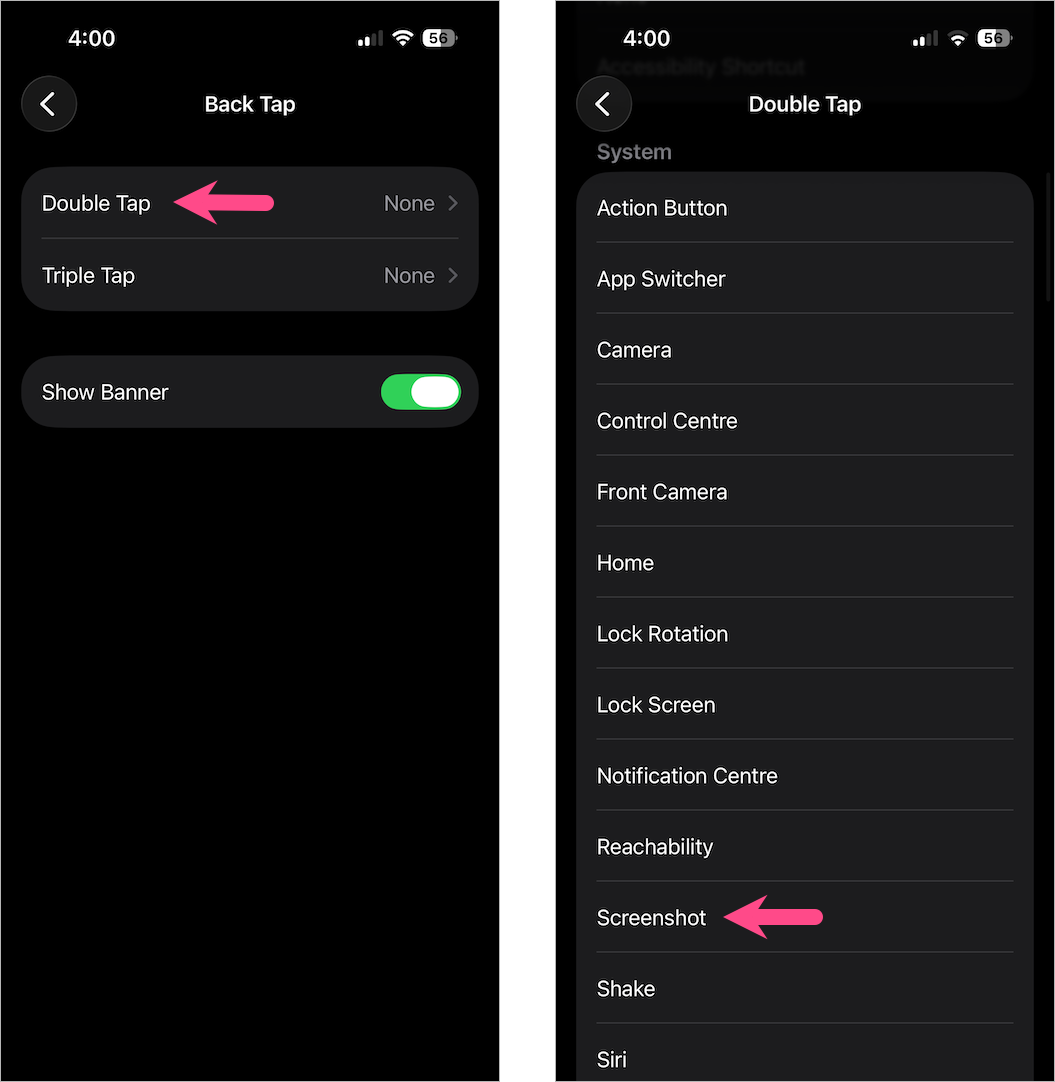
Note: On iOS 27, after selecting Double Tap or Triple Tap, tap Device, then choose Screenshot.
Now double-tap or triple-tap the back of your iPhone to capture the screen.
Note: Back Tap is convenient but may occasionally capture screenshots accidentally while handling your iPhone.
3. Take a Screenshot with AssistiveTouch
If you don’t want to use the Side and Volume buttons, AssistiveTouch provides an on-screen button for taking screenshots.
First, enable AssistiveTouch:
- Open Settings > Accessibility > Touch.
- Tap AssistiveTouch.
- Turn on AssistiveTouch.
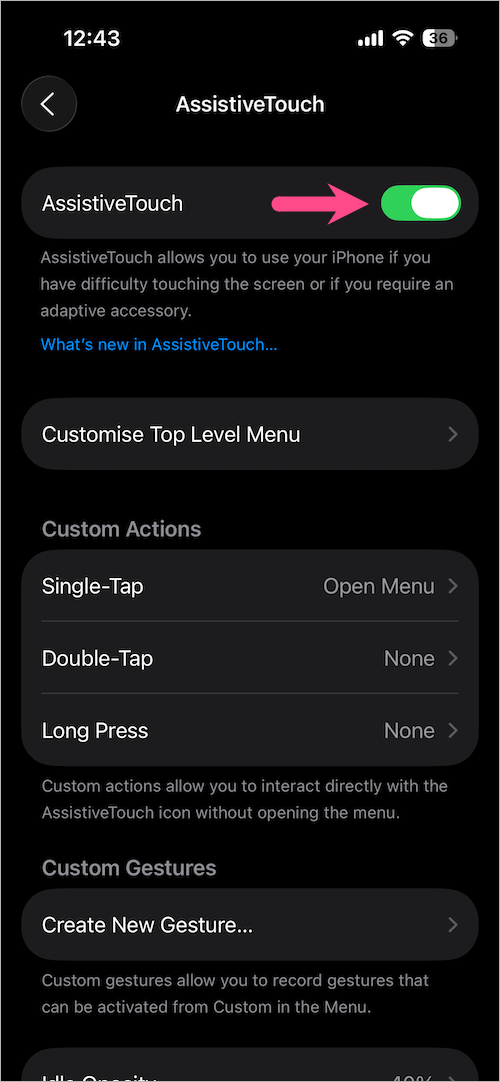
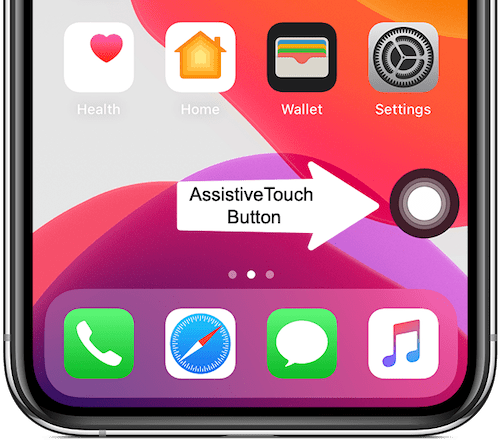
Once enabled, a floating home button will appear on the screen.
To capture a screenshot on iPhone 17 or iPhone Air using AssistiveTouch:
- Tap the floating AssistiveTouch button.
- Go to Device > More.
- Tap Screenshot.
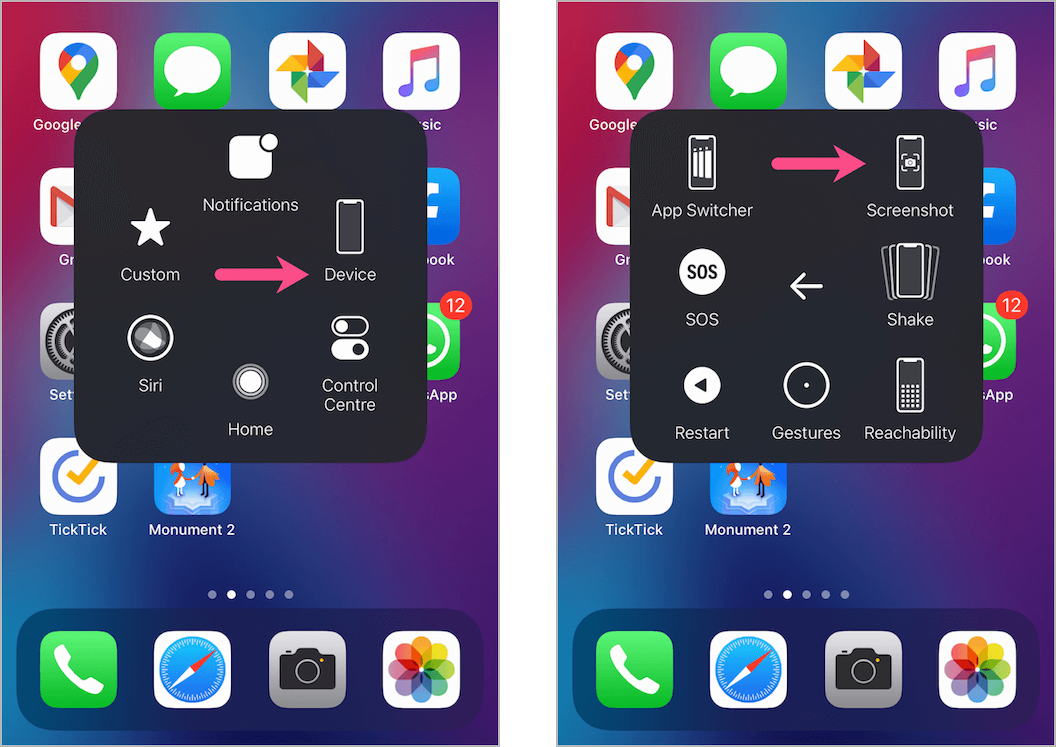
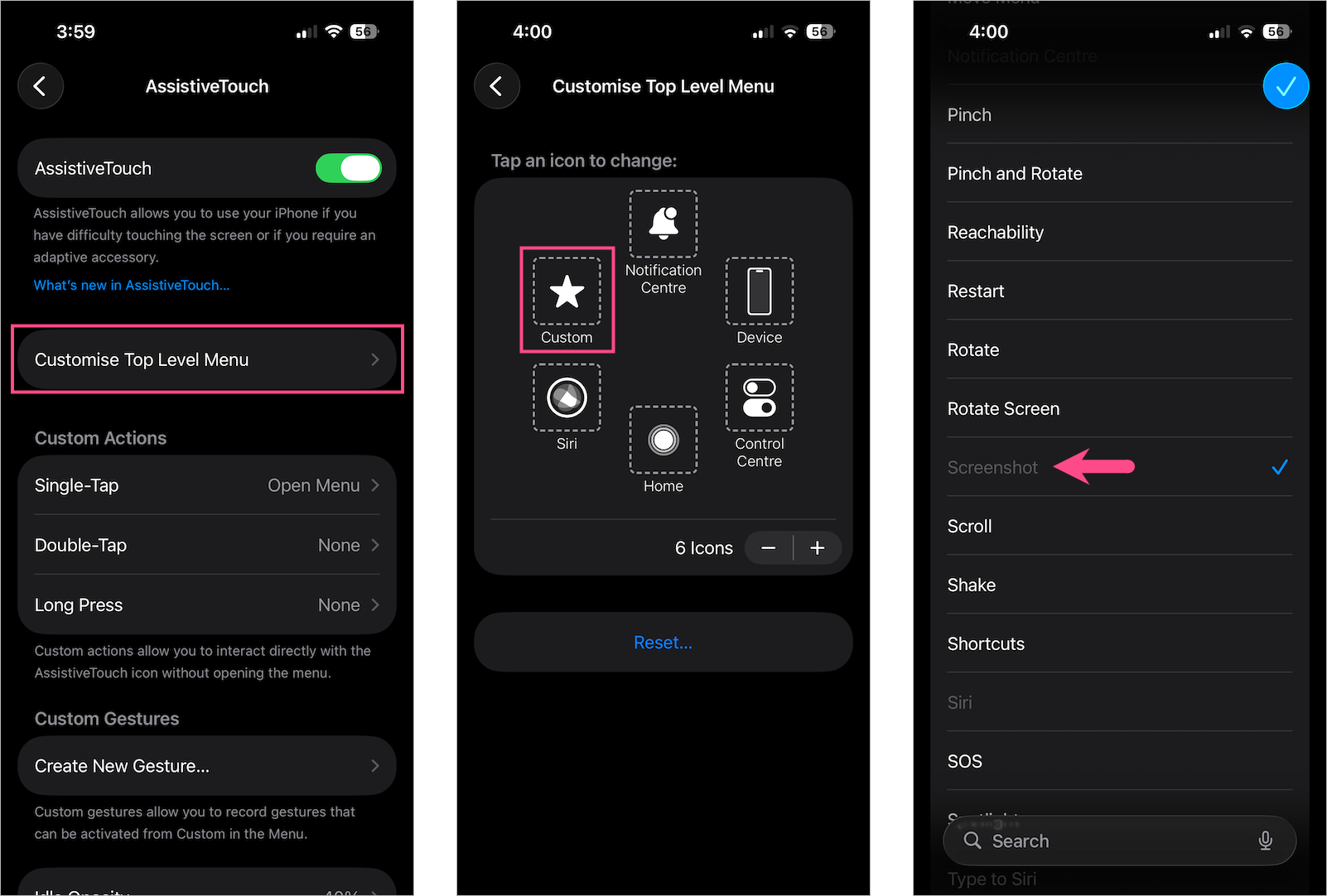
Tip: For quicker access, add Screenshot to the main AssistiveTouch menu from Settings > Accessibility > Touch > AssistiveTouch > Customise Top Level Menu.
4. Ask Siri
If your hands are occupied, Siri can capture a screenshot for you.
Before using this method, make sure “Hey Siri” is enabled in Siri settings.
iOS 26: Go to Settings > Apple Intelligence & Siri > Talk & Type to Siri and choose “Hey Siri”.
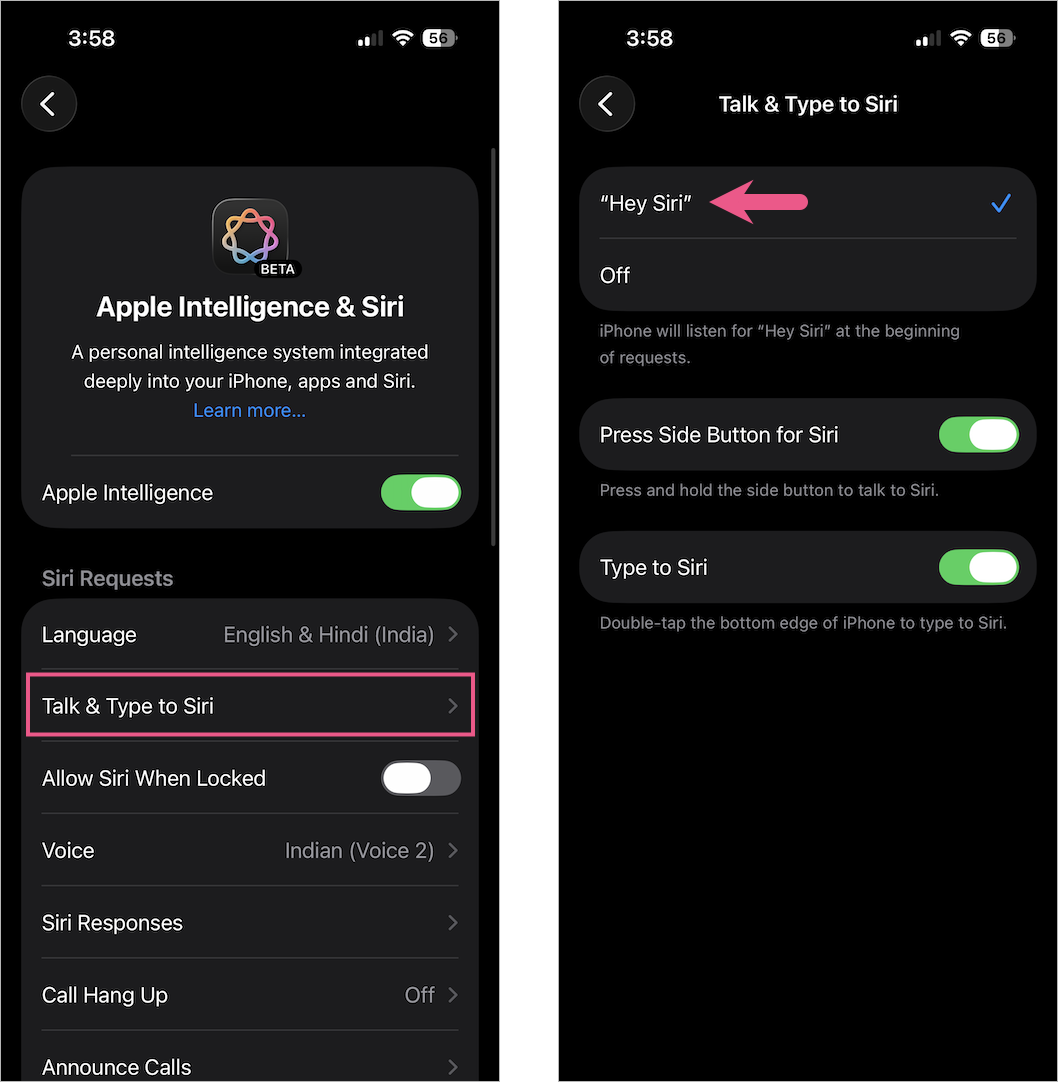
Note: On iOS 27, go to Settings > Siri > Requests, then select “Hey Siri”.
Now say:
“Hey Siri, take a screenshot.”
You can also press and hold the Side button to activate Siri before speaking the command.
The screenshot is captured instantly and saved to Photos.
5. Use the Action Button
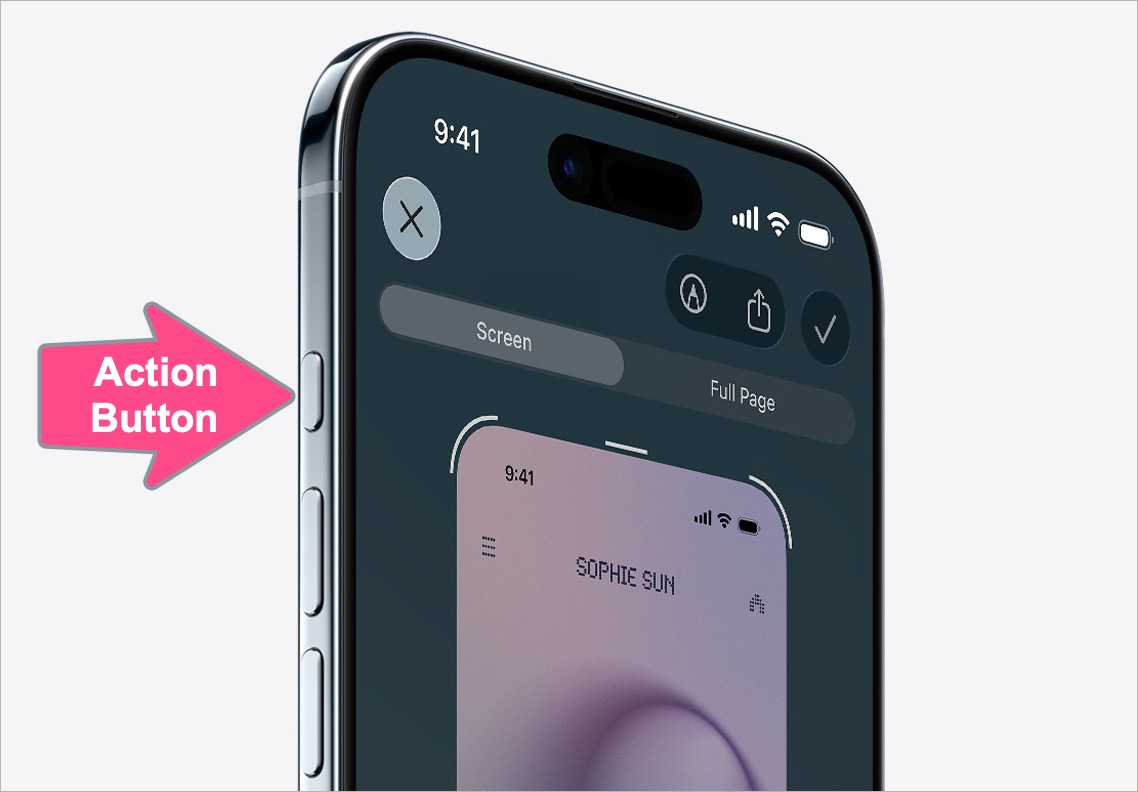
If your iPhone has an Action Button, you can assign it to take screenshots using the Shortcuts app.
Create the Screenshot shortcut
- Open the Shortcuts app.
- In the Library tab, tap the + button.
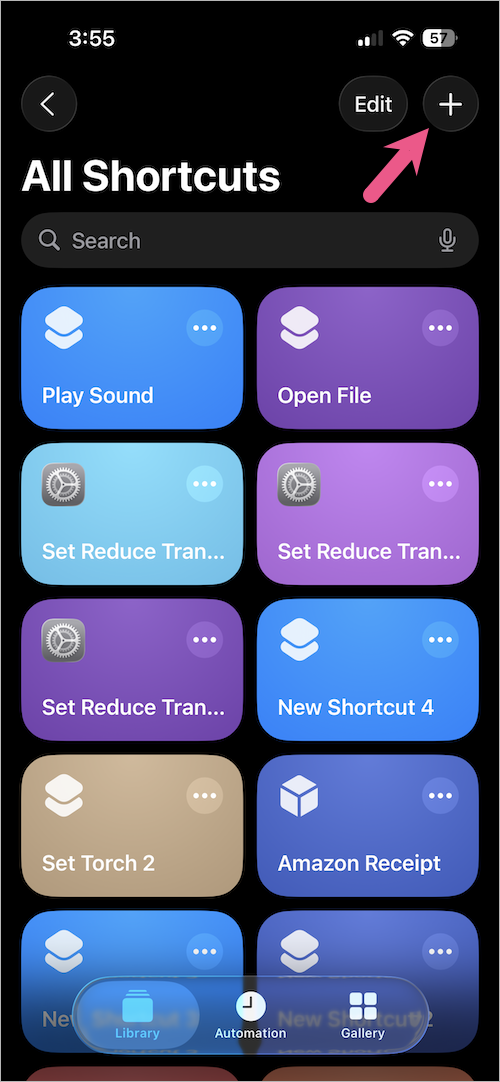
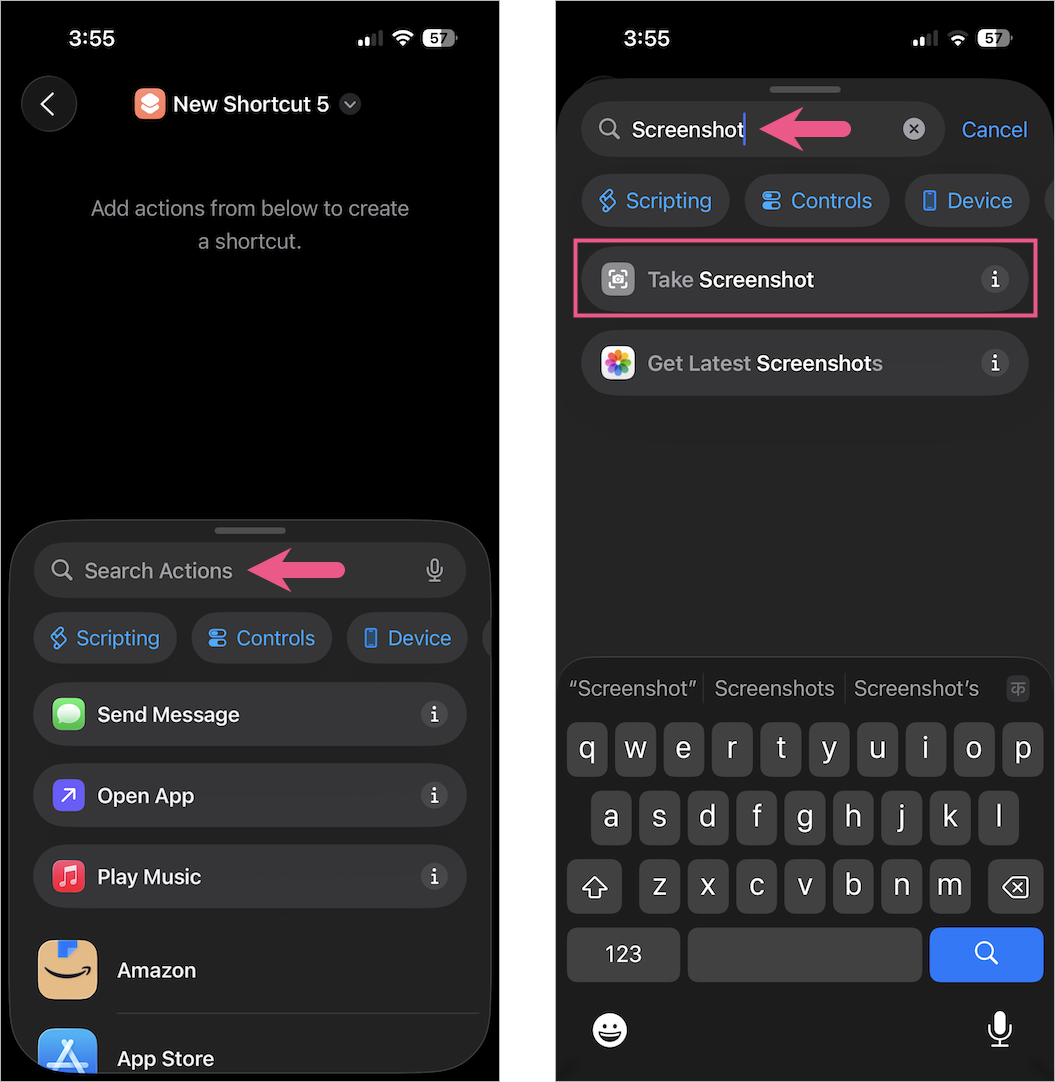
- In Search Actions, type “screenshot”. Then select “Take Screenshot.”
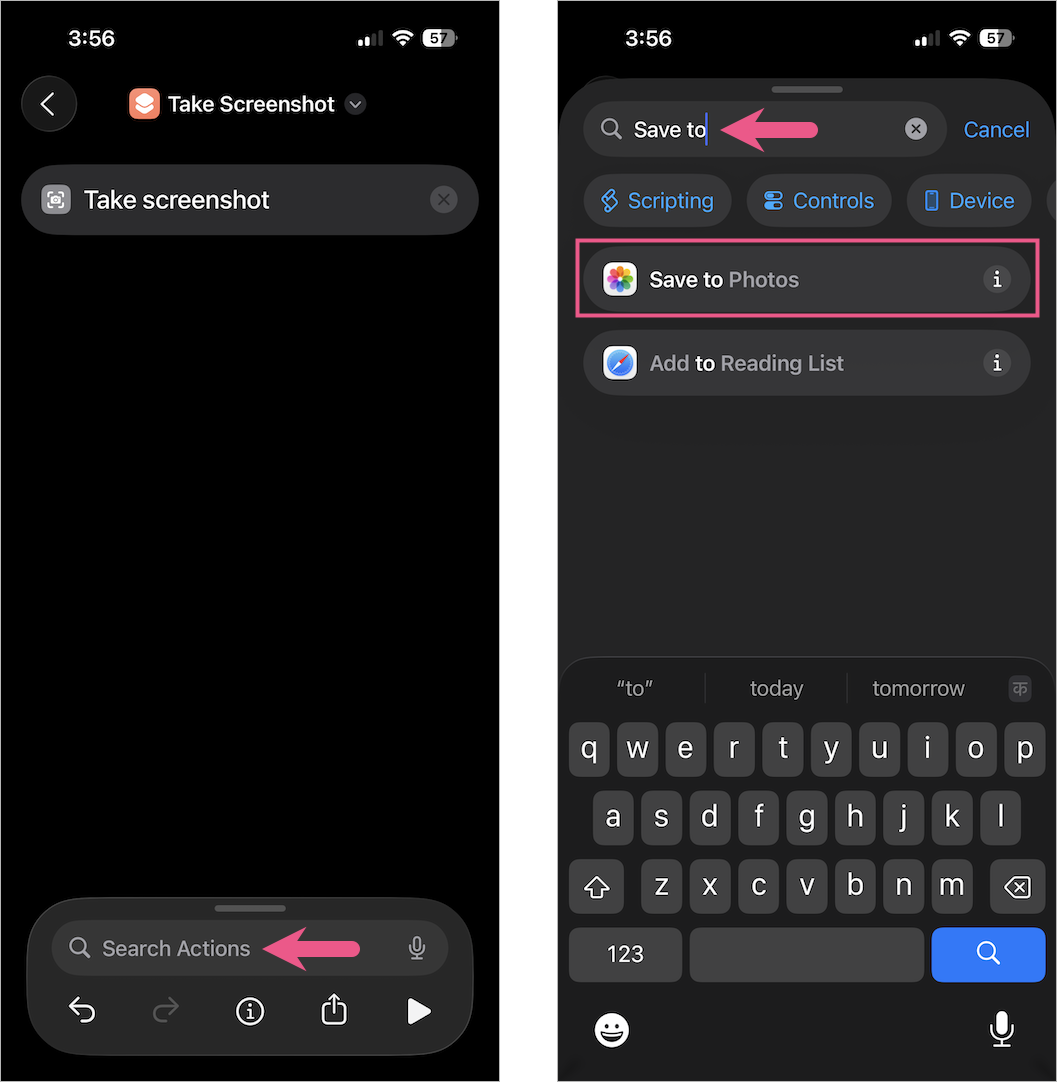
- Open Search Actions again, search for “save to” and select “Save to Photos.”
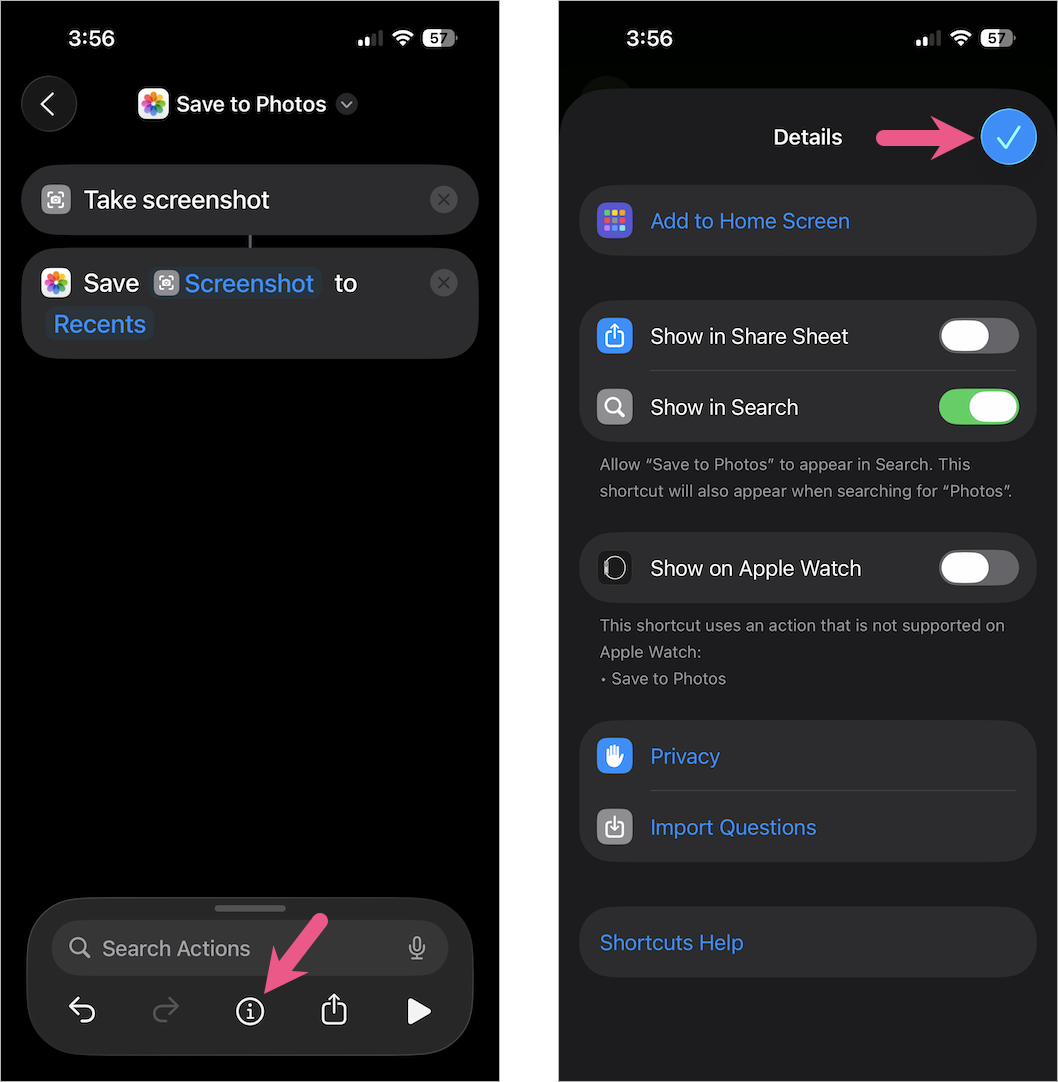
- Tap the i icon, then tap the blue tick mark to save the shortcut.
Set Action Button to take screenshots
- Go to Settings > Action Button > Shortcut.
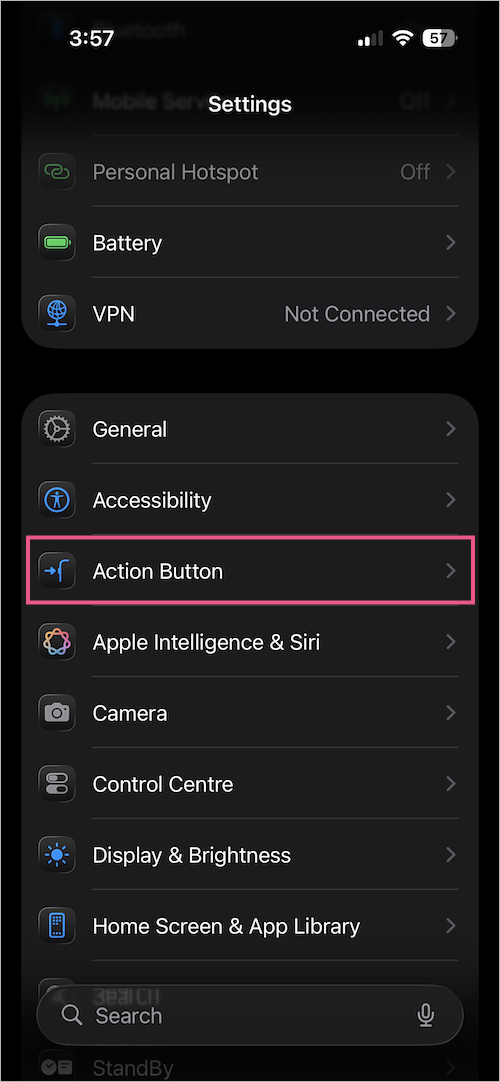
- Tap Choose a Shortcut and select the Save to Photos shortcut you created.
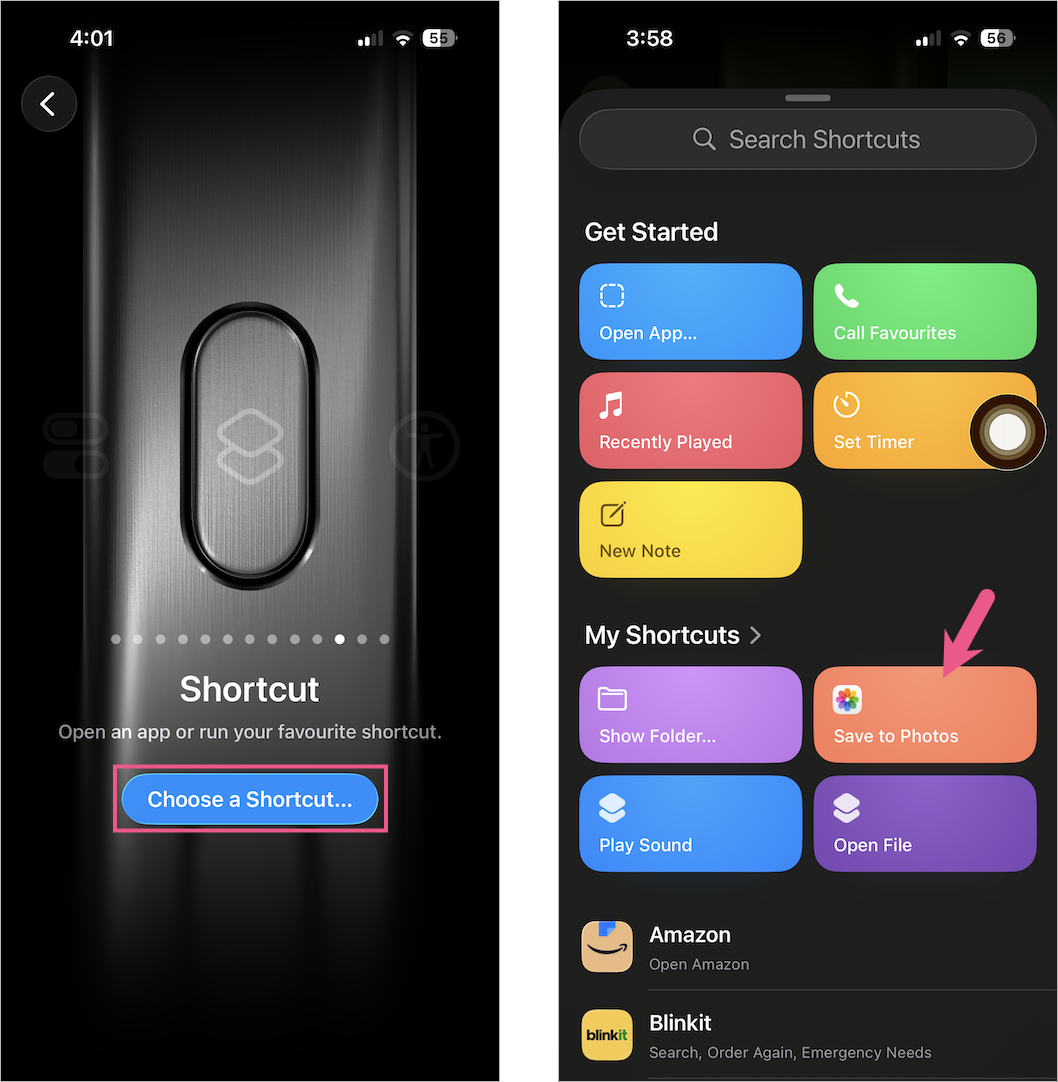
- Press and hold the Action Button whenever you want to capture the screen.
Note: This shortcut saves screenshots directly to Photos without displaying the screenshot preview.
Capture a Full-Page Screenshot
Instead of taking multiple screenshots, you can capture an entire webpage, email, or document as a single image or PDF.
- Take a regular screenshot.
- Tap the thumbnail preview in the lower-left corner if you’ve turned off “Full-Screen Previews”.
- Switch to Full Page.
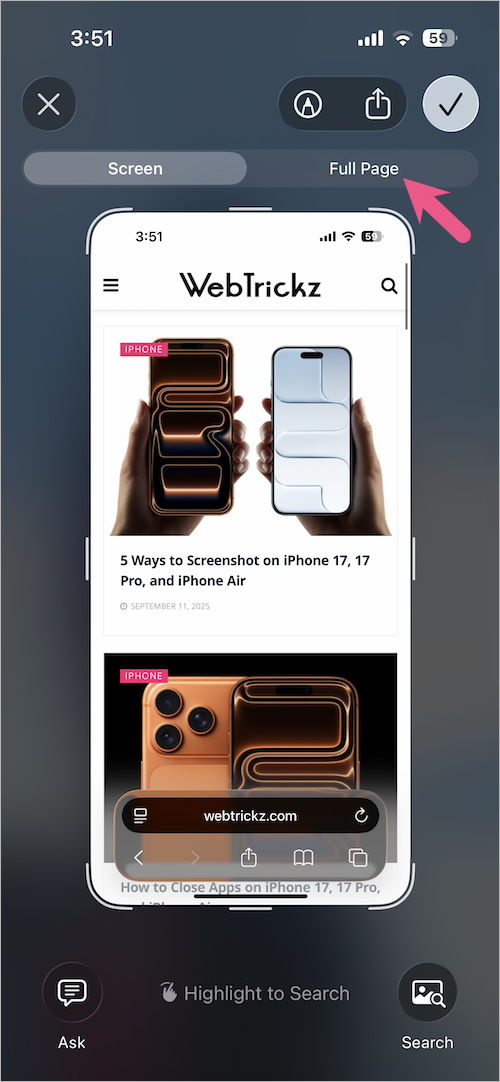
- Tap the checkmark and choose Save to Photos.
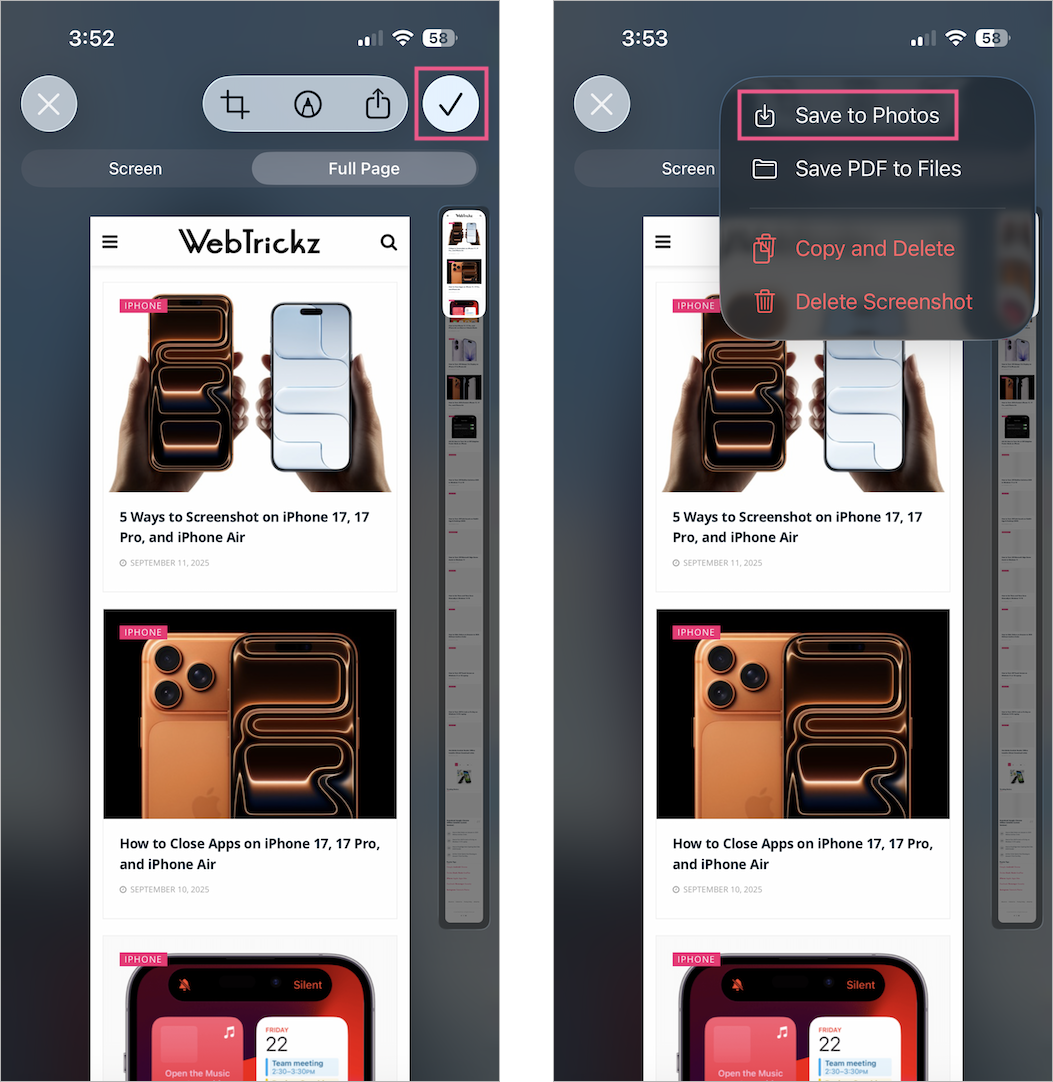
To save the page as a PDF instead, select Save PDF to Files.
Tip: Full-page screenshots are available only in supported apps such as Safari, Mail, and Notes.
Find Saved Screenshots on iPhone
All screenshots are automatically saved in the Photos app.
To find them:
- Open Photos.
- Go to Collections.
- Scroll to Media Types.
- Open the Screenshots album.
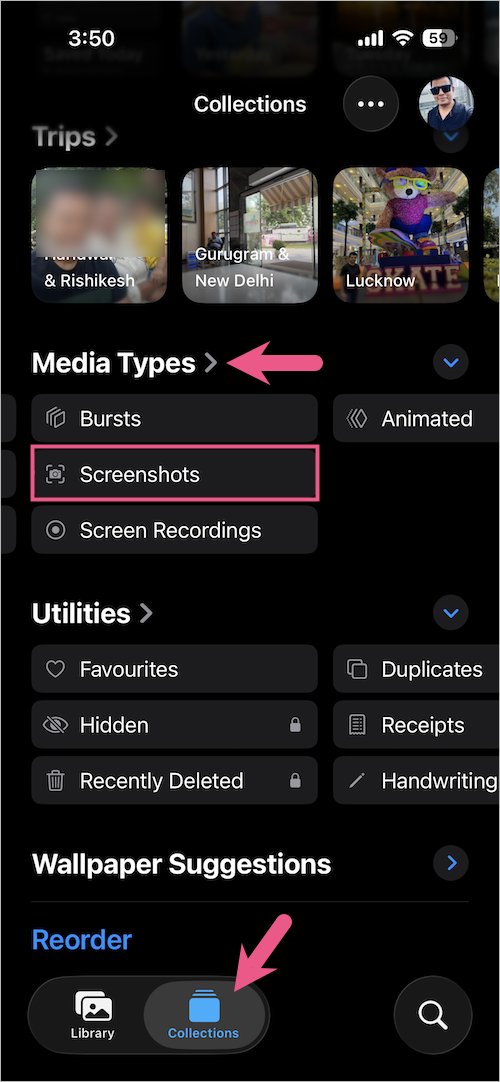
You can also find screenshots from the Library tab, mixed with your other photos.
Turn Off Full-Screen Screenshot Previews
In iOS 26, screenshots open in a full-screen editor instead of appearing as a small thumbnail.
If you prefer the older behaviour:
- Open Settings > General > Screen Capture.
- Turn off Full-Screen Previews.
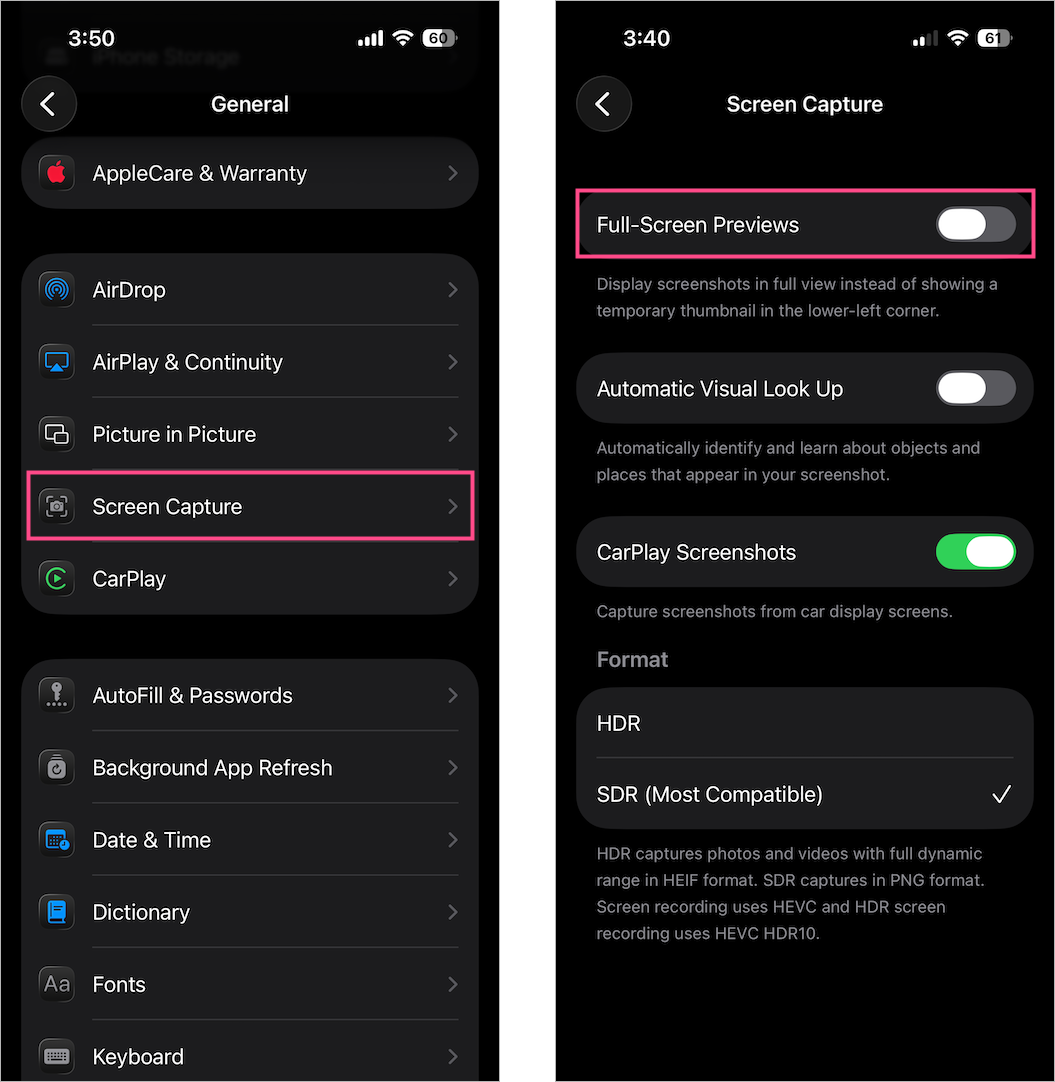
Your screenshots will once again save directly to Photos while showing only a temporary thumbnail.
Save Screenshots in HDR Format
iOS 26 also supports HDR screenshots with better colour accuracy, contrast, and dynamic range on compatible displays.
To enable HDR screenshots:
- Open Settings > General > Screen Capture.
- Select HDR.
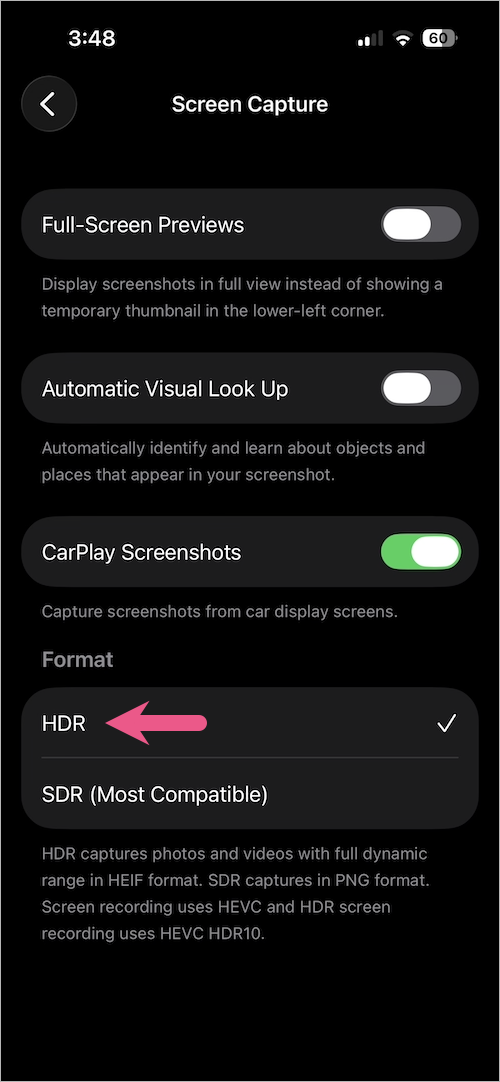
HDR screenshots are saved in HEIF format instead of PNG.
Related Guides
- How to Screen Record on iPhone 17, 17 Pro, or iPhone Air
- How to Automatically Save Screenshots to Photos in iOS 26
- How to Turn Off CarPlay Screenshots on iPhone
- Multiple Ways to Power Off or Restart iPhone Air
- How to Screenshot on iPhone 18 Pro and 18 Pro Max










