


Google Play is the default app store on Android devices, allowing you to buy apps, games, movies, and more. To make purchases, you need to link a payment method such as a credit card, debit card, PayPal account, or redeemable gift card.
But what if you no longer want your payment information stored in your Google Play account? Whether it’s for security reasons, privacy, or simply because you no longer use that card, Google makes it easy to remove or edit your payment method from any device.
This guide explains why you might want to remove your saved credit card and how to delete your payment method from the Google Play Store on Android, iPhone, and Computer.
Why Remove Payment Method from Google Play?
Let’s say your Android phone or tablet is accessed by multiple users, or a friend asks you to buy an app using your credit card. If your payment information is saved in Google Play, it can be misused for buying paid apps, subscriptions, or in-app purchases in just a few clicks.
To prevent unauthorized transactions, it’s a good idea to delete your credit card from your Google Play account after completing a purchase. Similarly, if your card has expired, been replaced, or you’ve switched to another payment method, removing the old details can help keep your account clean and secure.
How to Remove Credit Card from Google Play on Android
- Open the Play Store app on your Android device.
- Tap your profile icon at the top-right corner.
- Select Payments & subscriptions > Payment methods.
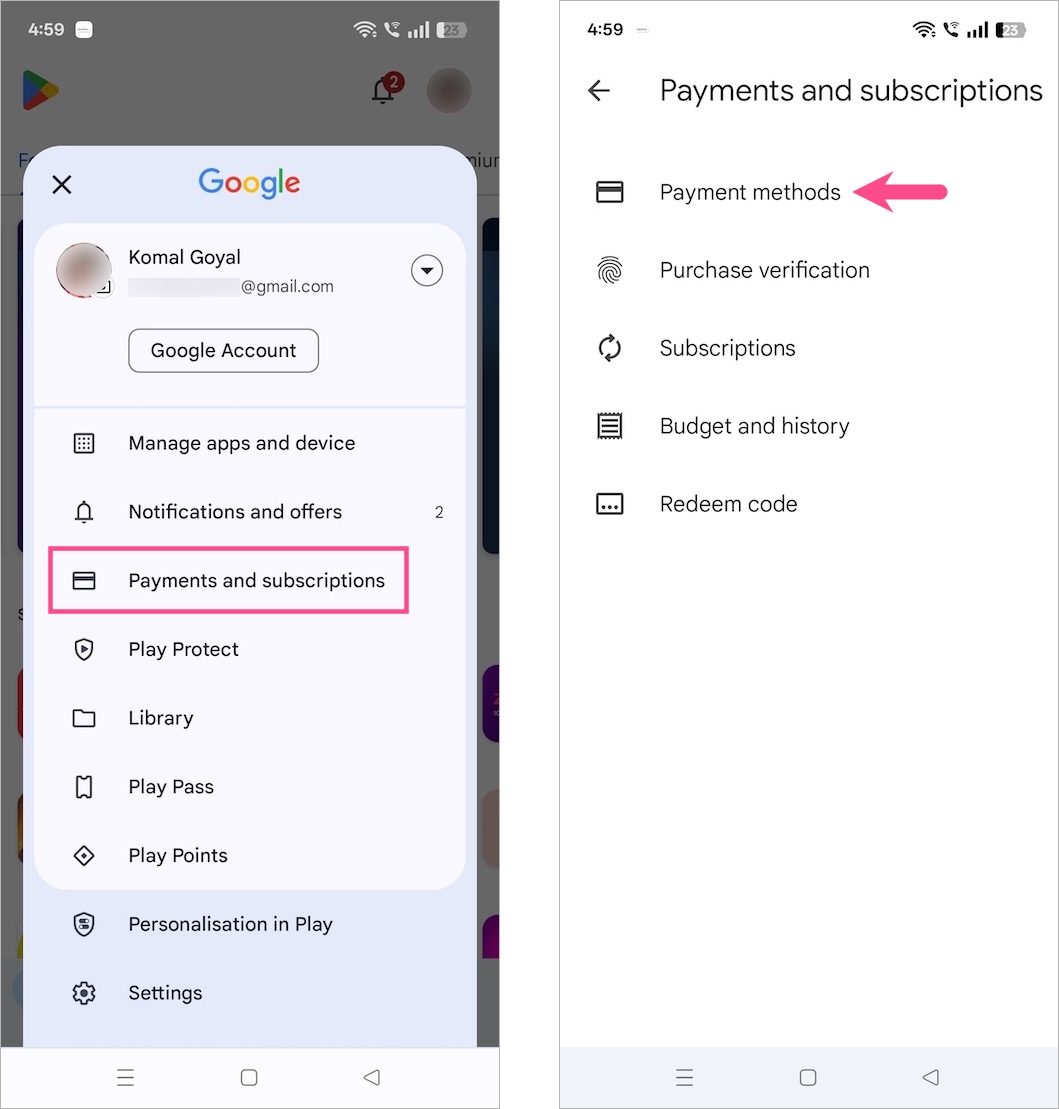
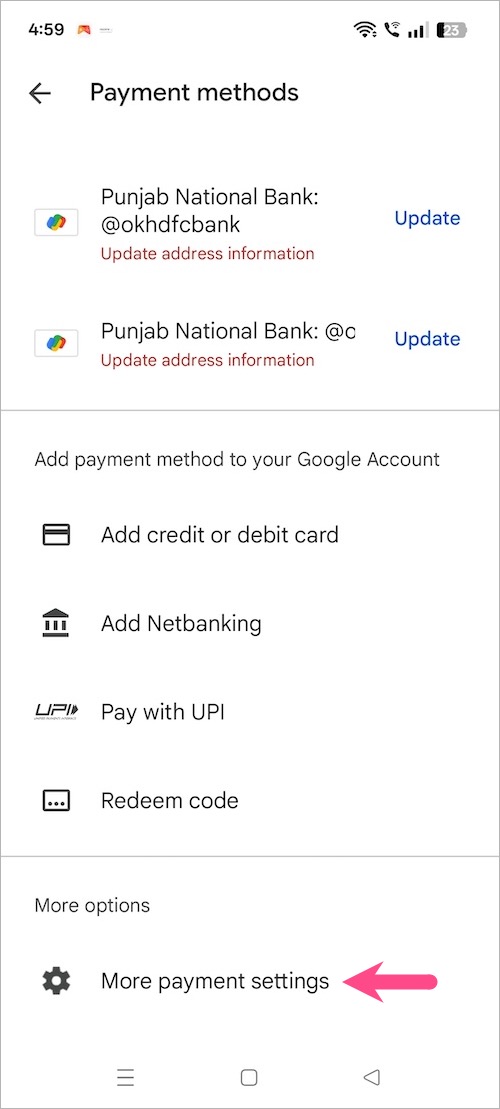
- Scroll down to the bottom and tap More payment settings (this will open a browser page).
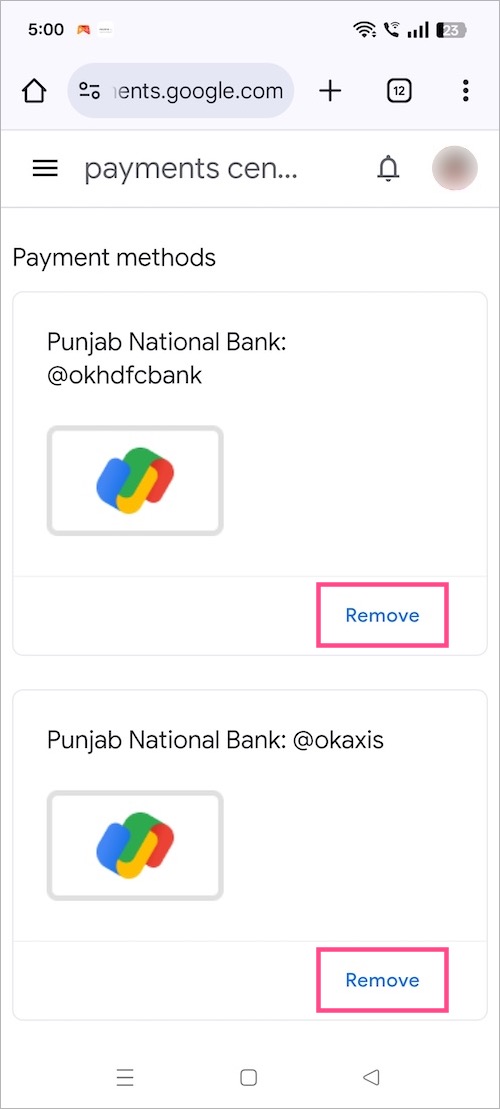
- Tap Remove next to the credit card or debit card you want to delete.
- Tap Remove again to confirm.
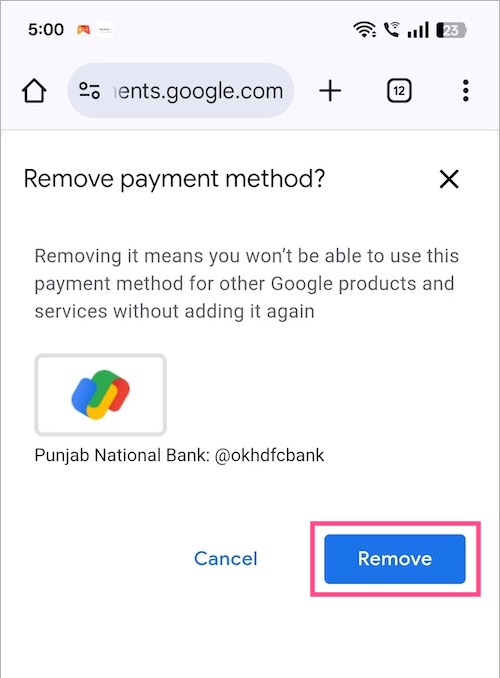
Your credit card info will be deleted from your Google account, and it will no longer be available for purchases on Google Play.
How to Remove Credit Card from Google Play on iPhone
Even though Google Play is meant for Android, you can manage your payment methods from an iPhone using a web browser.
To remove a payment method from the Google Play Store on an iPhone:
- Visit play.google.com/store/paymentmethods in Safari or Chrome.
- Sign in with your Google account.
- Under “Payment methods,” tap Edit payment methods.
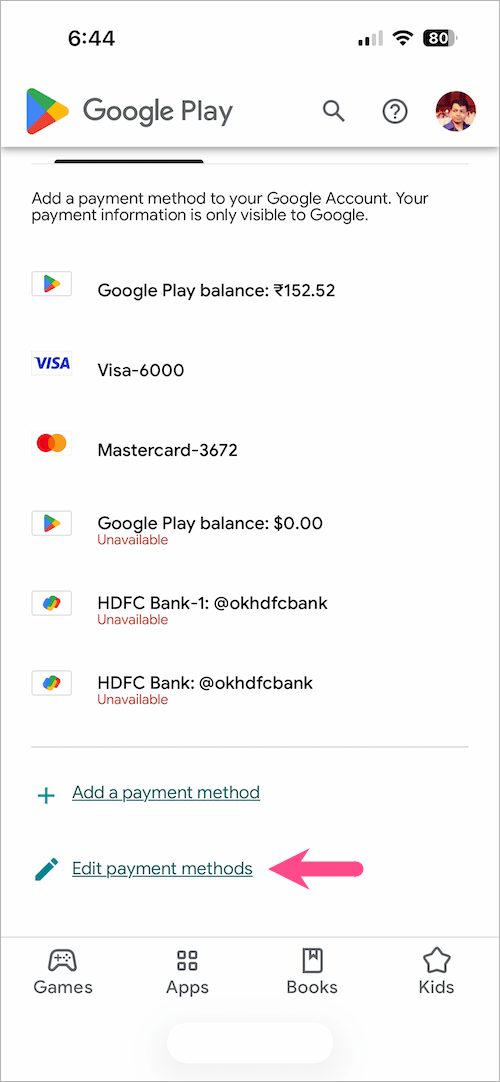
- Locate the card or PayPal account you’d like to delete.
- Tap Remove, then tap Remove again to confirm.
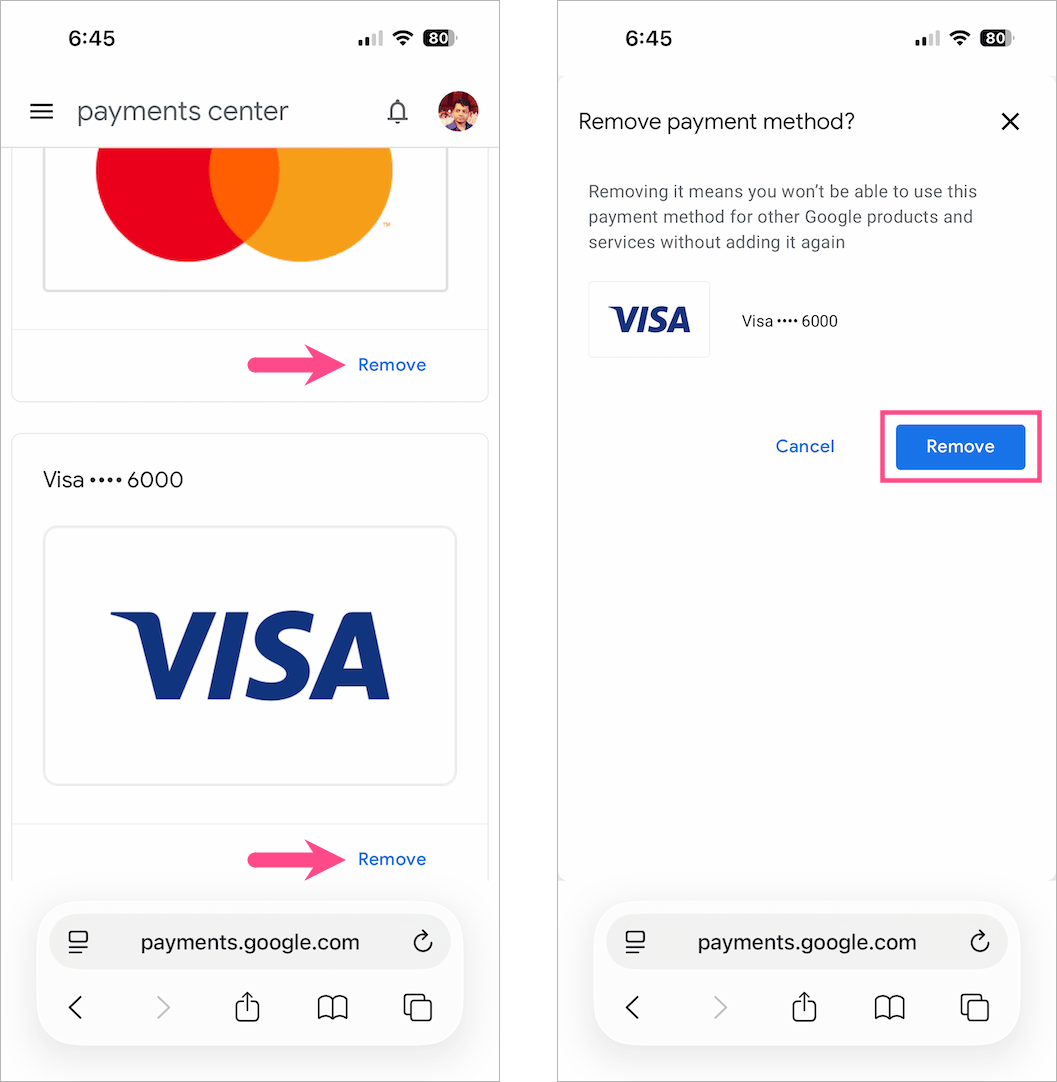
Tip: You can also remove your PayPal account from Google Play using the same steps.
How to Remove Payment Method from Google Play on Computer
To remove a payment method from your Google account on a computer:
- Open a web browser and go to play.google.com/store/paymentmethods.
- Sign in to your Google account if you aren’t already.
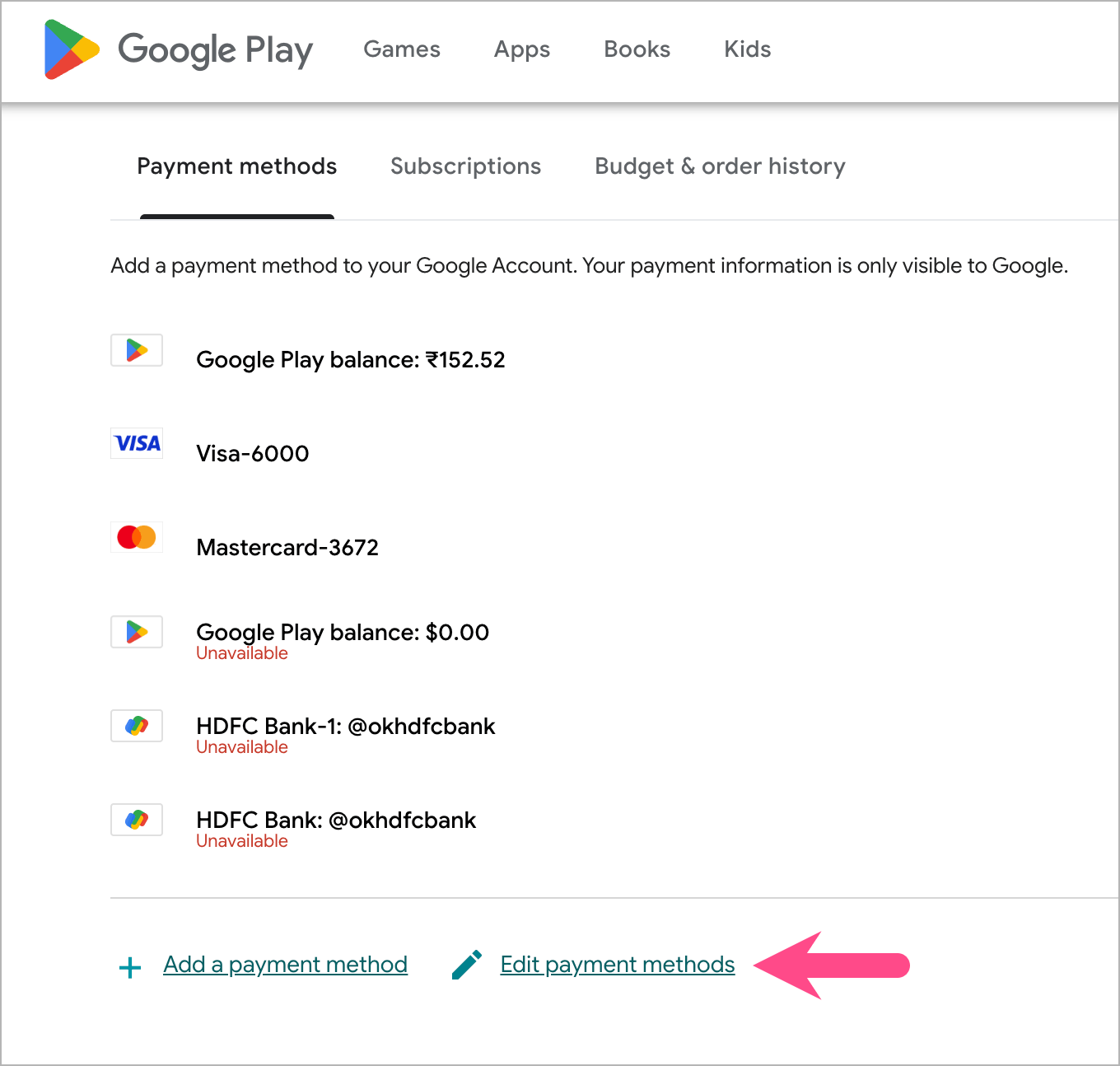
- Under “Payment methods”, click Edit payment methods.
- Find the payment method you want to delete and click Remove next to it.
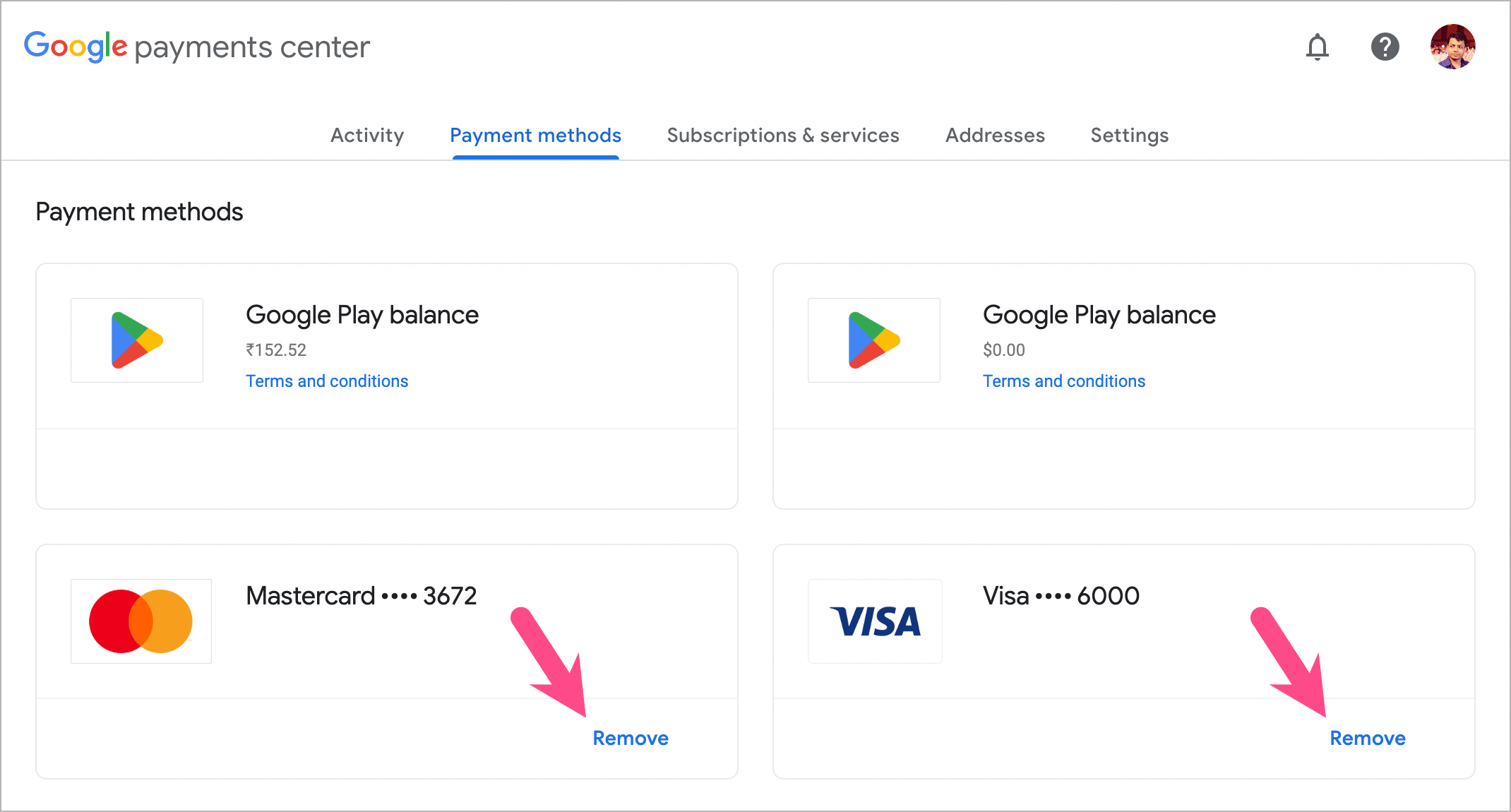
- Click Remove to proceed.
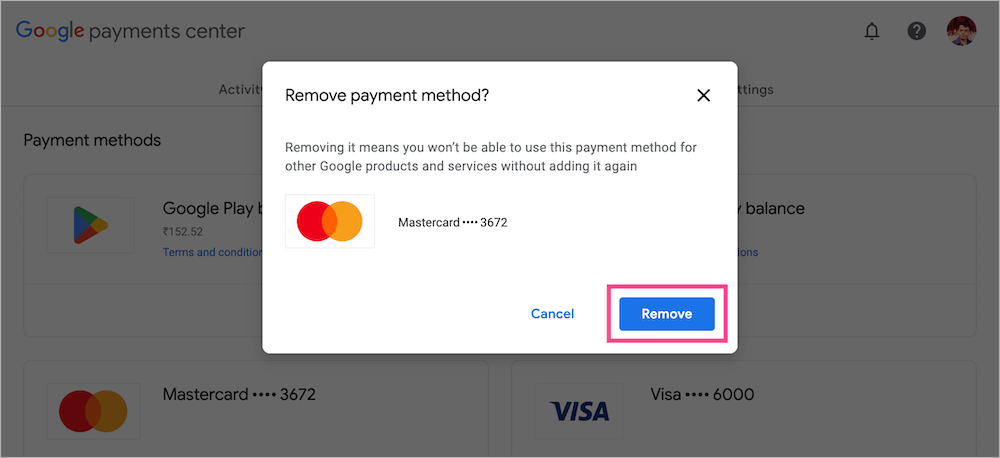
Once removed, the chosen payment method will no longer be available for purchases on Google Play or other Google services across devices linked to your account.
Looking to stop future Gemini charges? See our guide on how to cancel your Google Gemini subscription on Android, iPhone, and Computer.
How to Edit Payment Method on Google Play
Instead of removing a payment method, you can also update your existing card or billing information.
To update your Google payment method on Android, iPhone, or Computer:
- Open the Play Store app (Android) or visit Payment Methods (iPhone & PC).
- Tap your profile icon and go to Payments & subscriptions > Payment methods.
- Scroll to the bottom and tap Edit payment methods.
- Tap Edit next to the card you want to update.
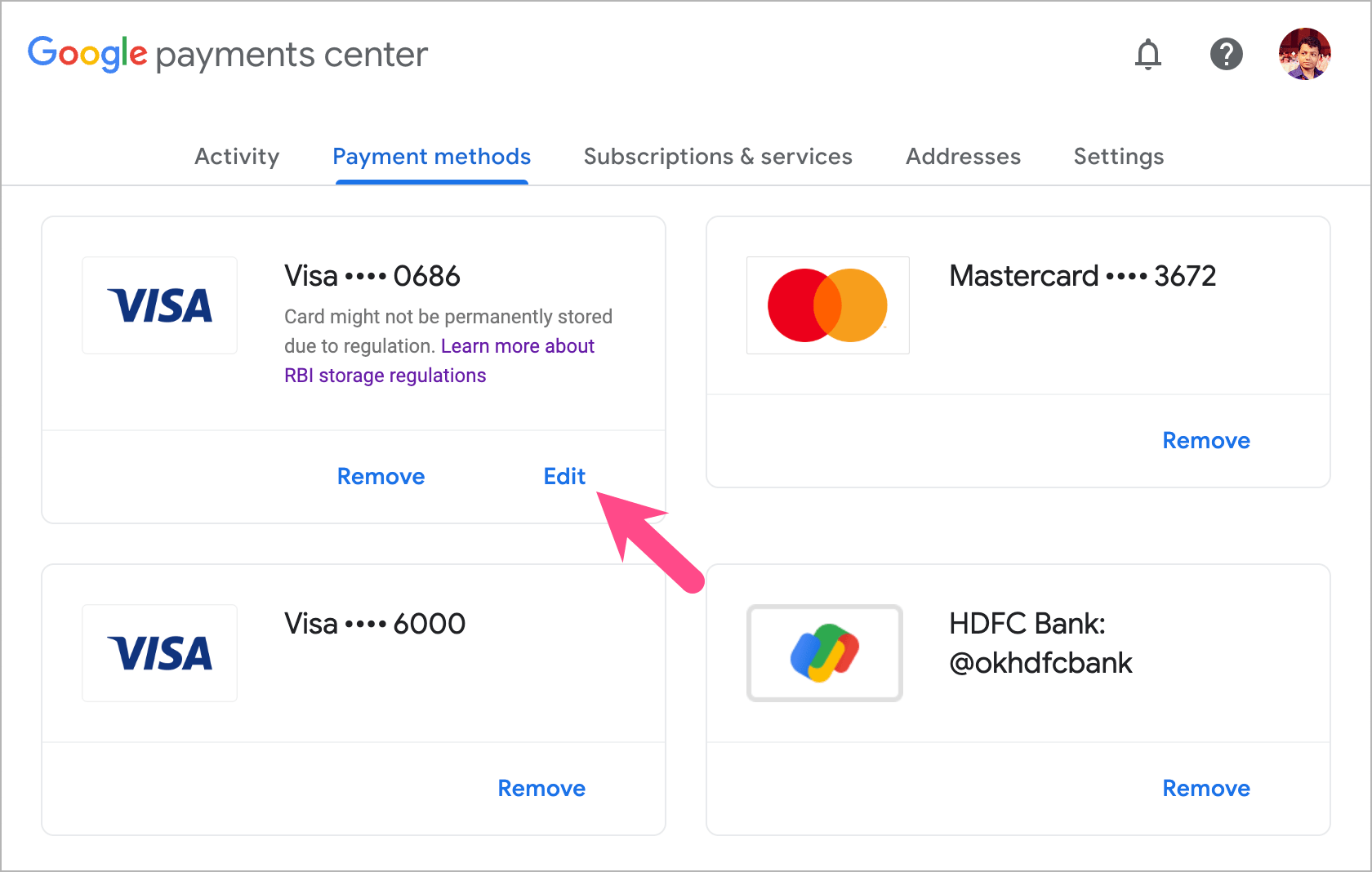
- Change the expiry date, cardholder name, or billing address.
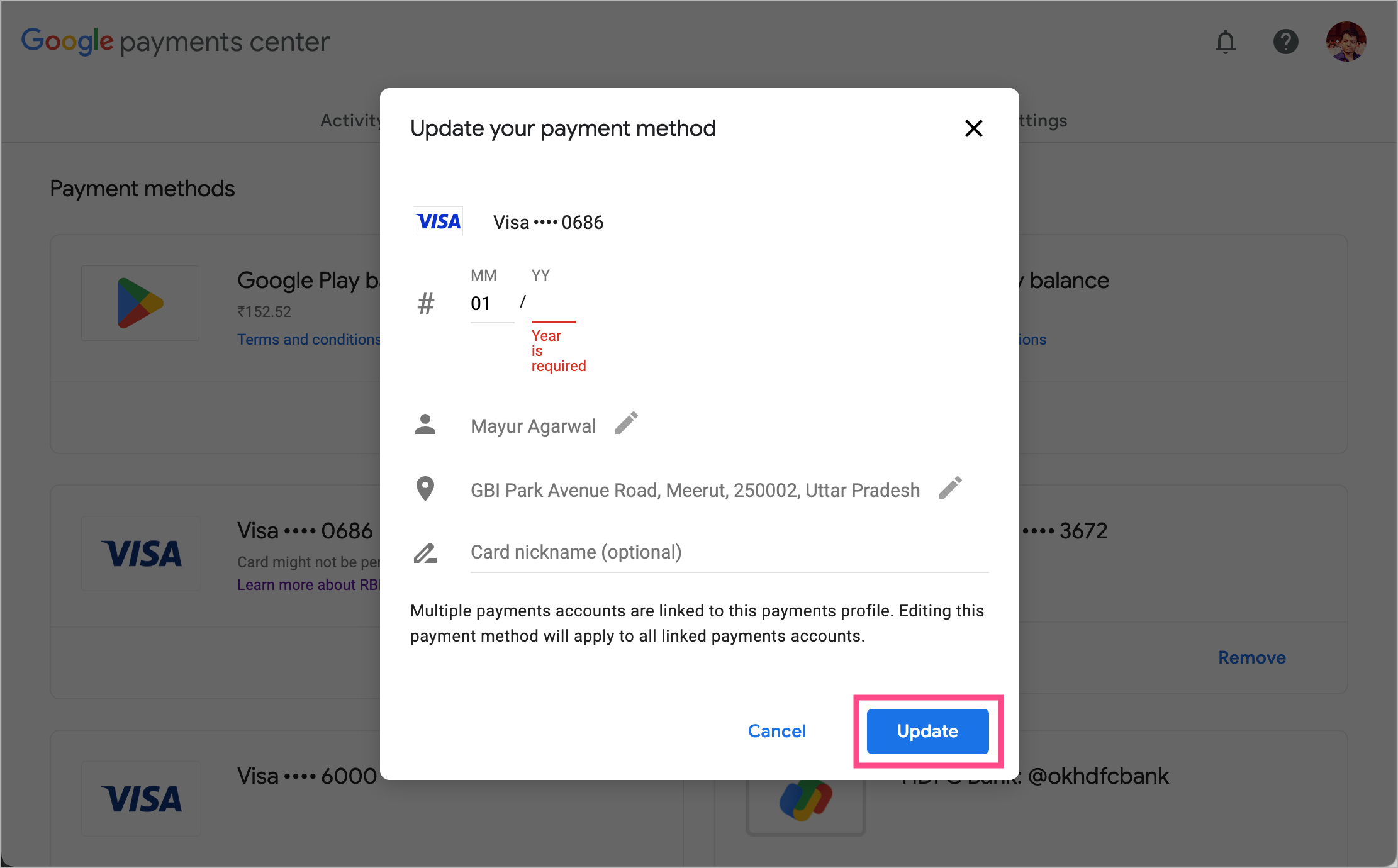
- Tap Update to save the changes.
Following these steps will help you easily remove, update, or manage your Google Play payment methods to keep your account secure.








