


Spotify has recently introduced Smart Shuffle, a new play mode for its Premium users. Smart Shuffle replaces Enhance and offers personalized recommendations within user-curated playlists. By enabling it, users can discover new music and enjoy fresh listening sessions.
If you don’t like it, you can easily turn Smart Shuffle off while playing music or even disable it permanently from Spotify settings.
What is Smart Shuffle on Spotify?
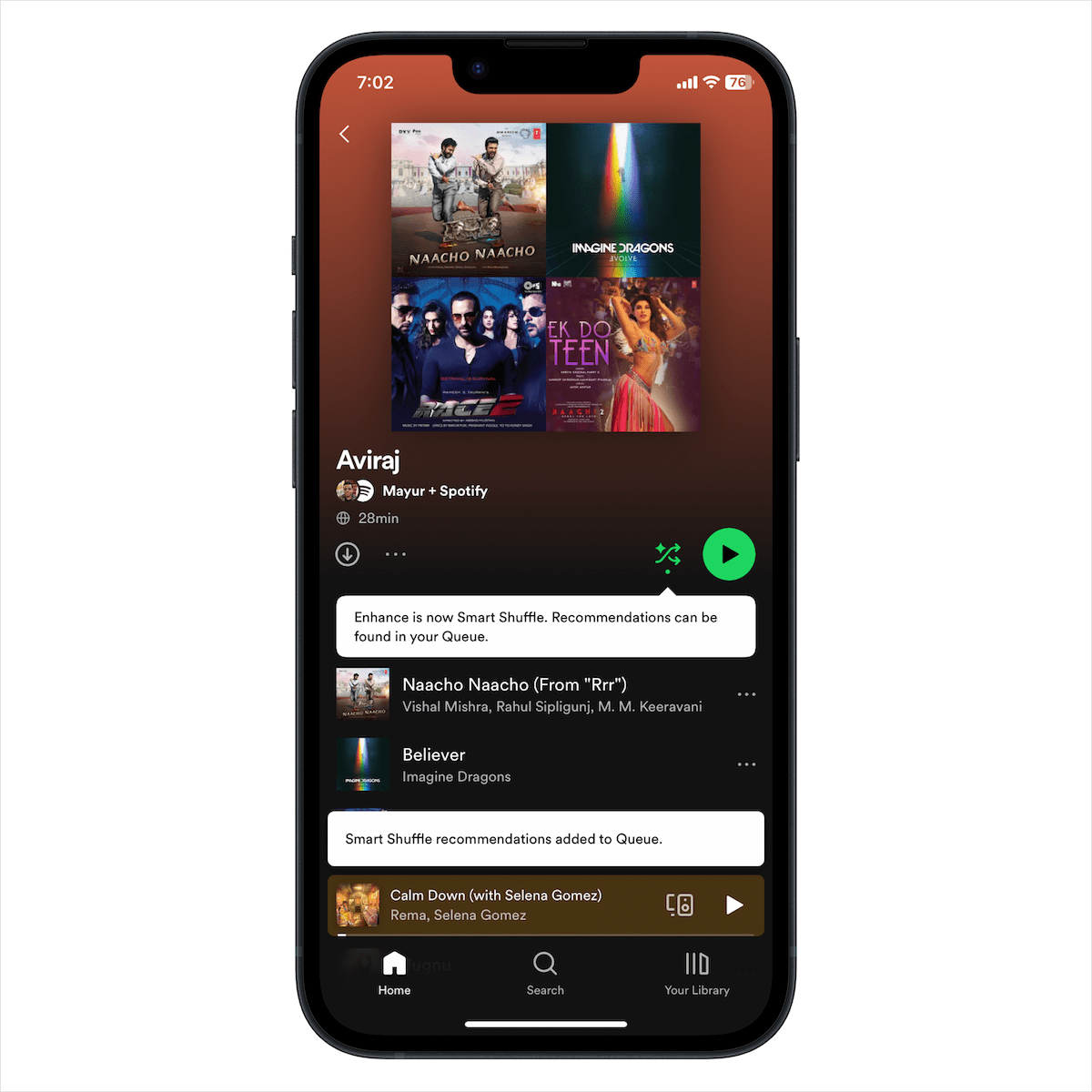 Smart Shuffle mixes perfectly tailored song suggestions into an existing playlist on Spotify, including your Liked Songs. Importantly, it does not make any permanent changes to your original playlist.
Songs added by Smart Shuffle are marked with a sparkle symbol, making it easy to spot recommendations in your queue.
- Tap the plus (+) button in the Now Playing view to save a recommended track to your playlist.
- Tap the cross (x) button to remove a track from the suggestions.

Spotify then uses this feedback to improve future recommendations when you use Smart Shuffle.
Reasons to Turn Off the Smart Shuffle Mode
While Smart Shuffle can help you discover new music, many users find it annoying for several reasons:
- Less control over playlist playback as recommended tracks are automatically added to your queue.
- Confusing controls – Smart Shuffle is merged with the Shuffle button, requiring multiple taps to switch between play modes.
- Replaced features – The old Enhance button, which many found more convenient, is gone.
If you prefer playing tracks in order or using normal Shuffle, the Smart Shuffle mode can feel like an unnecessary distraction.
Thankfully, Spotify has now added an option in Settings that lets you completely turn off Smart Shuffle on iPhone and Android. Users looking to get rid of Spotify recommendations in their playlists will surely welcome this addition.
By disabling Smart Shuffle, you can easily stop Spotify from playing suggested songs or songs that aren’t on your playlist.
How to Turn Off Smart Shuffle on Spotify Permanently
To permanently disable Smart Shuffle in the Spotify app on iPhone and Android:
- Open the Spotify app on your phone.
- Go to Home and tap your profile picture in the top-left corner.
- Select Settings and privacy, then tap Playback.

- Scroll down and turn off the toggle for “Include Smart Shuffle in play modes.”
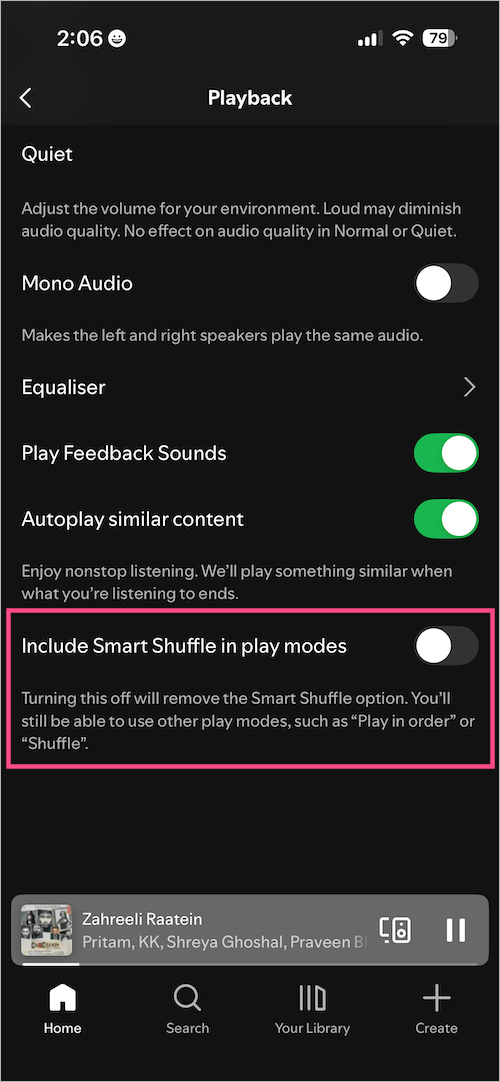
Once disabled, Smart Shuffle will no longer appear when you tap the Shuffle button. You’ll only have access to “Shuffle” and “Play in order”.
Note: This setting is available only to Spotify Premium users on the mobile app.
How to Turn Off Smart Shuffle in Spotify Playlist or Now Playing
This method is ideal if you want to temporarily switch between play modes without removing Smart Shuffle entirely. You can cycle between:
- Play in order (grey shuffle icon)
- Shuffle (green shuffle icon without sparkle)
- Smart Shuffle (green shuffle icon with sparkle)
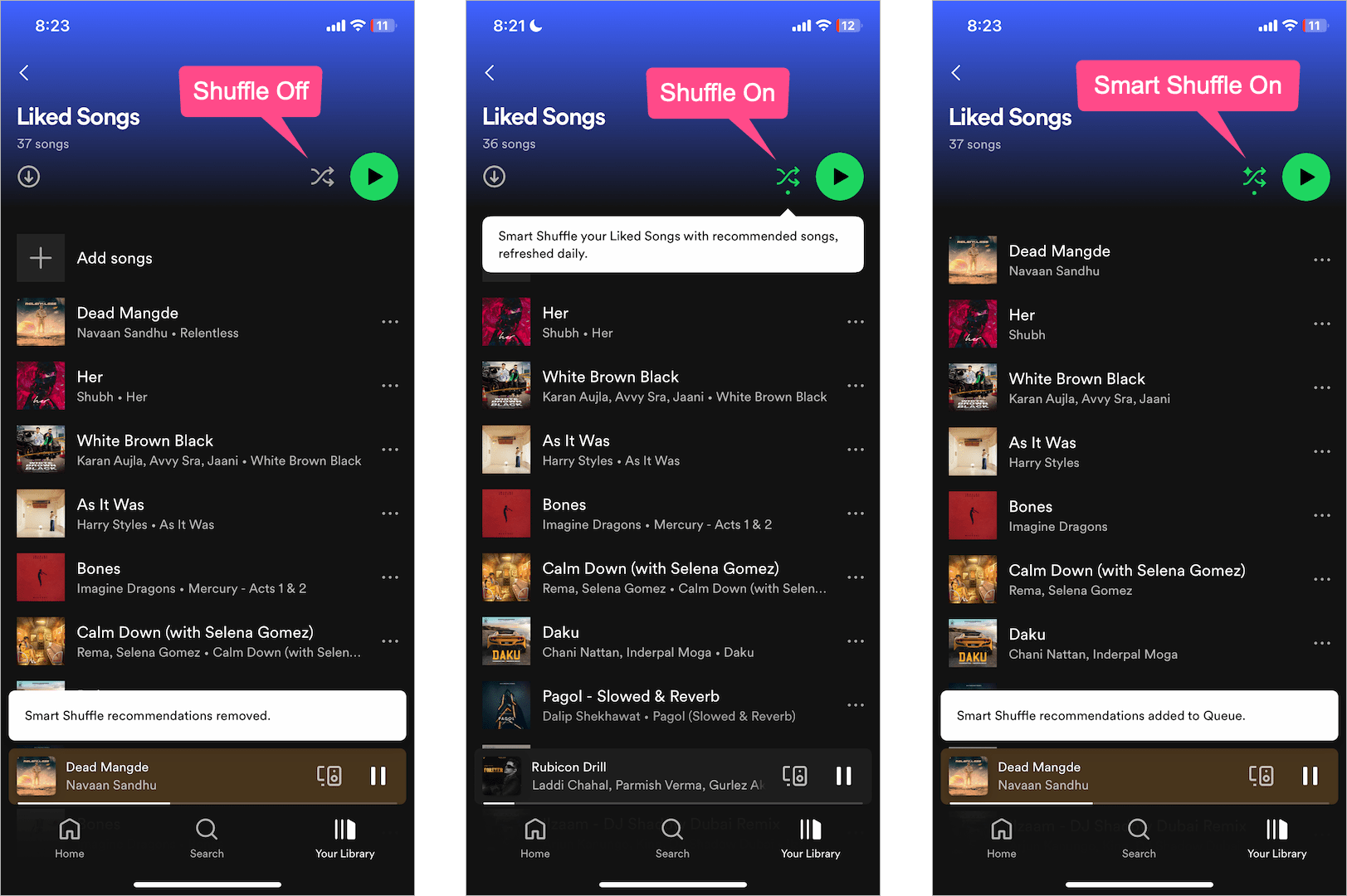
To disable Smart Shuffle temporarily:
- Open a playlist from Your Library or the Now Playing screen.
- If Smart Shuffle is enabled, the shuffle icon will be green with a sparkle.
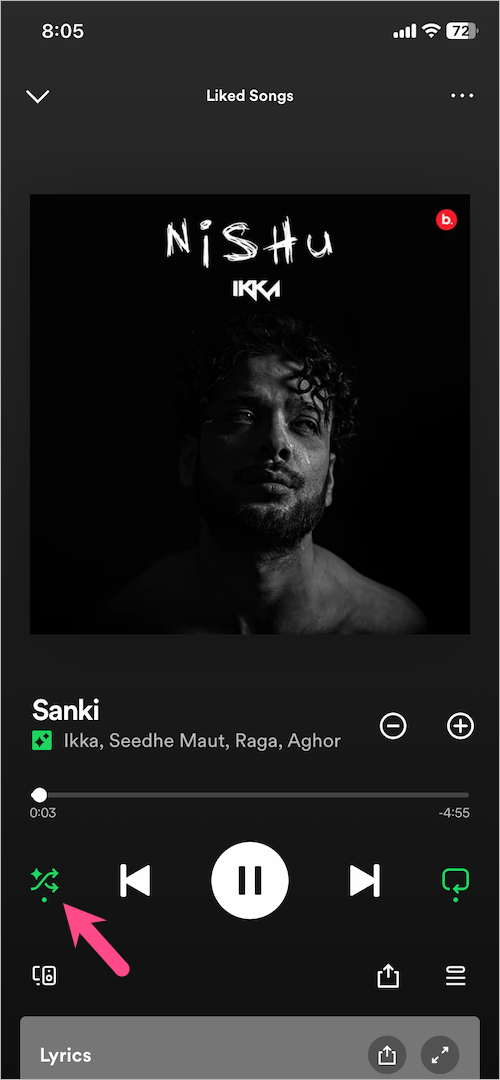
Smart Shuffle Enabled in Now Playing - Tap the Shuffle icon once to switch from Smart Shuffle to regular playback or twice for normal Shuffle mode.
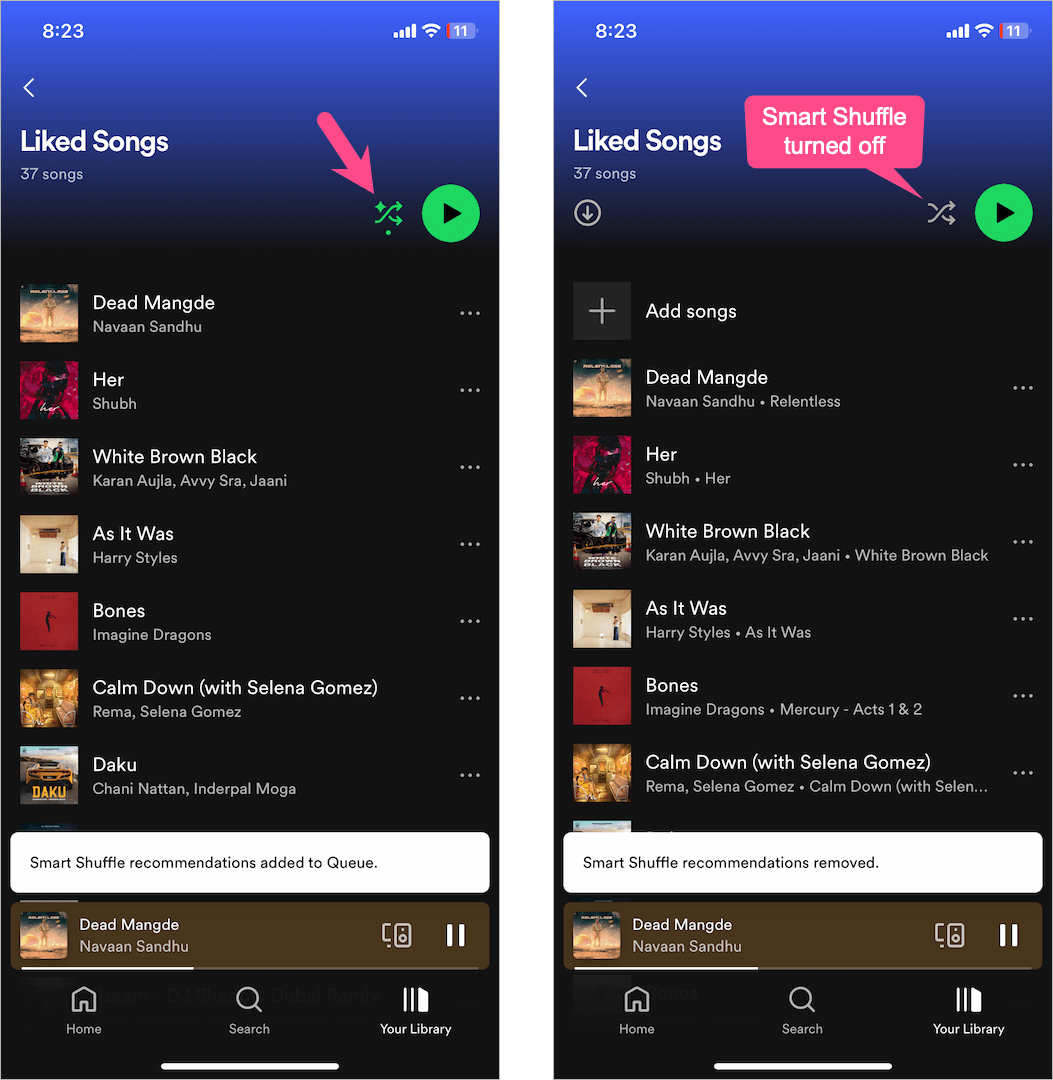
A message saying “Smart Shuffle recommendations removed” might appear at the bottom when it’s turned off.
Can I Turn Off Smart Shuffle on Spotify Without Premium?
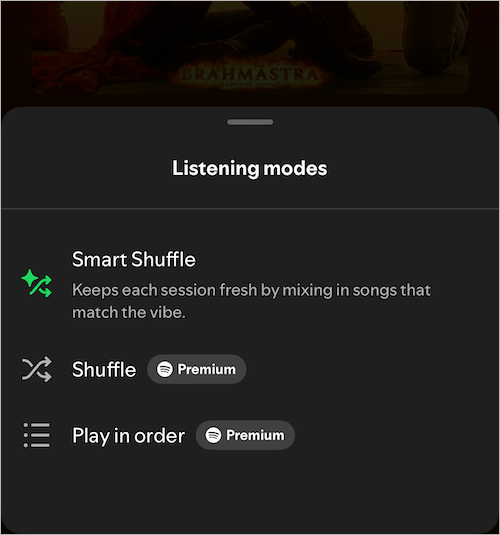
No. Spotify Premium is required to turn off both Shuffle and Smart Shuffle.
The free version of Spotify restricts users to only Smart Shuffle listening mode. This means you cannot use regular Shuffle or Play in order unless you upgrade to Premium. The limitation applies across playlists, albums, and Liked Songs.
Tip: If you’re a Premium user who never uses Smart Shuffle, the permanent disable option in Playback settings is the best way to avoid it altogether.
Related Tips:








