


In March, Samsung launched the Galaxy A56 5G and Galaxy A36 5G, successors to the Galaxy A55 and Galaxy A35, respectively. These new Galaxy A series smartphones come with Awesome Intelligence that offers advanced AI-powered features, and they run on the latest One UI 7 based on Android 15.
Perhaps, if you’ve got a new Galaxy A phone and aren’t familiar with Samsung’s previous flagships, then you may face difficulty while powering off or restarting your device. That’s because the Side button replaces the old Power button on newer Galaxy devices, and long-pressing it opens up Bixby, by default.
Thankfully, there is an option to remap the Side key in One UI so that the Power menu opens up instead of Bixby on a long-press.
To help you out, here’s a quick guide to power off Samsung Galaxy A56 or A36 5G in case it’s stuck or not responding. Additionally, you will learn how to quickly switch off your phone without using physical buttons.
3 Ways to Power Off Your Galaxy A56 and Galaxy A36
Using hardware buttons
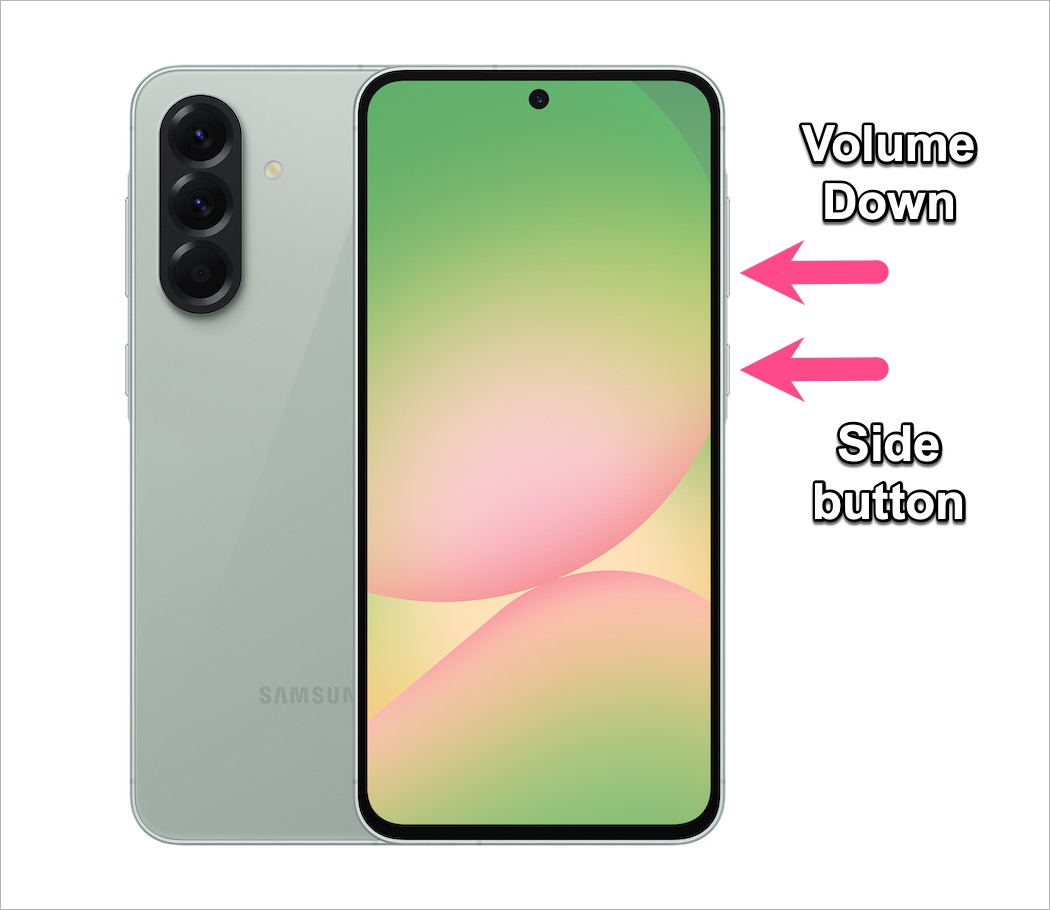
- Press and hold the Side button and Volume Down key at the same time until you see the power menu on the screen.
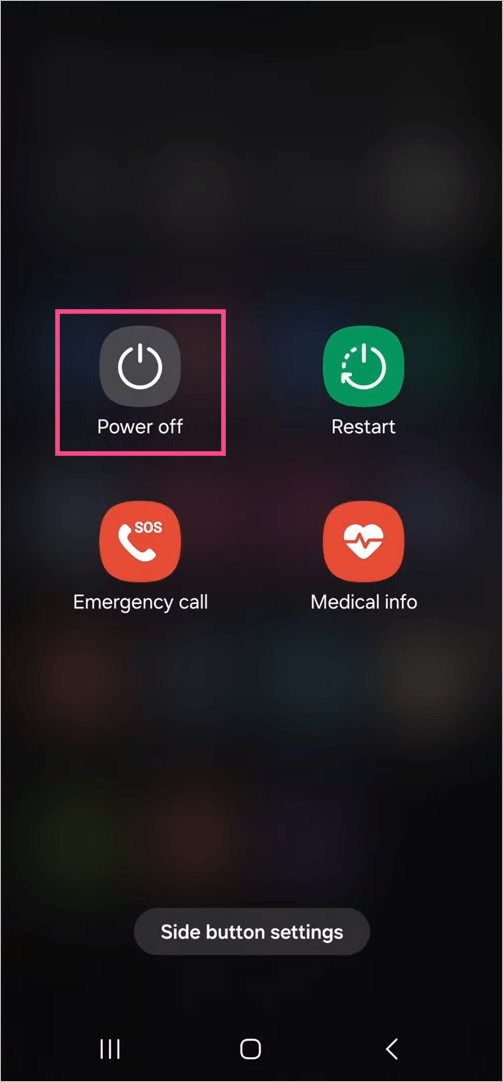
- Select “Power Off”.
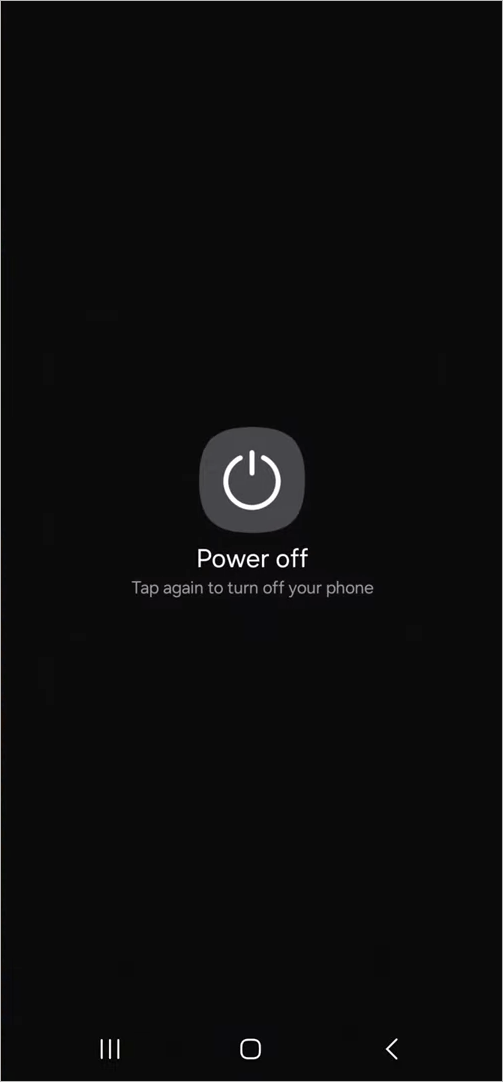
- Tap the Power off button again to shut down the device.
To turn on the Galaxy A56/A36, press and hold the Side button for a few seconds. The phone will switch back on, and the Samsung logo will appear on the screen.
To restart your Galaxy A56 or Galaxy A36, simply follow the above steps and tap the “Restart” option instead of Power off.
Using the Quick Settings panel
Quick Settings in One UI features a virtual power menu button that many users aren’t aware of. This shortcut is an alternate way to shut down your phone without using the power button or physical buttons. It comes in handy when the Side button is not working or when you are operating the phone single-handedly.
To turn off your Galaxy A56 or A36 from the Quick Panel, follow the steps below:
- Swipe down from the top right of the screen to open the Quick Settings panel.
- Tap the “Power” icon at the upper-right, next to the Pencil icon.
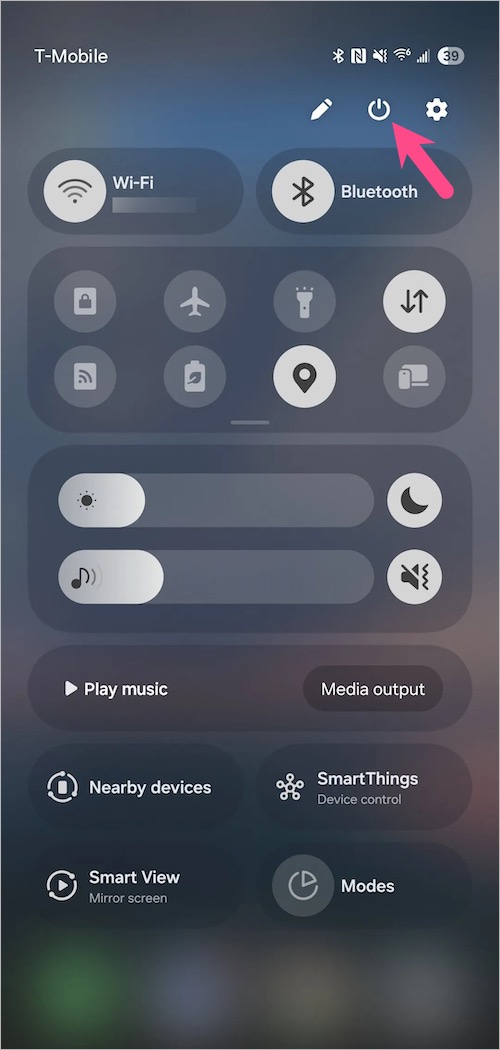
Quick Panel in One UI 7 - Select Power off or Restart from the power menu screen.
- Tap the appropriate button again to perform the desired action.
Using Bixby
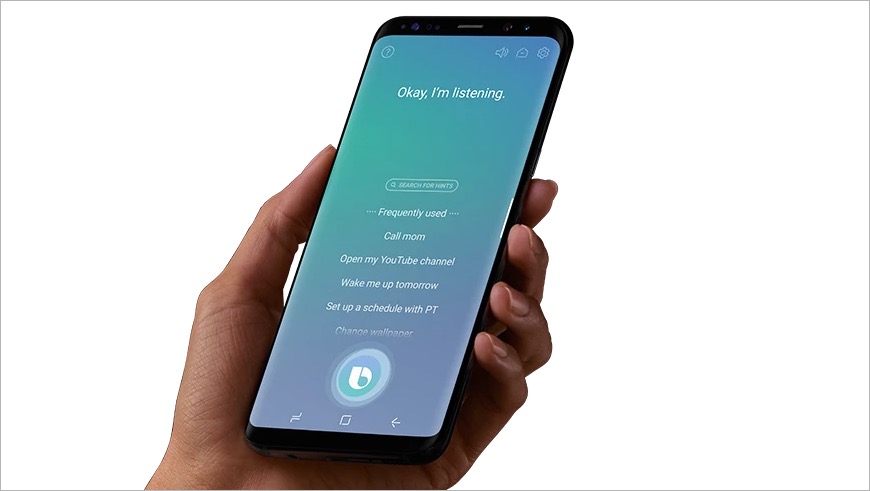
Even if you don’t use Bixby, you can still rely on Samsung’s voice assistant to reboot or shut down your Galaxy phone. To get this working, ensure that Bixby Voice is set up. Then, launch Bixby using either the Side button or the Bixby app.
Once Bixby is activated, simply say commands like “Turn off my phone” or “Restart the device”, and Bixby will take care of the rest.
How to Remap the Side button
By default, pressing and holding the Side button on the Galaxy A56 and A36 launches Bixby Voice instead of showing the power menu.
If you don’t often use Bixby or prefer not to use the combination of power and volume buttons to turn off or restart your phone, you can easily change the default function of the Side key.
To change the Side button settings on One UI 7, go to Settings > Advanced features > Side button.
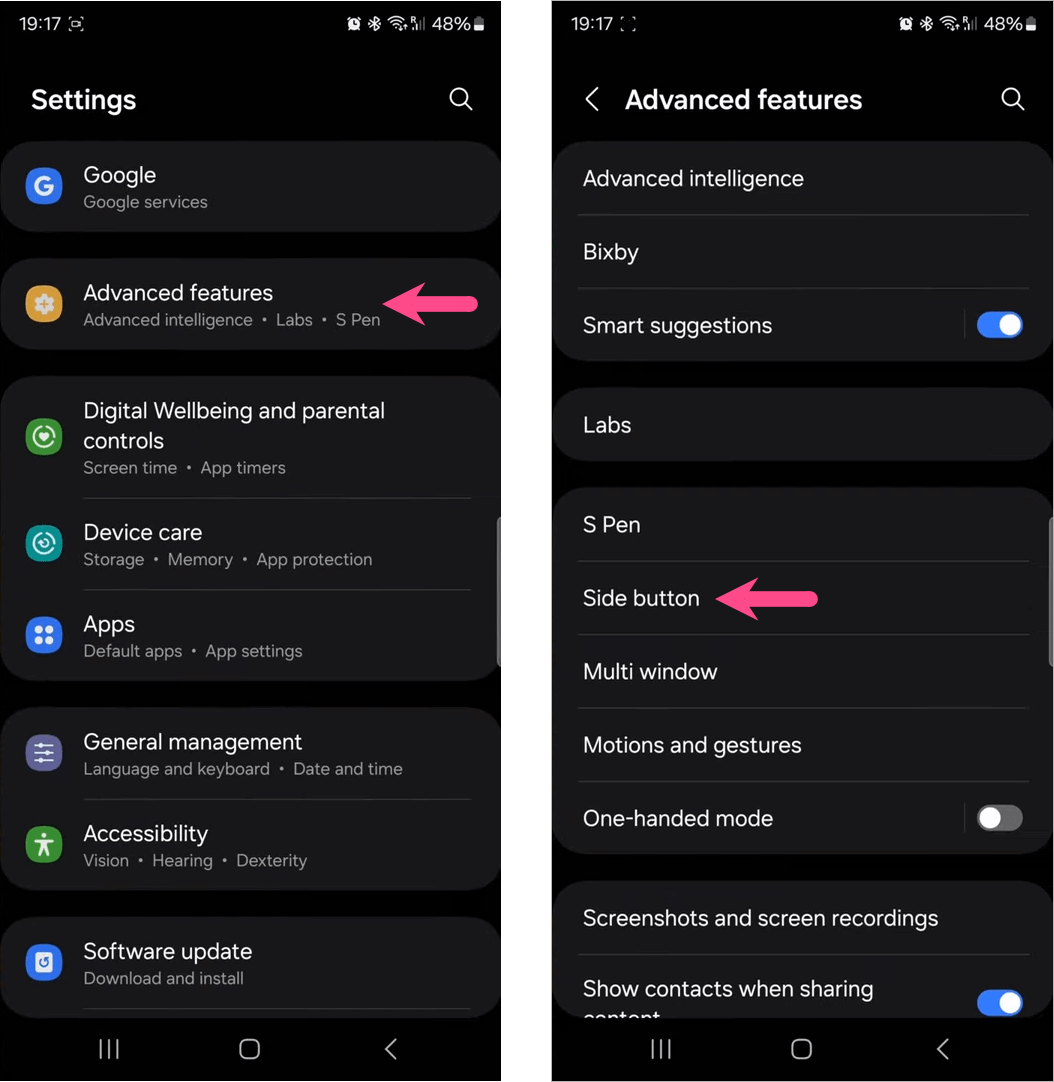
Tap “Long press” (“Press and hold” in One UI 6) and choose “Power off menu” instead of Bixby.
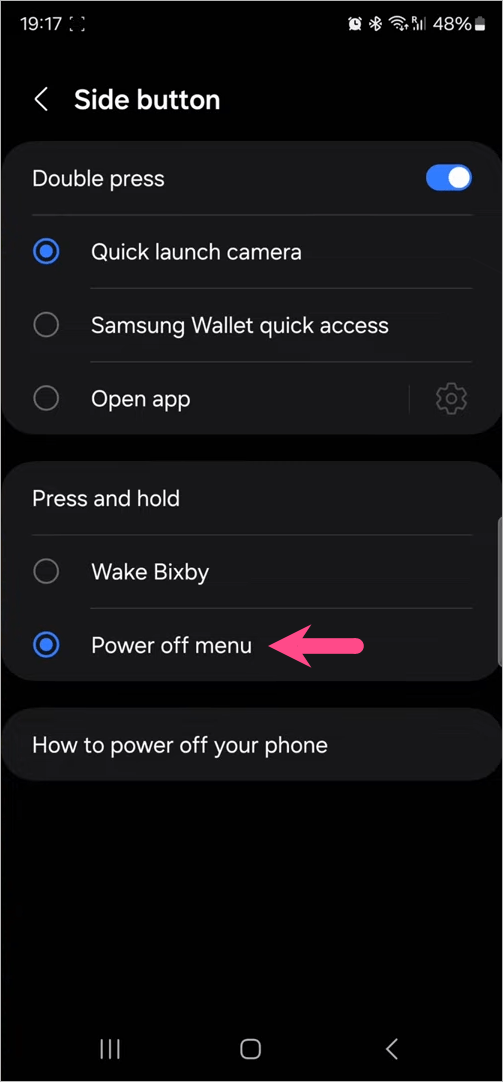
Voila! You will now see the power off and restart options when you hold down the Side button.
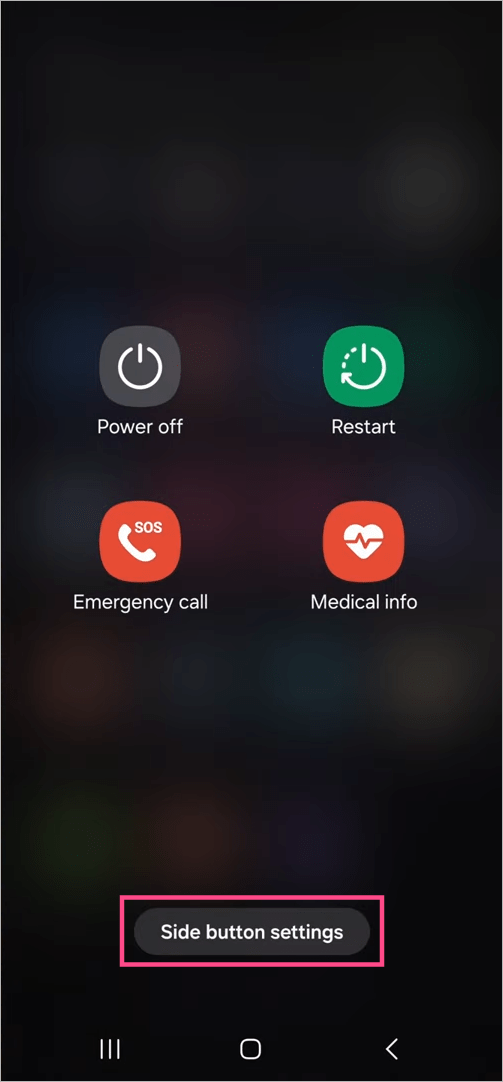
Alternatively, you can tap the “Side button settings” option on the power menu screen to remap the Side button on your Galaxy A36 or A56.
How to Force Restart Galaxy A56 and A36
Is your Galaxy A56 or A36 stuck on the Samsung logo, or is the touchscreen unresponsive?
If your device is frozen, not responding, or stuck in a boot loop, a regular restart may not work. In such cases, performing a force restart or hard reset can help you bring your phone back to normal.
To force restart the Galaxy A56 and A36, press and hold the Side and Volume Down buttons together for about 15 seconds. Make sure to keep holding both buttons until the Samsung logo appears on the screen. After that, wait for a minute to let the device boot up completely.










