WebTrickz
TRENDING
  • Claude vs ChatGPT: Which Is Better in 2026?
No Result
View All Result
  • Reviews
  • Editorials
  • Social Media
    • Facebook
    • Twitter
    • YouTube
    • Messenger
    • Instagram
    • Snapchat
    • WhatsApp
    • TikTok
  • Apps
  • How To’s
  • Apple
  • iPhone
  • Google
  • Android
  • Mac
  • Security
  • About Us
    • About Us
    • Contact Us
    • Privacy Policy
  • Reviews
  • Editorials
  • Social Media
    • Facebook
    • Twitter
    • YouTube
    • Messenger
    • Instagram
    • Snapchat
    • WhatsApp
    • TikTok
  • Apps
  • How To’s
  • Apple
  • iPhone
  • Google
  • Android
  • Mac
  • Security
  • About Us
    • About Us
    • Contact Us
    • Privacy Policy
No Result
View All Result
WebTrickz
No Result
View All Result
Home iPhone

How to Save Memoji Stickers as PNG Image to Camera Roll on iPhone

Save your favourite Memojis to Photos in iOS 13 without sending them in Messages

Mayur Agarwal by Mayur Agarwal
November 20, 2022
in How To's, iPhone

Memoji stickers introduced in iOS 13 are a fun way to create custom avatars. When you create a new memoji in iOS 13 or iPadOS, the device automatically adds a sticker pack for that respective memoji.

You can use these digital stickers to portray your character in different poses. They are integrated with the default keyboard for usage in Messages, Mail, and other third-party apps.

Apparently, a lot of iOS users wish to save their personalised memoji sticker as an image. This way they can send the memoji to their friends on another platform like Android and without any restriction.

Thankfully, you can save Animojis (animated emojis that mimic your facial expression) as a video on a supported iOS device. However, it is not possible to save a memoji sticker as a picture on the iPhone.

Though one can always take a screenshot of the desired memoji and use it elsewhere. This isn’t the best solution though as the screenshot has a white background and needs to be cropped.
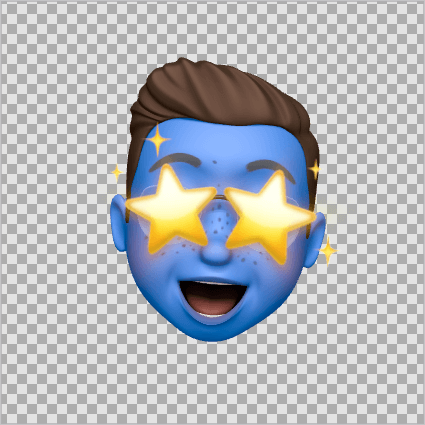
save memoji sticker as png image on iphone
Memoji sticker image with a transparent background

How to Save Memoji Sticker to Photos on iPhone

Nevertheless, we have figured out an easy workaround to help you get over this limitation imposed by Apple.

The below method will let you save memojis without sending them in iMessage and without using a Mac. So let’s follow the steps below.

  1. Open the “Notes” app on your iPhone or iPad.
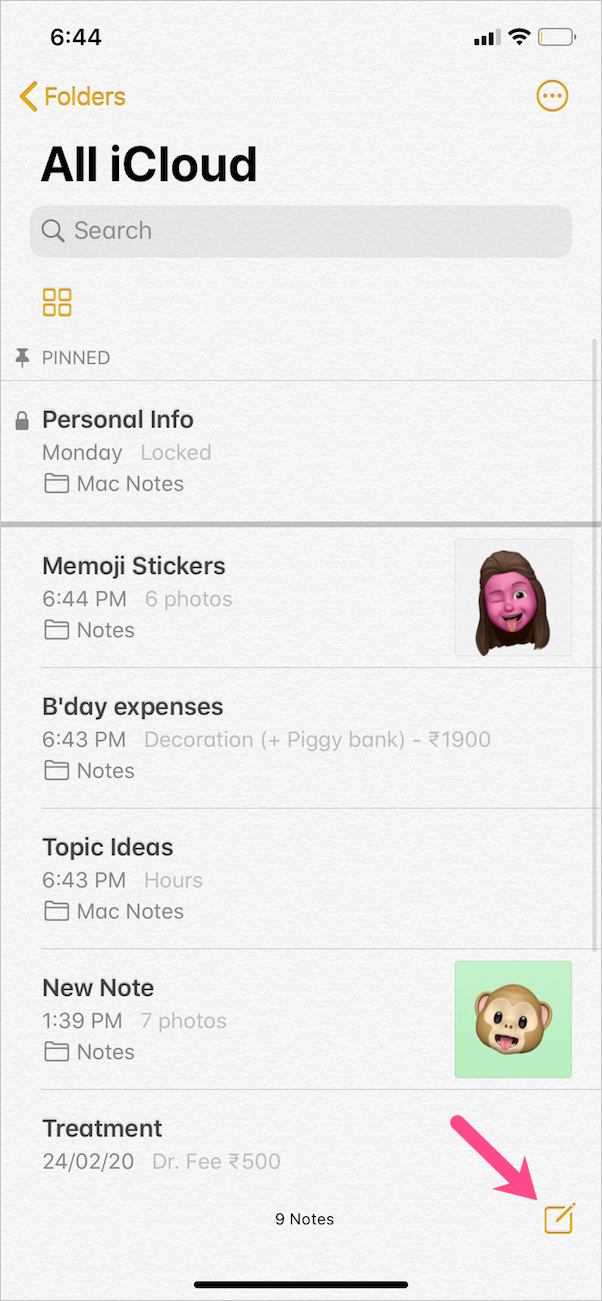
  2. Tap the “Create new note” icon at the bottom right. notes app on iphone
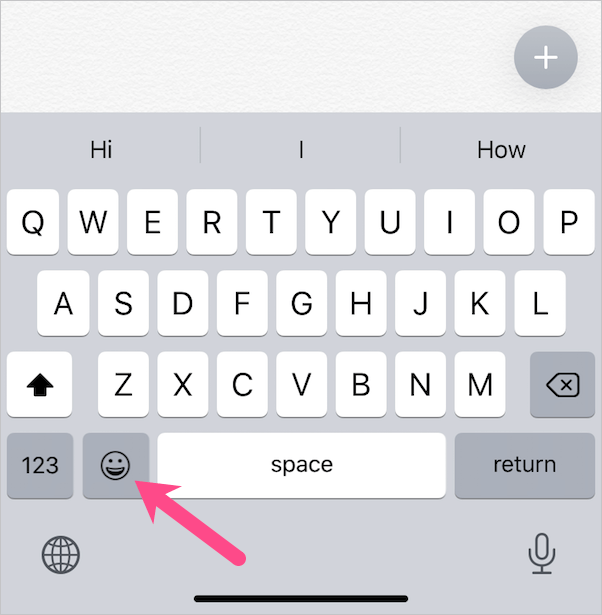
  3. Tap the “Emoji” icon on the keyboard. emoji button in ios 13 keyboard
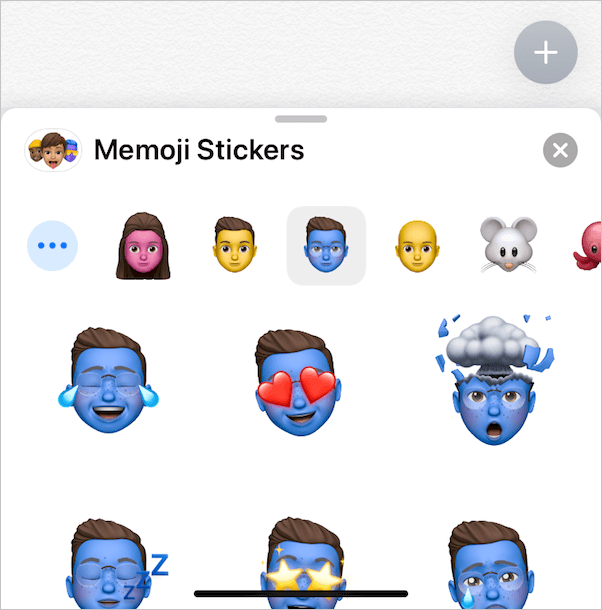
  4. Swipe right on the keyboard and tap 3-horizontal dots to open Memoji Stickers. You can also select one of the frequently used memoji stickers.
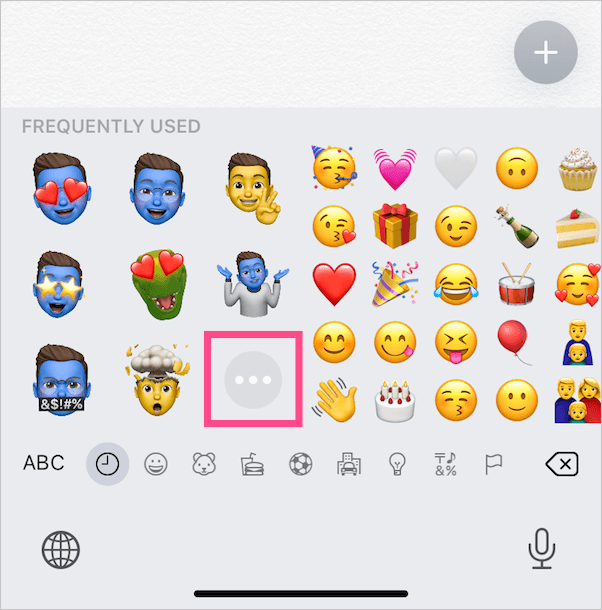
    frequently used memoji stickers in ios 13
    memoji stickers in ios 13 on iphone 11
  5. Swipe up from the bottom of the screen to view all the memoji stickers. view all the memoji stickers
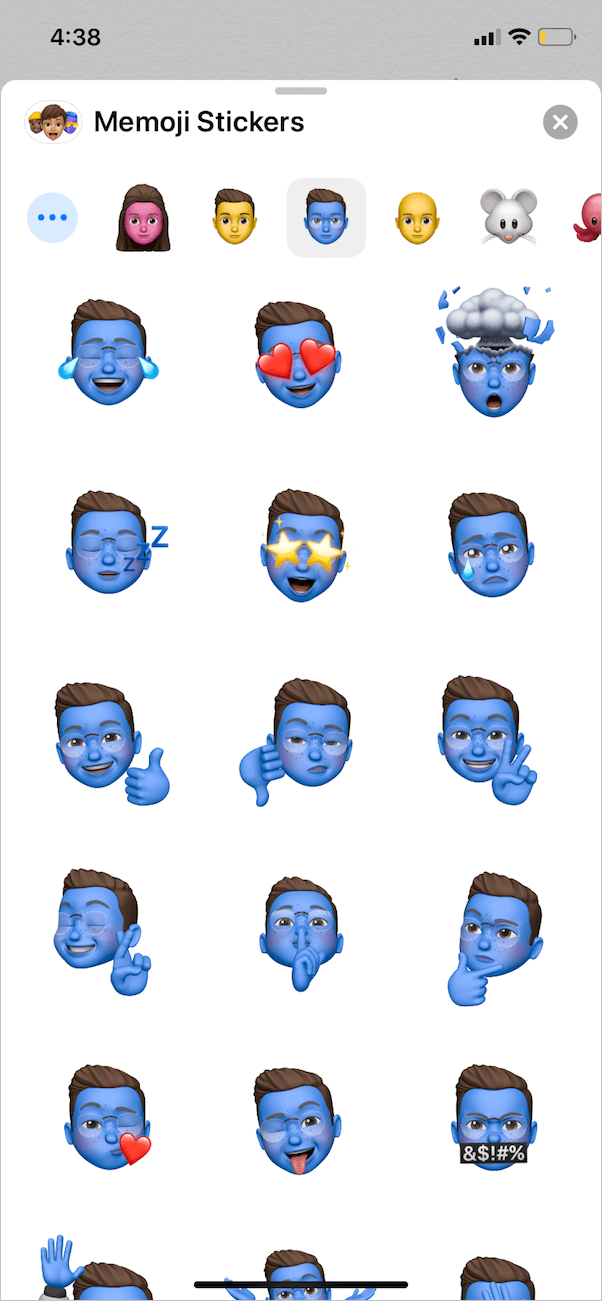
  6. Select a custom sticker to insert it into the note. You can add multiple stickers to quickly save them. insert memoji sticker into a note on iphone
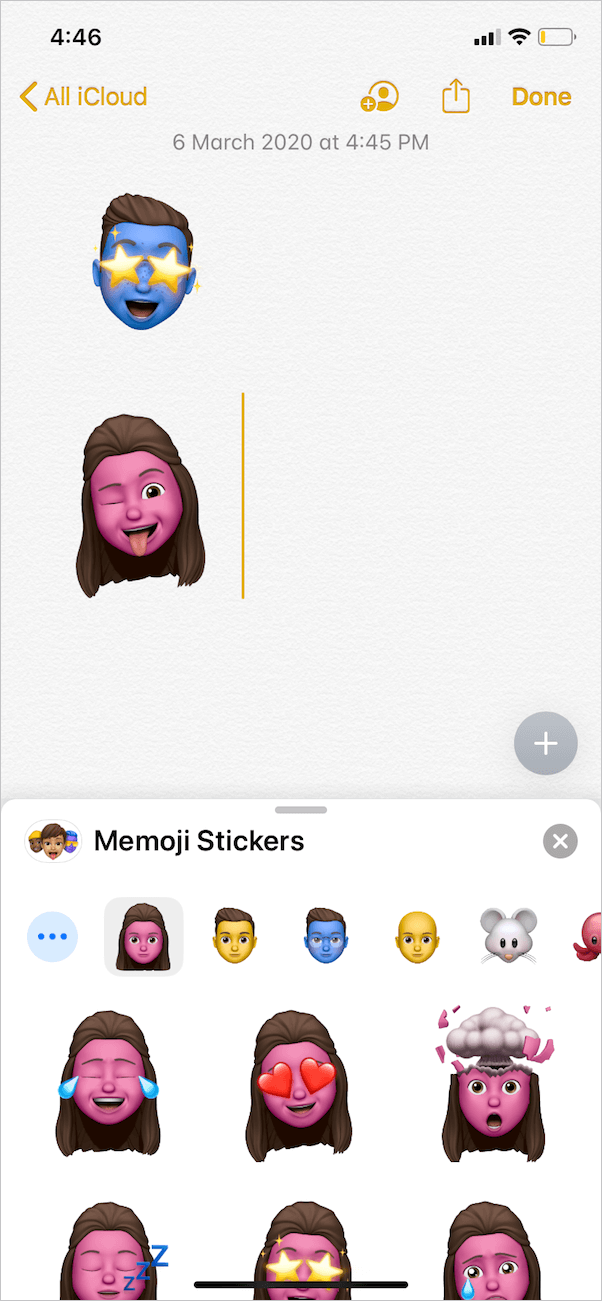
  7. After adding, tap the memoji sticker in the Notes app to open it in full-screen view. memoji sticker in full screen in notes app
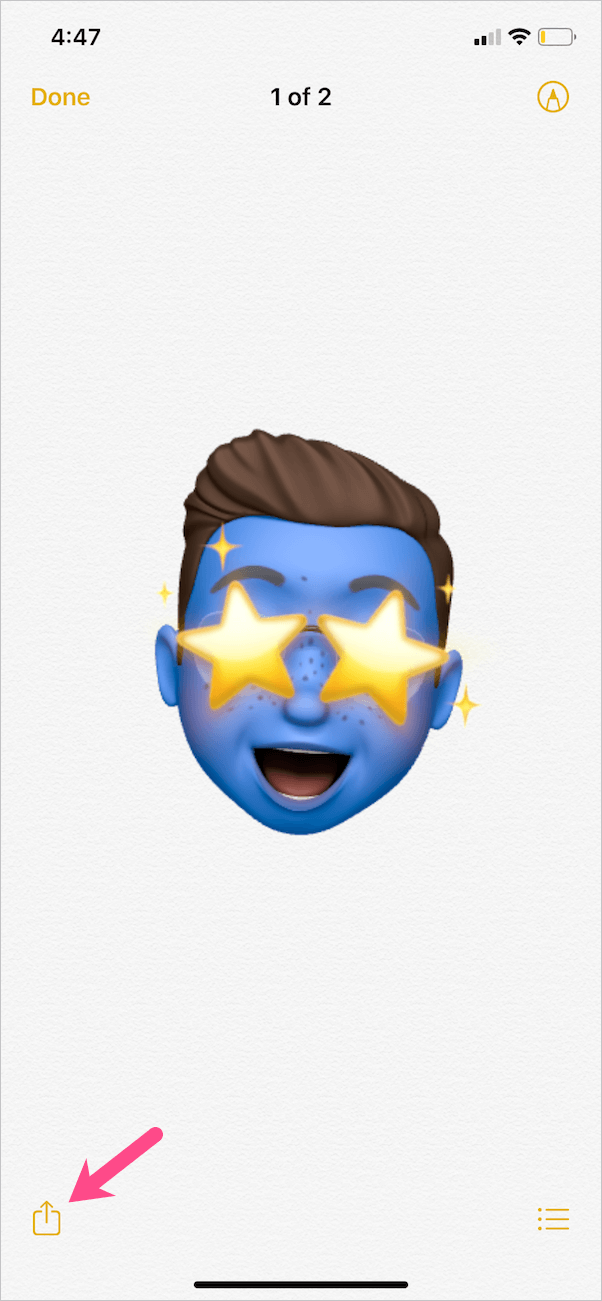
  8. To save the sticker, tap the “Share” button at the bottom left and select “Save Image”. Save Memoji Sticker to Photos on iPhone
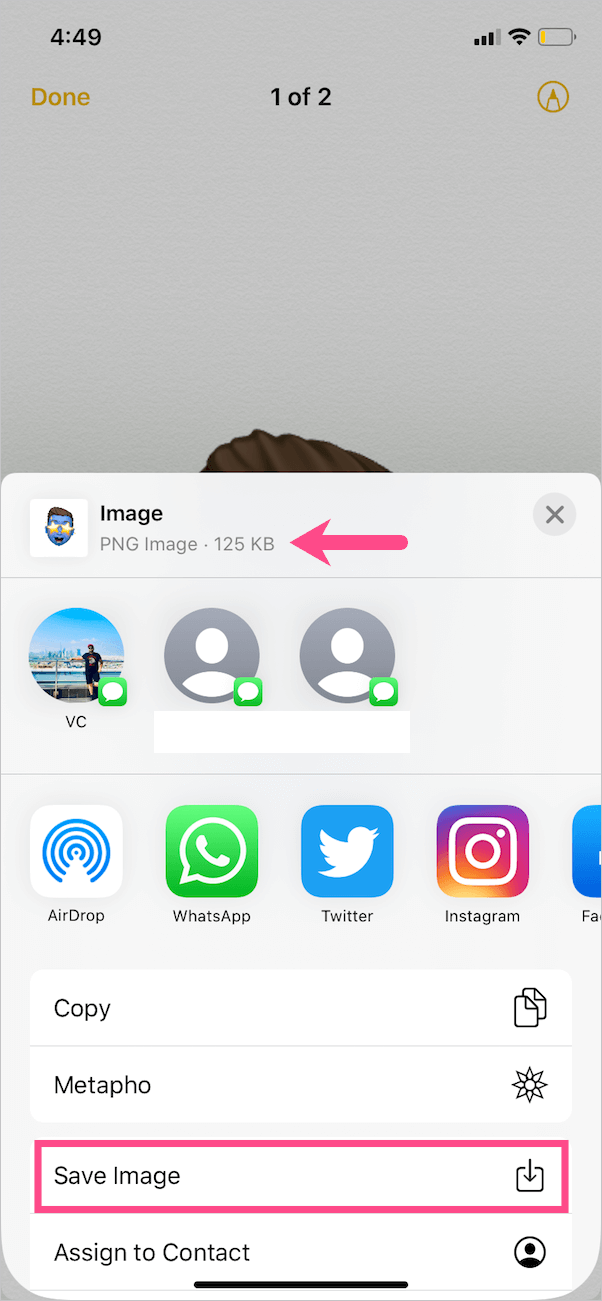
That’s it. The memoji sticker will save to the camera roll in PNG format and with a transparent background.

ALSO READ: How to download files from Google Drive to your iPhone

Saving Memoji with a black background

To do so, simply tap the screen once while the sticker is opened in full-screen in the Notes or Photos app. Then take a screenshot. [Refer: How to take a screenshot on iPhone 11]. You don’t need to tap the screen when dark mode is enabled.
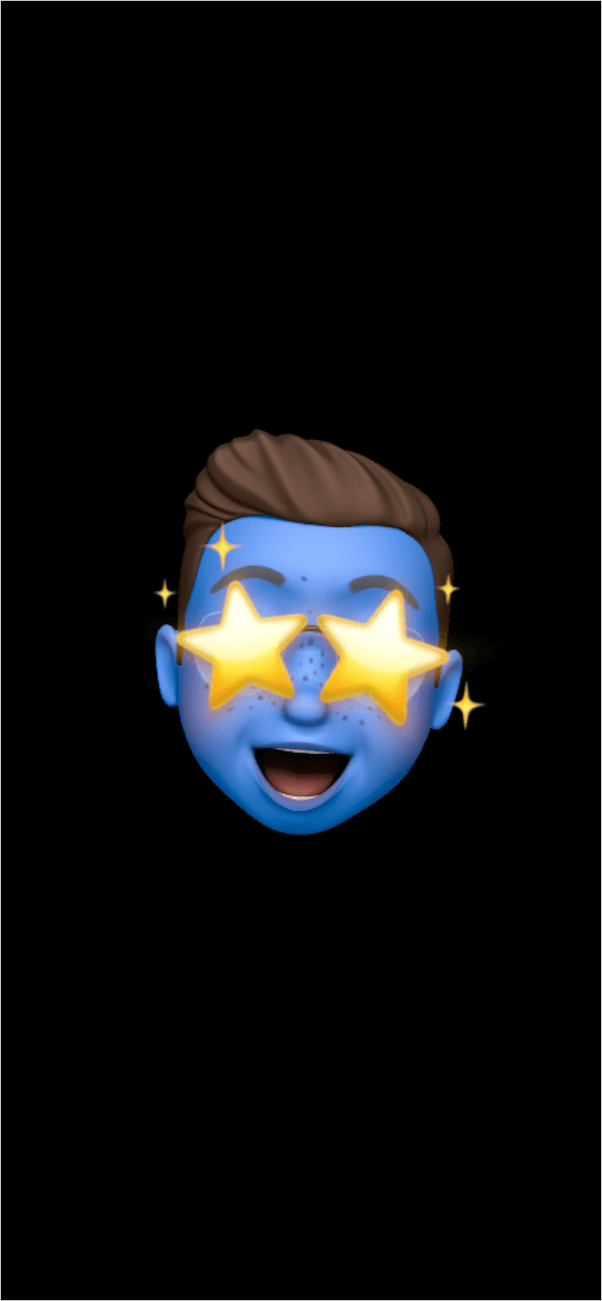
save memoji sticker with a black background

NOTE: The above guide won’t work with third-party sticker packs like Mario Run and Angry Birds downloaded from the App Store. That’s because these are unofficial stickers and are only visible in the Messages app. Your best bet will be to screenshot them.

It’s worth mentioning that Memoji stickers are available on all iOS devices running iOS 13 or iPadOS. However, you need to have an iPhone X or later to create and use animated Animoji and Memoji.

Hope you found this article helpful. Don’t forget to share your views in the comments section below.

RELATED: How to set Memoji as Apple ID photo

Tags: EmojiiOS 13iPadiPhoneKeyboardMemojiPhotosStickers
Share1TweetSend
Previous Post

Here’s how you can Like a Reaction on Instagram Story

Next Post

Here’s how to Remove Reactions from a Facebook Story

Mayur Agarwal

Mayur Agarwal

Mayur Agarwal, the founder and editor of WebTrickz, is a tech enthusiast with a Bachelor's degree in Computer Applications and over 15 years of experience in tech writing. His passion for technology and gadgets drives him to create insightful how-to articles and troubleshooting guides.

Next Post
delete reaction on facebook story

Here's how to Remove Reactions from a Facebook Story

Comments 7

  1. Be says:
    5 years ago

    Thank you for teaching me how to use my Memoji! Just the information I was looking for.

    Reply
  2. Funkybebel says:
    5 years ago

    Ios15 trick is no more possible

    Reply
    • Mayur Agarwal says:
      5 years ago

      I just tried it on iOS 15 beta 3 and it still works.

      Reply
  3. Ben says:
    4 years ago

    Thank you! Appreciate it

    Reply
  4. B.D. says:
    4 years ago

    I just tried this on my iPad Pro running 15.1 and it did not save the image with a transparent background. The Share box said it was a .PNG file, but when I tried to import/use it in another app (Good Notes) it had a white background.

    Reply
  5. Matt says:
    4 years ago

    Thank you very much, sir!

    Reply
  6. Ahgf says:
    3 years ago

    Thanks, still working on iOS 16.2

    Reply

Leave a Reply Cancel reply

Your email address will not be published. Required fields are marked *

Latest Stories

difference between chatgpt and claude

Claude vs ChatGPT: Which AI Should You Use in 2026?

June 18, 2026
google chrome logo

Google Chrome Offline Installer: Direct Download Links

June 17, 2026
X logo

How to Remove All Bookmarks on X (Twitter) At Once in 2026

June 15, 2026
X logo

How to Find Bookmarks on X (Twitter) in 2026

June 15, 2026
copilot logo

How to Turn Off Copilot Search in Bing on Edge & Chrome

June 10, 2026
microsoft edge new logo

How to Turn Off Notifications in Microsoft Edge (2026 Guide)

June 8, 2026
chatgpt logo

How to Clear or Delete ChatGPT Memory on PC and Mobile

June 5, 2026

Trending Stories

  • microsoft family safety settings

    How to Turn Off Microsoft Family Safety on Windows 11 & 10

  • 1337x Proxy List 2026: Working Proxy & Mirror Sites

  • How to Turn Off Microsoft Edge Game Assist in Windows 11

  • How to See Recently Watched Reels on Facebook (2026 Guide)

  • How to Turn Off Fn Lock or Fn Key on Windows 11/10 Laptop

  • About Us
  • Contact Us
  • Privacy Policy
  • Advertise

© 2026 WebTrickz. All Rights Reserved.

No Result
View All Result
  • Reviews
  • Apps
  • How To’s
  • Android
  • Google
  • iPhone
  • Mac
  • About Us
  • Contact Us
  • Privacy Policy

© 2026 WebTrickz. All Rights Reserved.