WebTrickz
TRENDING
  • Turn Off Copilot Search in Bing (Official Extension)
No Result
View All Result
  • Reviews
  • Editorials
  • Social Media
    • Facebook
    • Twitter
    • YouTube
    • Messenger
    • Instagram
    • Snapchat
    • WhatsApp
    • TikTok
  • Apps
  • How To’s
  • Apple
  • iPhone
  • Google
  • Android
  • Mac
  • Security
  • About Us
    • About Us
    • Contact Us
    • Privacy Policy
  • Reviews
  • Editorials
  • Social Media
    • Facebook
    • Twitter
    • YouTube
    • Messenger
    • Instagram
    • Snapchat
    • WhatsApp
    • TikTok
  • Apps
  • How To’s
  • Apple
  • iPhone
  • Google
  • Android
  • Mac
  • Security
  • About Us
    • About Us
    • Contact Us
    • Privacy Policy
No Result
View All Result
WebTrickz
No Result
View All Result
Home Facebook

How to Restrict Someone on Facebook without blocking them

Stop someone from seeing your Facebook posts without unfriending them.

Mayur Agarwal by Mayur Agarwal
March 7, 2024
in Facebook, How To's

The Restrict feature on Facebook is an ideal way to hide your posts from people you are friends with on Facebook, without blocking or unfriending them.

When you restrict someone, you still remain friends with that person on Facebook. The friends added to your restricted list can only see posts that you share publicly and posts you tag them in.

In short, restricted people can only view your Facebook profile and its information as Public.

Thankfully, Facebook doesn’t notify the person when you restrict them and you continue to see their posts and updates on your timeline.

The restricted option comes in handy when you need to stay friends with someone but don’t want them to see your personal updates. For instance, you might want to restrict your boss or employer, your co-workers, certain acquaintances, or a sneaky relative.

Perhaps, many people on Facebook still aren’t aware of the Restrict option. Moreover, you can’t restrict someone on Facebook right away, as the setting isn’t easily accessible in Facebook’s new interface.

To ease this, here’s how you can add someone to your Facebook Restricted List on mobile and desktop.

How to Put Someone on the Restricted List on Facebook

On iPhone and Android

  1. Make sure you’re running the latest version of the Facebook app.
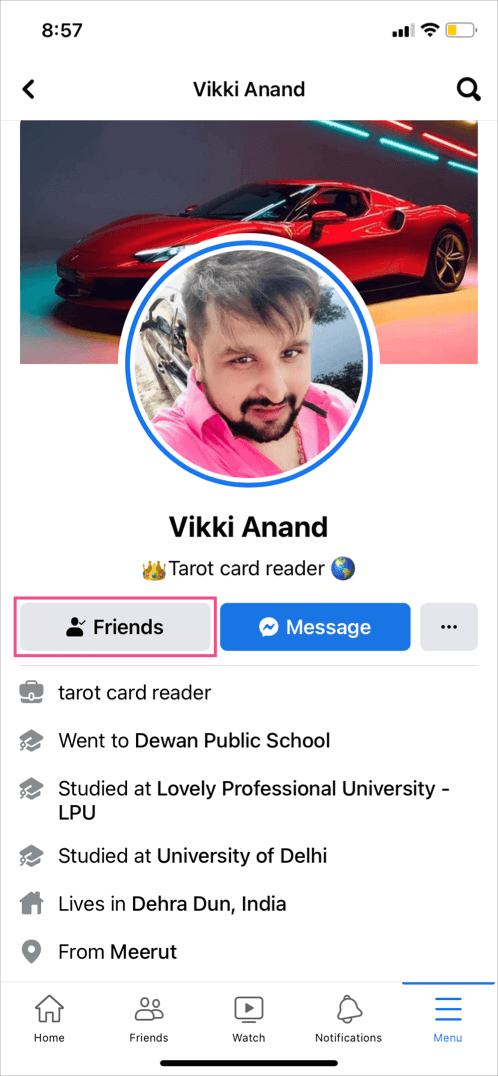
  2. Open the Facebook app and go to the person’s profile you want to restrict.
  3. Tap on ‘Friends‘ under their profile name. profile on Facebook app
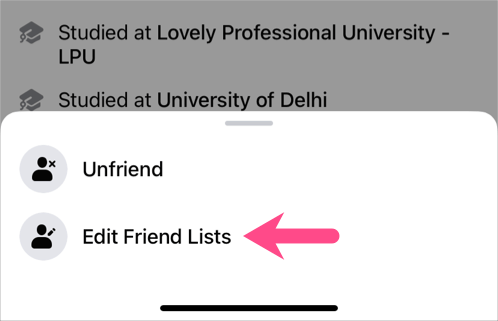
  4. Select “Edit Friend Lists“. restrict someone on facebook without them knowing
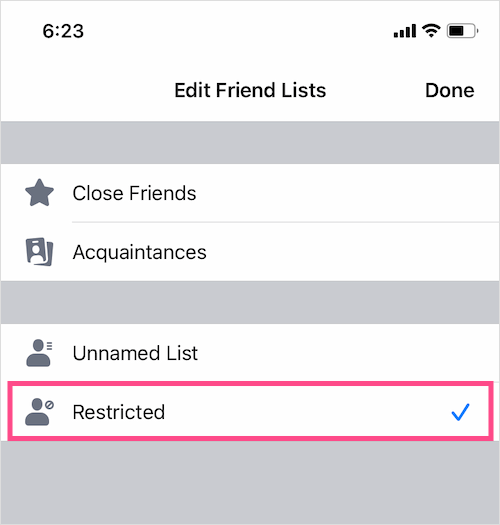
  5. Select the “Restricted” option and tap Done. restrict someone on facebook on iphone
On Computer

  1. Visit facebook.com and open the person’s profile.
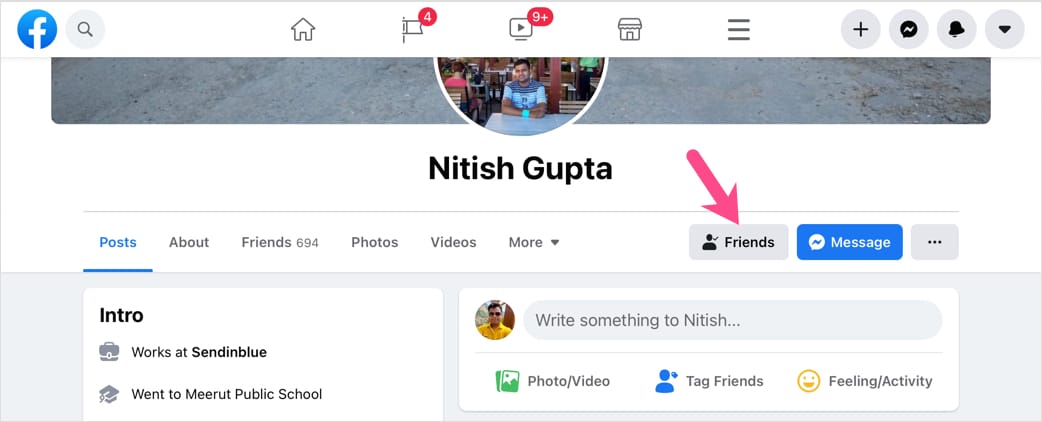
  2. Click the “Friends” button under their profile photo. Facebook's new web UI
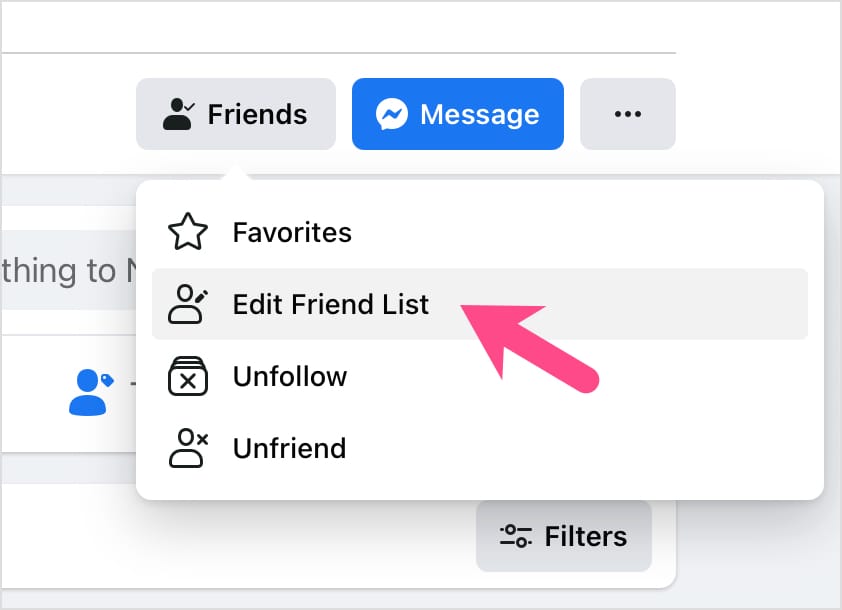
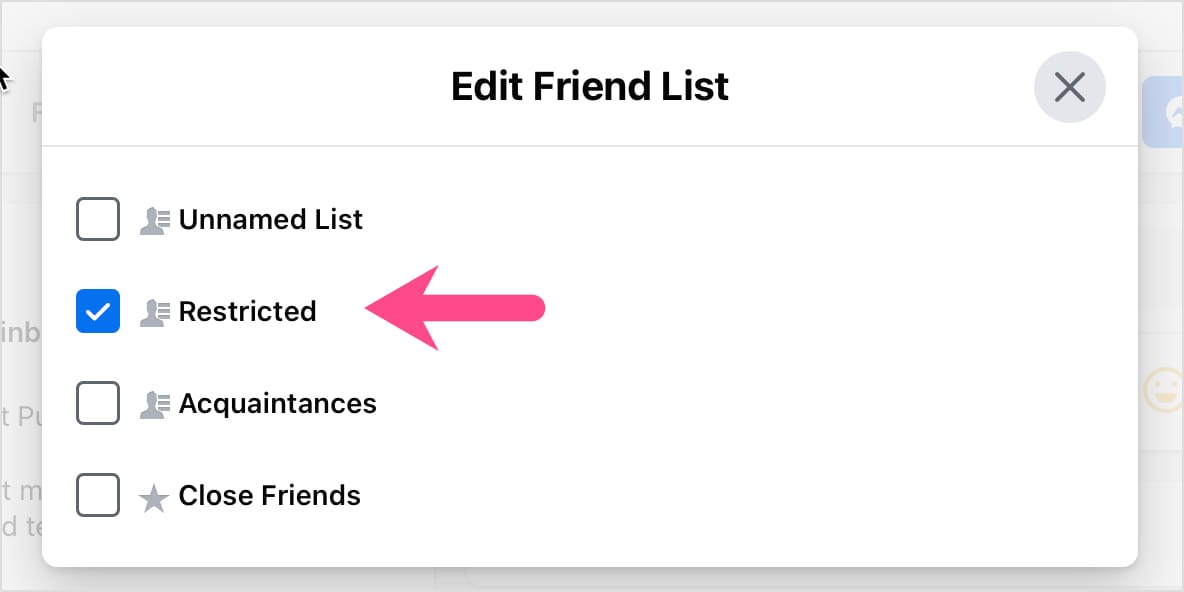
  3. Click on “Edit Friend List“. edit friend list on Facebook 2021
  4. Tick the checkbox next to “Restricted“. add a person to Facebook restricted list
RELATED: How to restrict or unrestrict someone on Messenger

How to View the Restricted List on Facebook

On Computer

The below steps apply to Facebook’s new web interface on a desktop browser.

    1. Visit facebook.com and log in to your account if you aren’t already.
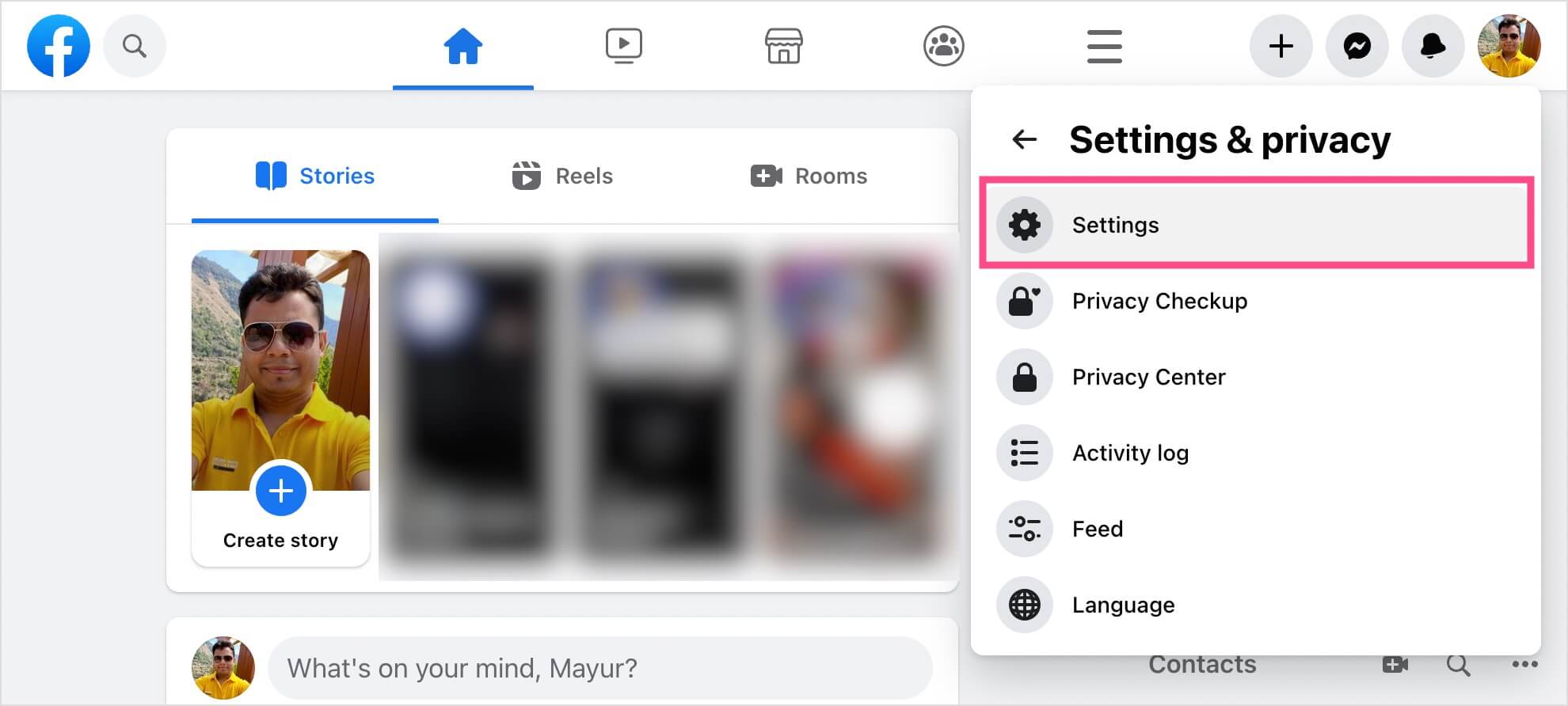
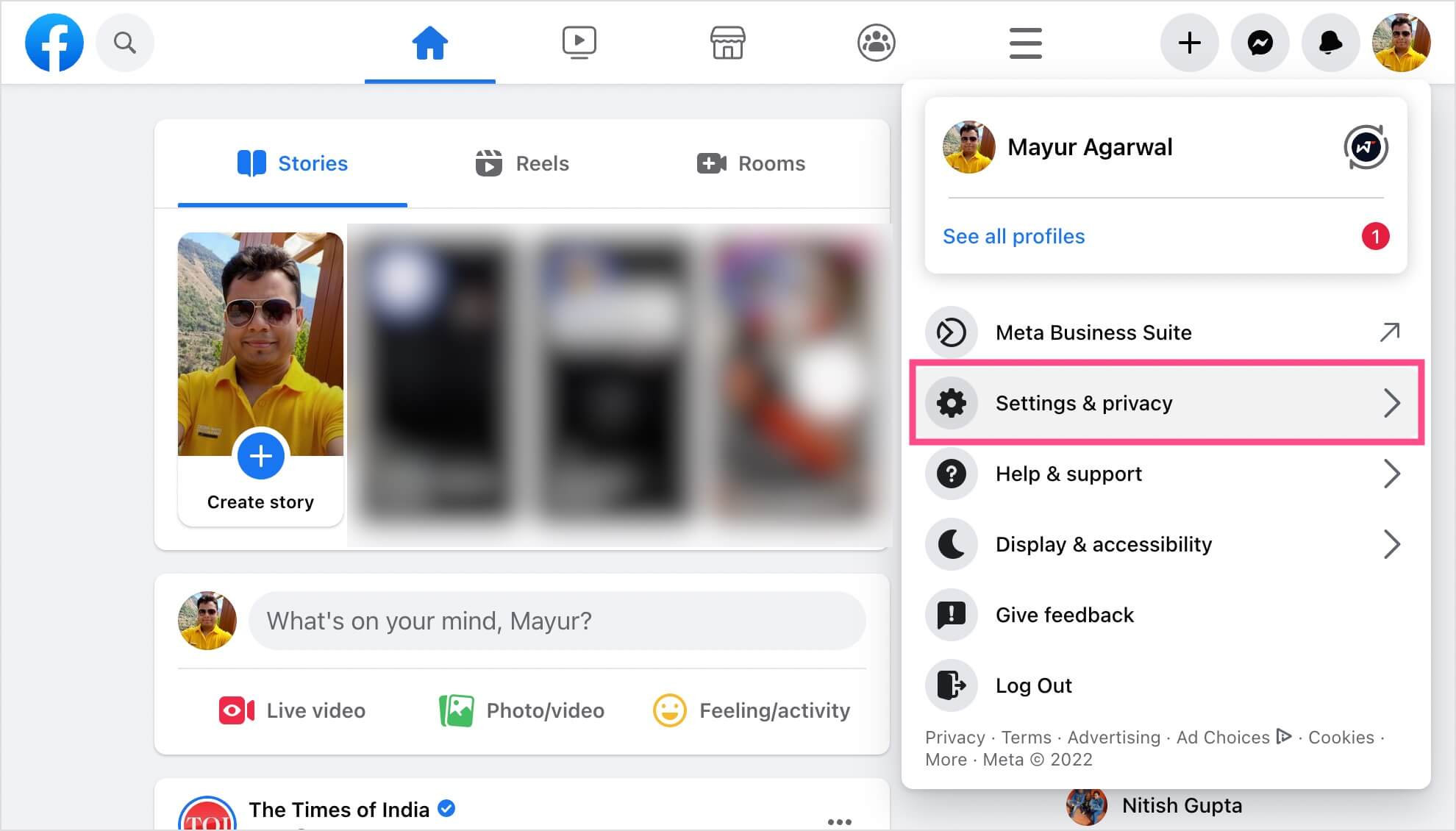
    2. Click your profile picture at the top-right corner and select “Settings & privacy“. settings and privacy on facebook desktop
    3. Select Settings.facebook settings on desktop
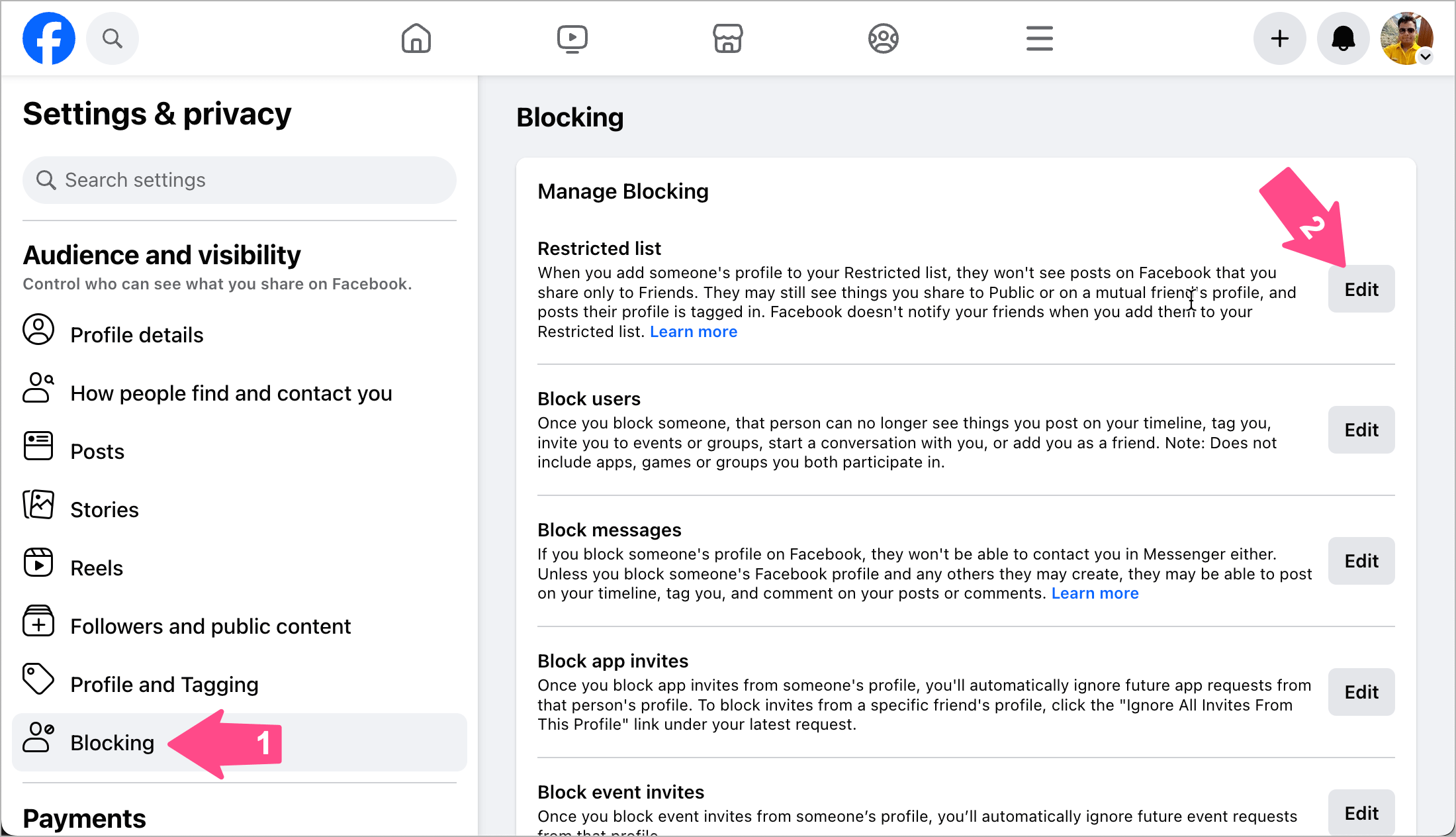
    4. Go to “Blocking” under the ‘Audience and Visibility’ section in the left sidebar. Under Manage Blocking, click the “Edit” option next to the Restricted list. how to see your restricted list on facebook
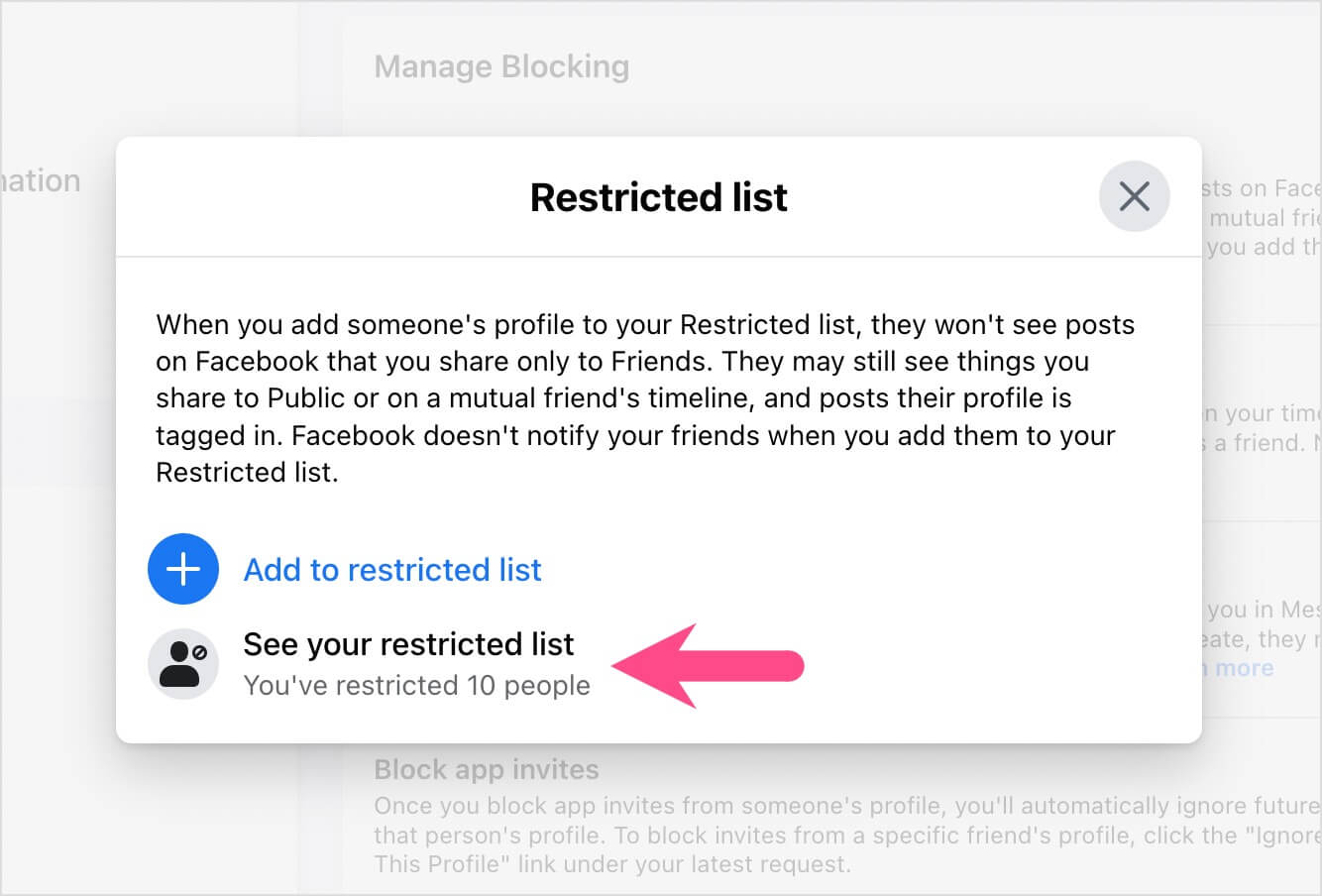
    5. Click “See your restricted list” to see all the people you have restricted. How to view restricted list on Facebook on computer
To remove someone from your restricted list on Facebook, click the ‘Remove‘ button next to the person’s name you want to unrestrict.
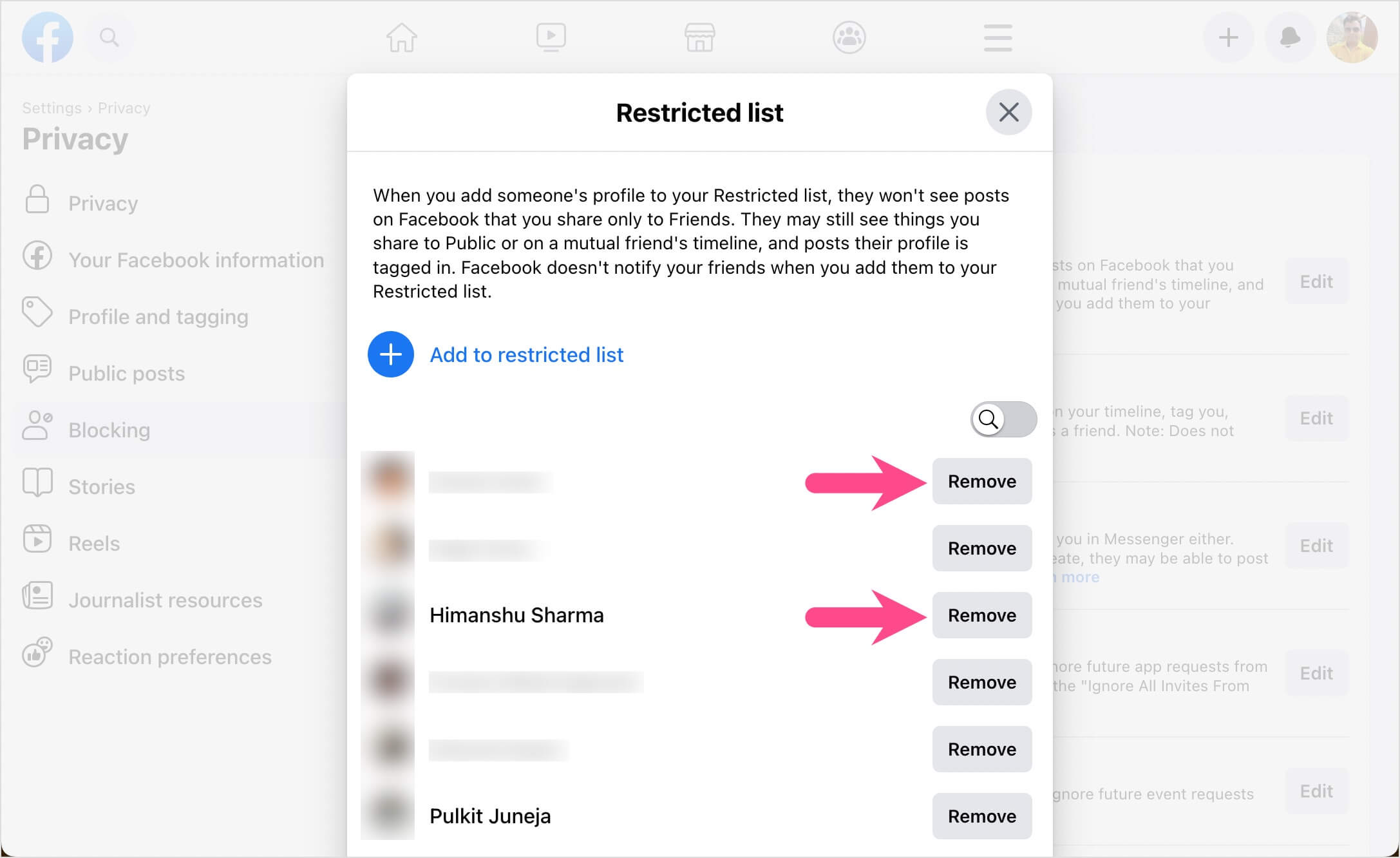
how to remove someone from your Facebook restricted list

On Mobile

The Facebook app offers no setting to see the list of restricted people. However, there is a trick you can try to see your Facebook restricted list on iPhone and Android devices.

Visit https://www.facebook.com/settings?tab=blocking in Safari or Chrome browser on your mobile. Then tap the “Request Desktop Site” option to view the desktop version of Facebook. Now navigate to your restricted list following the above-stated steps.

ALSO READ:

  • See who you’ve blocked on Facebook
  • Make your friends list private on the Facebook app
Tags: AppsFacebookPrivacySocial MediaTips
ShareTweetSend
Previous Post

How to Record Screen on Samsung Galaxy A52 and A72

Next Post

How to Undo Ignore Messages on Messenger without replying

Mayur Agarwal

Mayur Agarwal

Mayur Agarwal, the founder and editor of WebTrickz, is a tech enthusiast with a Bachelor's degree in Computer Applications and over 15 years of experience in tech writing. His passion for technology and gadgets drives him to create insightful how-to articles and troubleshooting guides.

Next Post
messenger new logo

How to Undo Ignore Messages on Messenger without replying

Comments 1

  1. Tja says:
    3 years ago

    Is there a way where I can accept a new friend request who I will want to restrict – but where they also cannot see past posts? I don’t want them to see my posting history.
    Hope so. Thanks for your help.

    Reply

Leave a Reply Cancel reply

Your email address will not be published. Required fields are marked *

Latest Stories

copilot logo

How to Turn Off Copilot Search in Bing on Edge & Chrome

June 10, 2026
microsoft edge new logo

How to Turn Off Notifications in Microsoft Edge (2026 Guide)

June 8, 2026
chatgpt logo

How to Clear or Delete ChatGPT Memory on PC and Mobile

June 5, 2026
1337x logo

1337x Proxy List 2026: Working Proxy & Mirror Sites

June 2, 2026

How to Find Saved Reels on Facebook App & Desktop (2026)

June 8, 2026
microsoft edge browser

How to Restore or Reopen Closed Tabs in Microsoft Edge

June 9, 2026
Facebook app on iPhone

How to See Recently Watched Reels on Facebook (2026 Guide)

June 5, 2026

Trending Stories

  • microsoft family safety settings

    How to Turn Off Microsoft Family Safety on Windows 11 & 10

  • 1337x Proxy List 2026: Working Proxy & Mirror Sites

  • How to Turn Off Microsoft Edge Game Assist in Windows 11

  • How to See Recently Watched Reels on Facebook (2026 Guide)

  • How to Turn Off Fn Lock or Fn Key on Windows 11/10 Laptop

  • About Us
  • Contact Us
  • Privacy Policy
  • Advertise

© 2026 WebTrickz. All Rights Reserved.

No Result
View All Result
  • Reviews
  • Apps
  • How To’s
  • Android
  • Google
  • iPhone
  • Mac
  • About Us
  • Contact Us
  • Privacy Policy

© 2026 WebTrickz. All Rights Reserved.