


Instagram’s Repost feature lets you reshare public posts and Reels to your followers. Anything you repost also appears in the dedicated Reposts tab on your profile, making it easy to find posts and Reels you’ve reposted.
If you reposted something by mistake, you can remove it just as easily. Here’s how to undo a repost on Instagram, see your reposts, and delete multiple reposts at once on the app and website.
How to Undo a Repost on Instagram
If you reposted a post or Reel by mistake, you can undo or remove the repost from the Instagram app or website.
On iPhone and Android
- Open the Instagram app and go to your profile.
- Tap the Reposts tab and open the post or Reel you want to remove.

- Tap the Repost icon again (the same button you used to repost it).
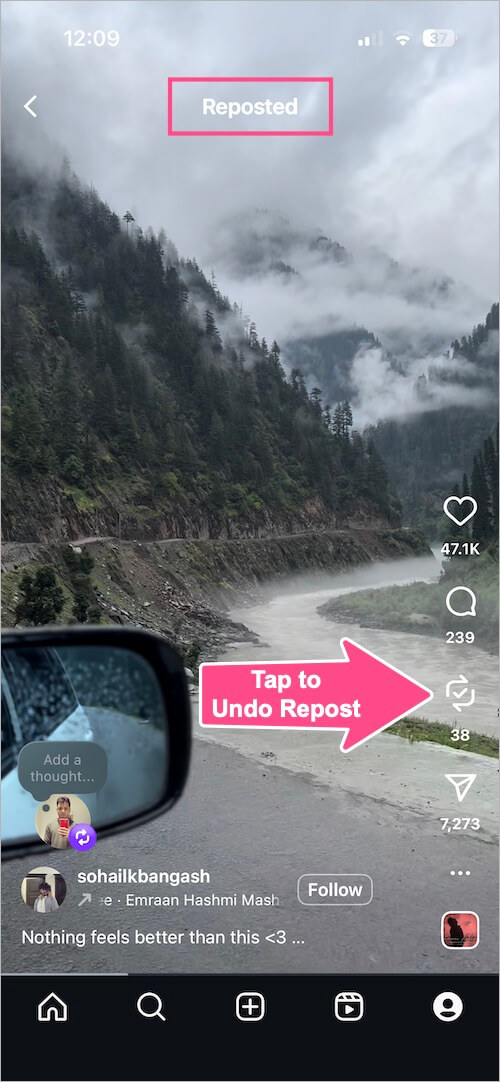
Repost button on an Instagram Reel
The post or Reel will be removed from your Reposts tab.
Tip: If you accidentally repost something, simply tap the Repost button again to undo it right away.
Another Way to Remove a Repost on iPhone
On iPhone, you can also remove a repost directly from the Reposts tab:
- Open the Reposts tab on your profile.
- Touch and hold (long-press) the post or Reel you want to remove.
- Select Delete repost from the menu.
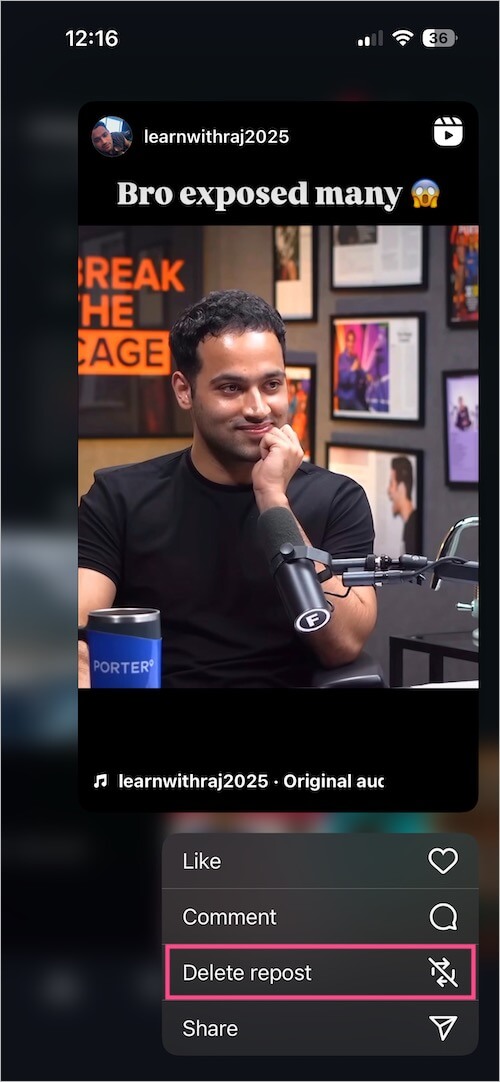
Delete repost option in Instagram on iPhone
On Desktop
You can also undo a repost from the Instagram website.
- Open Instagram in a web browser and sign in to your account.
- Go to your profile and open the Reposts tab.
- Open the post or Reel you want to unrepost.
- Click the Repost button again to remove the repost.
How to See Your Reposts on Instagram
Instagram keeps the posts and Reels you’ve reposted in a dedicated Reposts tab on your profile.
To view your reposts:
- Open the Instagram app or website.
- Go to your profile.
- Open the Reposts tab.
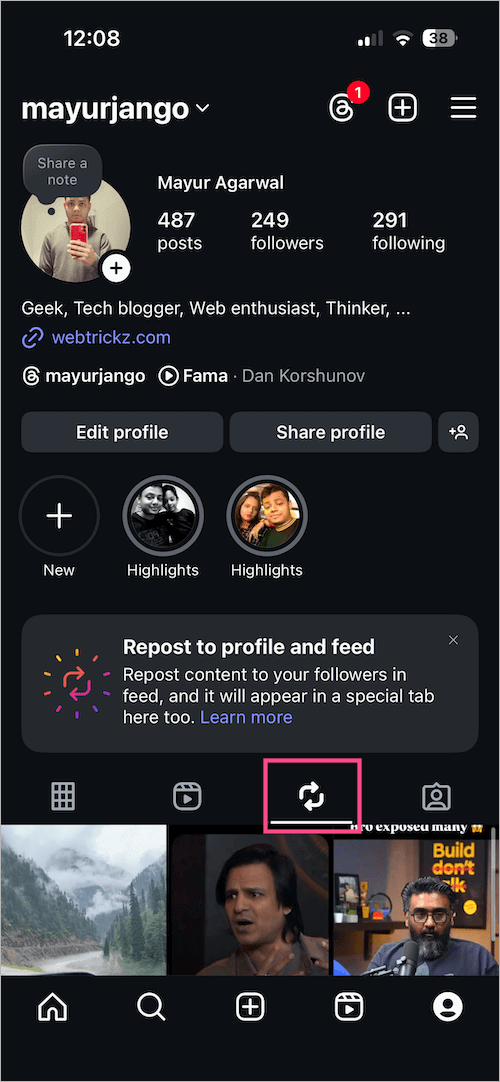
Reposts tab on Instagram
You’ll now see the posts and Reels you’ve reposted.
How to Delete Multiple Reposts on Instagram at Once
Instagram also lets you select and delete multiple reposts through Your activity. This is useful if you want to remove several reposts without opening them one by one.
- Go to your profile and tap the Menu button (three lines) at the top right.
- Go to Your activity > Reposts.
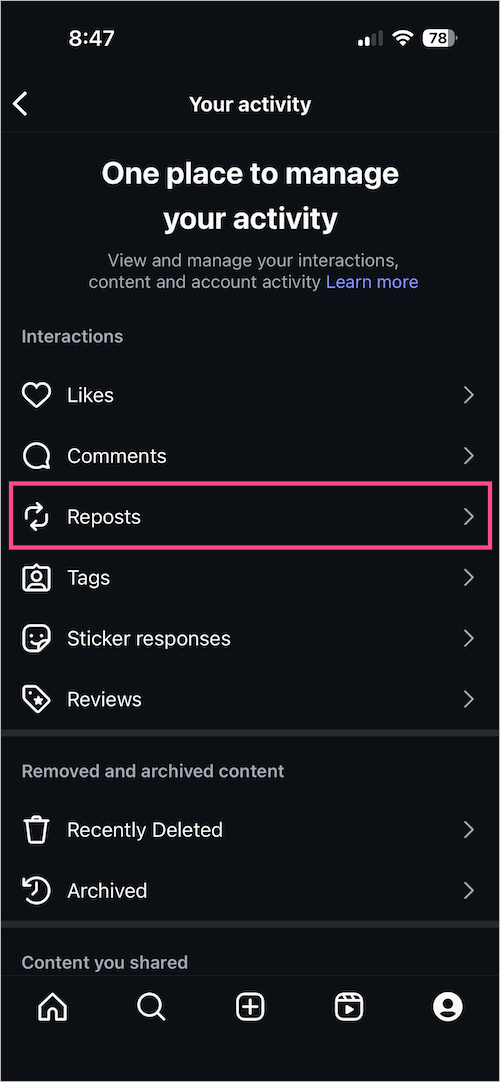
- Your reposted content will appear in Newest to oldest order.
- Tap Select and choose the reposts you want to delete.
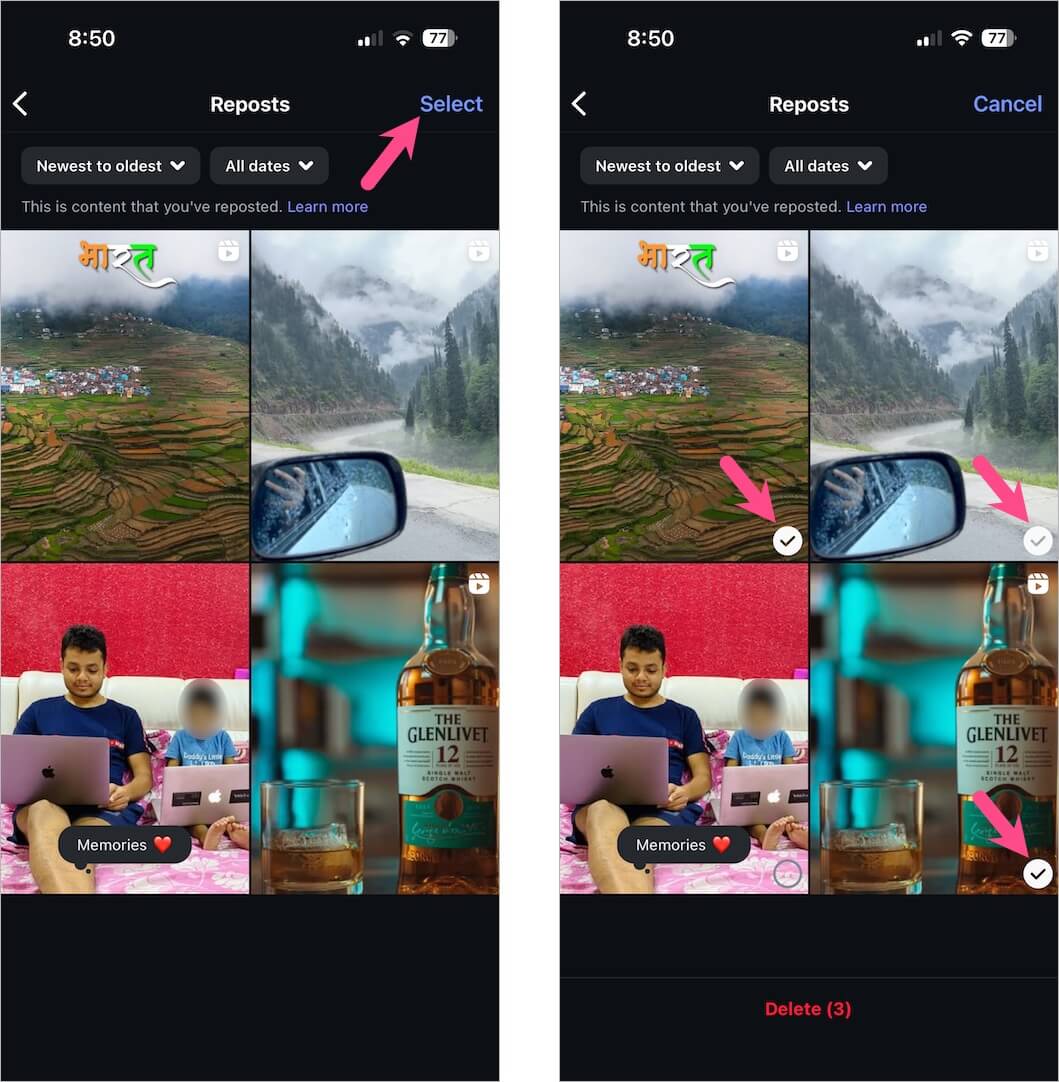
- Tap Delete at the bottom, then tap Delete again to confirm.
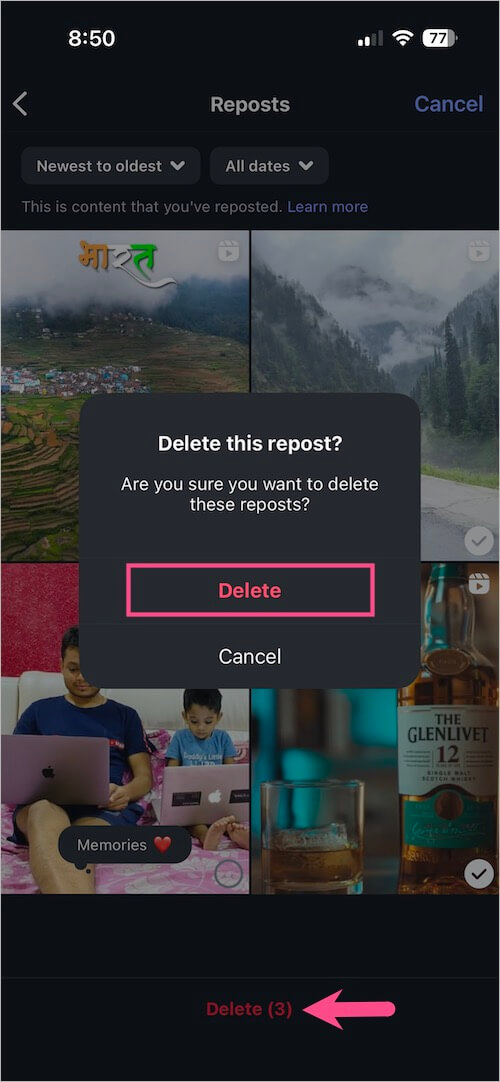
This removes all the reposts you’ve selected. If you have a large number of reposts, you may need to select them manually rather than deleting your entire repost history with a single button.
Delete Multiple Reposts on Desktop
You can also remove multiple reposts at once from the Instagram website. In the sidebar, click More (three-line icon) and go to Your activity > Reposts. Click Select and choose the reposts you want to remove, then click Delete. Click Delete again to confirm.
Can You Turn Off Reposts on Instagram?
Instagram doesn’t provide an option to disable the Repost feature entirely. However, you can prevent other people from reposting your posts and Reels by turning off reposting for your Instagram account.
Once disabled, the Repost option will no longer be available to other people on your eligible content.
Related Guides
- How to Turn Off Reposting on Instagram
- How to See Recently Watched Reels on Instagram
- How to Find Your Scheduled Posts on Instagram








