WebTrickz
TRENDING
  • Claude vs ChatGPT: Which Is Better in 2026?
No Result
View All Result
  • Reviews
  • Editorials
  • Social Media
    • Facebook
    • Twitter
    • YouTube
    • Messenger
    • Instagram
    • Snapchat
    • WhatsApp
    • TikTok
  • Apps
  • How To’s
  • Apple
  • iPhone
  • Google
  • Android
  • Mac
  • Security
  • About Us
    • About Us
    • Contact Us
    • Privacy Policy
  • Reviews
  • Editorials
  • Social Media
    • Facebook
    • Twitter
    • YouTube
    • Messenger
    • Instagram
    • Snapchat
    • WhatsApp
    • TikTok
  • Apps
  • How To’s
  • Apple
  • iPhone
  • Google
  • Android
  • Mac
  • Security
  • About Us
    • About Us
    • Contact Us
    • Privacy Policy
No Result
View All Result
WebTrickz
No Result
View All Result
Home Instagram

How to See Memories on Instagram and Post as Story

Here's how you can post memories on your Instagram story.

Mayur Agarwal by Mayur Agarwal
February 16, 2022
in How To's, Instagram

Earlier this year, Instagram quietly introduced the “Memories” feature to its platform. Similar to Facebook, it shows users an old post shared by them on the same day, a year ago, or even earlier.

However, unlike Facebook, there is no dedicated setting to see Instagram memories. Instagram rather shows an “On this Day” notification for any existing memories within the app itself. You can then re-share the suggested memories with your friends and followers as an Instagram story.
see instagram memories
Memories on Instagram

Besides the notification tab, you can find memories in the “Archive” directory on Instagram. Though most users aren’t aware of the existence of memories in archives probably because they are hidden deep inside. By manually looking for memories, you won’t miss any of them even if Instagram doesn’t notify you about a certain memory.

Now let’s see how to get memories on Instagram stories on iPhone and Android.

How to Find Instagram Memories

  1. Go to the profile tab in the Instagram app.
  2. Tap the Menu button (hamburger icon) at the top right and select “Archive”. how to open instagram archive
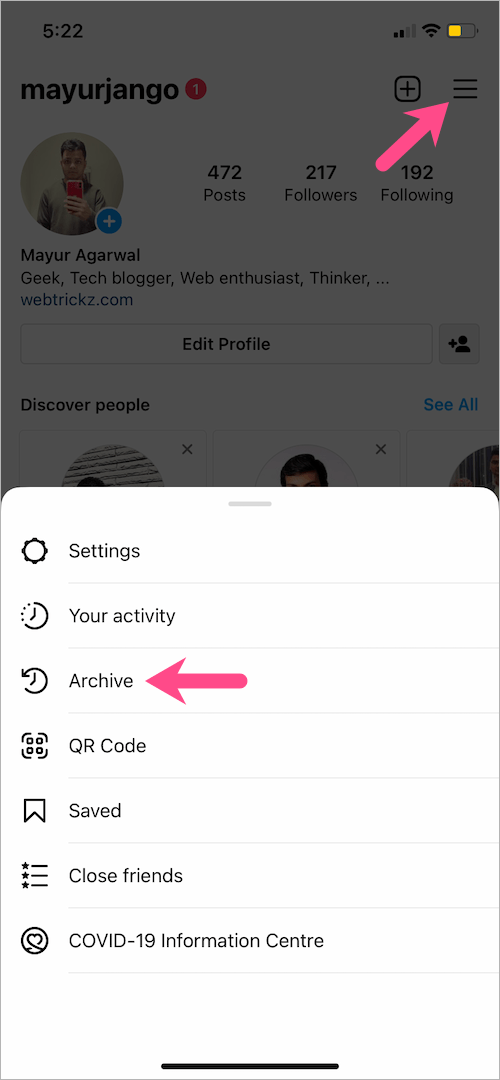
  3. Tap the drop-down menu at the top and select “Stories Archive”. where are memories on instagram

  4. Scroll down to the bottom to see your Memories. how to see memories on instagram
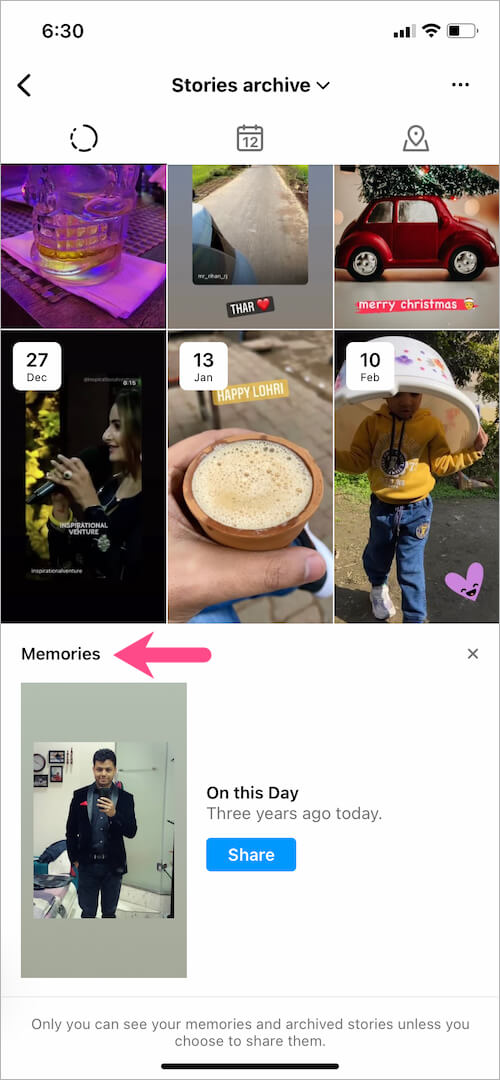
The “On this Day” memories if available will be displayed right away. Do note that only you can see your memories and archived stories unless you choose to share them.

Note: Check for memories in “Posts archive” as well if you can’t find them in your Stories archive.

TIP: Open the Activity (heart tab) to look for memories that you may have missed earlier.
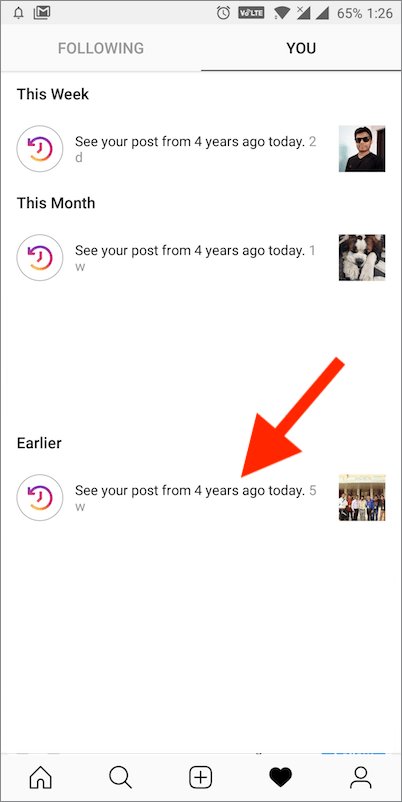
notifications on instagram
Find earlier memories in the Activity tab on Instagram

ALSO READ: How to turn on post notifications on Instagram

How to Post Memories to Instagram Story

After viewing your old memories, you can share them with a #throwback or #memories hashtag. To post a memory,

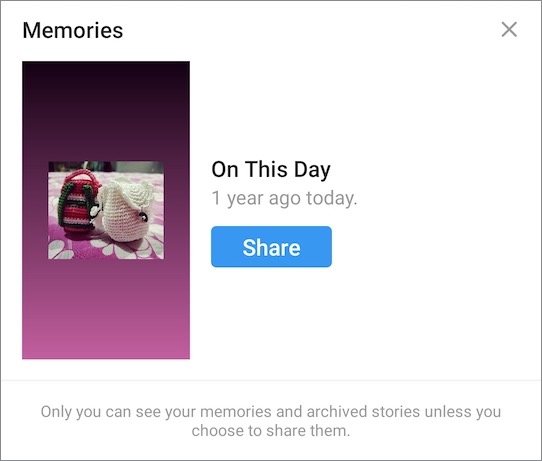
  1. Tap the “Share” button next to the memory.
  2. Tap the picture or video added in the memory to switch its view.
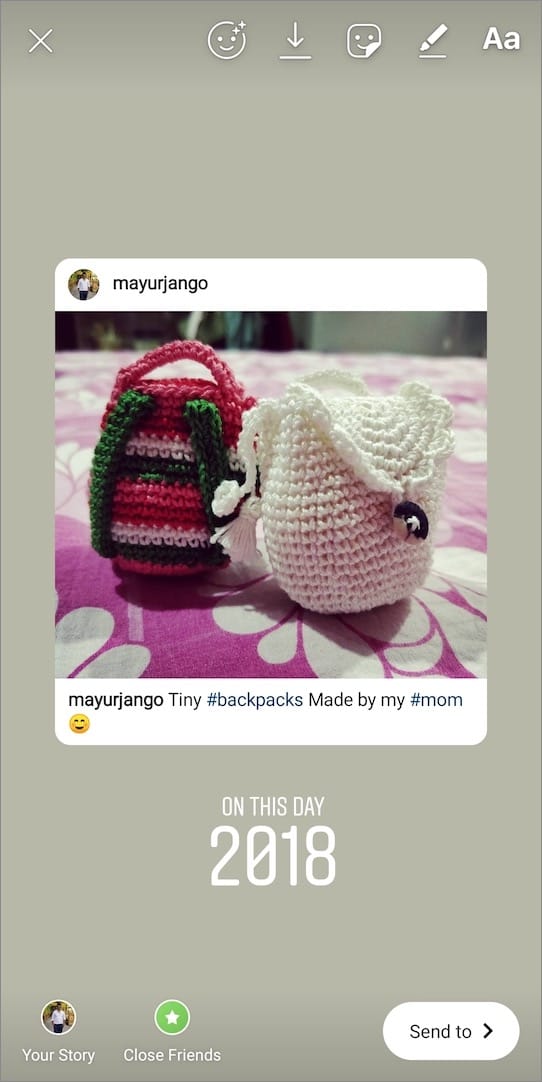
  3. The page will show a memories sticker by default, tap to change it to “On this day”.
  4. Add any personalisations, stickers, or effects if you want.
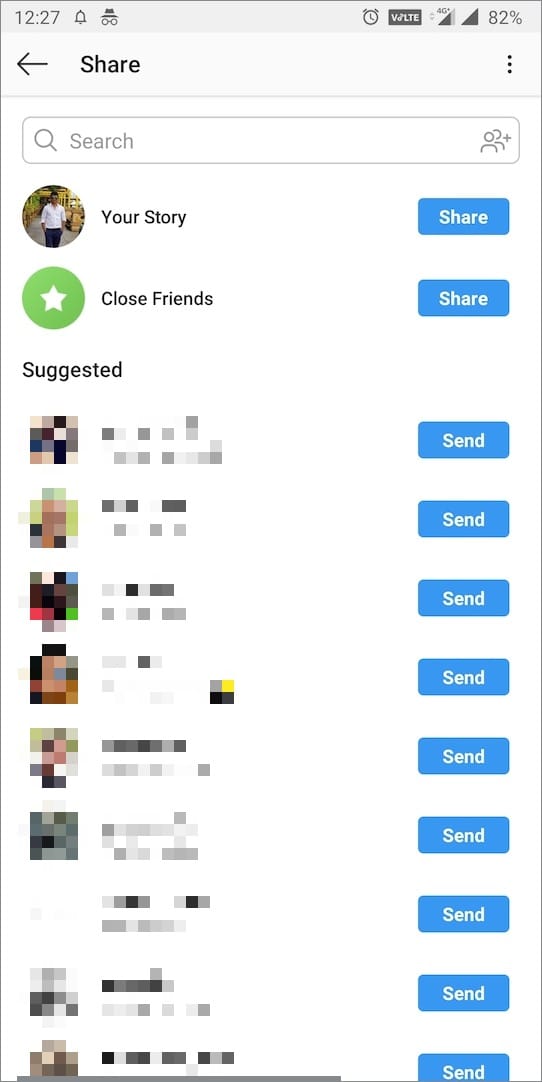
  5. Tap “Send to” and share it to Your story, Close friends, or specific people.

post memories on instagram story
Default view
on this day instagram memory
Changed view
share story on insta
Share to story

Optionally, you can delete the date & year sticker from the memory. To do so, tap and hold the date sticker and drag it to the bin at the bottom.

That said, you can also share a story from your Stories Archive whenever you like.

Tags: InstagramInstagram StoriesSocial MediaTips
Share8TweetSend
Previous Post

How to Find Archived Emails in Gmail on iPhone and Android

Next Post

Install OnePlus Screen Recorder on OnePlus 5/5T and OnePlus 6/6T

Mayur Agarwal

Mayur Agarwal

Mayur Agarwal, the founder and editor of WebTrickz, is a tech enthusiast with a Bachelor's degree in Computer Applications and over 15 years of experience in tech writing. His passion for technology and gadgets drives him to create insightful how-to articles and troubleshooting guides.

Next Post
oneplus screen recorder

Install OnePlus Screen Recorder on OnePlus 5/5T and OnePlus 6/6T

Comments 5

  1. Ashley says:
    5 years ago

    I was wondering if there was a way to get the memories option back at the bottom of the archives, I accidentally clicked to hide them somehow and now I can’t figure out how to get them back.

    Reply
    • Giancarlo says:
      4 years ago

      That happened to me too, did you got it back, I don’t know how to

      Reply
    • Elly says:
      4 years ago

      Hi did you find the way to bring it back ?

      Reply
    • Yanna says:
      4 years ago

      Same prob loo i dont think this has been resolved already

      Reply
    • Cera says:
      4 years ago

      Me too, do you get it back already? How did you do?

      Reply

Leave a Reply Cancel reply

Your email address will not be published. Required fields are marked *

Latest Stories

Google Gemini

How to Cancel Your Gemini Subscription (2026 Guide)

June 21, 2026
difference between chatgpt and claude

Claude vs ChatGPT: Which AI Should You Use in 2026?

June 18, 2026
google chrome logo

Google Chrome Offline Installer: Direct Download Links

June 17, 2026
X logo

How to Remove All Bookmarks on X (Twitter) At Once in 2026

June 15, 2026
X logo

How to Find Bookmarks on X (Twitter) in 2026

June 15, 2026
copilot logo

How to Turn Off Copilot Search in Bing on Edge & Chrome

June 10, 2026
microsoft edge new logo

How to Turn Off Notifications in Microsoft Edge (2026 Guide)

June 8, 2026

Trending Stories

  • 1337x logo

    1337x Proxy List 2026: Working Proxy & Mirror Sites

  • How to Turn Off Microsoft Family Safety on Windows 11 & 10

  • How to See Recently Watched Reels on Facebook (2026 Guide)

  • How to Turn Off Microsoft Edge Game Assist in Windows 11

  • How to Turn Off Fn Lock or Fn Key on Windows 11/10 Laptop

  • About Us
  • Contact Us
  • Privacy Policy
  • Advertise

© 2026 WebTrickz. All Rights Reserved.

No Result
View All Result
  • Reviews
  • Apps
  • How To’s
  • Android
  • Google
  • iPhone
  • Mac
  • About Us
  • Contact Us
  • Privacy Policy

© 2026 WebTrickz. All Rights Reserved.