

WebTrickz
TRENDING
  • Claude vs ChatGPT: Which Is Better in 2026?
No Result
View All Result
  • Reviews
  • Editorials
  • Social Media
    • Facebook
    • Twitter
    • YouTube
    • Messenger
    • Instagram
    • Snapchat
    • WhatsApp
    • TikTok
  • Apps
  • How To’s
  • Apple
  • iPhone
  • Google
  • Android
  • Mac
  • Security
  • About Us
    • About Us
    • Contact Us
    • Privacy Policy
  • Reviews
  • Editorials
  • Social Media
    • Facebook
    • Twitter
    • YouTube
    • Messenger
    • Instagram
    • Snapchat
    • WhatsApp
    • TikTok
  • Apps
  • How To’s
  • Apple
  • iPhone
  • Google
  • Android
  • Mac
  • Security
  • About Us
    • About Us
    • Contact Us
    • Privacy Policy
No Result
View All Result
WebTrickz
No Result
View All Result
Home iPhone

How to Close Apps on iPhone 12, 12 Pro and 12 mini

Close an active app or force quit unresponsive apps on your iPhone 12.

Mayur Agarwal by Mayur Agarwal
June 11, 2024
in How To's, iPhone

Newer iPhones since iPhone X with Face ID support come without a physical home button. Therefore the procedure to close open apps on iPhone 12 is entirely different. The iPhone 12 lineup running iOS 14 offers gestures to easily navigate through the iPhone. The case is similar for predecessor devices including the iPhone 11, iPhone XS, iPhone XR, and iPhone X.

To recall, users of iPhone 8 and older had to press the Touch ID-enabled home button to exit a running app. The iPhone 12, on the other hand, makes use of certain swipe gestures to exit or close background apps. In this quick guide, we will see how to close open apps and force-close an app on iPhone 12, 12 mini, 12 Pro, or 12 Pro Max.

How to exit apps on iPhone 12

If you want to exit out of an app and go straight to the home screen, swipe up from the bottom of your iPhone’s screen. The particular app will now close but may continue to run in the background.
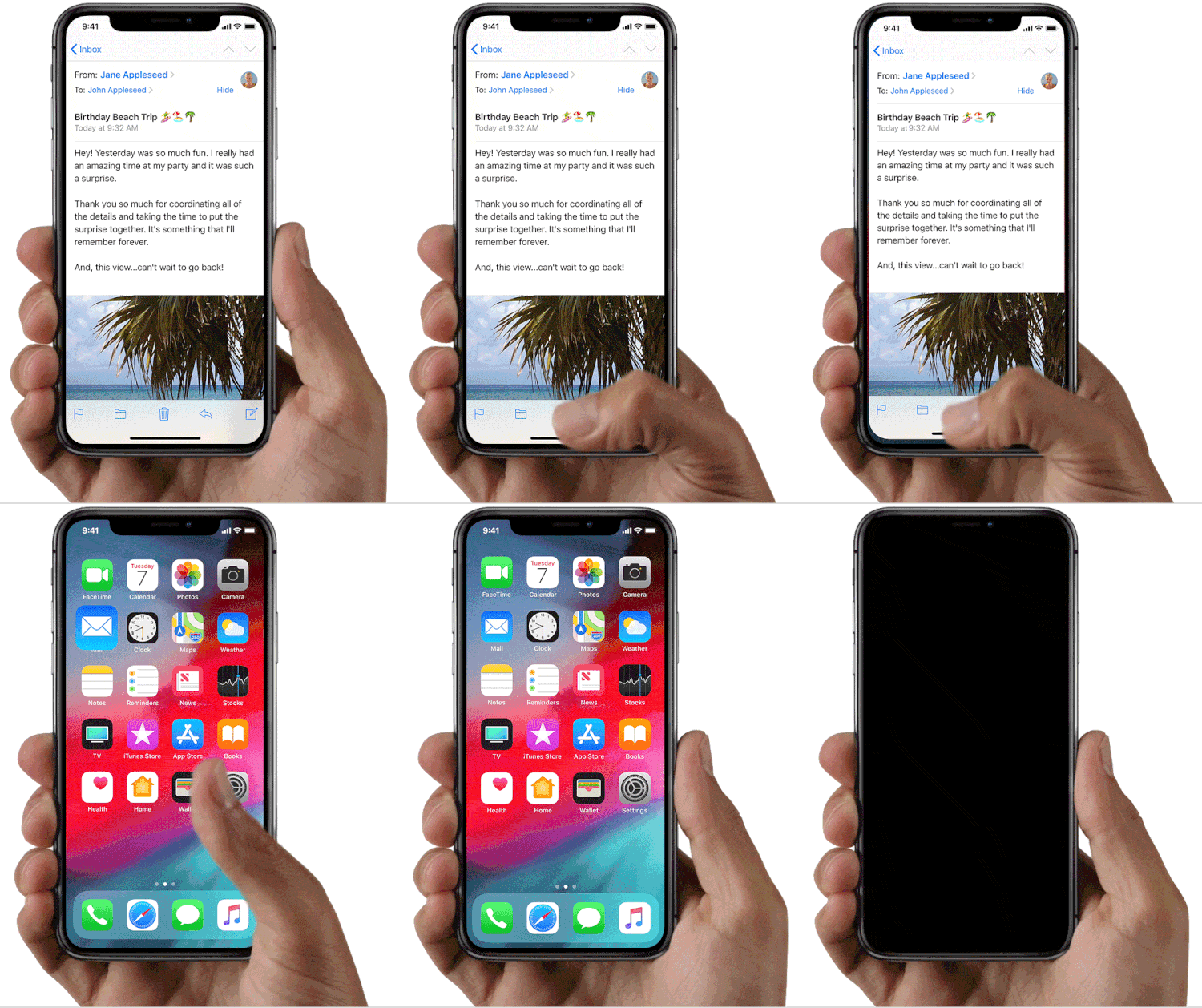
close running apps on iphone 12
Closing an app on iPhone 12 with a swipe-up gesture

ALSO READ: How to add Flashlight to the home screen on iPhone 12

How to force close apps on iPhone 12

Follow the steps below if you need to force quit apps on your iPhone 12 that aren’t responding. A force-close or force-quit basically lets you kill an unresponsive app and stop the app from running in the background. It comes in handy when your iPhone completely freezes due to a bug or some other reason.
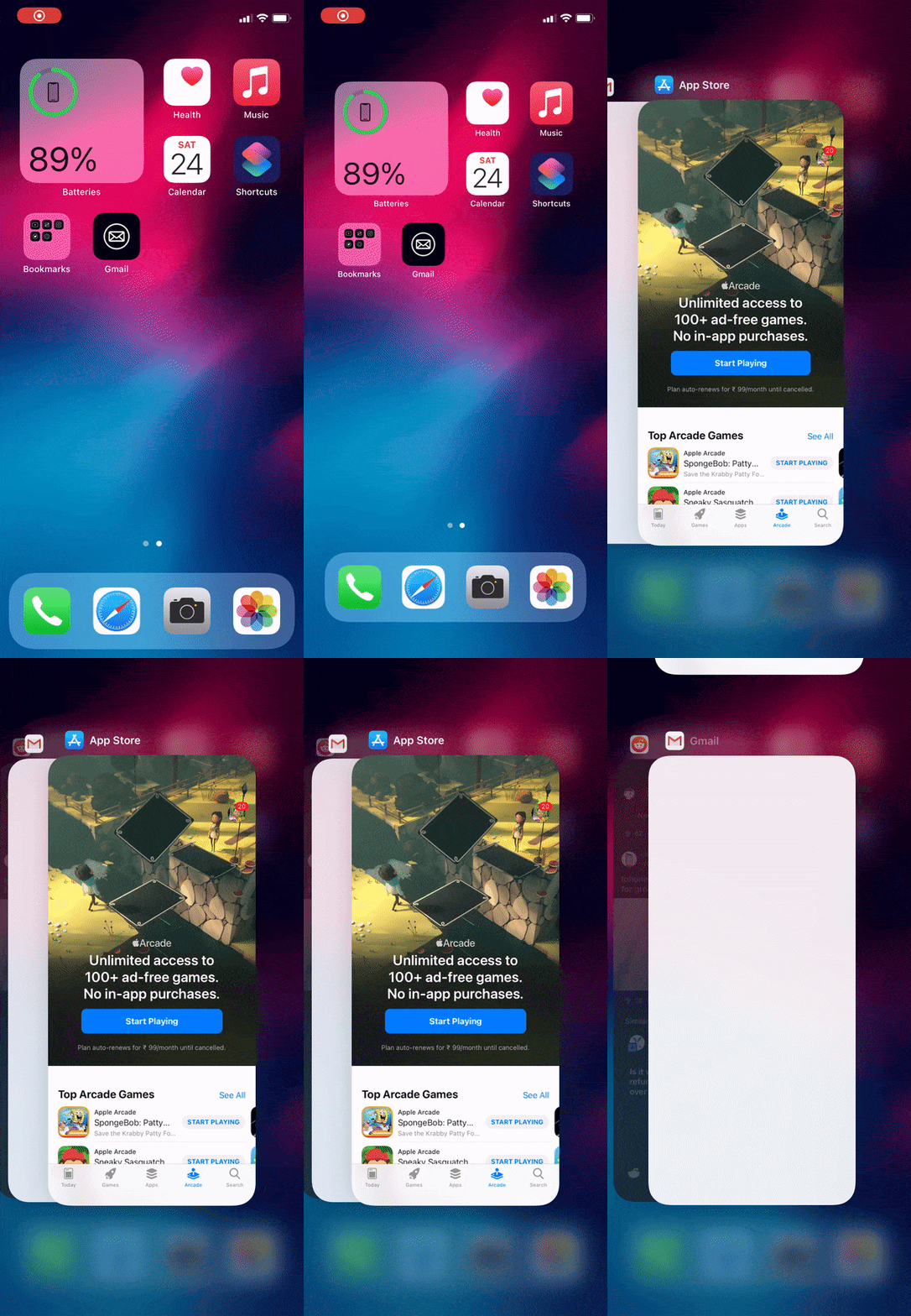
how to force quit apps on iphone 12
Force quit an app from App Switcher

Here’s how you can force close apps from the App Switcher or recent apps section.

  1. Swipe up from the bottom edge of the screen and pause as you see the multitasking view. Here you will find all your recently used apps.
  2. Scroll right or left through the list of opened apps and find the app you want to quit.
  3. To force close an app, swipe up on the app’s preview.

NOTE: If you quit an app from the App Switcher then it may not run or check for fresh content unless you re-open the app.

RELATED: How to turn on battery percentage on iPhone 12

How do I close all apps on iPhone 12?

For those unaware, it’s not possible to close all apps at once on iPhone 12 or any other older iPhones. You can, however, force quit as many as three apps at the same time using gesture-based navigation.

To do so, go to the App Switcher by swiping up from the bottom and holding your finger on the display for a moment. Now simultaneously place three fingers on three different app cards and perform a swipe up to close them. Doing so will remove all three apps from standby mode on your iPhone.

ALSO READ: How to Exit Recovery Mode on iPhone 12 and 12 Pro

Tags: AppsiOS 14iPhone 12TipsTroubleshooting Tips
ShareTweetSend
Previous Post

How to Turn On Battery Percentage on iPhone 12 and 12 Pro

Next Post

How to Turn Off Double Tap to take Screenshots on iPhone

Mayur Agarwal

Mayur Agarwal

Mayur Agarwal, the founder and editor of WebTrickz, is a tech enthusiast with a Bachelor's degree in Computer Applications and over 15 years of experience in tech writing. His passion for technology and gadgets drives him to create insightful how-to articles and troubleshooting guides.

Next Post
iphone 11 pro rear side

How to Turn Off Double Tap to take Screenshots on iPhone

Comments 1

  1. Greg says:
    5 years ago

    Thanks. Good job and well explained.

    Reply

Leave a Reply Cancel reply

Your email address will not be published. Required fields are marked *

Latest Stories

Google Gemini

How to Cancel Your Gemini Subscription (2026 Guide)

June 21, 2026
difference between chatgpt and claude

Claude vs ChatGPT: Which AI Should You Use in 2026?

June 21, 2026
google chrome logo

Google Chrome Offline Installer: Direct Download Links

June 17, 2026
X logo

How to Remove All Bookmarks on X (Twitter) At Once in 2026

June 15, 2026
X logo

How to Find Bookmarks on X (Twitter) in 2026

June 15, 2026
copilot logo

How to Turn Off Copilot Search in Bing on Edge & Chrome

June 10, 2026
microsoft edge new logo

How to Turn Off Notifications in Microsoft Edge (2026 Guide)

June 8, 2026

Trending Stories

  • 1337x logo

    1337x Proxy List 2026: Working Proxy & Mirror Sites

  • How to Turn Off Microsoft Family Safety on Windows 11 & 10

  • How to See Recently Watched Reels on Facebook (2026 Guide)

  • How to Turn Off Microsoft Edge Game Assist in Windows 11

  • How to Turn Off Fn Lock or Fn Key on Windows 11/10 Laptop

  • About Us
  • Contact Us
  • Privacy Policy
  • Advertise

© 2026 WebTrickz. All Rights Reserved.

No Result
View All Result
  • Reviews
  • Apps
  • How To’s
  • Android
  • Google
  • iPhone
  • Mac
  • About Us
  • Contact Us
  • Privacy Policy

© 2026 WebTrickz. All Rights Reserved.





