


Microsoft Edge, the default browser that comes pre-installed on Windows 10 and Windows 11, uses Bing as its default search engine.
While Bing works fine for many, some users prefer the familiarity and results offered by Google Search. If you’re one of them and wondering how to change the default search engine in Microsoft Edge, this 2026 guide walks you through the step-by-step process.
Why Edge Uses Bing by Default
Microsoft Edge is deeply integrated into Windows, and Microsoft naturally promotes its own search engine, Bing, as the default. As a result, when you type a query in the address bar or use the search box on the new tab page, Bing powers the results.
However, Edge is based on Chromium, the same engine that powers Chrome, which makes it easy to switch your preferred search engine.
How to Make Google the Default Search Engine in Edge (2026)
Follow these steps to change the default search engine from Bing to Google on Microsoft Edge:
- Launch the Microsoft Edge browser on your Windows PC or Mac.
- Click the three-dot menu in the top-right corner and select Settings.
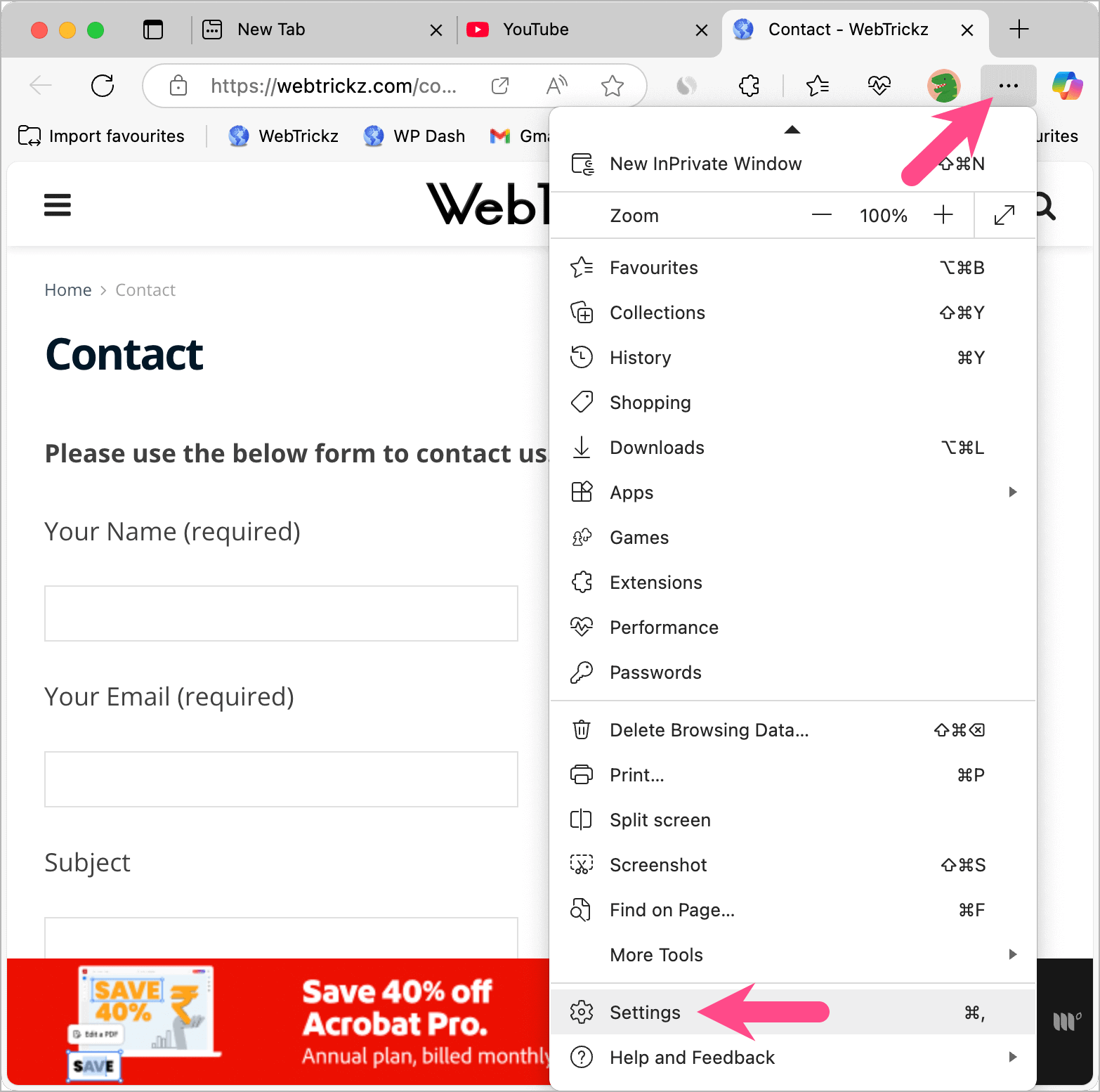
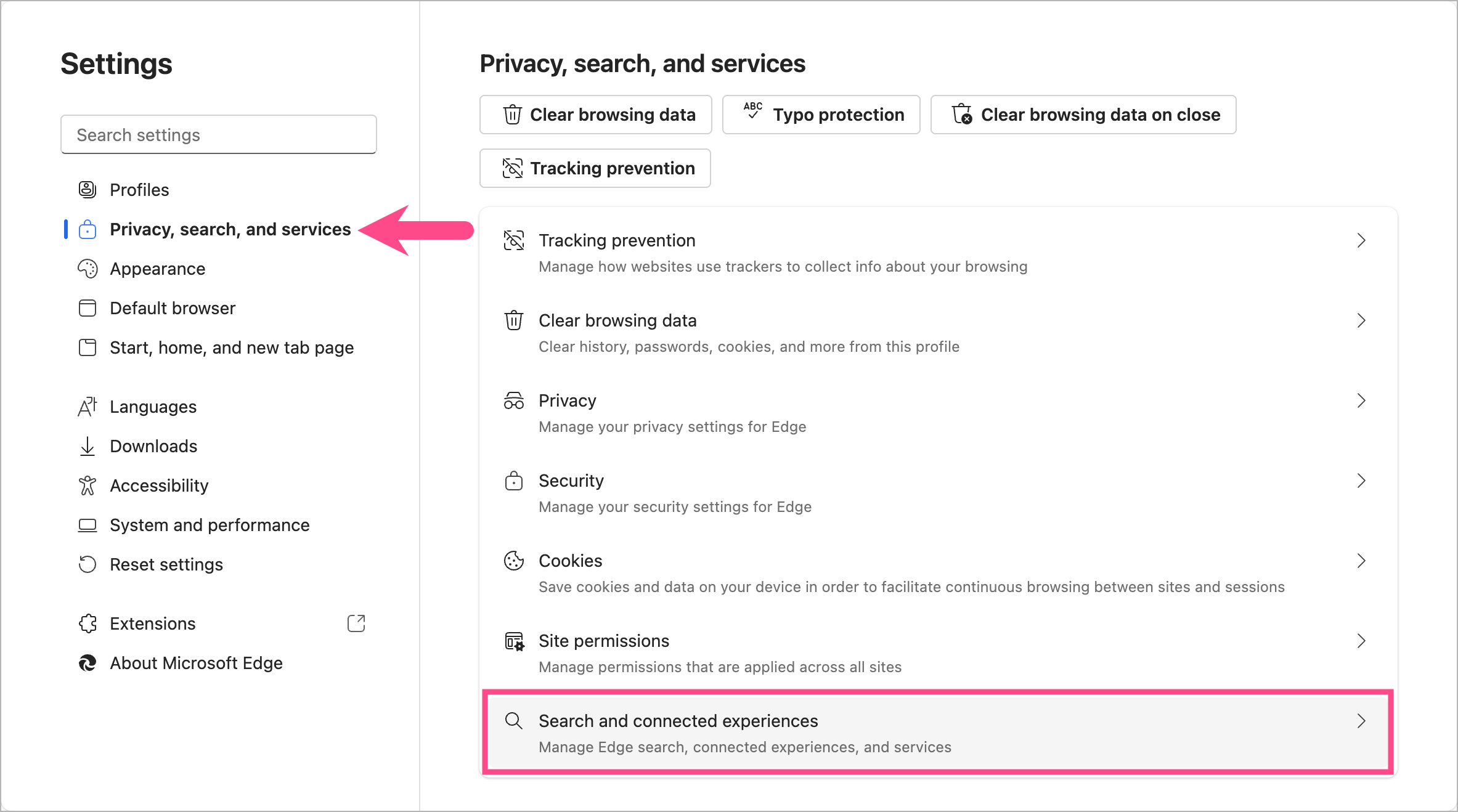
- In the sidebar, click on Privacy, search, and services.
- Scroll to the bottom and click on “Search and connected experiences.”
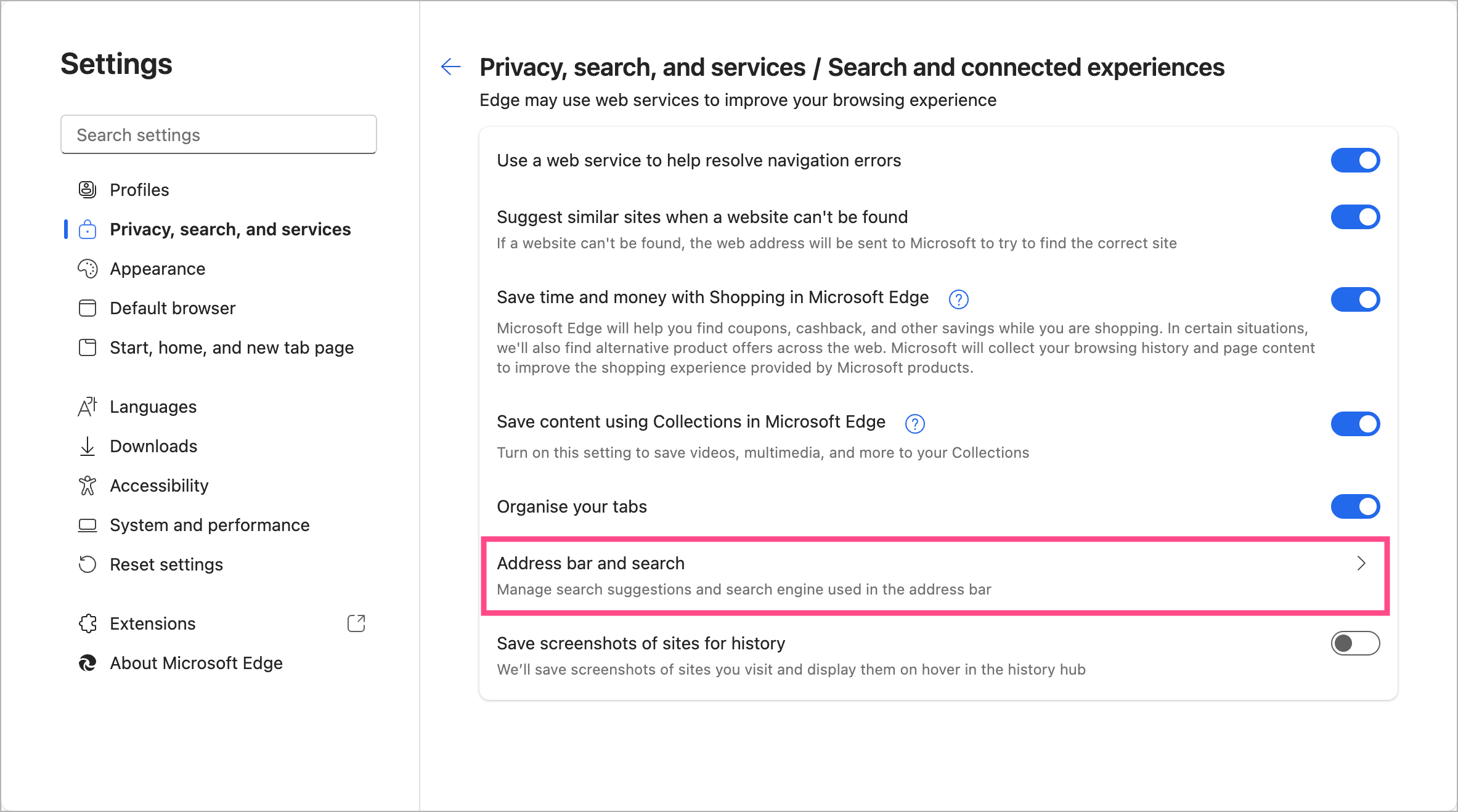
- Click on the “Address bar and search” option.
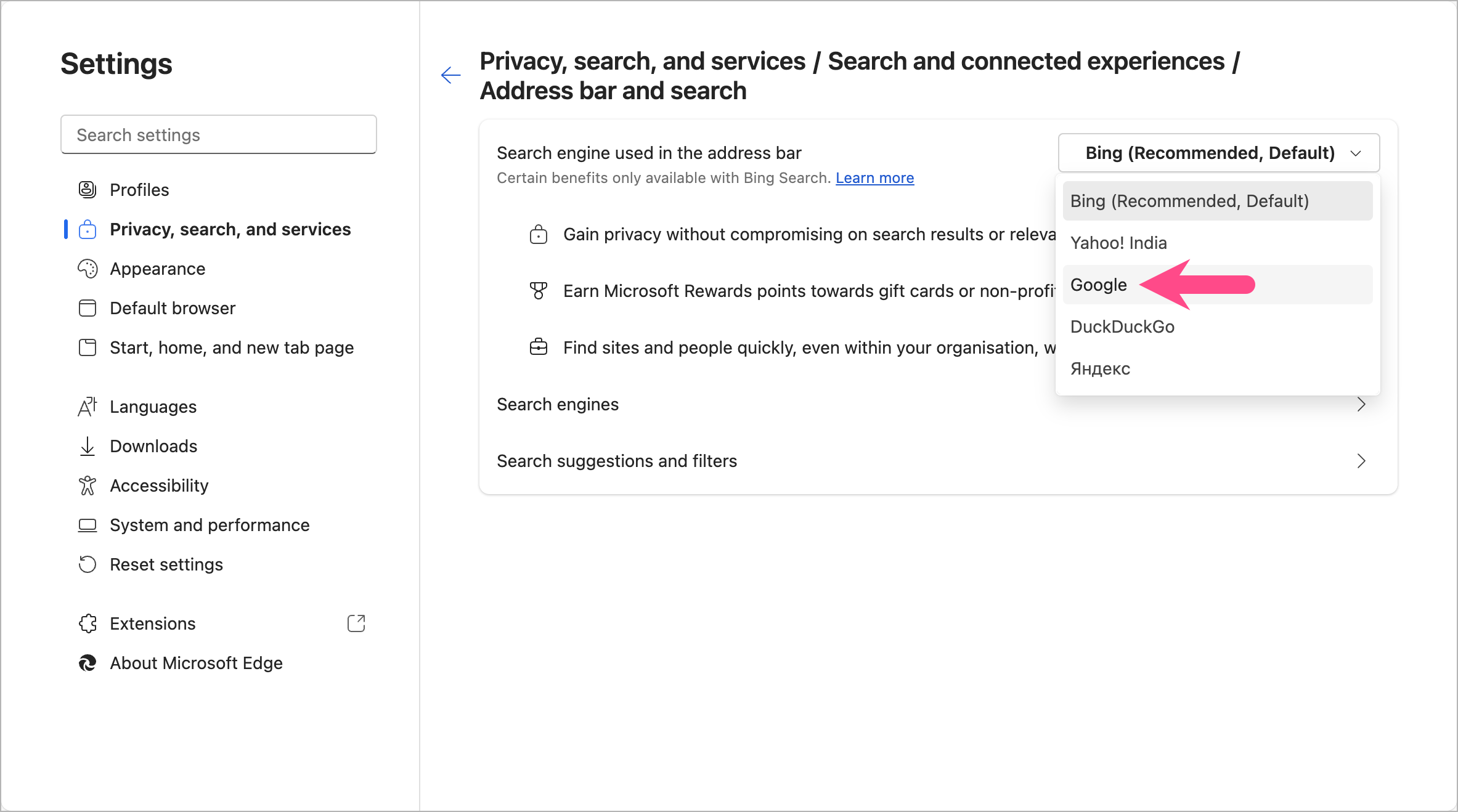
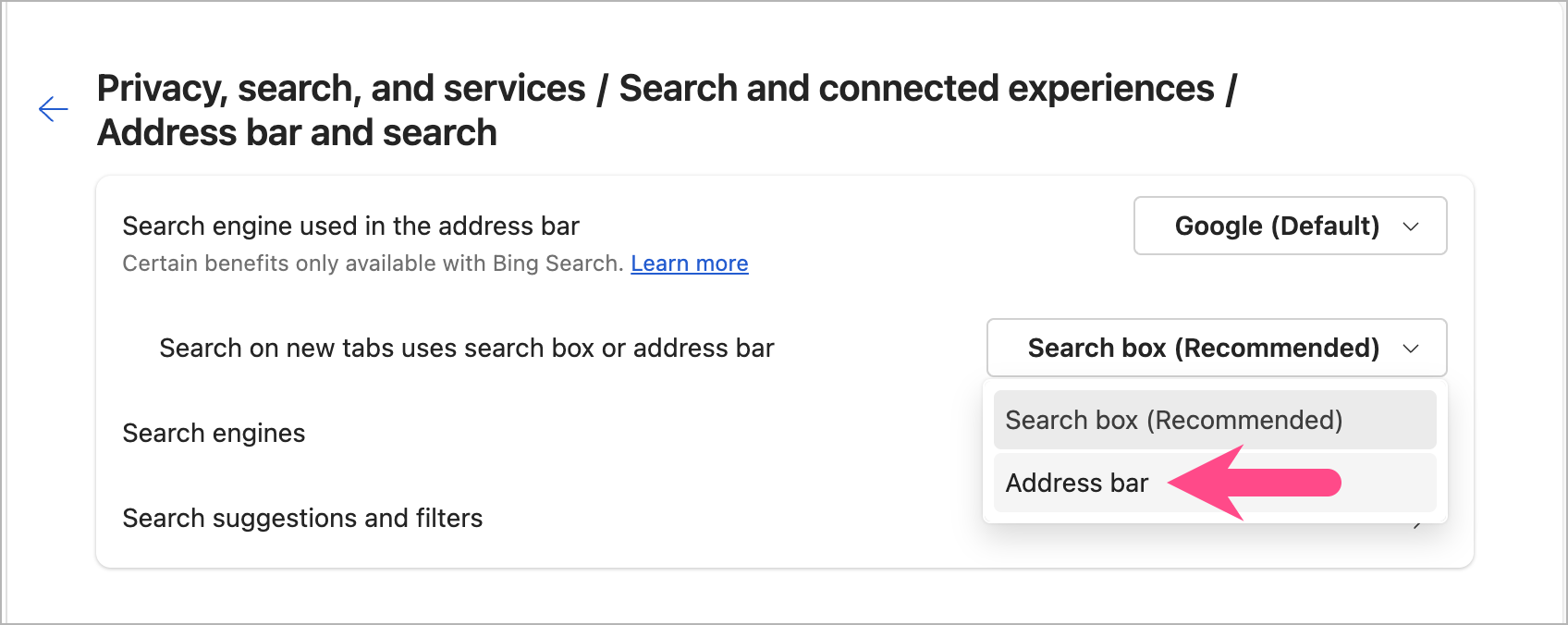
- To set Google as your default search engine, click the dropdown menu next to “Search engine used in the address bar” and select Google.
To confirm the change, type a search query directly in the address bar. If you see Google search results, the change has been successfully made.
Note that this change only affects the address bar; the search box on the New Tab page may still use Bing for search. To prevent this, switch to the Address bar option for Search on new tabs.
Change Default Search in Edge on iPhone and Android
If you’re using the Microsoft Edge browser on your mobile device, such as an iPhone or Android phone, you can also switch the search engine to Google. Here’s how to do it:
- Open the Edge app on your phone.
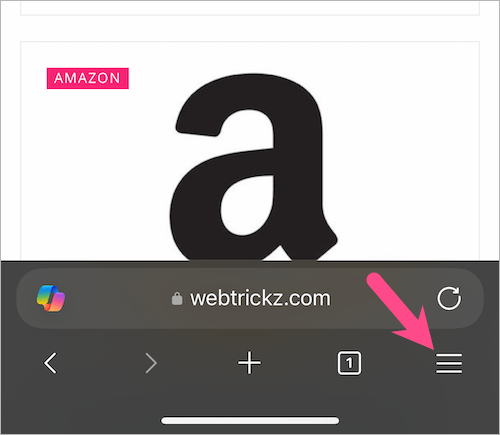
- Tap the Menu tab at the bottom right (iPhone) or top-right corner (Android).
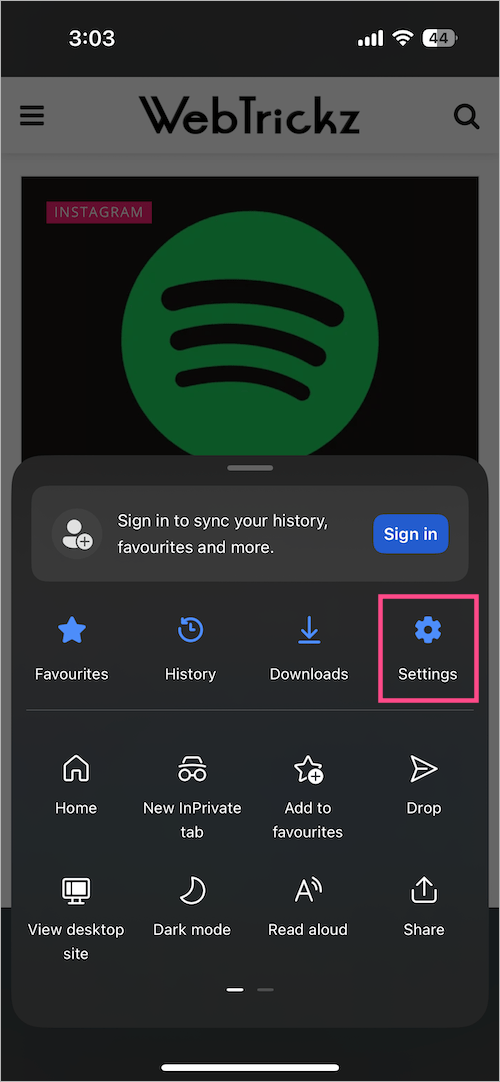
- Select Settings.
- Tap on Search, then tap “Select Search Engine.”
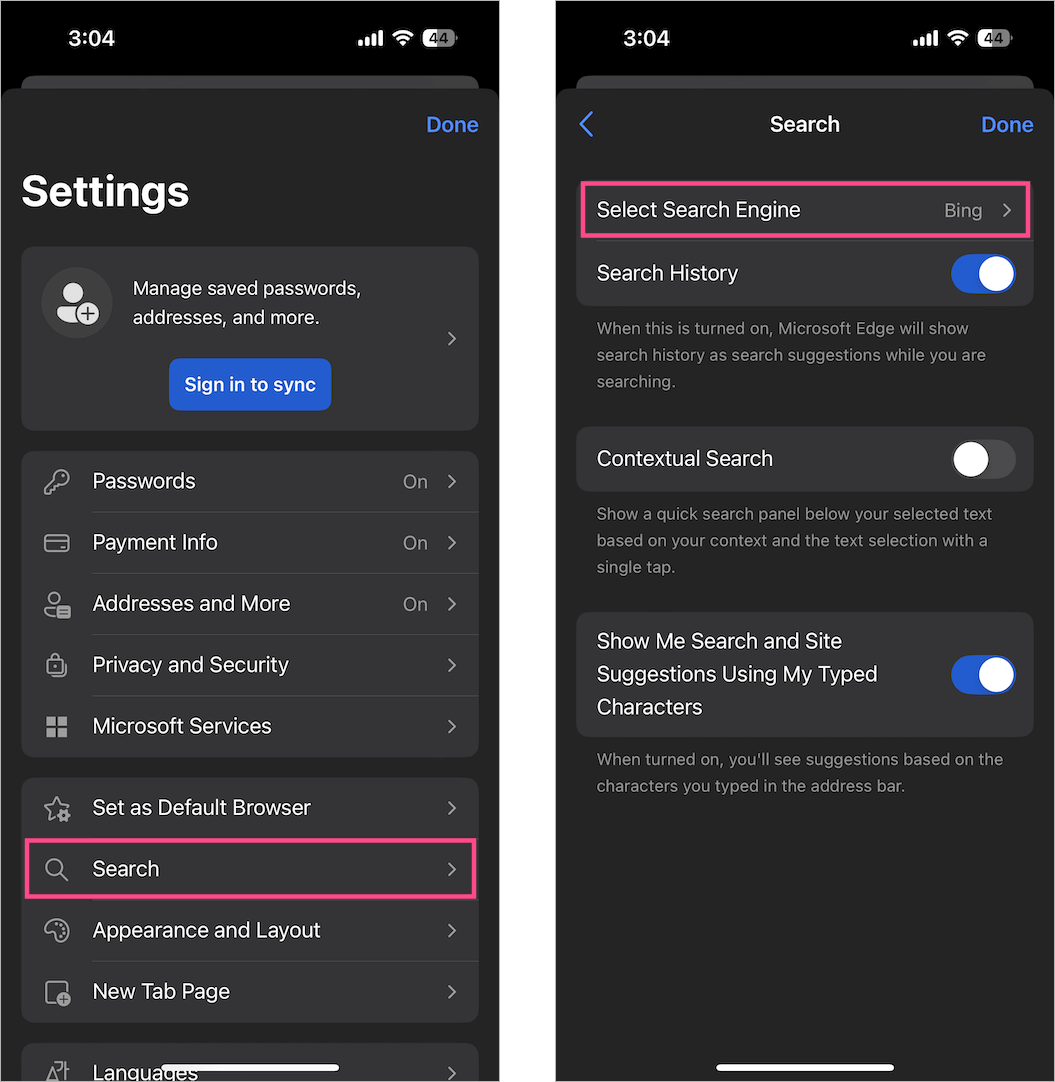
- Choose Google from the list and tap Done.
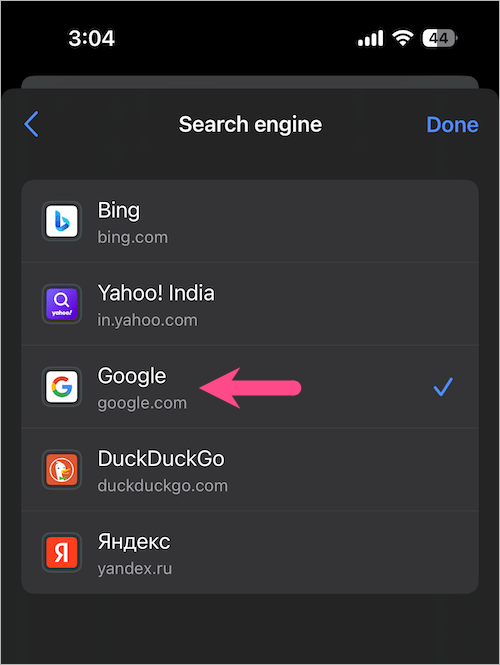
Once set, all your address bar searches in the Edge app will go through Google instead of Bing.
Switching your search engine in Microsoft Edge is quick and simple, giving you the flexibility to choose the platform you trust the most.
Related Tips:
- How to Delete Search History in Microsoft Edge
- How to Always Show Favorites Bar in Edge on Windows and Mac
- How to Change the New Tab Page on Microsoft Edge to Google
- Guide to Manage Saved Passwords in Microsoft Edge








