


The Favorites bar, also called the bookmarks bar, sits just below the address bar and provides instant access to your favorite websites.
Has your Favorites bar disappeared in Microsoft Edge? After updates or a fresh installation, many users find their bookmarks missing from the toolbar. Don’t worry, your favorites are still there; they’re just hidden.
In this guide, we’ll show you how to bring back and always display the Favorites bar in Edge on Windows 10, Windows 11, and Mac.
Favorites bar not showing in Edge browser?
If your Favorites bar is not showing, here are the most common reasons:
- The Favorites bar in Edge is hidden by default and appears only on new tabs.
- A recent Edge update might have reset the appearance settings.
- You accidentally pressed the keyboard shortcut to hide the bar.
You can easily show the bookmarks bar on all tabs with just a few steps.
How to Always Show Favorites Bar in Edge on Windows (2026)
Here are three easy ways to show the Favorites bar in Microsoft Edge all the time on Windows 10 and Windows 11.
1. Using Keyboard Shortcut
The quickest way to show or hide the Favorites bar in Edge is by pressing:
Ctrl + Shift + B (Windows)
Use this shortcut to toggle the Favorites bar on and off instantly without opening Settings.
2. From Edge Settings
If you want to always show the Favourites bar in Edge on top of the page:
- Open Microsoft Edge on your Windows PC.
- Click the three-dot menu in the top-right corner and go to Settings.
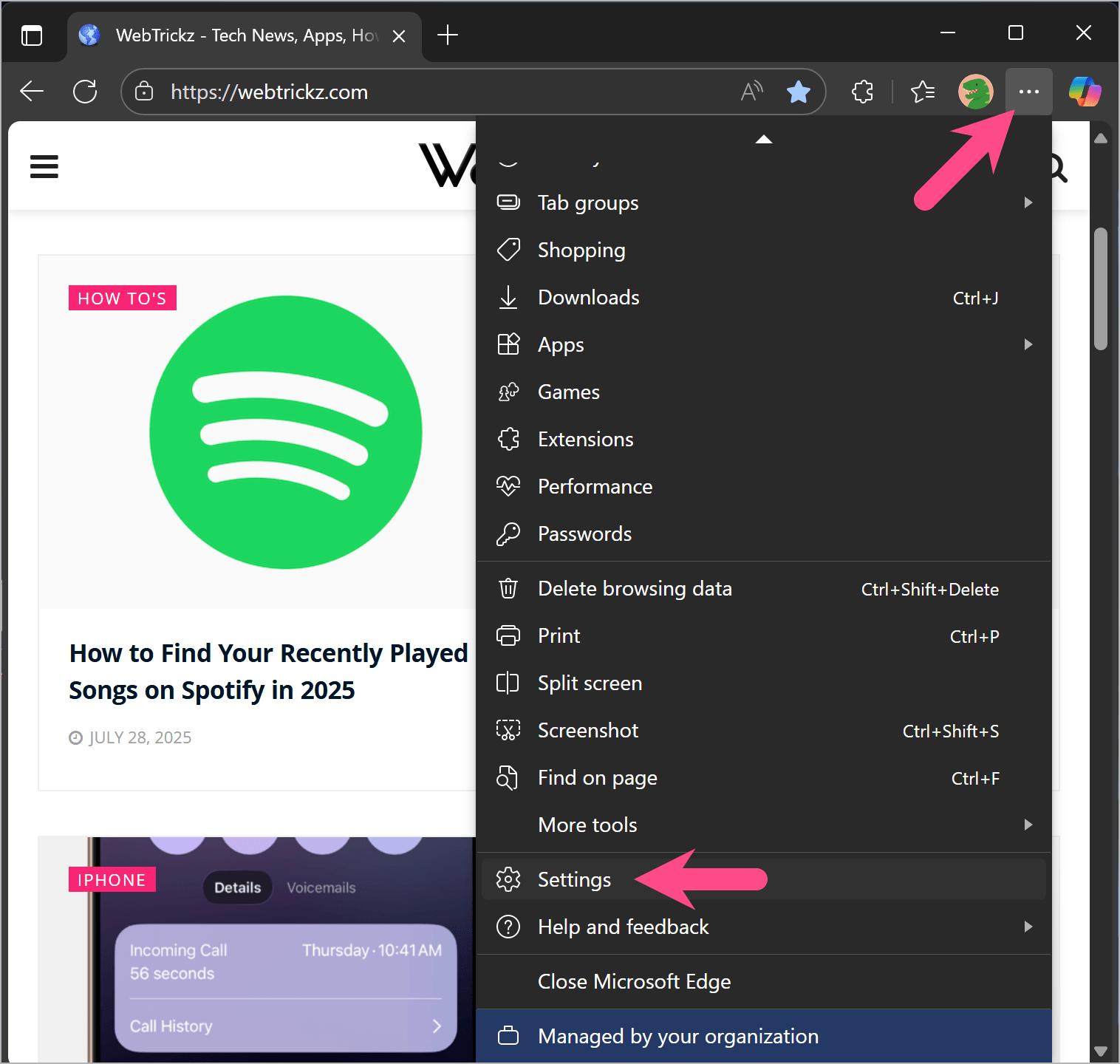
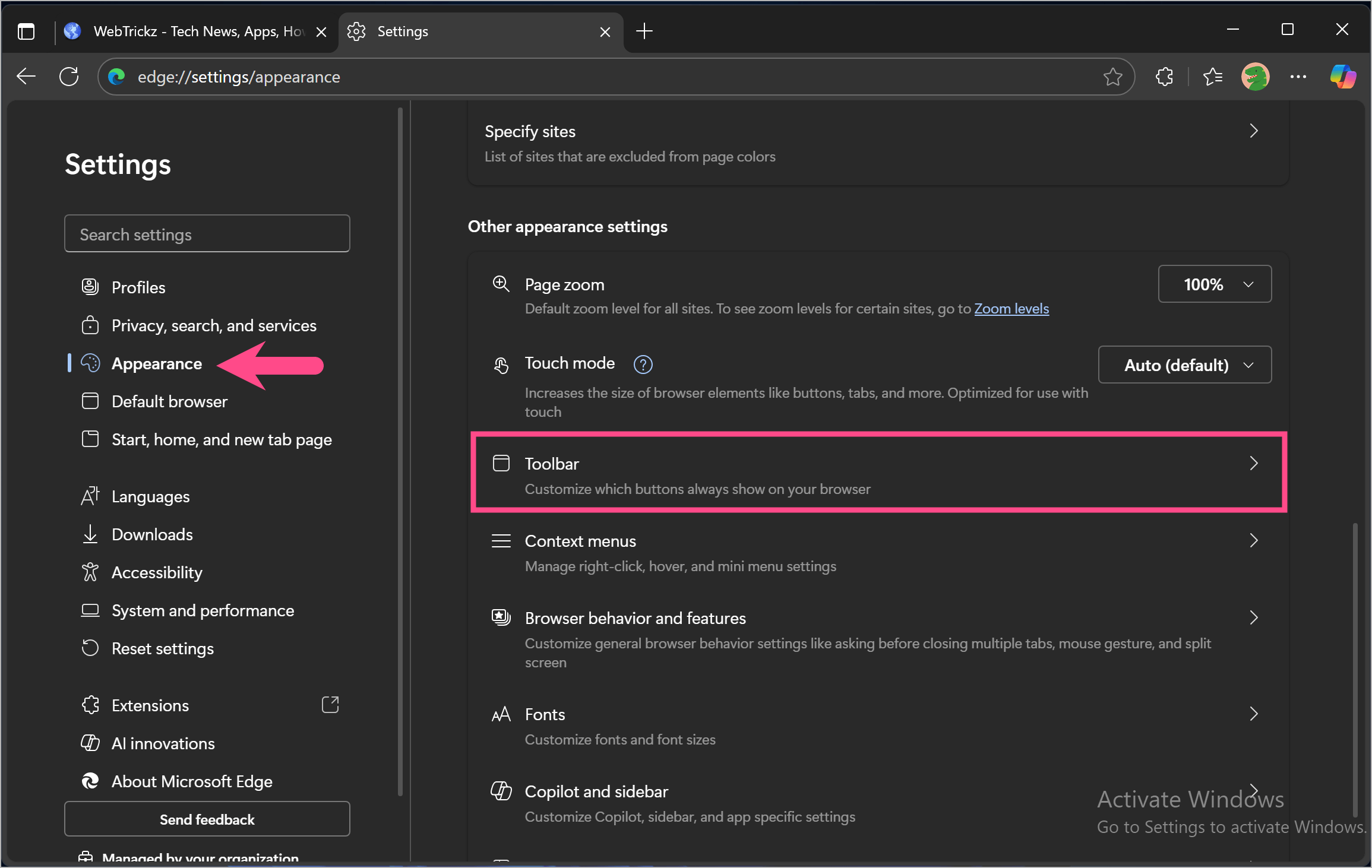
- In the sidebar, click on Appearance.
- Under Other appearance settings, click on Toolbar.
- Click the dropdown menu next to the Favorites bar and select Always.
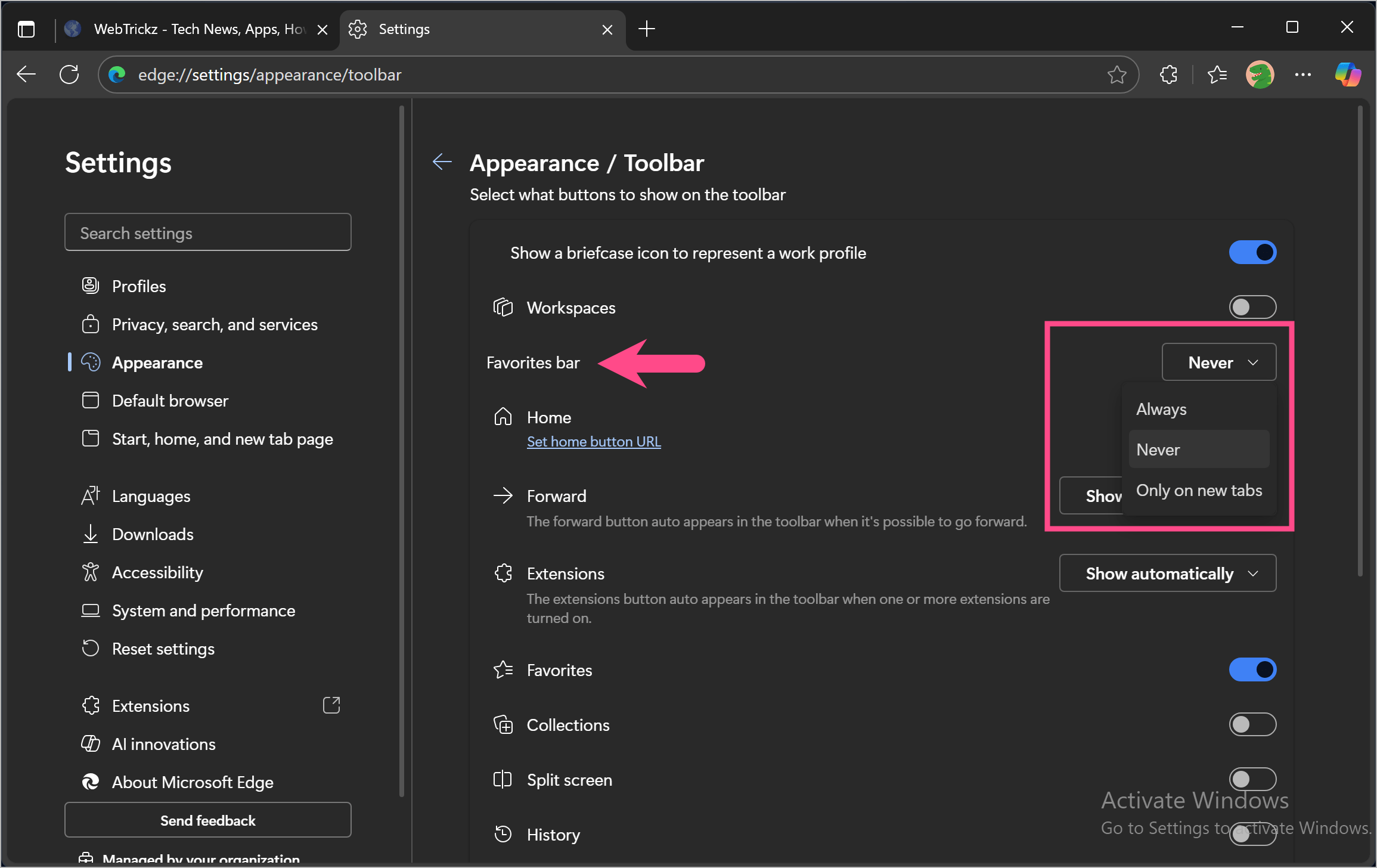
Tip: You can also directly visit edge://settings/appearance/toolbar to open the settings page.
3. From the Favorites Button in the Edge Toolbar
Another way to get the Favorites bar back is from the toolbar itself:
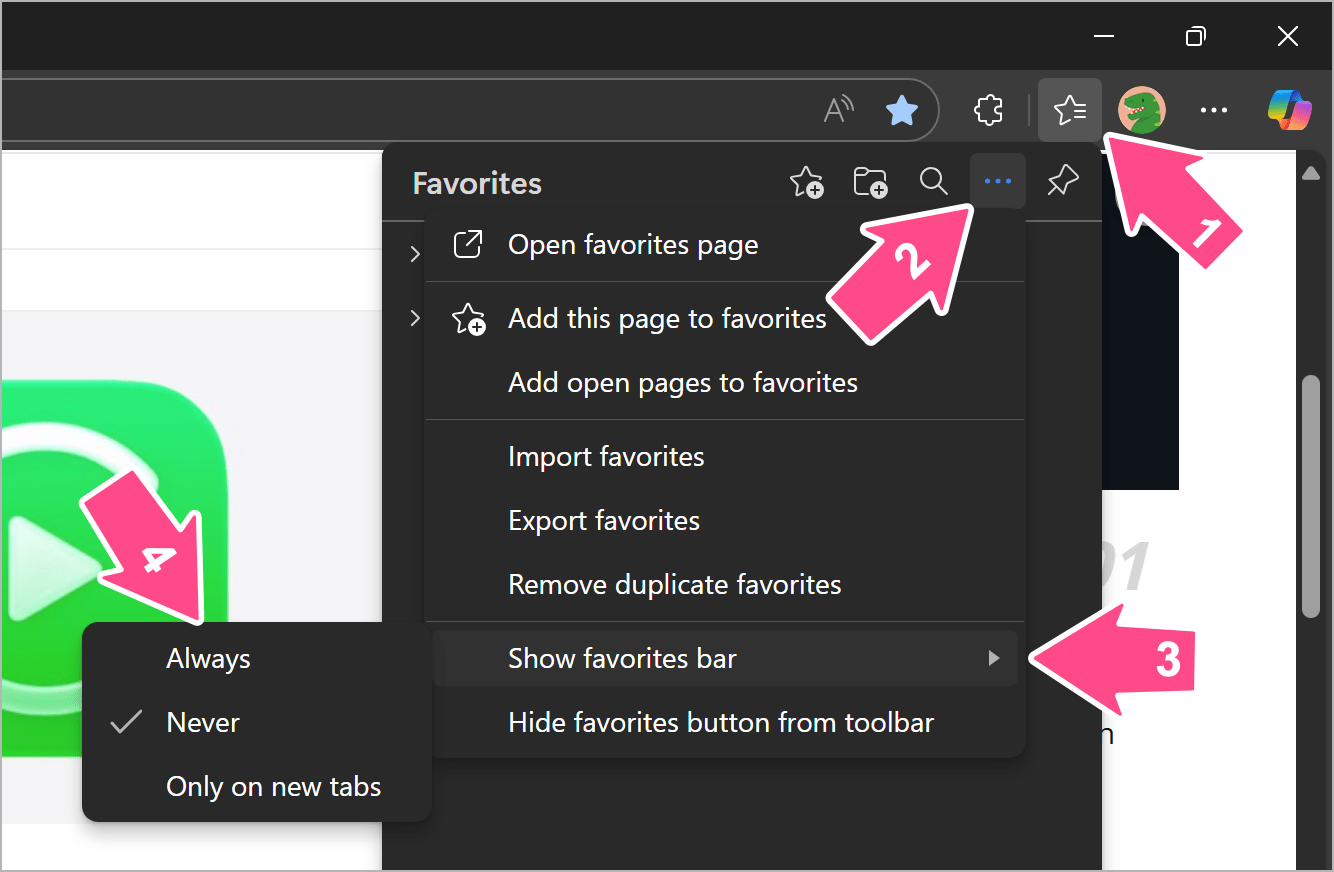
- Click the Favorites (star with lines) icon in the toolbar.
- Click More options (three-dot menu) inside the Favorites popup.
- Navigate to the Show Favorites Bar menu and select Always.
How to Display Favorites Bar in Edge on Mac
Edge on macOS offers similar options to show or hide the Favorites bar.
1. Use the Keyboard Shortcut
Press Command + Shift + B to quickly turn the Favorites bar on or off.
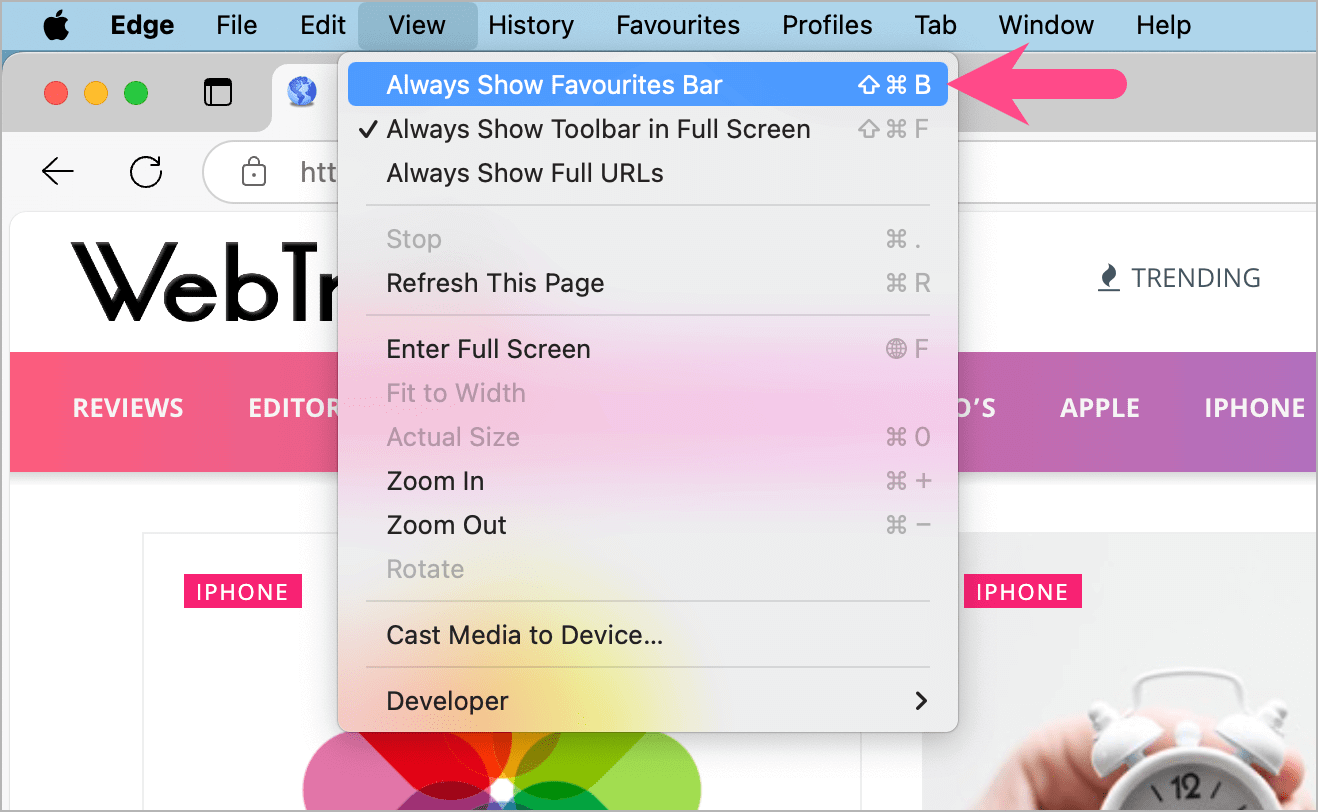
2. From the macOS Menu Bar
Mac users can also control the Favorites bar from the top menu:
- Make sure Microsoft Edge is the active window.
- Click View in the Menu bar at the top of the screen.
- Select Always Show Favorites Bar.
Pro Tip:
- If the Favorites bar is missing even after enabling it, restart Edge or update to the latest version.
- Sync your favorites with a Microsoft account to ensure they’re never lost, even if the bar is hidden.
Related Tips:









